OM-1241-005_w.pdf - 第76页
2-13 AIX-ML T-ID 2.4 Production Data When the [PROD DT .] button on the submenu bar of the "AUTO OPN." window is pressed, the "PROD. DA T A" window appears. Fig. B6 "Production Data" Window …
2-12
AIX-MLT-ID
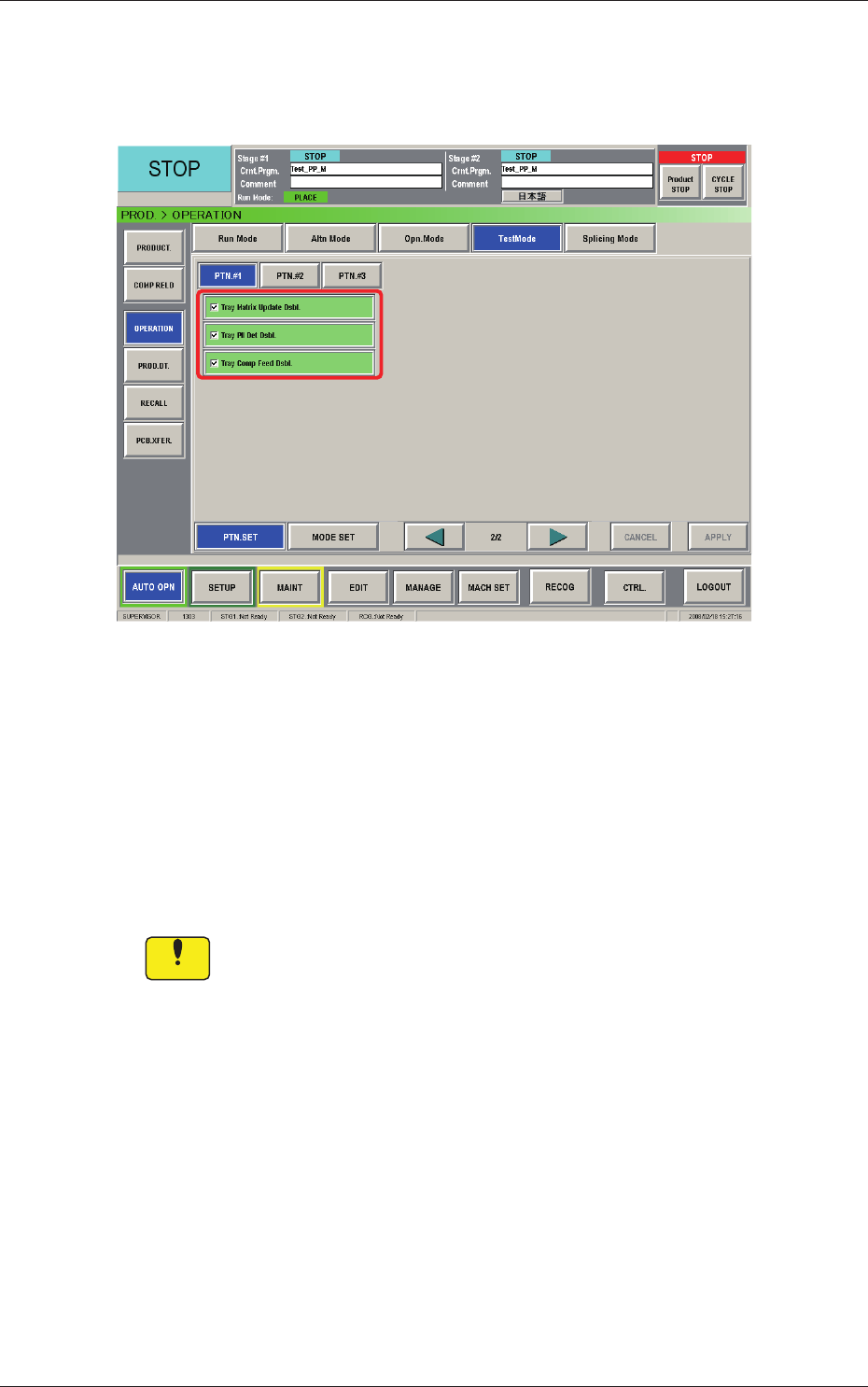
2.3.3 Test Mode
The corresponding window makes it possible to set parameters for the test
mode.
Fig. B5-4 "Test Mode" Window
Test Patterns
Set the contents of the test mode.
The following shows the items related to the multi-layer tray feeder.
Tray Matrix Update Dsbl.
Tray Pll Det Dsbl.
Tray Comp Feed Dsbl.
Notice
Wrong selections (test run in wrong modes) will cause various
deciencies such as component picks by vacuum nozzles,
scattering of components, or collision with the chute, etc.
0804-004
2.3 Operation
2-13
AIX-MLT-ID
2.4 Production Data
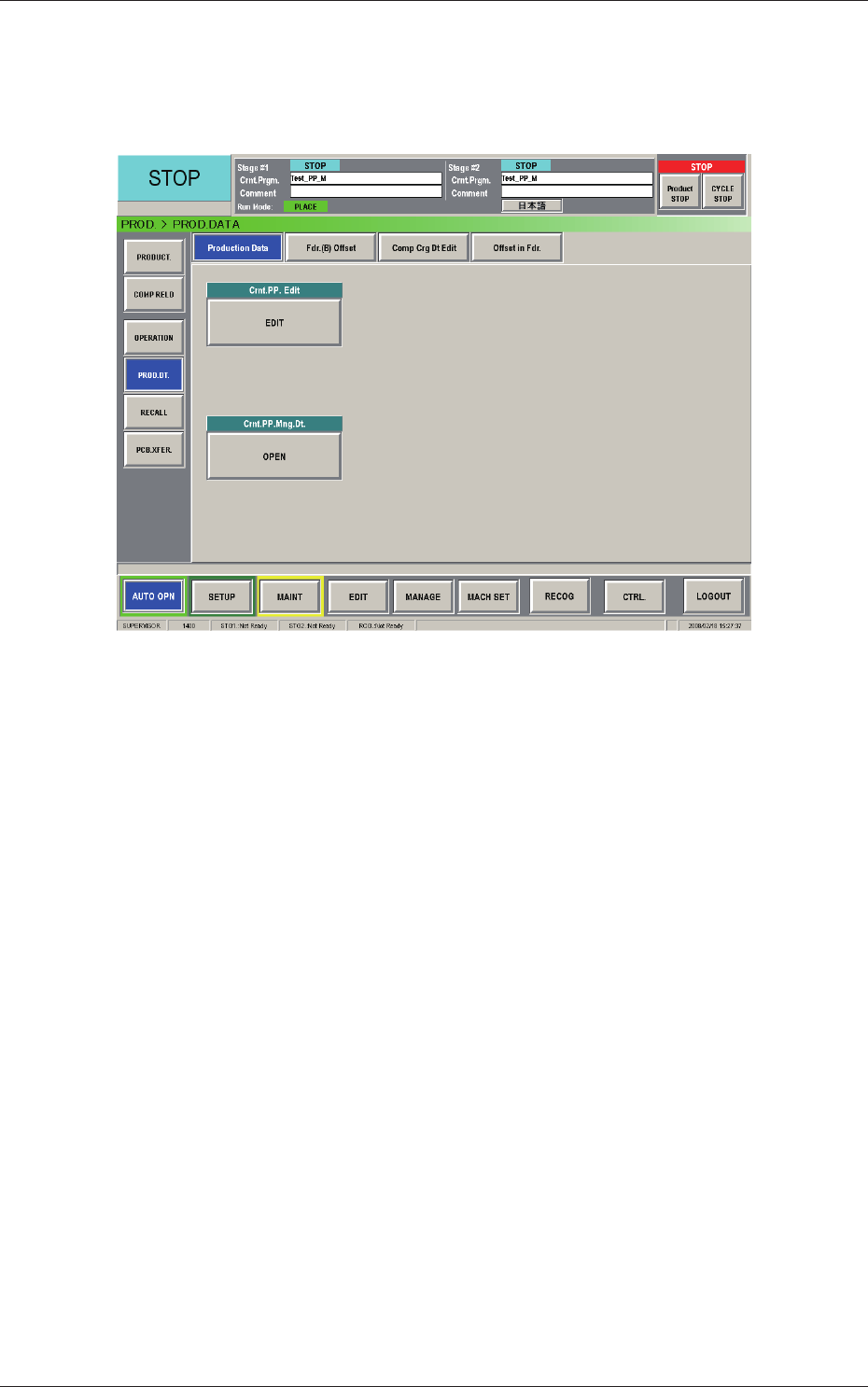
When the [PROD DT.] button on the submenu bar of the "AUTO OPN."
window is pressed, the "PROD. DATA" window appears.
Fig. B6 "Production Data" Window
The "PROD. DATA" window is composed of the "Production Data", "Fdr. (B)
Offset", "Comp Crg Dt Edit", and "Offset in Fdr." windows.
0804-004
2.4 Production Data
2-14
AIX-MLT-ID
2.4.1 Feeder (B) Offset
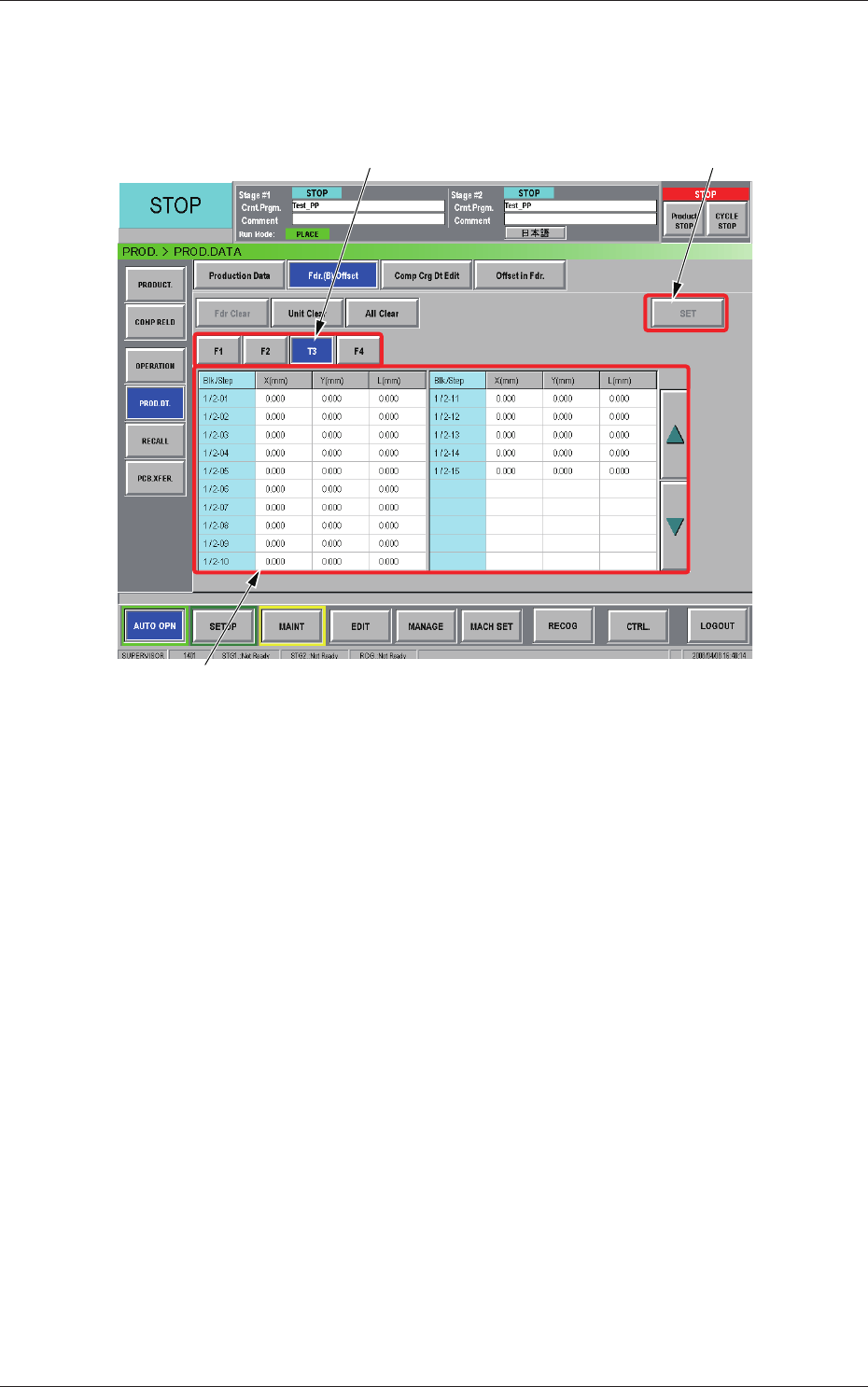
Displayed is the current feeder (B) offset data.
The feeder (B) offset data can be conrmed, adjusted, or cleared (initialized).
[1]
[3]
[2]
Fig. B7 "Fdr. (B) Offset" Window
[1] Unit Selection Buttons
Select the feeder base (the [Tn] button in the case of the multi-layer tray
feeder) whose feeder (B) offset data should be conrmed or cleared.
[2] Information Display
Displayed is the data of the feeder base (the multi-layer tray feeder)
selected currently in [1].
When a value in the "X (mm)", the "Y (mm)", or the "L (mm)" text box
of each "Blk/Step" No. is pressed, the "Fdr
. (B) Offset" window opens,
making it possible to adjust the feeder (B) of
fset data.
[3] [SET] Button
When the [Set] button is pressed, the selected value is replaced with the
adjusted one.
0804-004
2.4 Production Data