00198500-02_VD_711.1_R18-1_DE_EN - 第14页
Station Software 71 1.1 (R18 - 1) / Versio n Description 05/2018 Edition 14 The measurement is started by pressin g the Start button. If the m easurement is succ essful, the Measured values are displayed automat ically. …
Station Software 711.1 (R18-1) / Version Description 05/2018 Edition
13
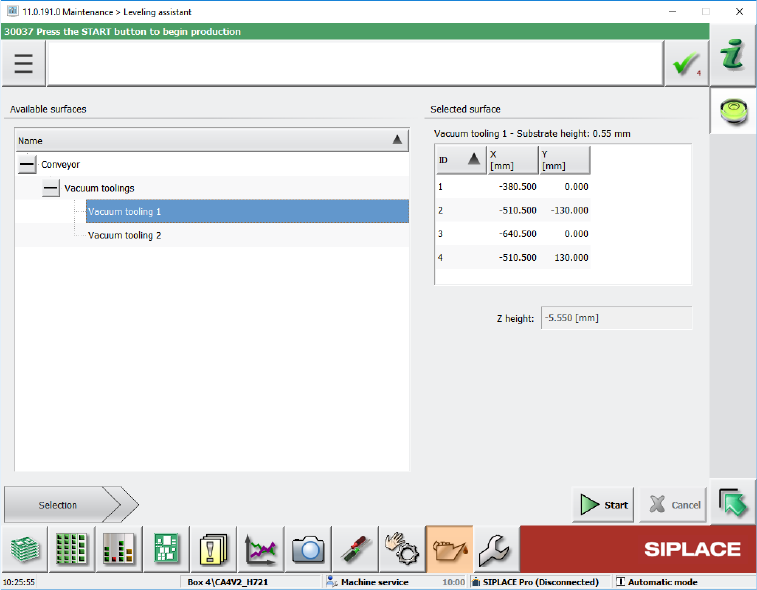
In the Maintenance tool, the Leveling assistant button has been added under Verification. By
clicking this button, the new Leveling assistant view opens.
Figure 4-4: Leveling assistant view
The leveling assistant helps the user to adjust the z-height of the vacuum tooling. Additionally,
this tool is used to set up the planarity of the vacuum tooling surface and adjust it vertical to the
z-axes of the placement heads.
To the left, all available surfaces are displayed in a tree view. Currently, it contains entries for
adjusting the z-height of the vacuum tooling and measuring the height of the conveyor rail.
By selecting one of the available surfaces, a short description of the surface and a list of the
positions where the z-height will be measured are displayed to the right. The positions have the
same names as those that are used when the machine positions are taught. This makes it
easier for the user to identify the position in case it has to be taught or if the user e.g. wants to
check that the position is on the surface and not directly above a hole.
Station Software 711.1 (R18-1) / Version Description 05/2018 Edition
14
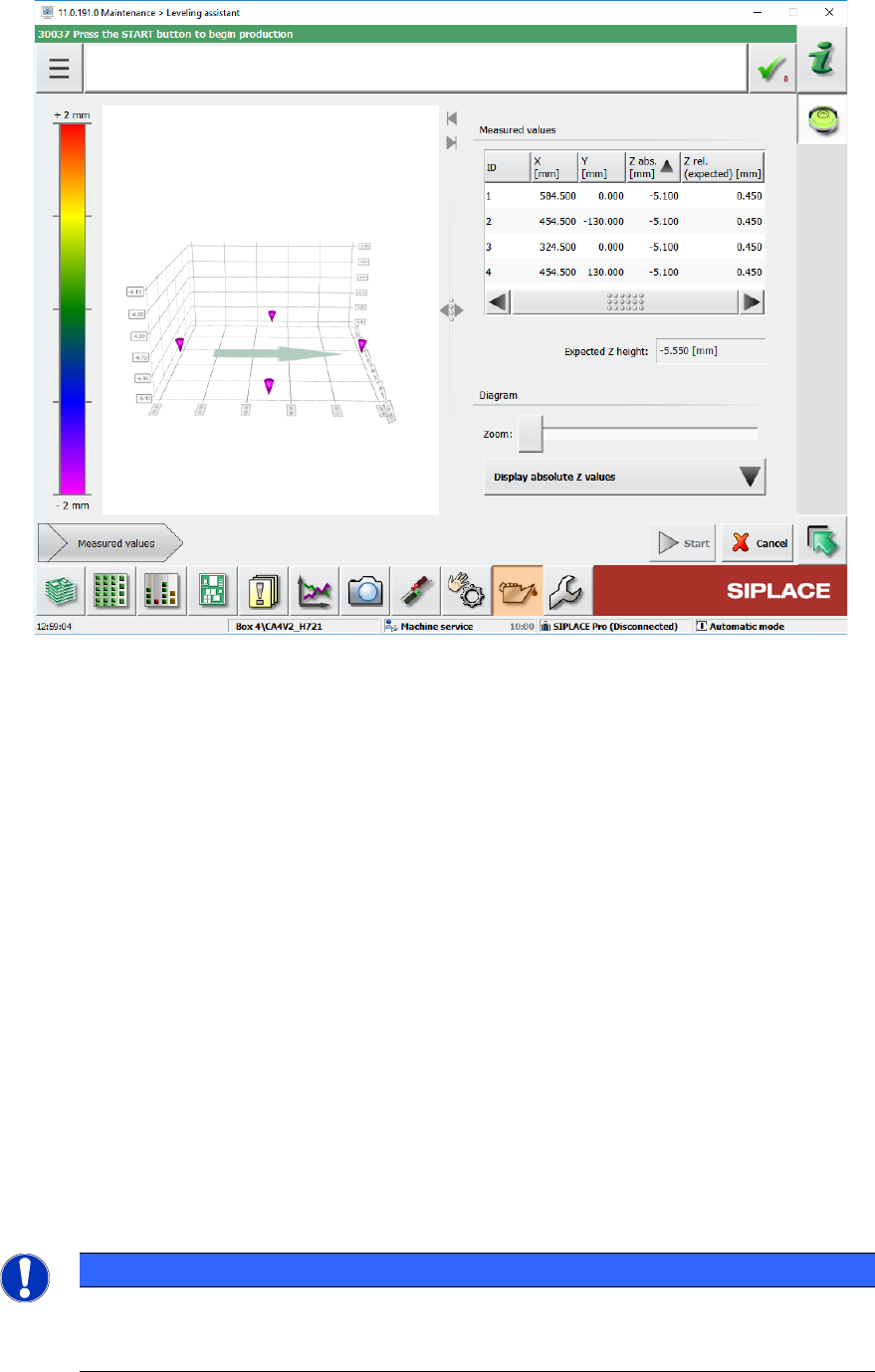
The measurement is started by pressing the Start button. If the measurement is successful, the
Measured values are displayed automatically. Otherwise an error message is displayed.
Figure 4-5: Measured values
In this view the measurement can be repeated at any time by pressing the Start button again.
An image displays the surface at the mean z-value, allowing the user to see which positions
are below or above the mean value. The user can select if the chart shall display absolute or
relative values. The relative values are always relative to the mean z-value.
4.7 SIPLACE JTF-ML2 – Enhanced Functionality
The functionality has been enhanced for the SIPLACE JTF-ML2 tray feeder. The Manual
operations dialog for the feeder has been changed as follows:
– Functions dialog
Reset buttons have been added to the existing Transfer position – Teach position and Refill
position – Teach position functions for the lifting axes to reset the respective position to the
factory settings.
– New I/O ports dialog
The dialog displays the input and output states of the sensors. This dialog is only visible as of
activity level Machine service.
Additionally, the endurance run for trays has been added to the Maintenance – Endurance run
dialog for the SIPLACE JTF-ML2 feeder.
NOTICE
Manual functions are not prevented with components in the tray feeder. There is no
check in the station software. The operator is responsible for whether the tray feeder is
empty or not.
Station Software 711.1 (R18-1) / Version Description 05/2018 Edition
15
4.8 Multiple Road Runner Feeders – Improved Handling
A new behavior has been implemented to improve the performance and minimize the waiting time
for multiple Road Runner feeders set up on one table.
An attribute has been added to this feeder type in SIPLACE Pro, containing one of the following
pickup strategies:
– Pickup as specified by the optimization, i.e. pickup from one Road Runner feeder until it has no
more prepared components.
– Preferring available feeders / levels, i.e. if one Road Runner feeder has to prepare
components, pickup from the other Road Runner feeder until this has to prepare components.
The respective pickup strategy will be explicitly switched on with the download data of SIPLACE
Pro at the station. The placement order will not be affected.
4.9 "The Hermes Standard" – Board Locking Process
A board locking process has been introduced for lines using the "The Hermes Standard". This
means that a board in the previous machine may be locked after barcode reading and not moved
into the placement machine using "The Hermes Standard" until the board is unlocked, e.g. by the
BoardGateKeeper.
If "The Hermes Standard" is active and a barcode exists, the board remains in the previous
machine. If no barcode is available, the board remains either in the input section or in the
placement area depending on where the barcode is read.
The BoardGateKeeper (or any client that is able to lock the board) can now apply one of the
following behaviors:
– The board is moved into the machine and gets placed.
– The board remains in the previous machine and has to be removed from there.
– The board is aborted and moved to the end of the line.
If the board is locked, a Detailed Error will be displayed as a warning.
The lock cause is displayed (e.g. invalid barcode, no BoardGateKeeper reaction) and the operator
can select one of the following actions:
– Release lock, move board into machine and cancel board
– Release lock and process board as usual
4.10 Front-Back-Offset Measurement
The station software supports the new Front-Back-Offset Measurement when placing chips with
the Fan-out Panel Level Package (FOPLP) technology. It measures the offset between the bottom
outline of a die and the electrical connection on the top. The Front-Back-Offset Measurement is
supported on the CA4 placement machine together with the C&P20 M and CPP placement heads.
The new SST40 stationary camera with glass plate has been introduced for this measurement. The
camera has to be manually mounted for each station. The die is placed on the center of the glass
plate for measurement. First the camera measures the bottom outline of the die. The result of this
measurement is used to correct the estimated position of the structure on the top side which is
measured afterwards. The difference between the expected and the measured position of the
structure is the so-called "die offset".