Horizon UserManualV6.pdf - 第131页
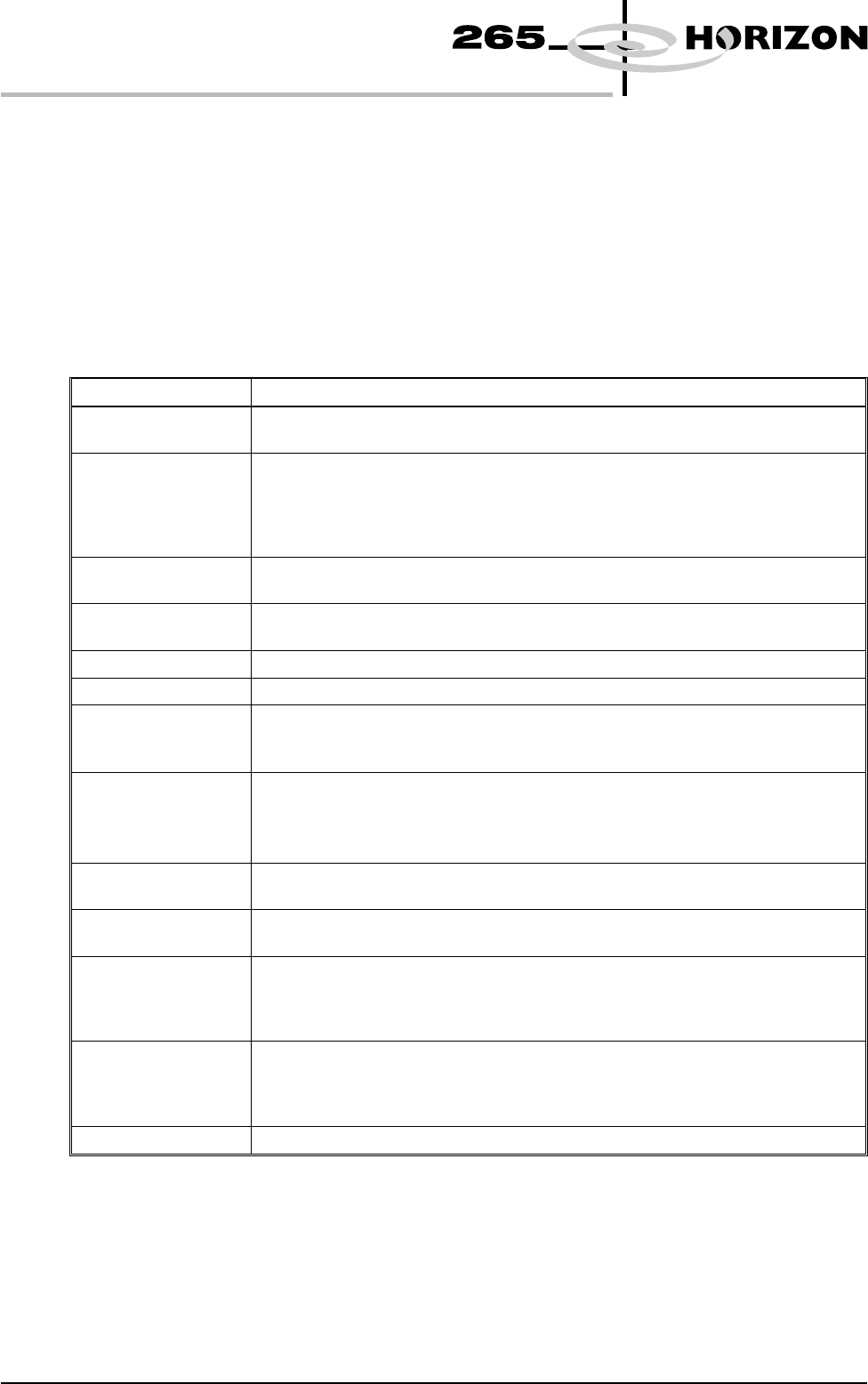
Process - Parameters The following table lists all the items that can be displayed in the Process - Parameters information panel: Print Mode Front Print Speed Rear Print Speed Front Pressure Rear Pressure ProFlow System …
Information
Windows
Three information windows are displayed on the status page as follows:
•
Printer - Status (on Display Types 1 and 2)
•
Process - Parameters (on Display Types 1 and 2)
•
Rates (on Display Type 2 only)
Printer - Status The following table lists all the items that can be displayed in the Printer - Status
information panel:
Items Description
Status The printers current status is displayed. Options are:
Maintenance; Operator Active; Ready; Machine Set Up.
Mode Displays the current mode of operation of the printer. Options are:
Step - The printer operates one step at a time;
Auto - The printer operates continuously;
Single - The printer prints a single board;
No Print - The printer passes the board through the printer without printing.
Batch Count Displays the amount of boards printed from the current batch. This is only shown
on Display Type 1.
Batch Limit Displays the total amount of boards to be printed in the current batch. This is only
shown on Display Type 1.
Operator Displays the name of the operator currently logged on to the printer.
Product Displays the current product loaded onto the printer.
Data Logging Displays whether data logging is selected. When selected, a pressure. dat file is
created as the squeegee carries out a print stroke. This option is selected in Test
Cycles in the Maint. menu.
Host Comms Displays the condition of host communications. Options are:
Disabled - Host Comms not selected;
Enabled-No Comm - Host Comms selected, but not connected;
Enabled-Comm - Host Comms selected and connected.
Temperature Displays the current temperature within the printhead area. This is only displayed
if a temperature and humidity sensor is fitted.
Humidity Displays the current relative humidity within the printhead area. This is only
displayed if a temperature and humidity sensor is fitted.
Cycle Time The first figure displays the cycle time of the last board to be printed. The second
figure displays the average cycle time of the batch. Cycle time is the time taken
for the board to pass from the input sensor to the output sensor, not including
delays, ie waiting for the downline machine.
Throughput The first figure displays the throughput time of the last board to be printed. The
second figure displays the amount of boards to be printed in an hour, based on the
throughput times of the batch. Throughput is the time taken for the board to pass
from the input sensor to the output sensor, including all delays.
SW Version Displays the version of software currently loaded on the printer.
The Printer - Status panel can display up to a maximum of 14 items, (on both
Display Types 1 and 2).
1.114 User Manual Software Version 6
MACHINE PROGRAMMING
STATUS PAGE
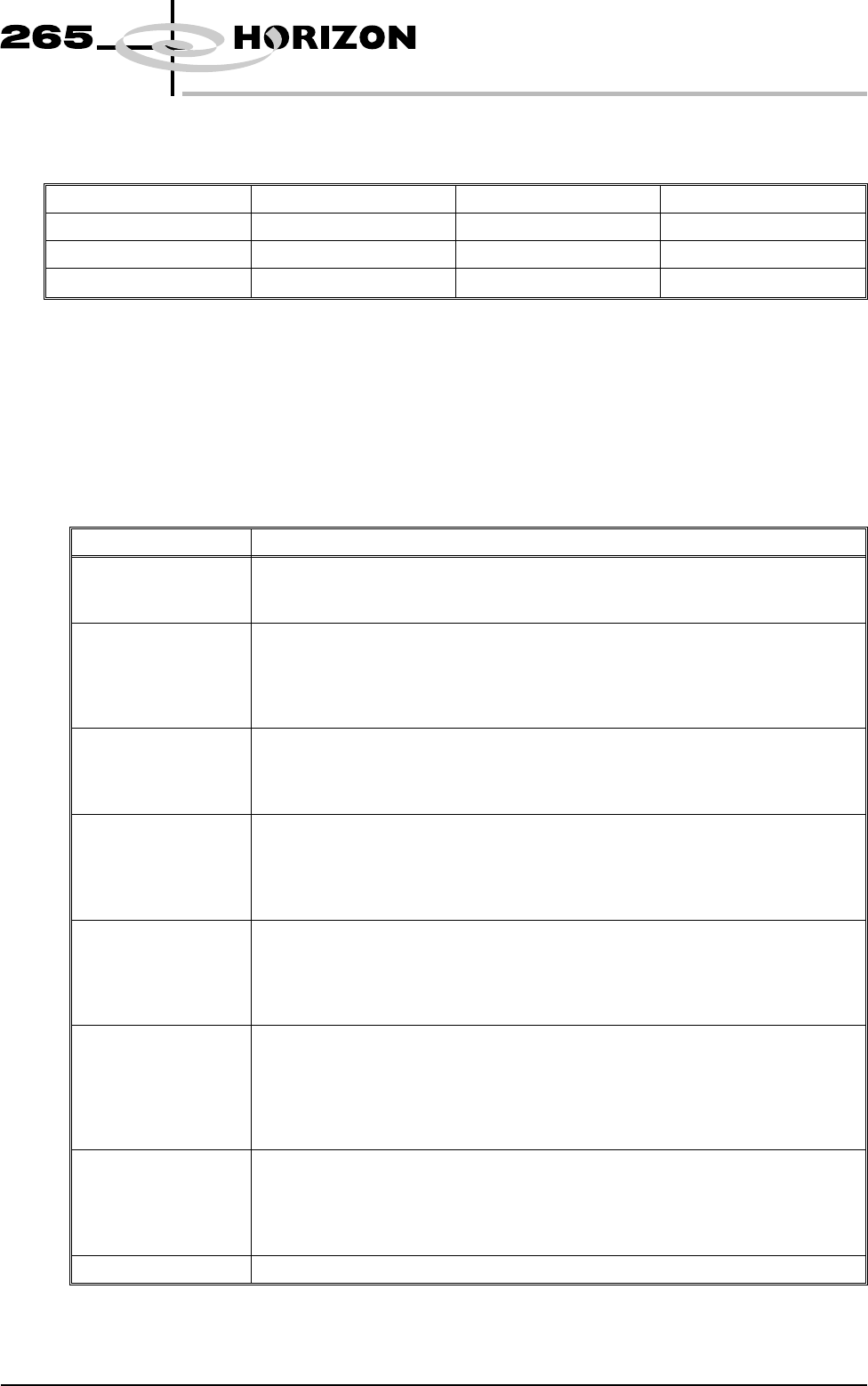
Process - Parameters The following table lists all the items that can be displayed in the Process -
Parameters information panel:
Print Mode Front Print Speed Rear Print Speed Front Pressure
Rear Pressure ProFlow System Pressure Print Gap Separation Speed
Paste Dispense Rate Clean Screen Rate 1.2 Forward X Offset Forward Y Offset
Forward q Offset
Reverse X Offset Reverse Y Offset
Reverse q Offset
The values of the Process - Parameters are set in the product file of the loaded
product.
The panel can display up to a maximum of 14 items on Display Type 1 and 6
items on Display Type 2.
Rates The following table lists all the items that can be displayed in the Rates
information panel:
Items Description
Batch Count/Limit The first figure displays the amount of boards printed in the current batch. The
second figure displays the total amount of boards to be printed in the current batch.
The batch count limit is set in Batch Limit in the Monitor menu.
Board Count/Limit The first figure displays the amount of boards printed in the current board count.
The second figure displays the total amount of boards to be printed in the current
board count. The board count limit is set in Board Count in the Edit Data menu.
The board count limit allows a separate board count to be set within the total batch
count.
Paste Disp. Cnt/Rate The first figure displays the amount of boards printed since the last paste dispense.
The second figure displays the amount of boards to be printed between each paste
dispense. The paste dispense count/rate is set in Paste Dispense Rate in the Edit
Data menu.
Clean 1 Count/Rate The first figure displays the amount of boards printed since the last screen clean
mode 1 was carried out. The second figure displays the amount of boards to be
printed between each screen clean mode 1. The clean 1 count/rate is set in Screen
Clean Rate 1 in the Edit Data menu. This parameter is only displayed while a
blue or silver under screen cleaner is fitted.
Clean 2 Count/Rate The first figure displays the amount of boards printed since the last screen clean
mode 2 was carried out. The second figure displays the amount of boards to be
printed between each screen clean mode 2. The clean 2 count/rate is set in Screen
Clean Rate 2 in the Edit Data menu. This parameter is only displayed while a
blue or silver under screen cleaner is fitted.
Vortex Stroke/Limit The first figure displays the amount of cleaning strokes carried out since the
Vortex cleaning cassette was replaced. The second figure displays the total
amount of cleaning strokes to be carried out before the cleaning cassette needs
replacing. The Vortex stroke/limit is set in Vortex Cassette Life in the Edit Data
menu. This parameter is only displayed while a Vortex under screen cleaner is
fitted.
Clean Count/Rate The first figure displays the amount of boards printed since the last Vortex screen
clean was carried out. The second figure displays the amount of boards to be
printed between each Vortex screen clean. The clean count/rate is set in Vortex
Clean Rate in the Edit Data menu. This parameter is only displayed while a
Vortex under screen cleaner is fitted.
Print Direction Displays the print direction for the next board to be printed.
The Rates panel can display up to a maximum of 6 items and is only shown on
Display Type 2.
Software Version 6 User Manual 1.115
MACHINE PROGRAMMING
STATUS PAGE
1.116 User Manual Software Version 6
MACHINE PROGRAMMING
STATUS PAGE