Horizon UserManualV6.pdf - 第136页
PREFERENCES Data File Locations Allows the user to create individual directories for product and data files. Once created the individual directories become the current locations for all future product and data files. Bef…
SET PREFERENCES
INTRODUCTION The Set Preferences function allows for the setting of preferred machine control
options.
To access the set preferences window proceed as follows:
Select the Maint. Button.
Run Open
Cover
Paste
Load
Clean
Screen
Adjust Setup Monitor
Maint.
Select the Set Prefs button.
Calibrat
Pressure
Calibrat
Offset
Calibrat
Vision
House
Keeping
Set
Prefs
Diagnost Test
Cycles
Exit
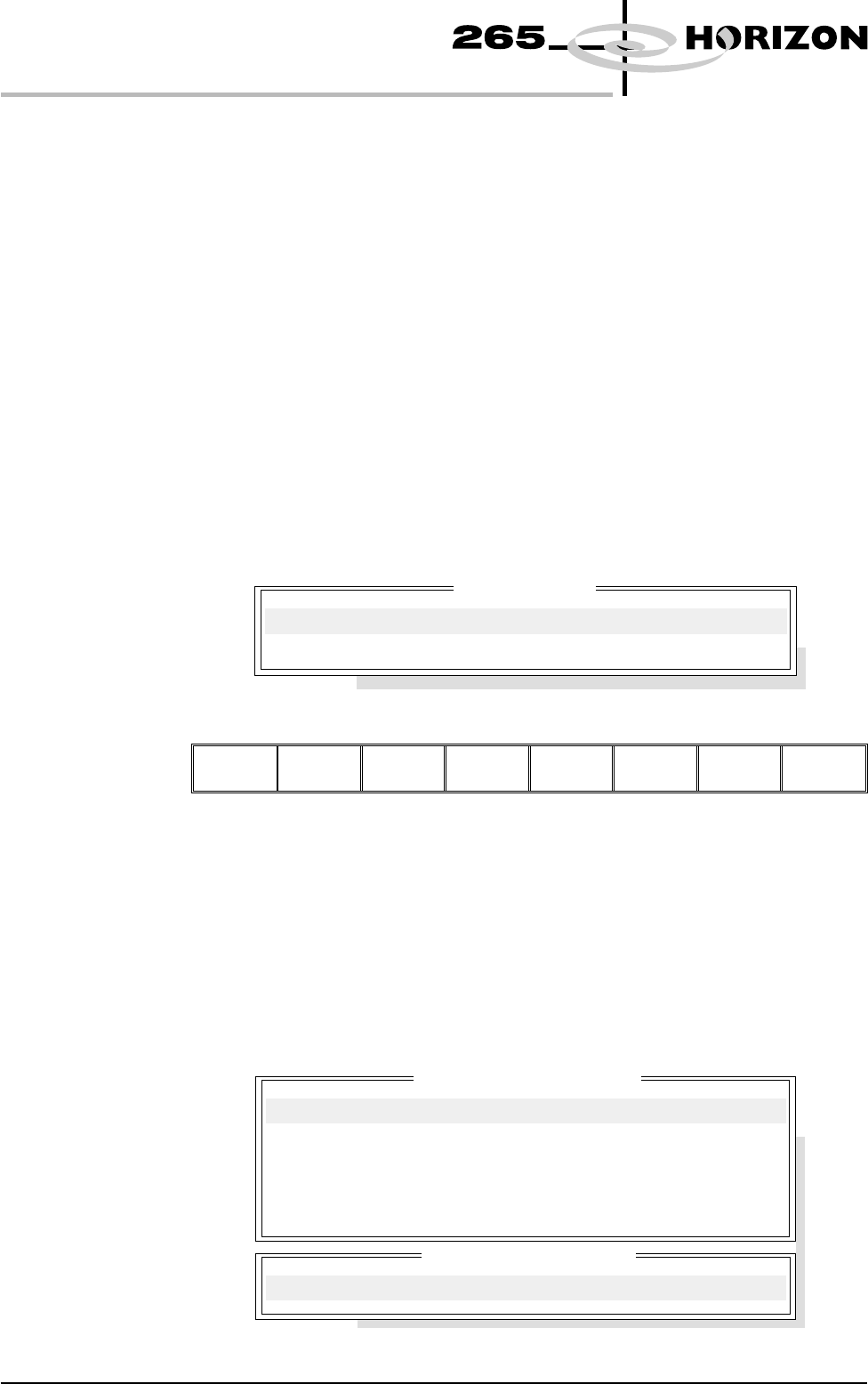
The set preferences window is displayed:
The menu bar changes to give the following options:
Next Previous Incr. Decr. Exit
Next and Previous move the highlight between the various parameters. Incr.
and Decr. alter the value of the highlighted parameter.
Software Version 6 User Manual 2.1
SET PREFERENCES
INTRODUCTION
Set Preferences
TRANSPORT MODE
MACHINE UNITS
UPLINE PROTOCOL
DOWNLINE PROTOCOL
TRANSFER PERIOD
COMMS PROTOCOL
EVENT RECORDING
TOOLING HARDWARE
FIDUCIAL REFERENCE
2D INSPECTION
PFLOW CONTACT POS.
PRESSURE H/W
CHANGE MODE OPTION
SCREEN SIZE
LEFT TO LEFT
Metric
NO FMI
NO FMI
20
NO COMMS
GROUP 3
MAGNETIC
LEFT
ENABLED
0.0 mm
FITTED
MANUAL
265
secs
..more
PREFERENCES
Data File Locations Allows the user to create individual directories for product and data files. Once
created the individual directories become the current locations for all future
product and data files.
Before changing the product and data file locations, use the copy data function in
House Keeping, to copy any existing product and data files to floppy disk. After
changing the product and data file locations, use the copy data function in House
Keeping, to copy any existing product and data files from the floppy disk to the
new directories.
NOTE
When Load Data is selected from the setup menu only the files in the current
location are displayed.
The default location is:
D:\Program Files\DEK\MachineControl\Printer
Selecting the Incr. or Decr. key with data file locations highlighted opens the
following window:
The menu bar changes to the following:
Browse Restore
Default
Next Previous Exit
NOTE
Restore default is only available while the highlighted directory is not already at
the default location.
Use the Next and Previous keys to move between the different directories.
Use the Exit key to close the File Locations window.
Use the Restore Default key to change the path, for files associated with the
highlighted directory, from the current location to the default location.
Selecting the Browse key opens the following window:
2.2 User Manual Software Version 6
SET PREFERENCES
PREFERENCES
File Locations
Product Directory:
Data Directory:
Directory Structure On Drive
..
Current Directory Location
D:\Program Files\DEK\MachineControl\Printer
The menu bar changes to the following:
Select Create
Directory
Left Right Up Down Exit
The message ‘Select a directory to become the current location for Process
Program files.’ is displayed in the message bar.
Use the Up and Down keys to scroll up and down the highlighted column.
Use the Left and Right keys to move between columns.
Use the Exit key to close the Directory Structure On Drive window.
Selecting the Create Directory key opens the following window:
The menu bar changes to the following:
Proceed Cancel
Use the keyboard to type the name of the new directory.
Select the Proceed key, a new directory is created providing:
• The string entered constitutes a valid name for a directory.
• A file or directory of that name does not already exist.
•
The current directory is accessible for writing.
Transport Mode Sets the input and output side of the printer, options are:
Left to Right; Right to Left; Right to Right, Left to Left, No Transfer
The default is Left to Right.
Machine Units Sets the unit of measurement, options are:
Metric; Imperial units
The default is Metric.
Upline Protocol Sets the protocol for transferring boards from adjacent machines, options are:
No FMI; MIU; Manual
The default is specified by customers requirement.
Software Version 6 User Manual 2.3
SET PREFERENCES
PREFERENCES
Create Directory
New Name: