Horizon UserManualV6.pdf - 第22页
STAGE 2 Loading a Product File 1. For an existing product, the product file has already been written. If the product is new, either edit an existing or a default file. The product file displayed after the machine has bee…
14. Select Exit (F8).
Log
Off
Host
Comms
Clear
Batch
Batch
Limit
Perform
Display
Event
Display
System
Disable
Exit
If this is the correct file for the product proceed to Stage 4. If the file has to be
edited proceed to Stage 3.
Software Version 6 User Manual 1.5
MACHINE PROGRAMMING
STAGE 1
STAGE 2
Loading a
Product File
1. For an existing product, the product file has already been written. If the
product is new, either edit an existing or a default file.
The product file displayed after the machine has been initialized is the same
one that was resident in the printer when it was powered down.
If this file is correct for the product continue to Stage 9 - Running a Product
in Run Mode.
If the product file is incorrect for the current product continue with this
procedure.
2. Press Setup (F6).
Run Open
Cover
Paste
Load
Clean
Screen
Adjust
Setup
Monitor Maint.
3. Press Load Data (F2).
Mode
Load
Data
Edit
Data
Setup
Squeegee
Change
Screen
Change
Tooling
Change
Language
Exit
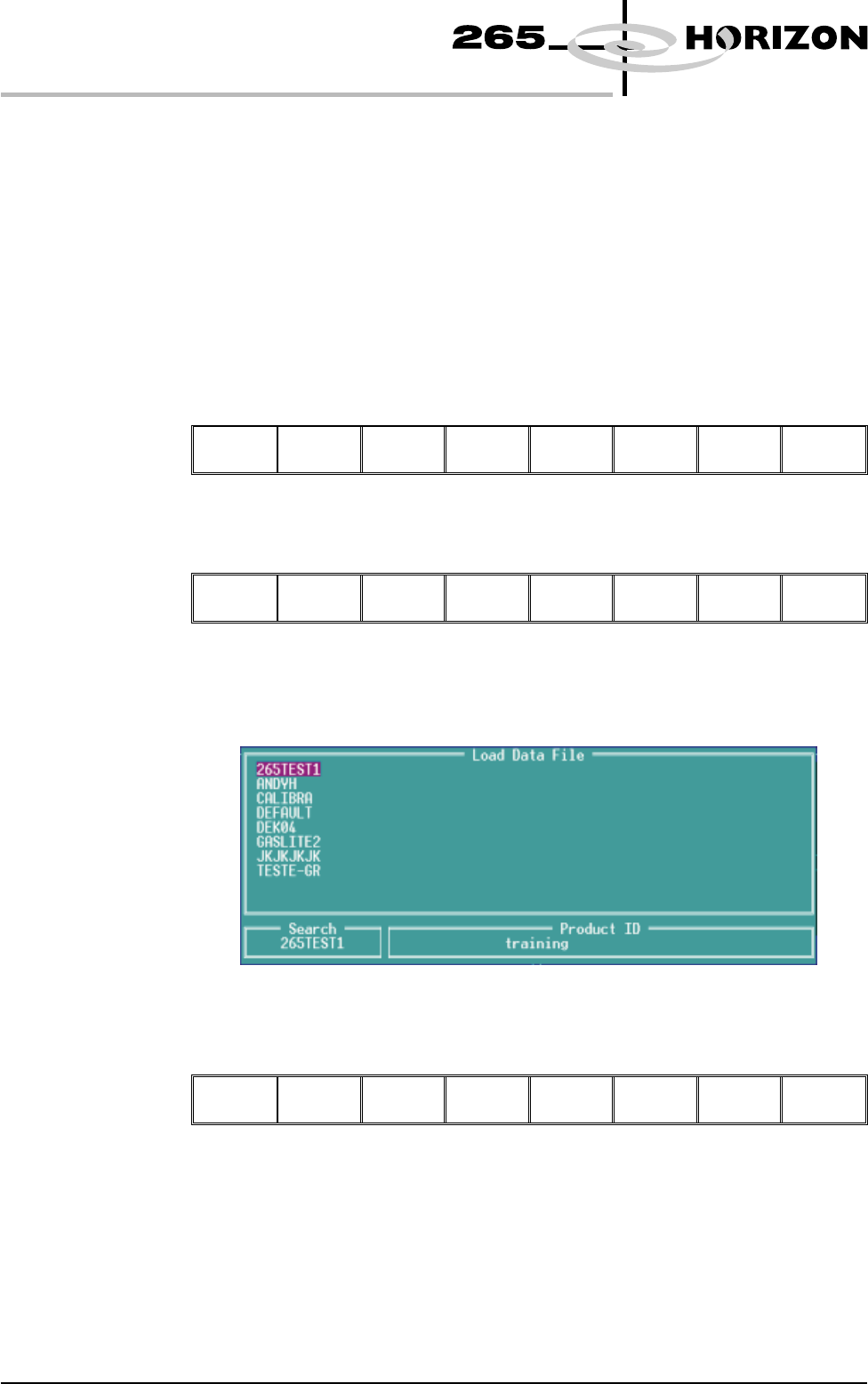
The following Load Data File window is displayed:
4. Use Left, Right, Up or Down function keys (F4-F7) to highlight the
required file.
Load Rebuild
List
Left Right Up Down
Exit
1.6 User Manual Software Version 6
MACHINE PROGRAMMING
STAGE 2
5. Press Load (F2).
Load
Rebuild
List
Left Right Up Down Exit
The selected file is now displayed on the monitor.
If this is the correct file for the product proceed to Stage 4. If the file has to be
edited proceed to Stage 3.
Software Version 6 User Manual 1.7
MACHINE PROGRAMMING
STAGE 2