Horizon UserManualV6.pdf - 第238页
The menu bar changes to the following: Delete Left Right Up Down Exit The Left and Right keys move the cursor between columns of Product Data Files. The Up and Down keys move the cursor between the Product Data Files. Th…
DELETE DATA The Delete Data function allows the operator to delete various data types.
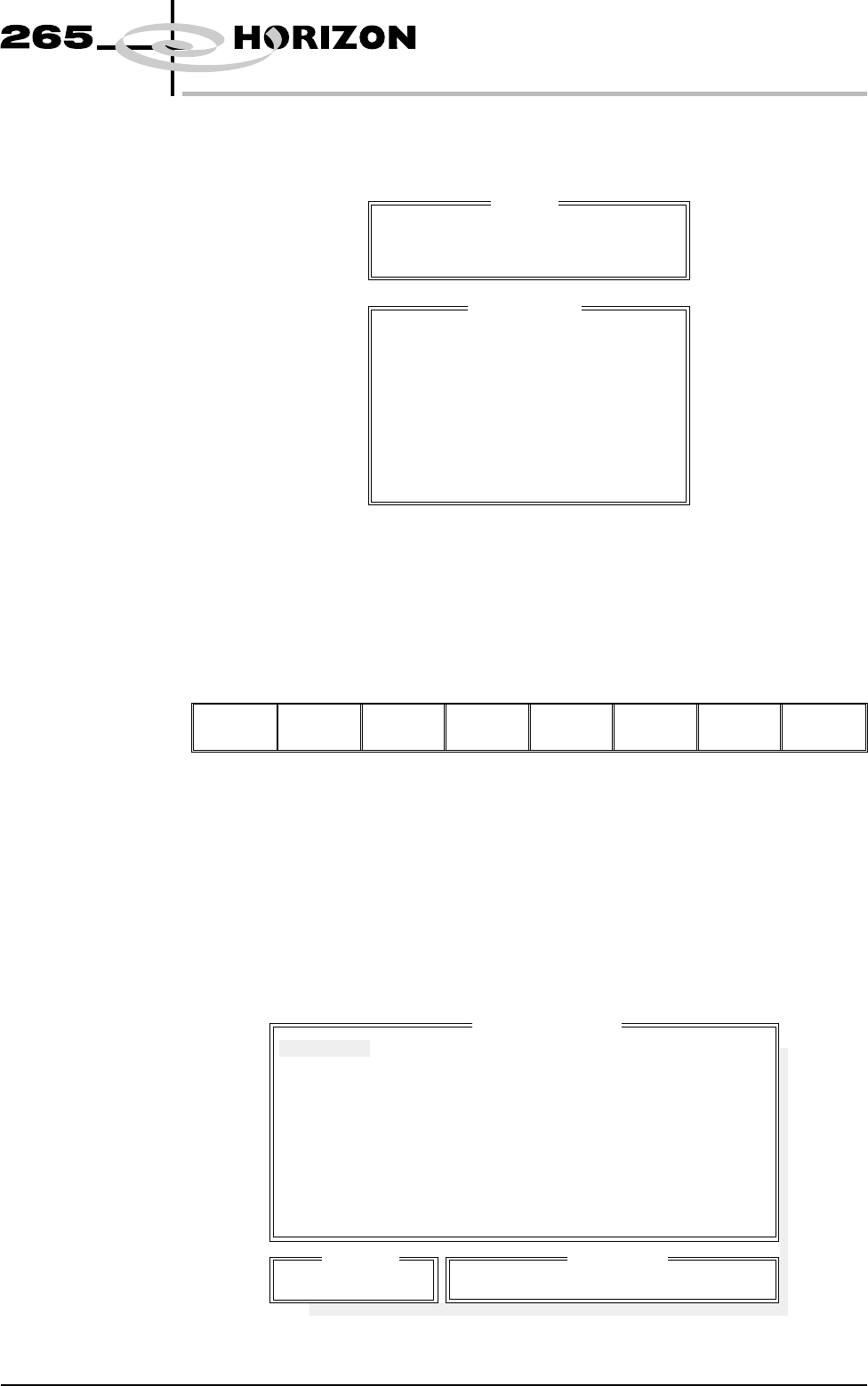
On selecting the Delete Data key the following window is displayed:
NOTE
Image Data is available with 2D Inspection only. Deviation Data is only
available on machines with Tooling Monitoring authorized.
The menu bar changes to the following:
Delete
Data
Up Down Exit
The Up and Down keys move the cursor through the data types.
The function of the Delete Data option depends on the type of data selected, the
options are:
Product Data; Event Log; Test Data; SPC Data; Config Data; Service Data;
Deviation Data; Image Data
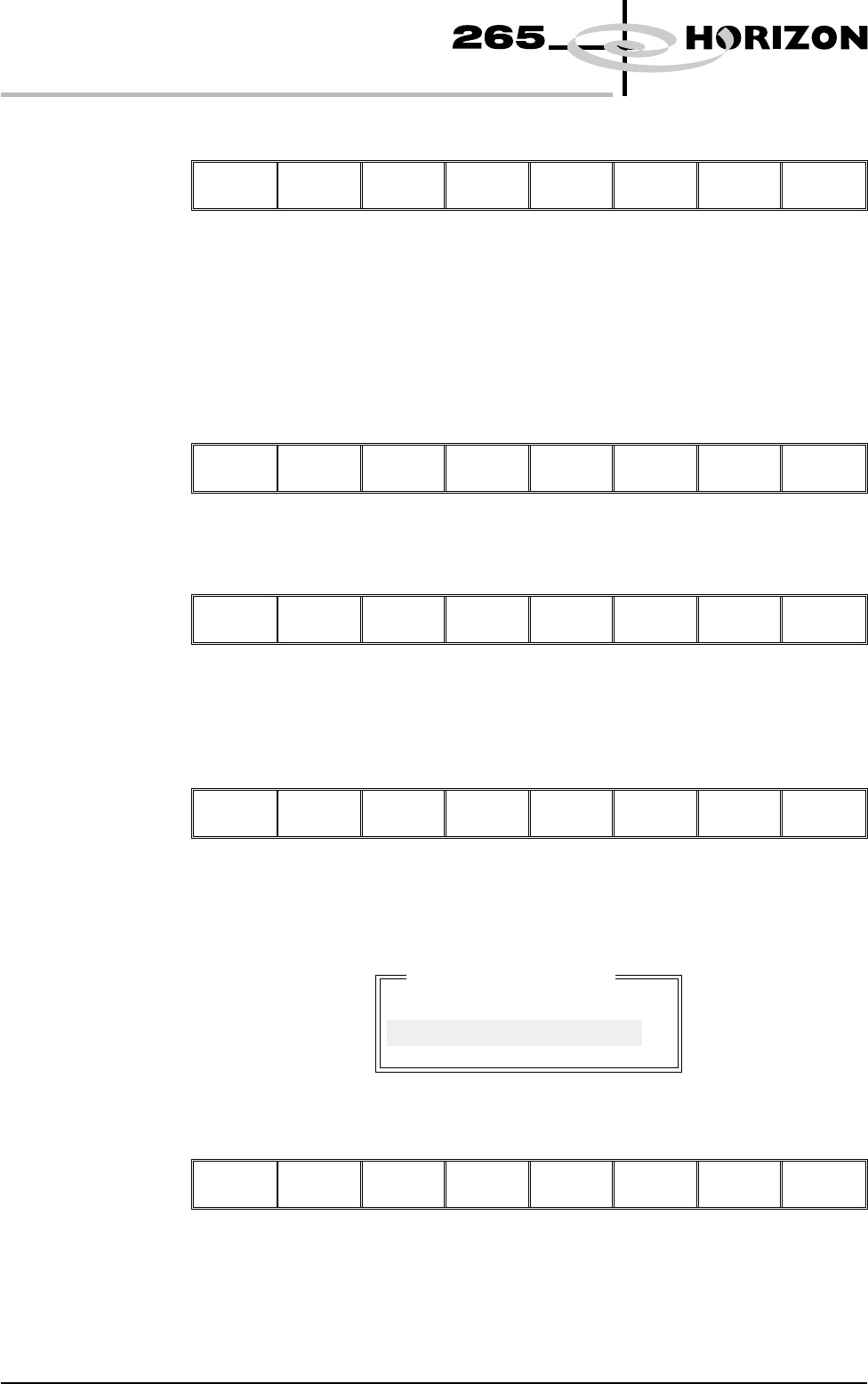
Product Data If the Delete Data key is pressed when Product Data is highlighted the following
window is displayed:
Software Version 6 User Manual 7.9
HOUSE KEEPING
DELETE DATA
Drive
Delete From: Local Drive
Delete Data
Product Data
Event Log
Test Data
SPC Data
Config Data
Service Data
Deviation Data
Image Data
Delete Data File
265TEST1
CALIBRA
DEFAULT
Search
265TEST1
Product ID
265TEST1-
The menu bar changes to the following:
Delete Left Right Up Down Exit
The Left and Right keys move the cursor between columns of Product Data
Files.
The Up and Down keys move the cursor between the Product Data Files.
The Exit key returns to the previous menu.
On pressing the Delete key, the message ‘Confirm deletion of selected product
data’ is displayed in the message prompt box, asking the user to confirm the
deletion request, the menu bar changes displaying the Yes and No options:
Yes No
Event Log When the Event Log is highlighted, the menu bar changes to the following:
Delete
All
Delete
Date
Delete
Number
Up Down Exit
On pressing the Delete All key, the message ‘Confirm deletion of All Event
Data’ is displayed in the message prompt box, asking the user to confirm the
deletion request, the menu bar changes displaying the Yes and No options.
Yes No
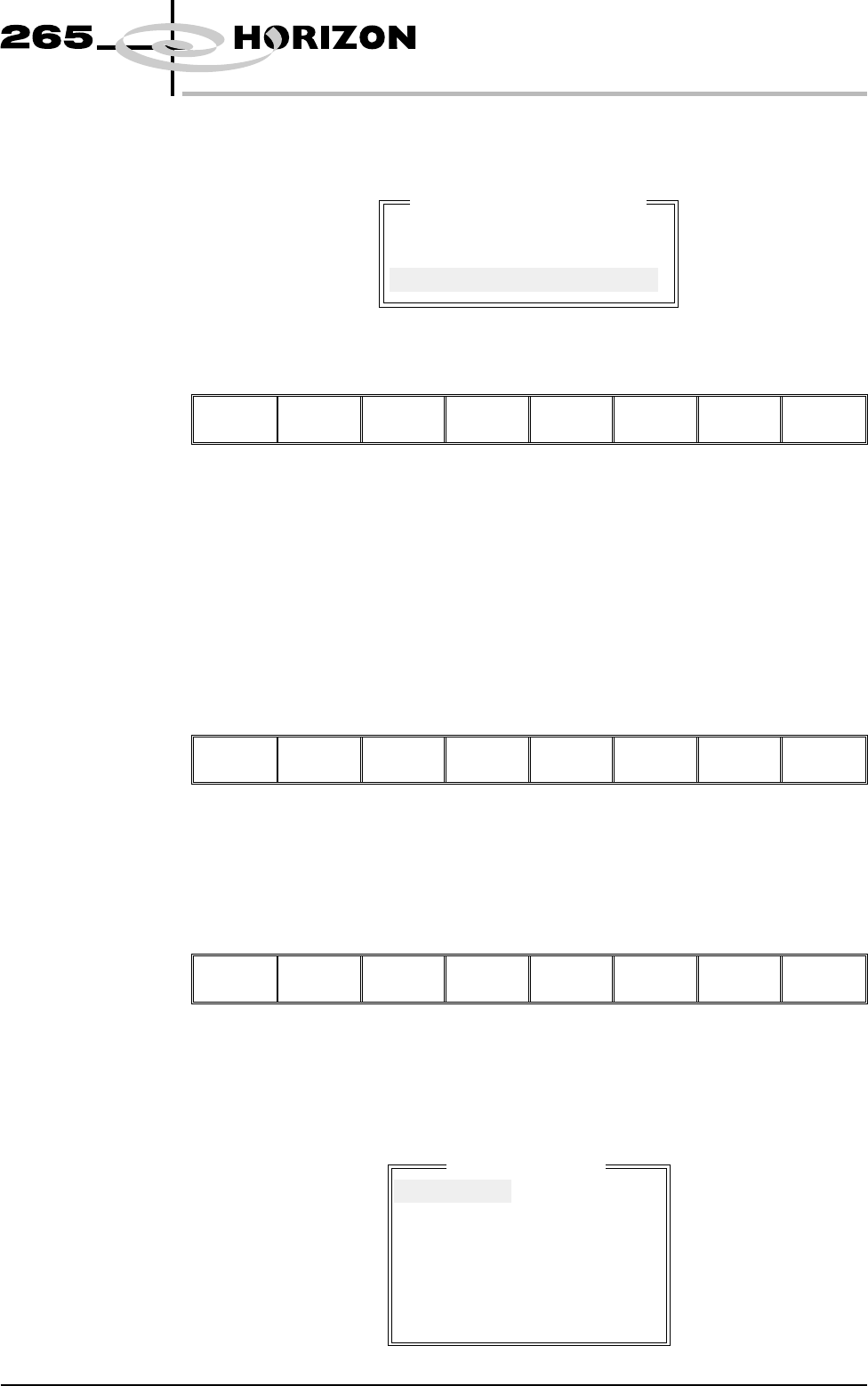
On pressing the Delete Date key the following window is displayed:
The menu bar changes to the following:
Delete Incr. Decr. Exit
The Incr. and Decr. keys change the highlighted date.
The Delete key deletes all event files prior to the indicated date, the message
‘Deleting Events...’ is displayed in the message prompt box.
The Exit key returns to the previous menu.
7.10 User Manual Software Version 6
HOUSE KEEPING
DELETE DATA
Delete event to date
Delete all event records
prior to : Fri Dec 18 1998
On pressing the Delete Number key the following window is displayed:
The menu bar changes to the following:
Delete Incr. Decr. Exit
The Incr. and Decr. keys change the highlighted number.
The Delete key deletes all event files prior to the indicated number, the message
‘Deleting Events...’ is displayed in the message prompt box.
The Exit key returns to the previous menu.
Test Data If the Delete Data key is pressed when Test Data is highlighted, the message
‘Confirm deletion of Test Data’ is displayed in the message prompt box,
asking the user to confirm the deletion request, the menu bar changes displaying
the Yes and No options.
Yes No
SPC Data If the Delete Data key is pressed when SPC Data is highlighted, the message
‘Confirm deletion of SPC Data’ is displayed in the message prompt box,
asking the user to confirm the deletion request, the menu bar changes displaying
the Yes and No options.
Yes No
Image Data If the Delete Data key is pressed when Image Data is highlighted the following
window is displayed:
Software Version 6 User Manual 7.11
HOUSE KEEPING
DELETE DATA
Delete event by number
Delete all event records
except the most recent :
1
Delete Data File
10000001
10000002
10000003
10000004
10000005
10000006