Horizon UserManualV6.pdf - 第263页
Adjustment During Print Cycle Most inspection parameters may be adjusted whilst a print cycle is in progress. The parameters that may be adjusted are: • Global Limits • Limit Sets • Site Parameters NOTE The site coordina…
8.12 User Manual Software Version 6
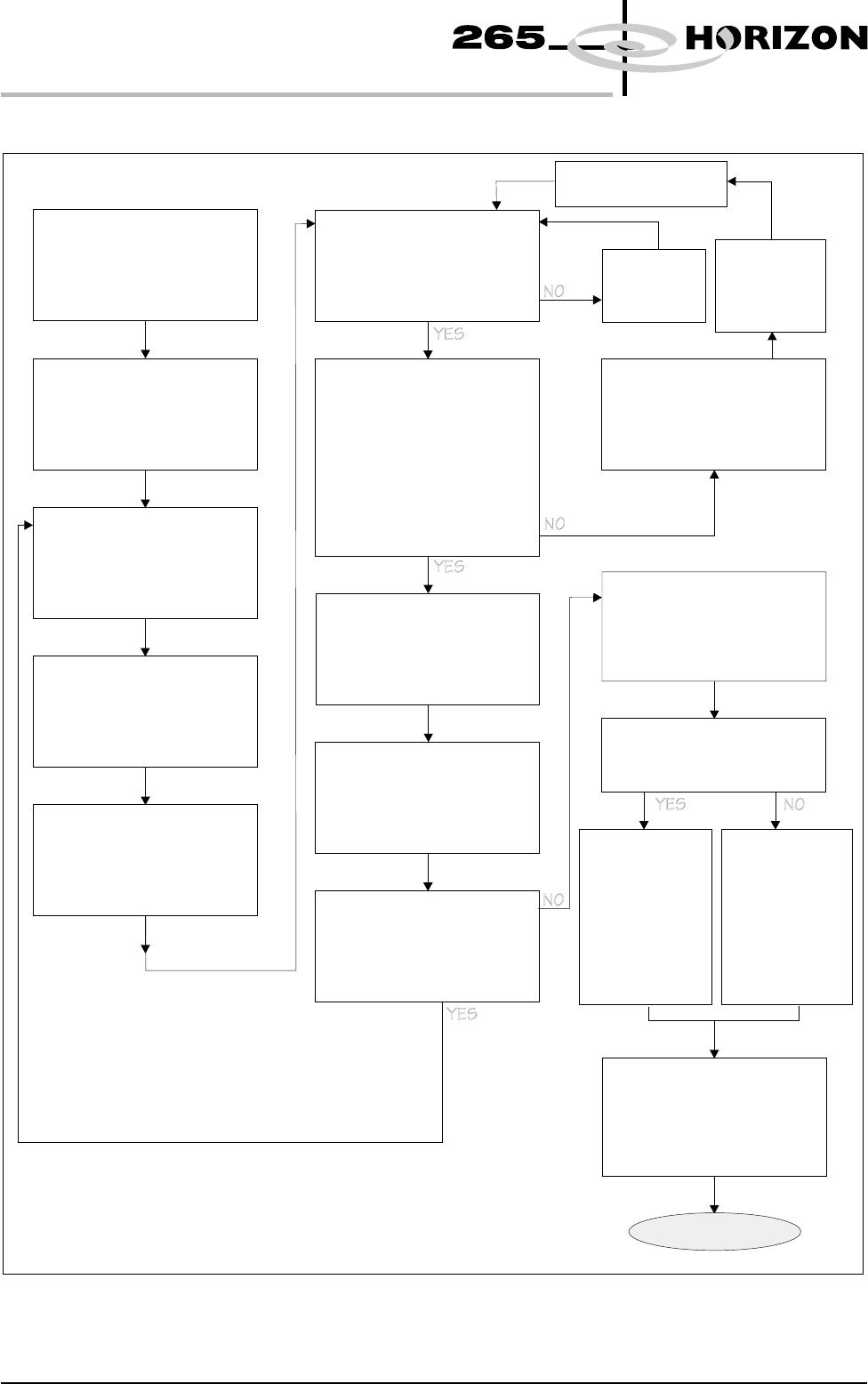
2Di INSPECTION
MODULE OVERVIEW
Adjust Lighting:
Adjust so all board pads are
white with sharp edges and
the screen is seen clearly.
Add Limits Sets:
Set wide tolerances so no
alarms occur.
Add Site:
Name, Location Etc
Ensure all pads are within
the search box.
Set Globals as required:
2D Inspect Rate = 0
Learn Site / Learn Board:
Adjust board graphic ‘X’
and ‘Y’ accurately
Exit out
Auto Scale:
Determine the print closest
to 100% and auto scale on
that pad
Inspect Site:
Paste present data for all
pads are close to the same
value ?
If Board Inspect Type set to
Advance, all the paste
toggles white or yellow on
the board ?
More Sites to Teach ?
Add the rest of the sites
using the same light
settings as this first one
Print Board:
Step through the cycle until
a board is printed.
Is it a good print ?
Exit out
Place a clean
board into the
machine.
Clean screen
Re-adjust Lighting:
Adjust the LED’s to balance
the lighting
Run Product:
Have QC Calc ?
Reset the Globals:
Set the min sites/cycle.
Set 2D Inspect Rate.
Re-adjust the Limit Sets:
The customer may have to
adjust these settings a few
times until the proper
values are found.
SPC Data:
Collect SPC
data on the
2Di. From
this data
derive the
proper ‘limit
sets’ settings.
Trial & Error:
Increase the
‘limit sets’ and
use the data
when it alarms
to derive the
proper
settings.
DONE
New Pre-image taken
Figure 8-13 2Di Inspection Setup Guide
Adjustment During
Print Cycle
Most inspection parameters may be adjusted whilst a print cycle is in progress.
The parameters that may be adjusted are:
•
Global Limits
•
Limit Sets
•
Site Parameters
NOTE
The site coordinate parameters are not available whilst a print cycle is in
progress.
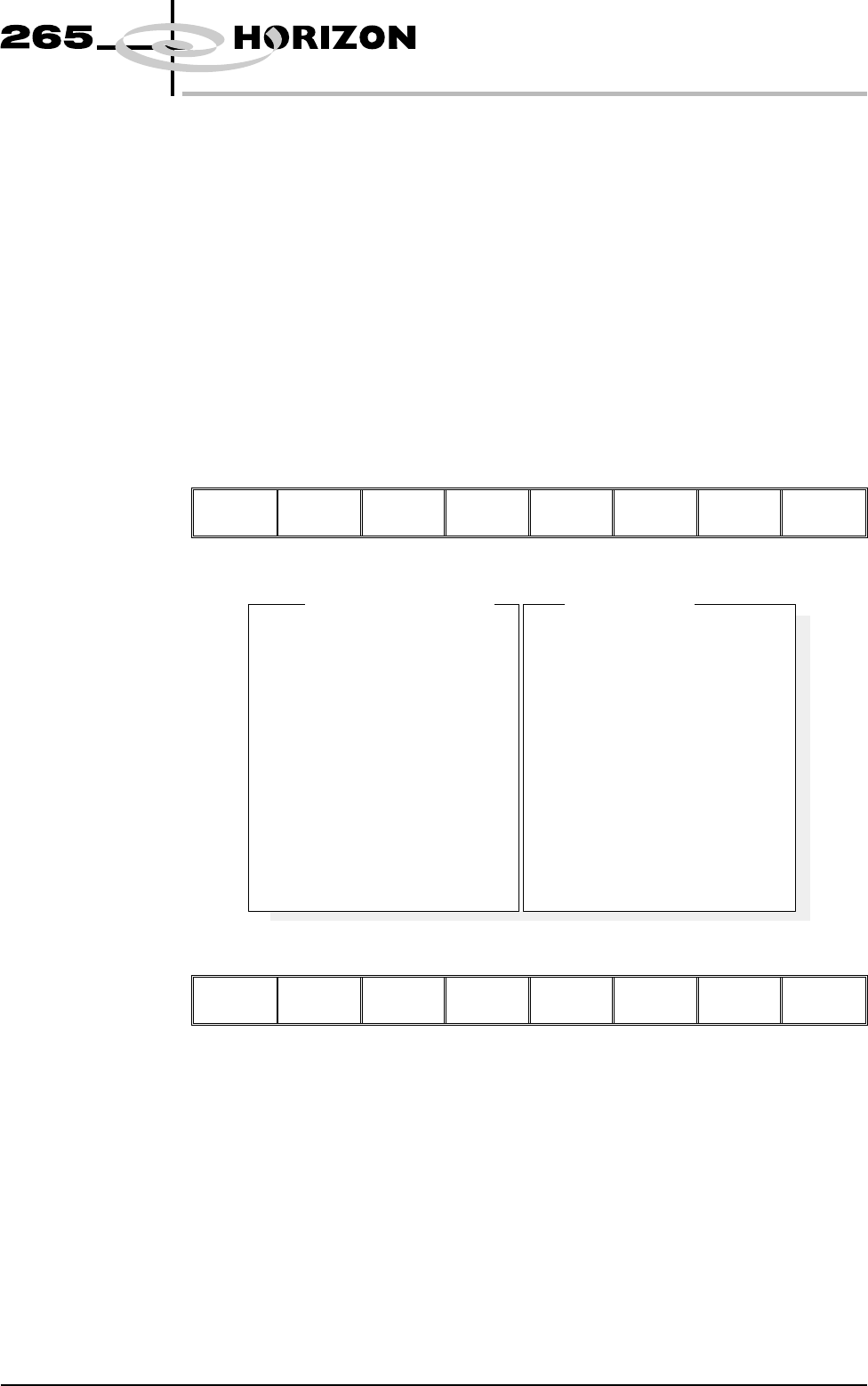
To access the parameter adjustment menu during a print cycle select Adjust
Inspect.
End
Run
Stop
Cycle
Paste
Load
Clean
Screen
Adjust Knead
Paste
Adjust
Inspect
The following window is displayed:
Edit
Global
Edit
Limits
New Pre-
images
Next
Site
Previous
Site
Edit
Site
Exit
The New Pre-images button is only available if Pre-image is set to 1.
NOTE
If an error occurs when adjusting inspection parameters during a print cycle,
the adjustment page closes.
Any changes made are saved.
Software Version 6 User Manual 8.13
2Di INSPECTION
MODULE OVERVIEW
Site Name
Site Priority
StencilInspect Type
Board InspectType
SiteAlignment
Limit Set ID
Paste Scaling
Site X Coord
SiteYCoord
SiteWidth
Site Height
IC 27 - 1
General
Advanced
Advanced
X andY
Fine
1.00
39.4mm
71.2mm
3.00mm
4.00mm
2D Inspect Rate
StencilInspect Type
Board InspectType
Pre-image
Min. Sites/Cycle
Warning Limit
BlockageAction
Blockage Clean
SmearAction
Smear Clean
Low PasteAction
InspectAfter Clean
Post PrintAlignment
No. Sites
1
Advanced
Advanced
Every
10
3
Auto
Mode 2
Manual
Mode 1
Re-print
Enabled
Performed
30
Global Inspect Parameters
Site Parameters
2Di SETUP
Preparation For 2Di inspection functionality the machine requires 2D Inspection to be set to
enabled.
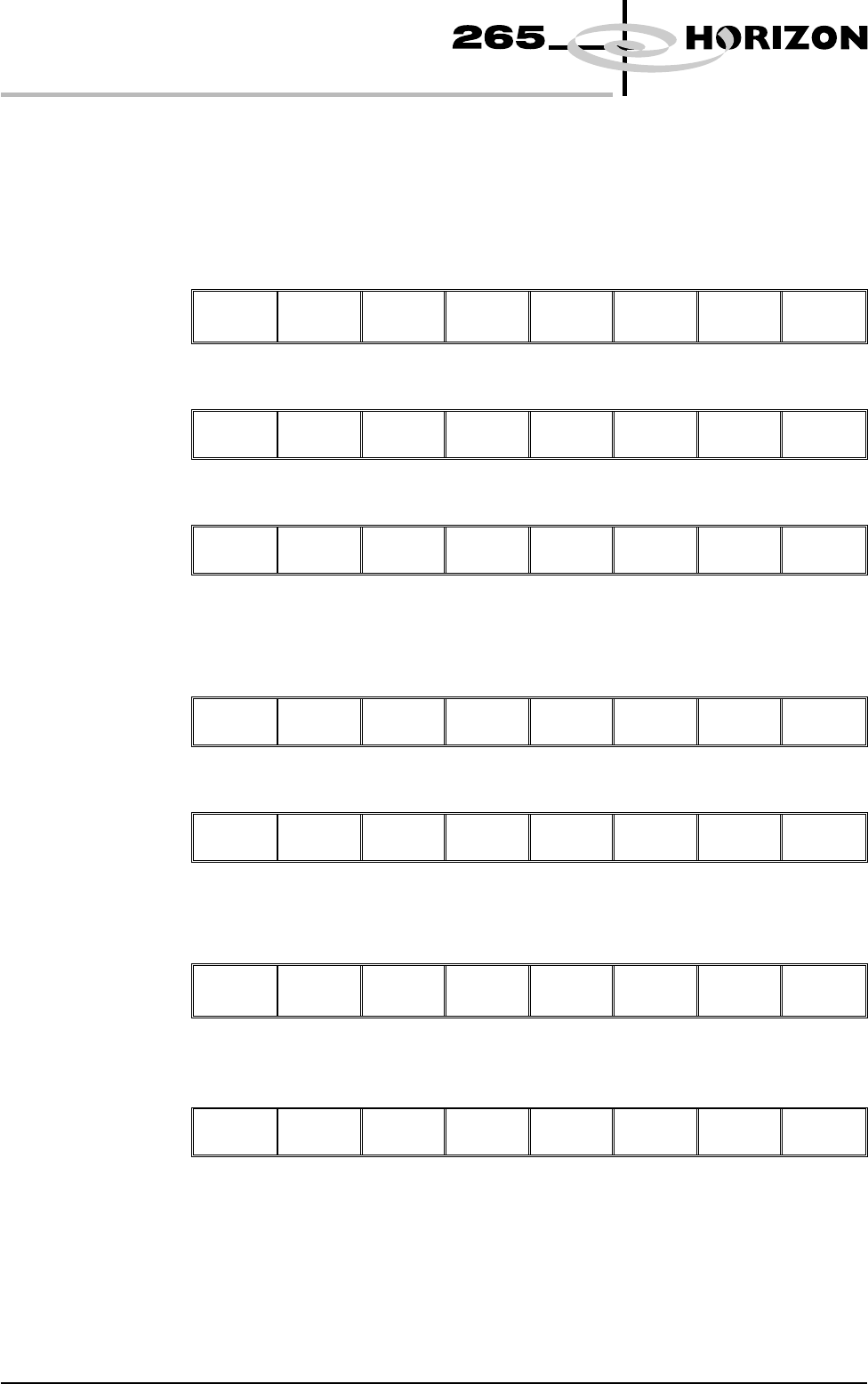
Set Preferences 1. Select Maint.
Run Open
Cover
Paste
Load
Clean
Screen
Adjust Setup Monitor
Maint.
2. Select Set Prefs.
Calibrat
Pressure
Calibrat
Offset
Calibrat
Vision
House
Keeping
Set
Prefs
Diagnost Test
Cycles
Exit
3. Set 2D inspection to enabled using the Next and Incr. keys.
Next
Previous
Incr.
Decr. Exit
4. Ensure under screen cleaner function selected, ie Vacuum or Standard.
5. Select Exit. The message ‘Printer configuration data file saved’ is
displayed in the message prompt bar above the menu bar.
Next Previous Incr. Decr.
Exit
6. Select Exit.
Calibrat
Pressure
Calibrat
Offset
Calibrat
Vision
House
Keeping
Set
Prefs
Diagnost Test
Cycles
Exit
Load Product File 1. Select Setup.
Run Open
Cover
Paste
Load
Clean
Screen
Adjust
Setup
Monitor Maint.
2. Select Load Data. The message ‘Use keyboard to action product search’
is displayed in the message prompt bar above the menu bar.
Mode
Load
Data
Edit
Data
Setup
Squeegee
Change
Screen
Change
Tooling
Change
Language
Exit
8.14 User Manual Software Version 6
2Di INSPECTION
2Di SETUP