Horizon UserManualV6.pdf - 第283页
26. Carry out Section Edit Site and create all required sites, using the same lighting parameters as before (see Auto Learn). NOTE For the silver camera only, if the new sites pads and/or apertures are at 90 degrees to t…
18. Load a clean board onto the rails and clean the screen.
19. Repeat Steps 5-9.
20. Select Auto Scale.
Auto
Scale
Toggle
Paste
Next Previous Save
Image
Exit
Selecting auto scale automatically adjusts the paste scaling value for the current
site, to cause the value of paste present, on the pad currently selected in the
inspection result list, to be reported as 100%. The inspection results window is
updated accordingly. If the calculated value for paste scaling falls outside the
range of allowable values, an error window is displayed and the paste scaling
value is set to the limit nearest the calculated value. However, if the currently
selected paste present value is zero, no adjustment of the paste scaling value
takes place and an error window is displayed. A prompt is displayed giving the
new scaling factor value each time it is changed. The auto scale button is only
present if board inspection is being performed.
21. Select Exit.
Auto
Scale
Toggle
Paste
Next Previous Save
Image
Exit
22. Select Step to remove the board from the machine.
Step
Inspect
Setup
Single Exit
23. Clean the board and screen.
24. Run through the print cycle in step mode until inspect setup is displayed.
25. Select Inspect Setup.
Step
Inspect
Setup
Single Exit
8.32 User Manual Software Version 6
2Di INSPECTION
2Di SETUP
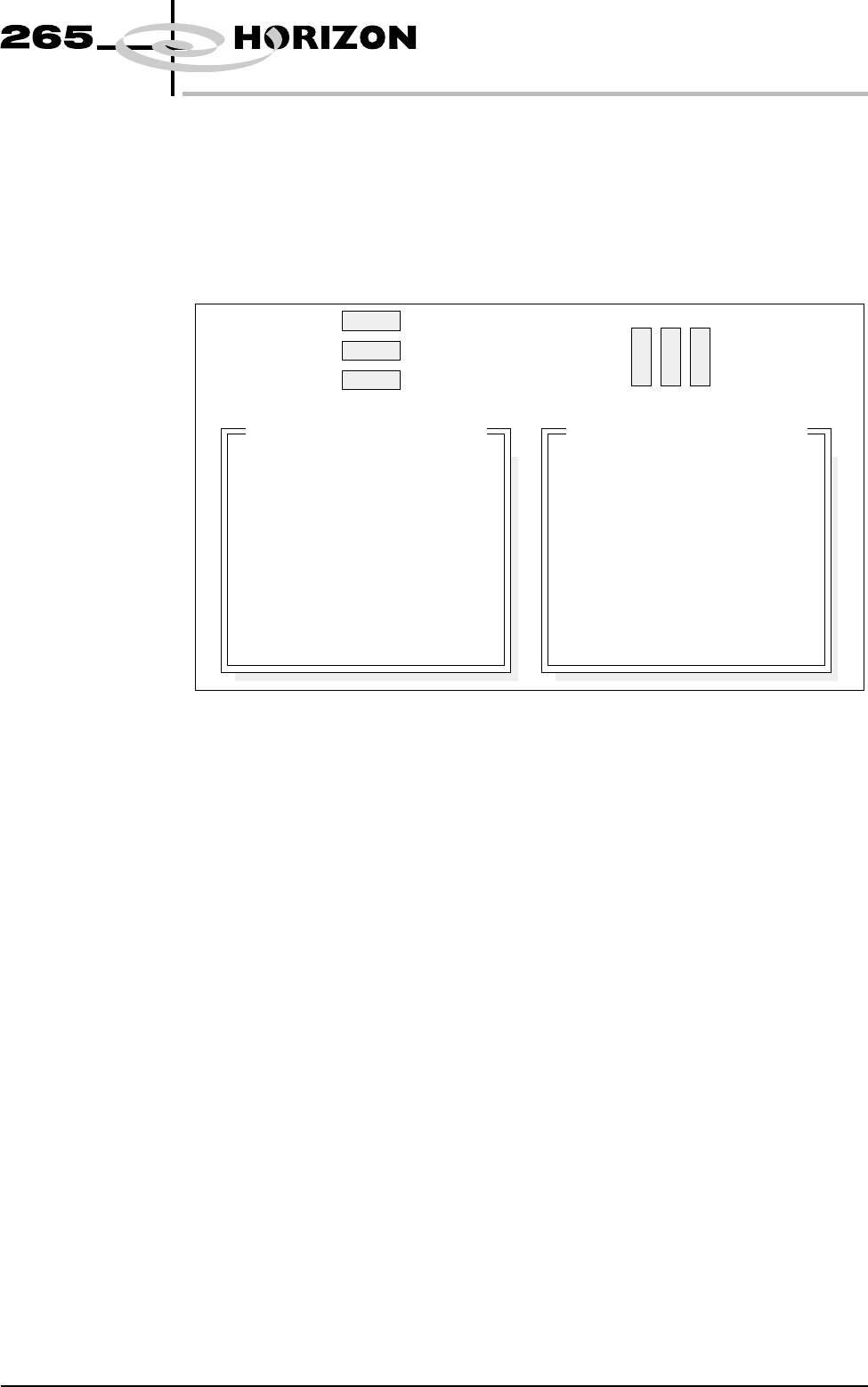
26. Carry out Section Edit Site and create all required sites, using the same
lighting parameters as before (see Auto Learn).
NOTE
For the silver camera only, if the new sites pads and/or apertures are at 90
degrees to the original pads and/or apertures, interchange the lighting
parameters inner LR with inner FR and outer LR with outer FR, on the board
and/or screen, as shown below.
27. On completion carry out Section Inspect.
28. Set the required 2D inspect rate and the Min site/cycle parameters in edit
global.
29. This completes the 2Di setup. Commence print run in auto mode.
NOTE
During production use adjust inspect to fine tune the inspection process.
Software Version 6 User Manual 8.33
2Di INSPECTION
2Di SETUP
Original Site
New Site
8
9
10
11
12
8
9
10
11
12
Inspection Lighting Parameters
Screen Vertical
Screen Inner LR
Screen Inner FR
Screen Outer LR
Screen Outer FR
Board Vertical
Board Inner LR
Board Inner FR
Board Outer LR
Board Outer FR
8
10
9
12
11
8
10
9
12
11
Inspection Lighting Parameters
Screen Vertical
Screen Inner LR
Screen Inner FR
Screen Outer LR
Screen Outer FR
Board Vertical
Board Inner LR
Board Inner FR
Board Outer LR
Board Outer FR
Auto Learn Prior to carrying out auto learn, the 2Di setup described in the preceding pages,
must have been carried out.
1. From the Section Auto Learn, under Module Overview, at the front of this
chapter, identify the position of Site 1 for the required feature.
2. Carry out Section Edit Site for Site 1 coordinates.
3. Carry out Sub Section Lighting Setup, using the same parameters as
previous.
4. Carry out Sub Section Learn Site paras 1-4.
5. Select Auto Learn.
Learn
Board
ReLearn
Screen
Auto
Learn
Next Previous Incr. Decr. Exit
The message ‘Select Component type to Auto Learn:’ is displayed. The
following messages appear beneath this message in rotation:
‘Row - Start at left most end of horizontal’
‘Col - Start at topmost end of vertical’
‘QFP - (Quad Flat Pack) - Start at left most end of top horizontal line’
‘BGA - (Ball Grid Array) - Start at top left corner of array’
‘BGA Frame - Start at top left corner of array frame’
6. Select required component to learn.
Learn
Row
Learn
Column
Learn
QFP
Learn
BGA
Learn
BGA Frame
Abort
The message bar reports the progress of the auto learn as a set of sites of the
appropriate type are created and learnt. The original site, and each site that is
created, is given the same name as the original site, but with a ‘~’ symbol
followed by a three digit number in sequence. While creation and learning is in
progress the following menu bar is displayed:
Abort
Auto Learn
As each new site is created and learnt, the newly created name and data is
displayed in the Edit Site Parameters window.
If Abort Auto Learn is selected the message ‘Site creation and learning
interrupted; do you want to . . . is displayed. The following menu bar is
displayed:
Abandon Continue
If Abandon is selected any sites that have been created are deleted. If Continue is
selected the auto learn resumes, creating and learning sites.
8.34 User Manual Software Version 6
2Di INSPECTION
2Di SETUP