Horizon UserManualV6.pdf - 第62页
9. Lift the front printhead cover. 10. Fit the tooling tower to the manual plate. Ensure the dowels on the front edge of the tooling tower base are correctly seated in the holes in the front edge of the manual tooling pl…
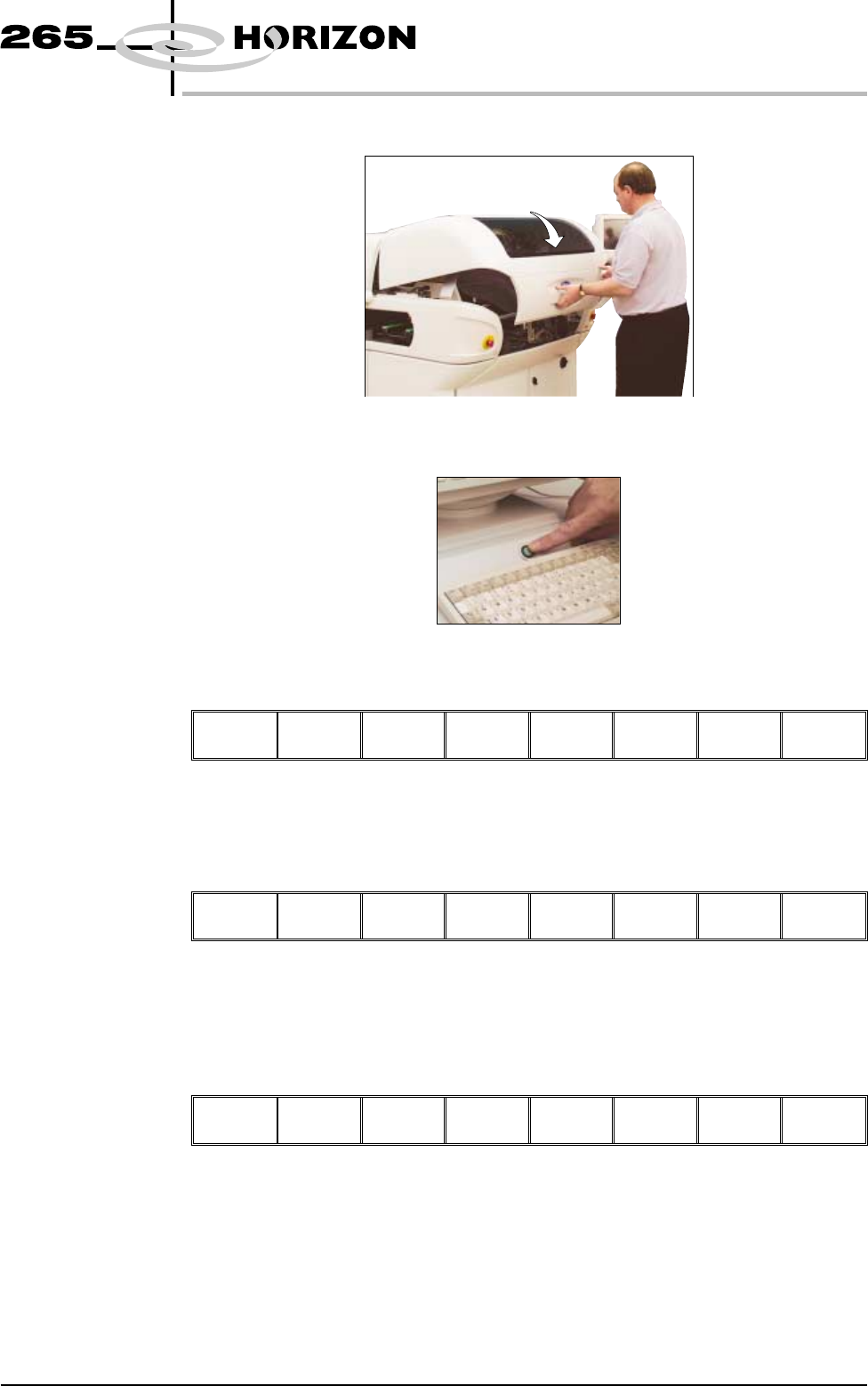
4. Close the front printhead cover.
5. Press the System button.
6. Select Change Tooling (F6).
Mode Load
Data
Edit
Data
Setup
Squeegee
Change
Screen
Change
Tooling
Change
Language
Exit
The print carriage and the under screen cleaner are moved to the rear.
7. Select Full Width (F5).
Adjust Open
Cover
Home
Cleaner
Board
Stop
Full
Width
Load
Width
Print
Height
Exit
The message ‘Checking for a board on the belts’ is displayed. Whilst the rear
rail is moving the following message ‘Rail Moving...’ is displayed.
8. Select Open Cover (F2).
Adjust
Open
Cover
Home
Cleaner
Board
Stop
Full
Width
Load
Width
Print
Height
Exit
Software Version 6 User Manual 1.45
MACHINE PROGRAMMING
STAGE 5C
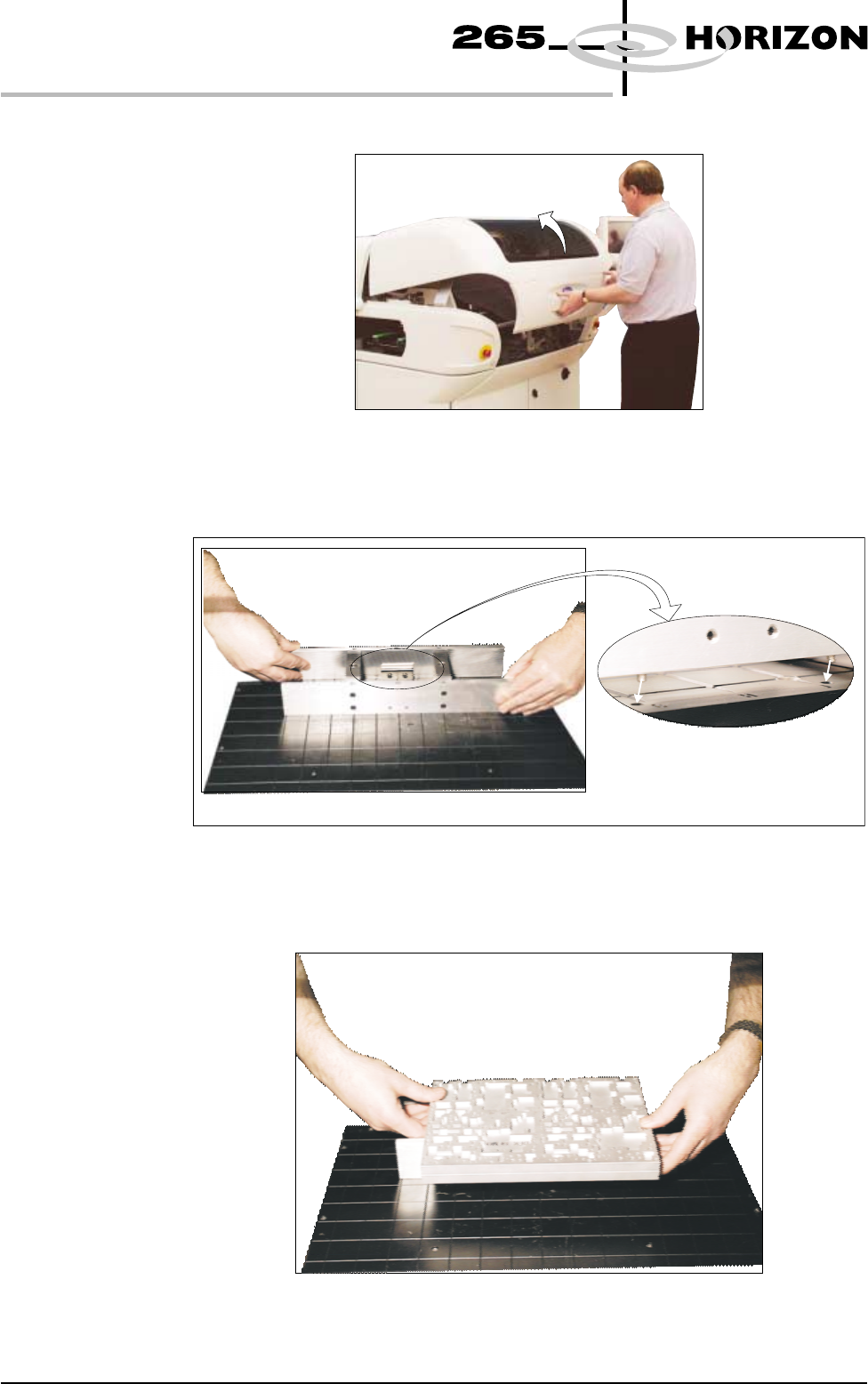
9. Lift the front printhead cover.
10. Fit the tooling tower to the manual plate. Ensure the dowels on the front edge
of the tooling tower base are correctly seated in the holes in the front edge of
the manual tooling plate.
11. Verify the plate assembly orientation and fit the assembly to the tooling
tower. Ensure the dowels of the plate assembly are correctly seated in the
holes in the tooling tower.
1.46 User Manual Software Version 6
MACHINE PROGRAMMING
STAGE 5C
View on Rear of Tooling Plate
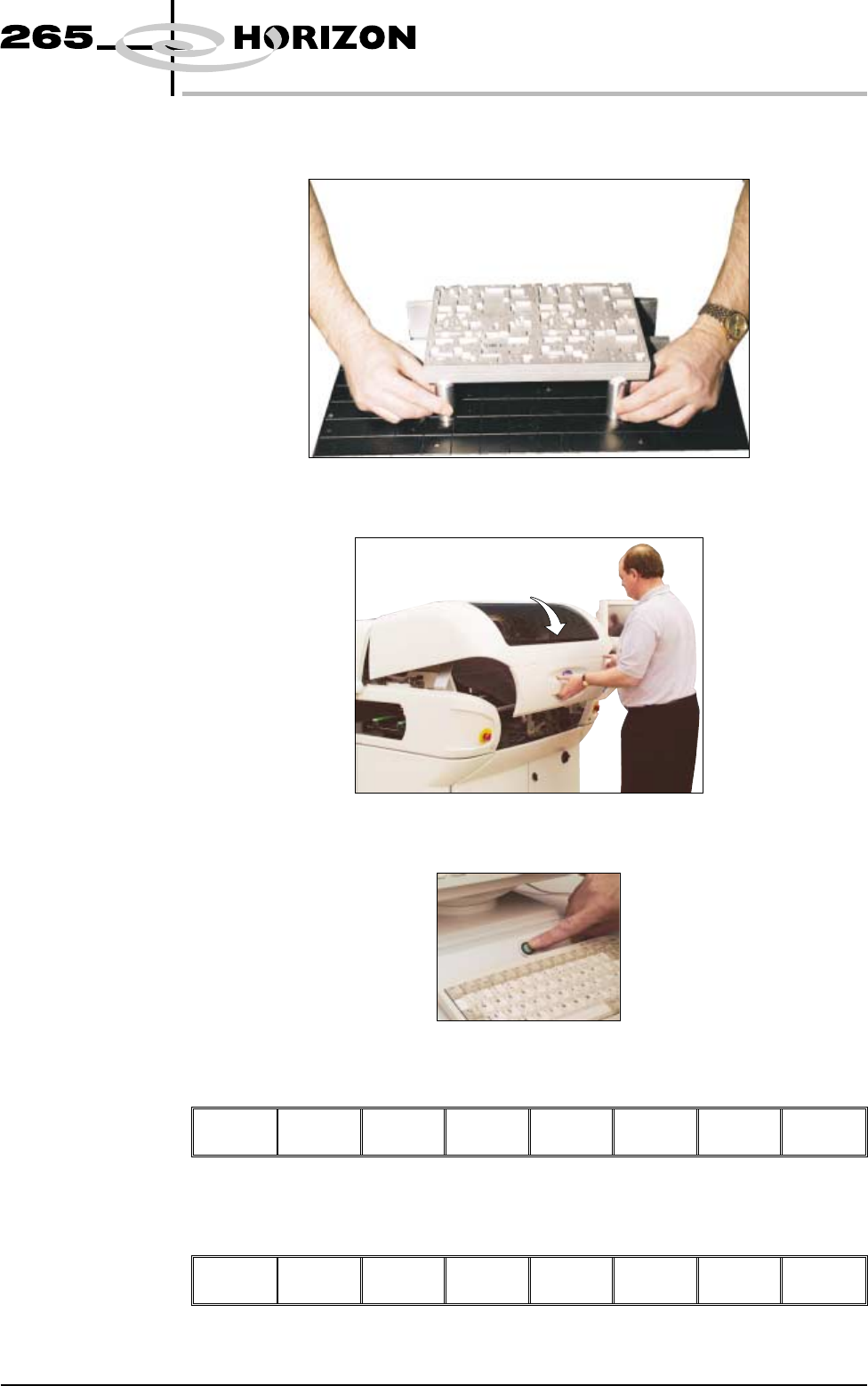
12. If required, slide additional magnetic pins beneath the plate assembly to fully
support it when printing wide boards.
13. Lower the front printhead cover.
14. Press the System button.
15. Select Home Cleaner (F3).
Adjust Open
Cover
Home
Cleaner
Board
Stop
Board
Width
Load
Width
Print
Height
Exit
16. Select Board Width (F5).
Adjust Open
Cover
Remove
Cleaner
Board
Stop
Board
Width
Load
Width
Print
Height
Exit
Software Version 6 User Manual 1.47
MACHINE PROGRAMMING
STAGE 5C