PSV7000_ Owners Manual_096-0460-001B - 第100页
Administrative Functions ■ 3D Coplanarity O ption 3—30 Data I/O • 096-0460-001B back Figure 3-1 7 : Adding or editin g a device specifications file. 5. On the PSV7000 key board, push the monitor toggle sequenc e to switc…
■ 3D Coplanarity Option ◘ Running a Job with 3D Inspection
PSV7000 Owner’s Manual 3—29
back
2. Toggle the monitor connection to the 3D Inspection PC by press-
ing keyboard Scroll Lock key twice, and then press 2 or 3 imme-
diately (depending on the number of options installed).
Note: NOTE: When viewing the 3D Inspection PC, use the key-
board and touch-pad. The PSV7000 touchscreen monitor will not
register touches.
3. Open the UltraVim application (double-clicking the desktop
icon).
4. A file for your device type is required. There are three choices to
accomplish this:
A) Use an existing file in the UltraVim Package Library,
B) Copy, paste, and rename an existing file, or
C) Create a new file.
File extensions are:
Note: There is also a *.MRK file for Mark & Package inspection.
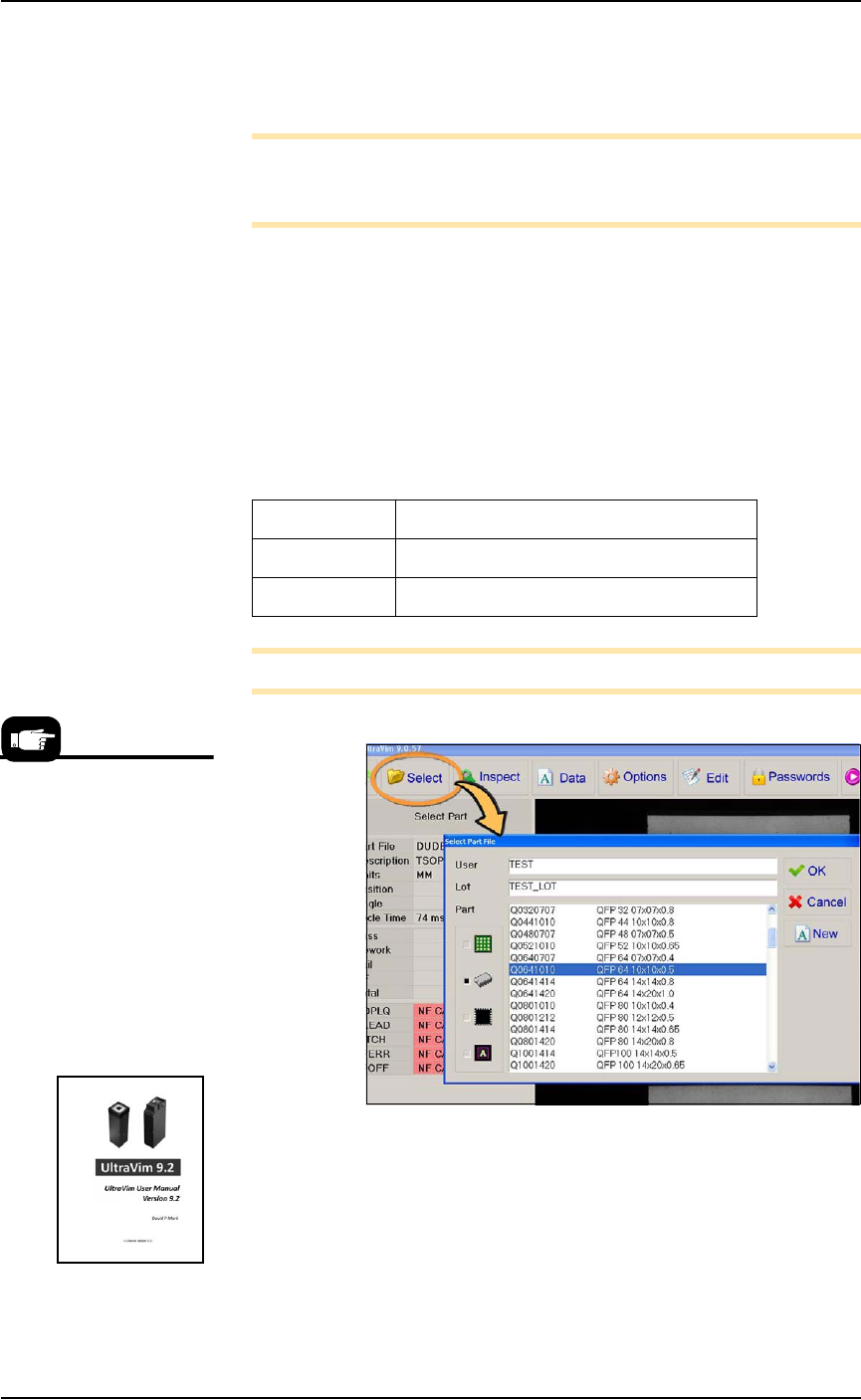
Figure 3-16: In the UltraVim application, clicking Select (circled) opens
the 'Package' library. This window may be password protected. See the
UltraVim User Manual for Help.
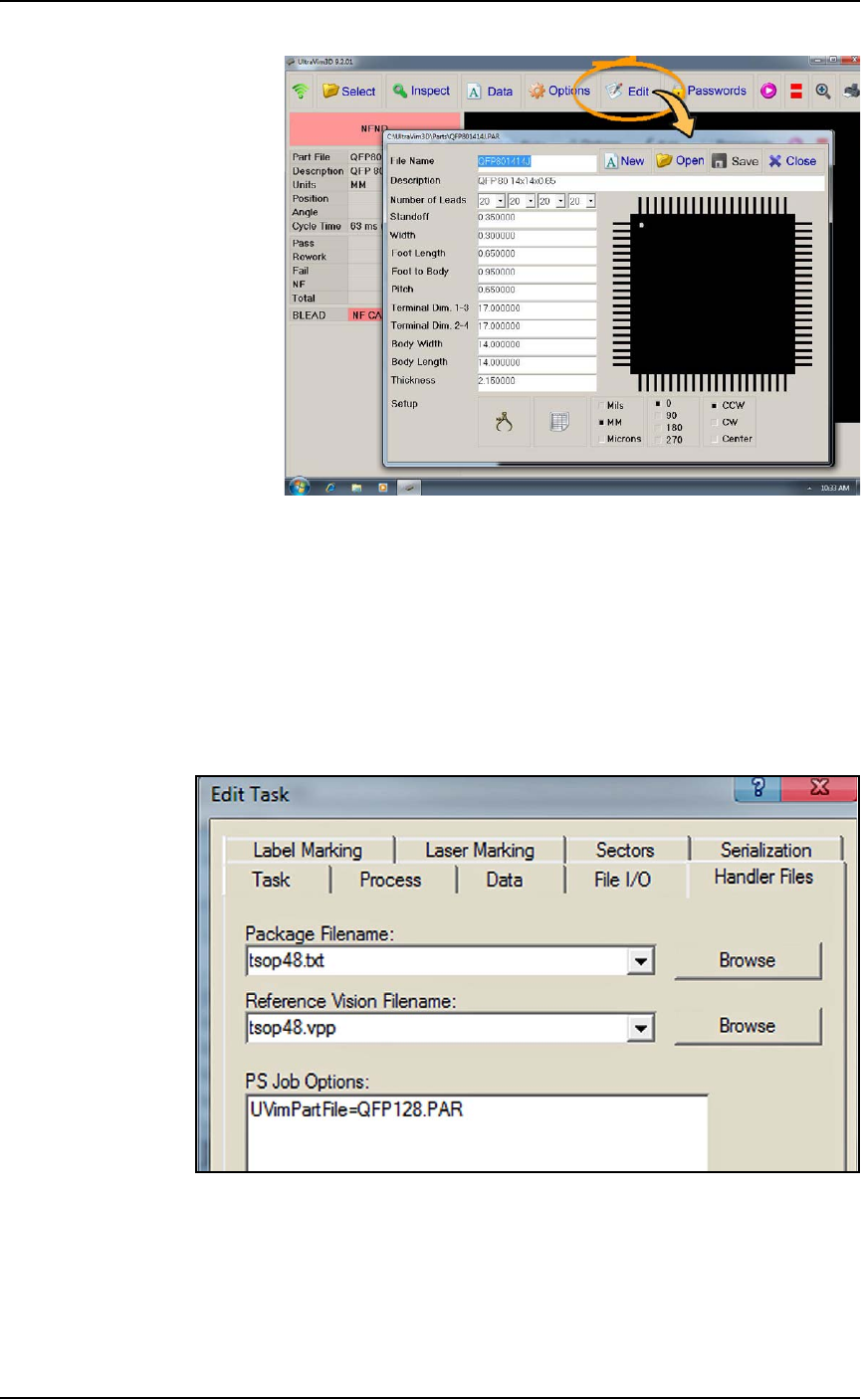
To create a new device file, or edit an existing one, click Edit and
enter data from the device specifications.
*.BGA Ball Grid Array
*.PAR Gull Wing and J-Lead
*.LCC QFN and LCC
When creating your job in
TaskLink, you may want to
check the UltraVim Package
Library to ensure that your
target package is available.
1. Open the UltraVim
Application.
2. Click Select.
3. View library
Refer to the UltraVim
User Manual for instruc-
tions.
Administrative Functions ■ 3D Coplanarity Option
3—30 Data I/O • 096-0460-001B
back
Figure 3-17: Adding or editing a device specifications file.
5. On the PSV7000 keyboard, push the monitor toggle sequence to
switch back to the PS Handler computer (scroll lock key twice
and then 1).
6. For the desired job in TaskLink, open the Edit Task dialog > Han-
dler Files tab. In the PS Job Options field, type in the name of the
device file you created; (the UltraVim manual terminology is
part file). These files are stored on the 3D Inspection System
computer.
Figure 3-18: : The PS Job Options field (TaskLink > Edit Task >
Handler Files) is an editor that you type into directly which passes
parameters to the AH700 Software.
7. Save the job.
■ 3D Coplanarity Option ◘ 3D Inspection Results
PSV7000 Owner’s Manual 3—31
back
8. If your job has not been run before using the 3D Inspection Sys-
tem, the Package File will need to be taught the location of the
3D Inspection System. (Refer to the AH700 on-screen Help for
similar edits to the Package, such as teaching a tray location.
9. Run your job.
Note: Typical AH700 options are available such as the
Ignore Pro-
grammers
feature (on the Options tab) if 3D inspection only is
desired without programming devices.
3D Inspection Results
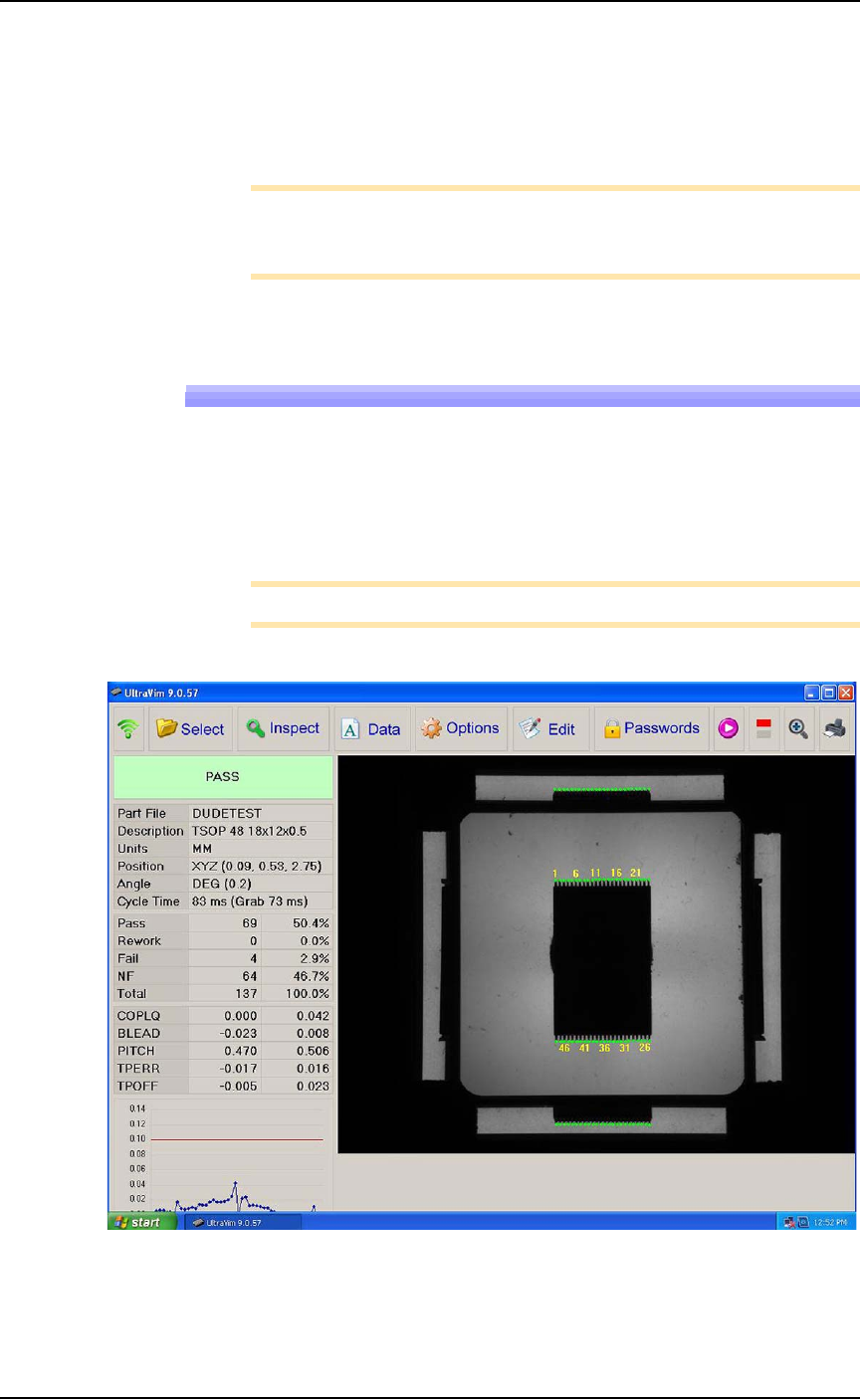
For each device inspected, UltraVim displays an image of the device
as well as a graph and other data.
A good inspection image displays all green dots on the all the leads.
See the two images below.
Note: Specifications for Rework and Fail can be edited.
Figure 3-19: A good inspection image. The dot at each lead is green.