PSV7000_ Owners Manual_096-0460-001B - 第102页
Administrative Functions ■ 3D Coplanarity O ption 3—32 Data I/O • 096-0460-001B back Figure 3-20: This inspection imag e shows 1 lead failed (see the red dot). 3D T roubleshooting Probe goes down too low . Figure 3-2…
■ 3D Coplanarity Option ◘ 3D Inspection Results
PSV7000 Owner’s Manual 3—31
back
8. If your job has not been run before using the 3D Inspection Sys-
tem, the Package File will need to be taught the location of the
3D Inspection System. (Refer to the AH700 on-screen Help for
similar edits to the Package, such as teaching a tray location.
9. Run your job.
Note: Typical AH700 options are available such as the
Ignore Pro-
grammers
feature (on the Options tab) if 3D inspection only is
desired without programming devices.
3D Inspection Results
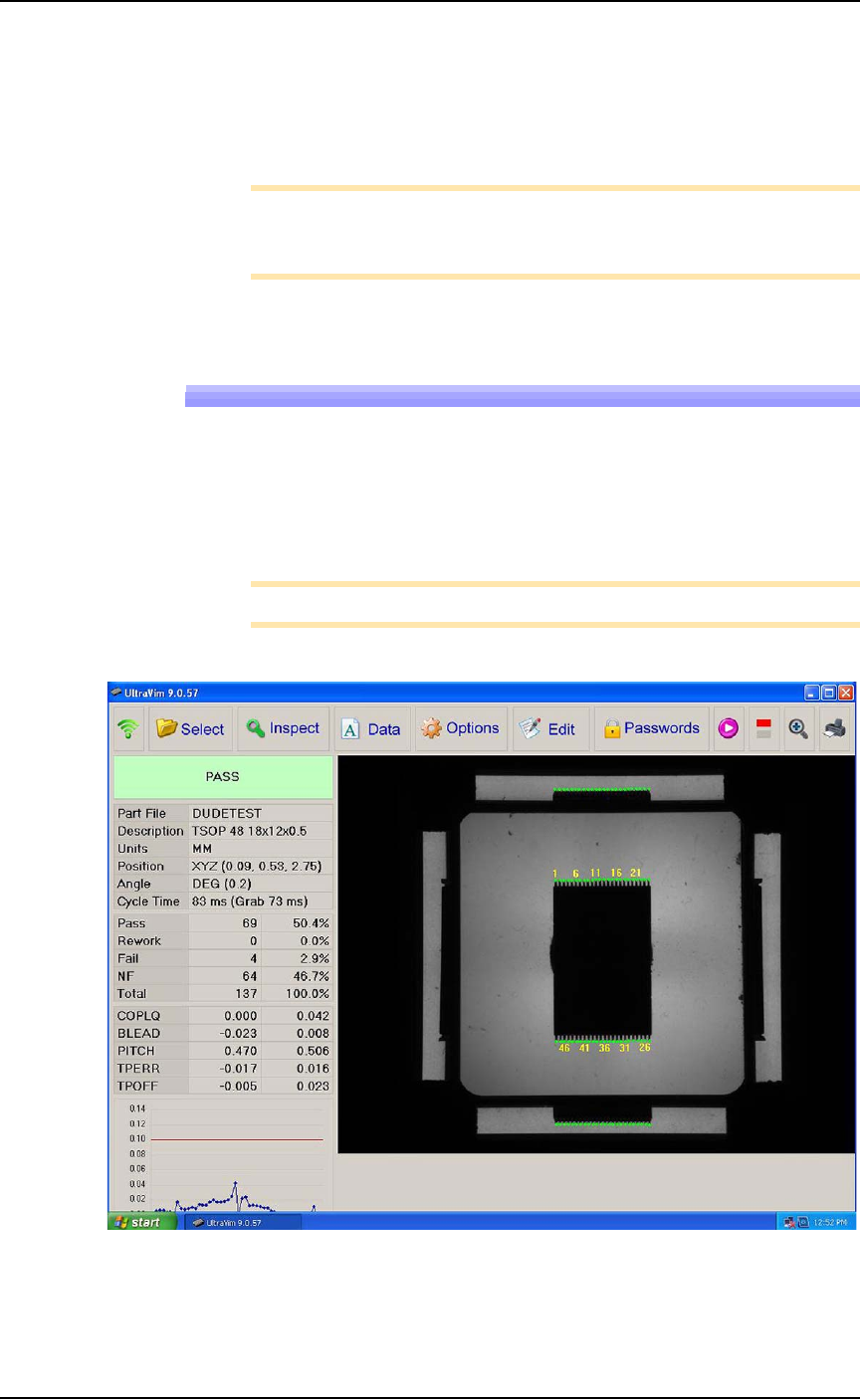
For each device inspected, UltraVim displays an image of the device
as well as a graph and other data.
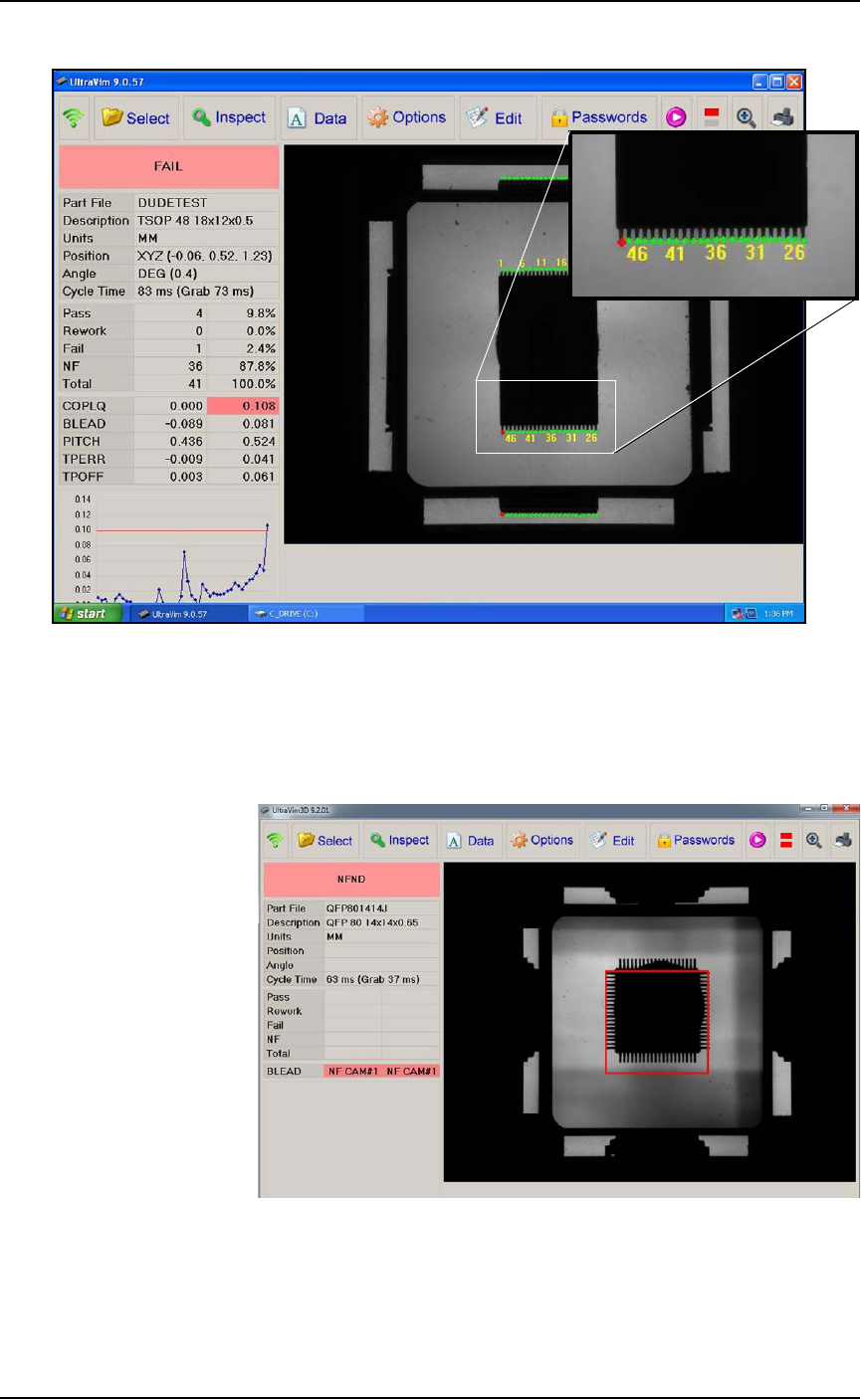
A good inspection image displays all green dots on the all the leads.
See the two images below.
Note: Specifications for Rework and Fail can be edited.
Figure 3-19: A good inspection image. The dot at each lead is green.
Administrative Functions ■ 3D Coplanarity Option
3—32 Data I/O • 096-0460-001B
back
Figure 3-20: This inspection image shows 1 lead failed (see the red
dot).
3D Troubleshooting
Probe goes down too low.
Figure 3-21: Probe is too low: you can see the probe tip all four of the
side views.
Resolution: Adjust the Z-height in AH700.

■ 3D Coplanarity Option ◘ Turning OFF the 3D Inspection Computer
PSV7000 Owner’s Manual 3—33
back
Turning OFF the 3D Inspection Com-
puter
The 3D Inspection PC generally does not need to be turned off until
the PSV7000 System is shut down. However, if it will not be used
again for several days, follow this procedure:
1. Toggle back to the 3D Inspection PC (keyboard key sequence
Scroll-Lock > Scroll-Lock > 3) if not already there.
2. Shut down the PC using the Windows Start menu. (It is not nec-
essary to close the UltraVim software first.)
To turn the 3D Inspection PC back ON, open the PC door with the
key and push the Power switch ON and release.