PSV7000_ Owners Manual_096-0460-001B - 第104页
Administrative Functions ■ Additional Features 3—34 Data I/O • 096-0460-001B back Additional Features Automotive P e rformance P ak Data I/O offers several utilities that are especially useful to certain industries. Thes…

■ 3D Coplanarity Option ◘ Turning OFF the 3D Inspection Computer
PSV7000 Owner’s Manual 3—33
back
Turning OFF the 3D Inspection Com-
puter
The 3D Inspection PC generally does not need to be turned off until
the PSV7000 System is shut down. However, if it will not be used
again for several days, follow this procedure:
1. Toggle back to the 3D Inspection PC (keyboard key sequence
Scroll-Lock > Scroll-Lock > 3) if not already there.
2. Shut down the PC using the Windows Start menu. (It is not nec-
essary to close the UltraVim software first.)
To turn the 3D Inspection PC back ON, open the PC door with the
key and push the Power switch ON and release.
Administrative Functions ■ Additional Features
3—34 Data I/O • 096-0460-001B
back
Additional Features
Automotive Performance Pak
Data I/O offers several utilities that are especially useful to certain
industries. These utilities, labeled the Automotive Performance Pak
(AP Pak), are described below. If your PSV7000 System does not have
this feature, it can be ordered and installed.
Contact Data I/O Sales.
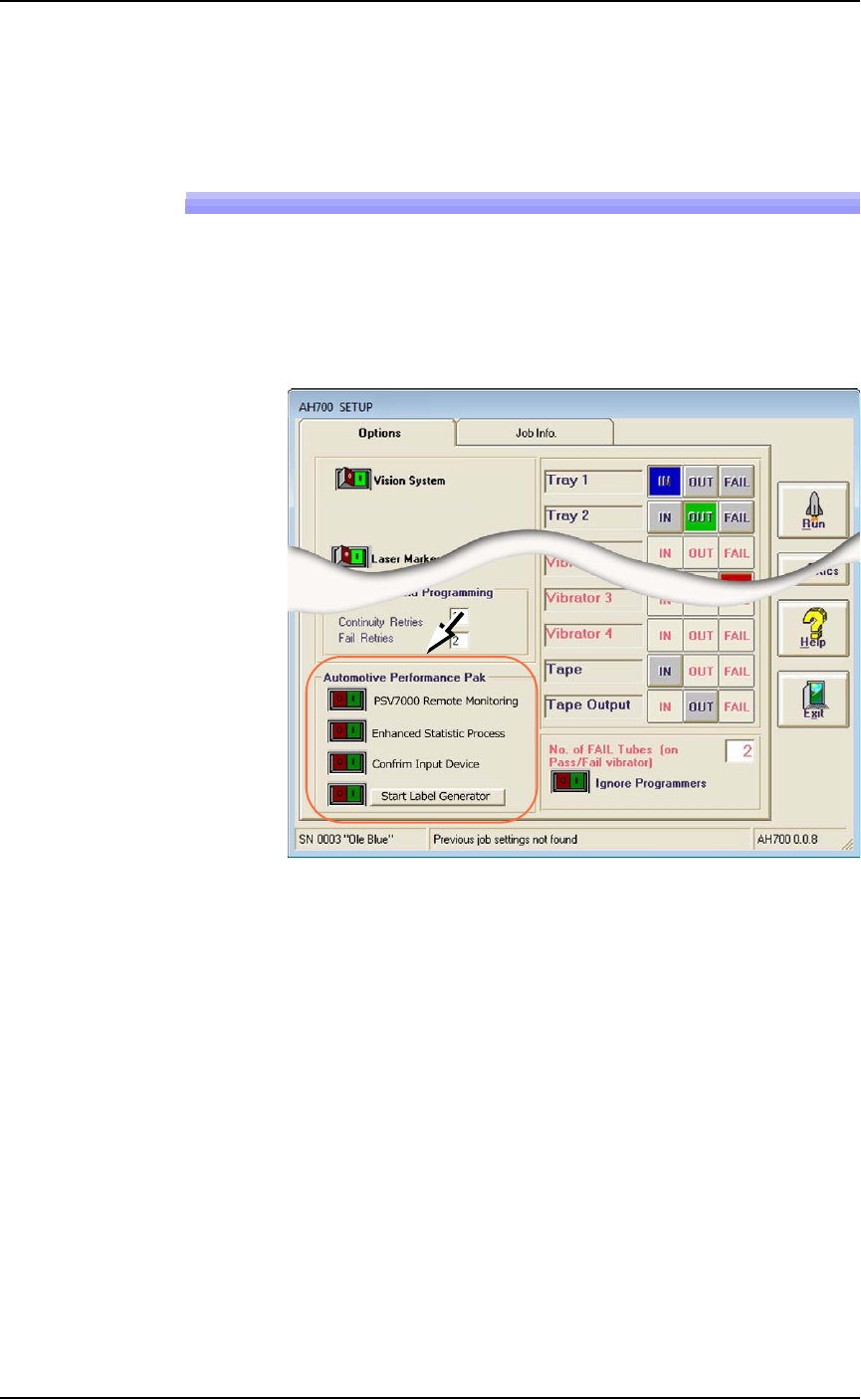
Figure 3-22: The Automotive Performance Pak features appear in the
Setup window.
Automotive Performance Pak Software Descrip-
tions
The Automotive Performance Pak (AP Pak) includes the following
software and hardware components.
Remote Monitoring
This application runs on a remote PC and displays Pass, Fail, and
Yield information of networked PSV7000 Systems. Up to ten systems
can be monitored.
Enhanced Statistics
The Enhanced SPC (Statistical Process Control) application is a stan-
dard feature on AH700 Ver 1.5+ and allows precise tracking of
machine behavior such as uptime, downtime, yields, and

■ Additional Features ◘ Automotive Performance Pak
PSV7000 Owner’s Manual 3—35
back
throughput. It produces job log files that are readable with Micro-
soft® Excel and Access software to graph the data. (Excel and Access
required.)
Confirm Input Device (AP Pak Option)
This safety enhancement checks that the input device is the correct
one for the job each time the input media is changed. When a job
starts or when the input media (such as Tape-In or Tray Feeder) is
empty, a barcode must be scanned to continue. This barcode must
match the value setup in the TaskLink task. Typically, it is the raw
material part number of the devices.
Label Generator (AP Pak Option)
This separate application is a utility for designing labels for reels of
device tape or other media. Choose size, number of fields, and layout.
Call up variables from TaskLink or enter new content. Print
on-demand or automatically after each reel of devices.
Ordering and Installing
Ordering the AP Pak involves sending Data I/O a number from the
Setup window in AH700 with your purchase order. Data I/O will
send a security file via return e-mail. Complete instructions along
with the installation procedure are in the AH700 online Help: find
Automotive Performance Pak in the online Help index.
For information about
setting Confirm Input
Device, see TaskLink
online Help.