PSV7000_ Owners Manual_096-0460-001B - 第120页
Maintenance ■ Workspace, Head and Gantry 4—14 Data I/O • 096-0640-001B back Pick and Place Probes The workspace Pick and Place head has two probes which require periodic maintenance. The headings below describe maintenan…
■ Workspace, Head and Gantry ◘ Cleaning the PSV7000 Machine
PSV7000 Owner’s Manual 4—13
back
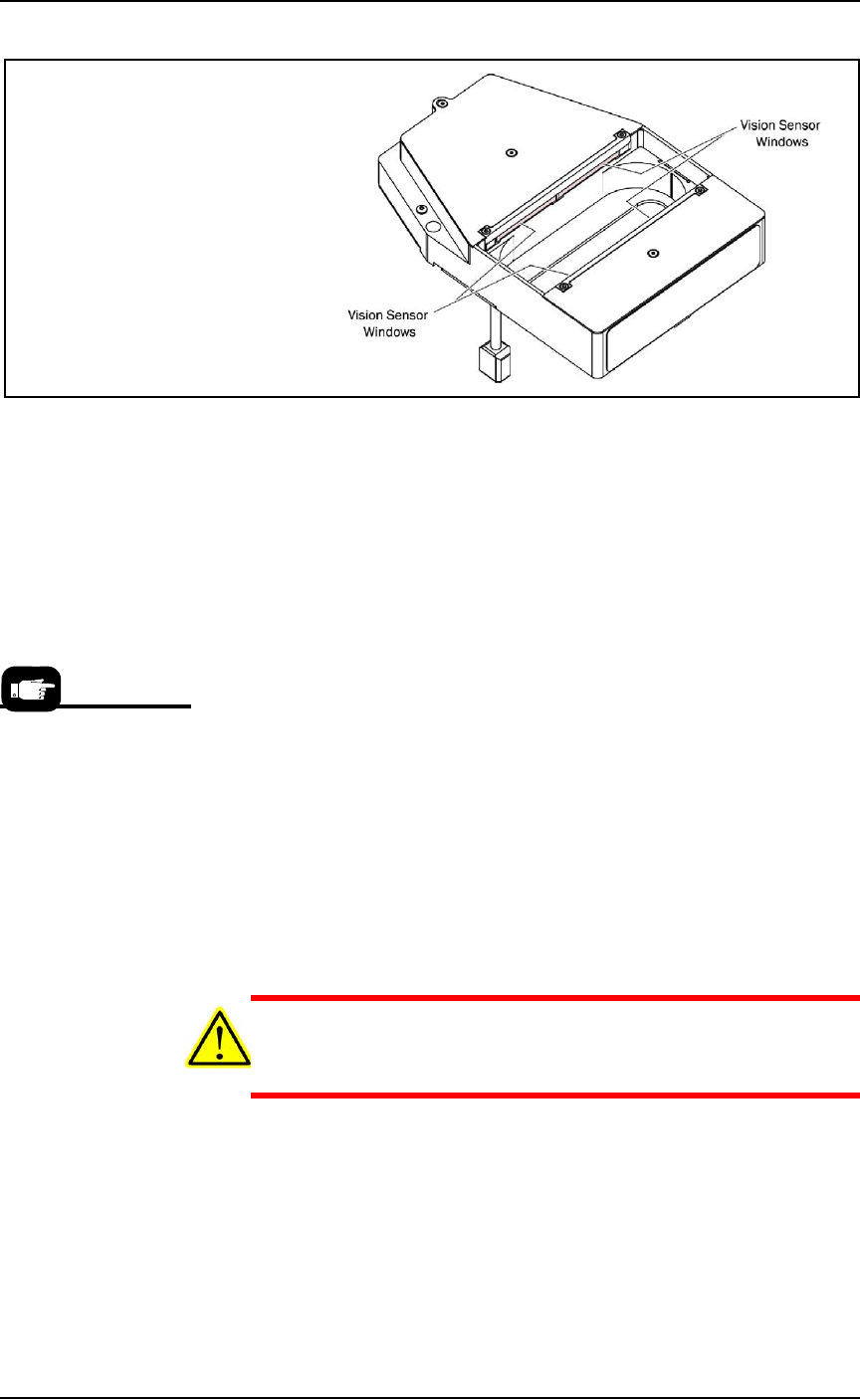
Figure 4-4: The Device Position Sensor.
Check the Sensor Windows
To check to see if the sensor windows are currently providing a good
image:
• Open the Gantry window in the AH700 and click Check Image.
The wavy line should be smooth. If it is jagged, clean the win-
dows. For more information and an image, refer to the on-screen
Help.
Clean the Sensor Windows
Requirements
• pre-moistened wipes (PN 5700410), or
• lens tissue (PN 570041)
To clean the sensor windows:
1. Brush dust off the sensor windows using a camel-hair brush
such as an artist brush.
2. Remove fingerprints or other oily deposits; either use pre-moist-
ened wipes or moistened lens tissue or cotton swab with a small
amount of isopropyl alcohol.
CAUTION: Product damage hazard! Wiping back and forth may
re-deposit the debris and may damage the window glass. Wipe in
a single direction, lift and repeat.
3. Wipe each window once IN A SINGLE DIRECTION.
4. Using a dry tissue or swab, lightly wipe each window IN A SIN-
GLE DIRECTION to remove any remaining alcohol or acetone
residue.
The cleaning wipes are
part of the Self-Service
Spare Parts Kits.

Maintenance ■ Workspace, Head and Gantry
4—14 Data I/O • 096-0640-001B
back
Pick and Place Probes
The workspace Pick and Place head has two probes which require
periodic maintenance. The headings below describe maintenance.
Checking the Probe Tips
Worn or damaged probe tips on the PNP head can cause dropped
devices and placement problems.
1. Check the probe tips for cracks or tears. If necessary, replace
with a probe tip of the same size.
2. Test the probe tip—
2a. At the Setup window, click System > Gantry.
2b. Click the Vacuum switch to ON.
2c. Open the safety door and place a device on the target probe.
2d. If the vacuum does not firmly hold the device, replace the
probe tip with a probe tip of the same size.
Checking the Probes
Check that each probe is not loose. Tighten the set screw on the stem
if necessary. If you suspect or hear an air leak (and your style of probe
has a set screw):
1. Remove the set screw on the probe stem.
2. Pull off the probe stem and check the O-ring. Replace if neces-
sary.
3. Reassemble.
Cleaning the Probe Tips
To clean the Probe tips:
1. Move the PNP head to a convenient position by clicking one of
the yellow labels on the Gantry window. The Tool position is rec-
ommended.
2. Open the safety door.
3. Wipe the tip
with alcohol wipes (Data I/O PN 570-0410-001) or a
damp cloth.
Note: Do not touch the probe tip with bare hands. Finger oils can
cause small devices to stick.
■ Workspace, Head and Gantry ◘ Adjusting Probe Blow-Off Pressure
PSV7000 Owner’s Manual 4—15
back
Adjusting Probe Blow-Off Pressure
Note: The flow controls are set at the factory and should not
require adjustment. If adjustments need to be made, they should be
done in small steps until the desired results are reached.
Blow-off is a small puff of air applied at the probes during the device
drop event to assist in removing a device from the probe. Blow-off is
produced by a vacuum generator on the PNP head. If set too high,
blow-off could cause device misalignment during placement.
Tools Required
• Large flat screwdriver
• Very small flat screwdriver
To adjust blow-off pressure on any vacuum generator:
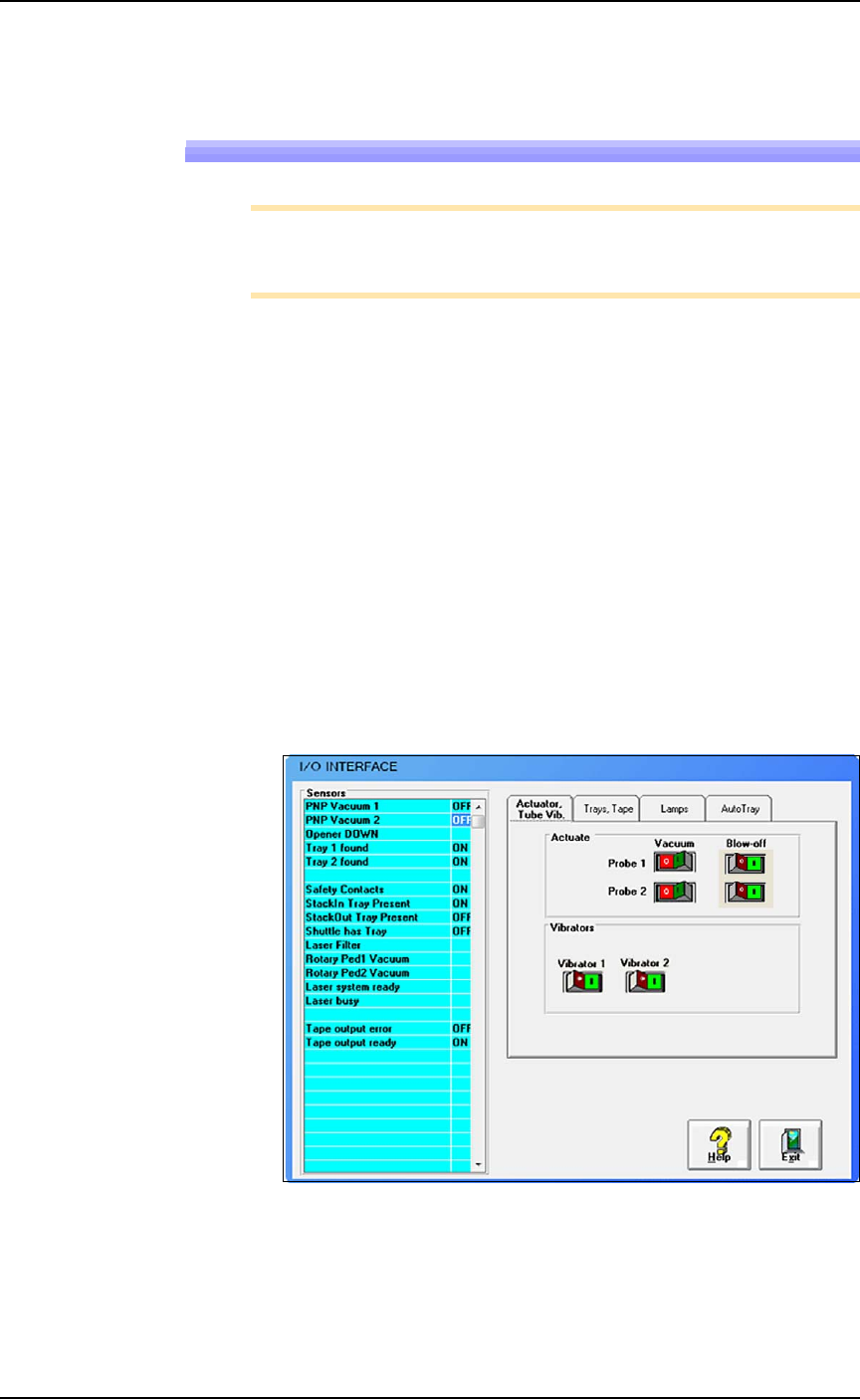
1. Click System > Misc. I/O.
2. At the I/O Interface window, select the desired vacuum genera-
tor, probe 1 or probe 2 (or both).
3. Click Vacuum to the OFF position. Refer to Figure 4-5.
4. Click Blow-off to the ON position.
Figure 4-5: Vacuum and Blow-off on the I/O Interface window.