PSV7000_ Owners Manual_096-0460-001B - 第148页
Maintenance ■ Handler Computer 4—42 Data I/O • 096-0640-001B back Note: Y our existing winAH400.ini will not be replaced so all your settings will remain the same. Note: Updating T askLink is a differ ent CD. For more T …
■ Handler Computer ◘ Handler Computer Air Filter
PSV7000 Owner’s Manual 4—41
back
Handler Computer
The main PSV7000 Machine computer, or Handler Computer, is at
the left side of the machine and requires little maintenance.
Handler Computer Air Filter
The Handler Computer has an air filter that requires periodic
cleaning or replacing.
To remove the air filter:
1. Properly shut off the PSV7000 sub-systems and machine power.
See Shutting Down the PSV7000 System on page 2-7.
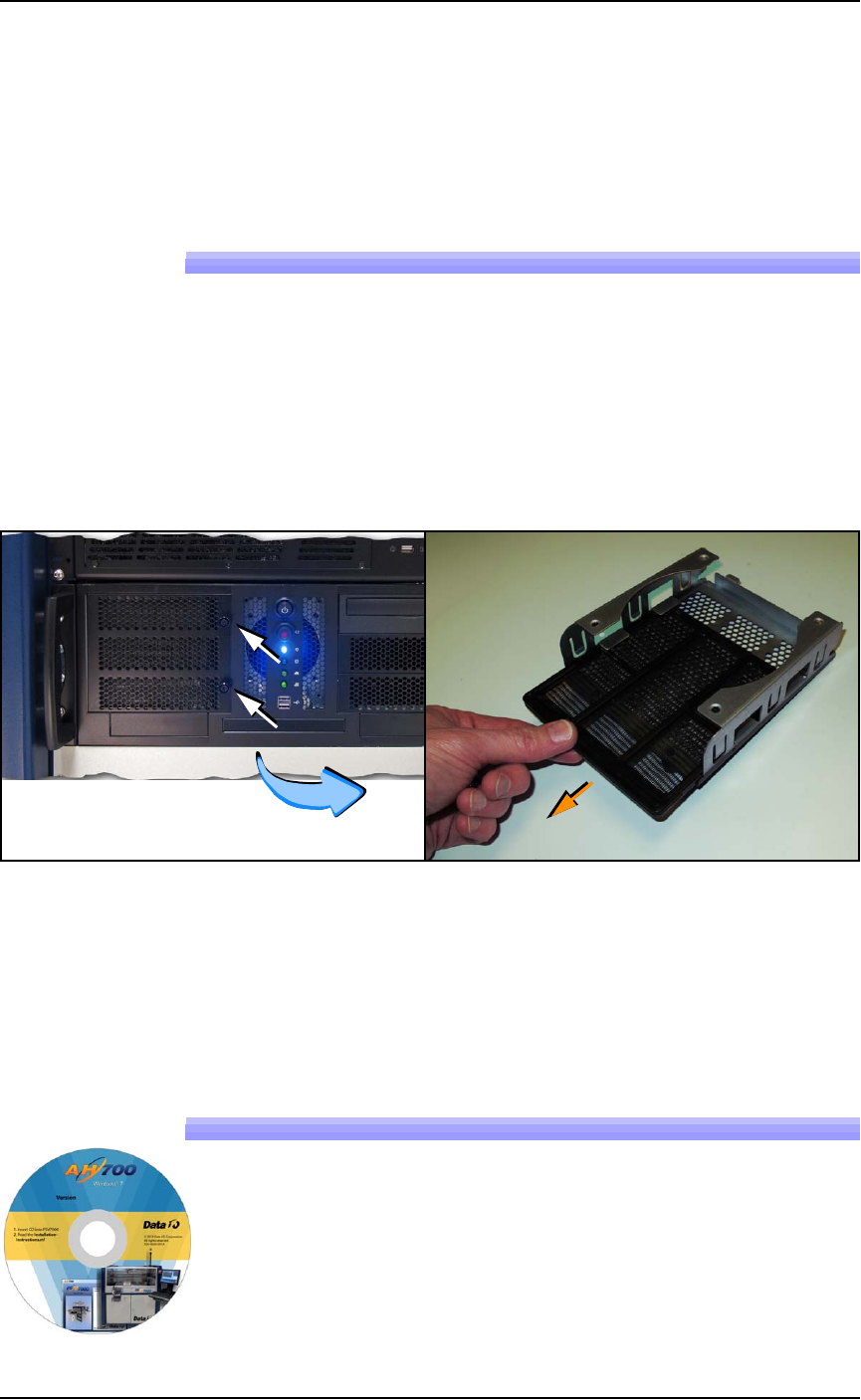
2. Open the filter door by unscrewing the two knurled knobs. See
Figure 4-26.
Figure 4-26: The Handler Computer filter door has two knurled knobs
(white arrows). The filter (screen) slides out.
3. Open the filter door or lift it out.
4. Pull out the filter tray out of the door.
5. Clean filter as necessary such as with a light-duty vacuum.
Installing AH700 Software Updates
AH700 Software updates are periodically published with improve-
ments. Delivery depends on contract options.
To install new AH700 Updates on the Handler Computer, insert the
AH700 CD and follow instructions in the
Installation Instruc-
tions.rtf
file.

Maintenance ■ Handler Computer
4—42 Data I/O • 096-0640-001B
back
Note: Your existing
winAH400.ini
will not be replaced so all
your settings will remain the same.
Note: Updating TaskLink is a different CD. For more TaskLink
information, see TaskLink’s online Help.
Note: PSV7000 System algorithms are updated weekly at
http://www.dataio.com/algorithms/ and are available
depending on your maintenance plan. Algorithms are
updated vis TaskLink. See TaskLink Help for more informa-
tion.
■ 3D Coplanarity Inspection System ◘ Cleaning the 3D Inspection PC Filter
PSV7000 Owner’s Manual 4—43
back
3D Coplanarity Inspection System
The 3D Inspection System requires little maintenance. The 3D Inspec-
tion PC is just below the Handler PC on the left side of the machine.
Cleaning the 3D Inspection PC Filter
1. Shut down the 3D Inspection PC using the Windows Start menu
as follows:
1a. Use the Scroll Lock key on the keyboard to switch to the 3D
Inspection PC. (Scroll-Lock > Scroll-Lock > 3.)
1b. Exit the UltraVim Application software. Then at the dialog,
type EX to exit.
1c. Shut down the 3D Coplanar PC with the Windows START
menu.
2. Open the PC door with the key.
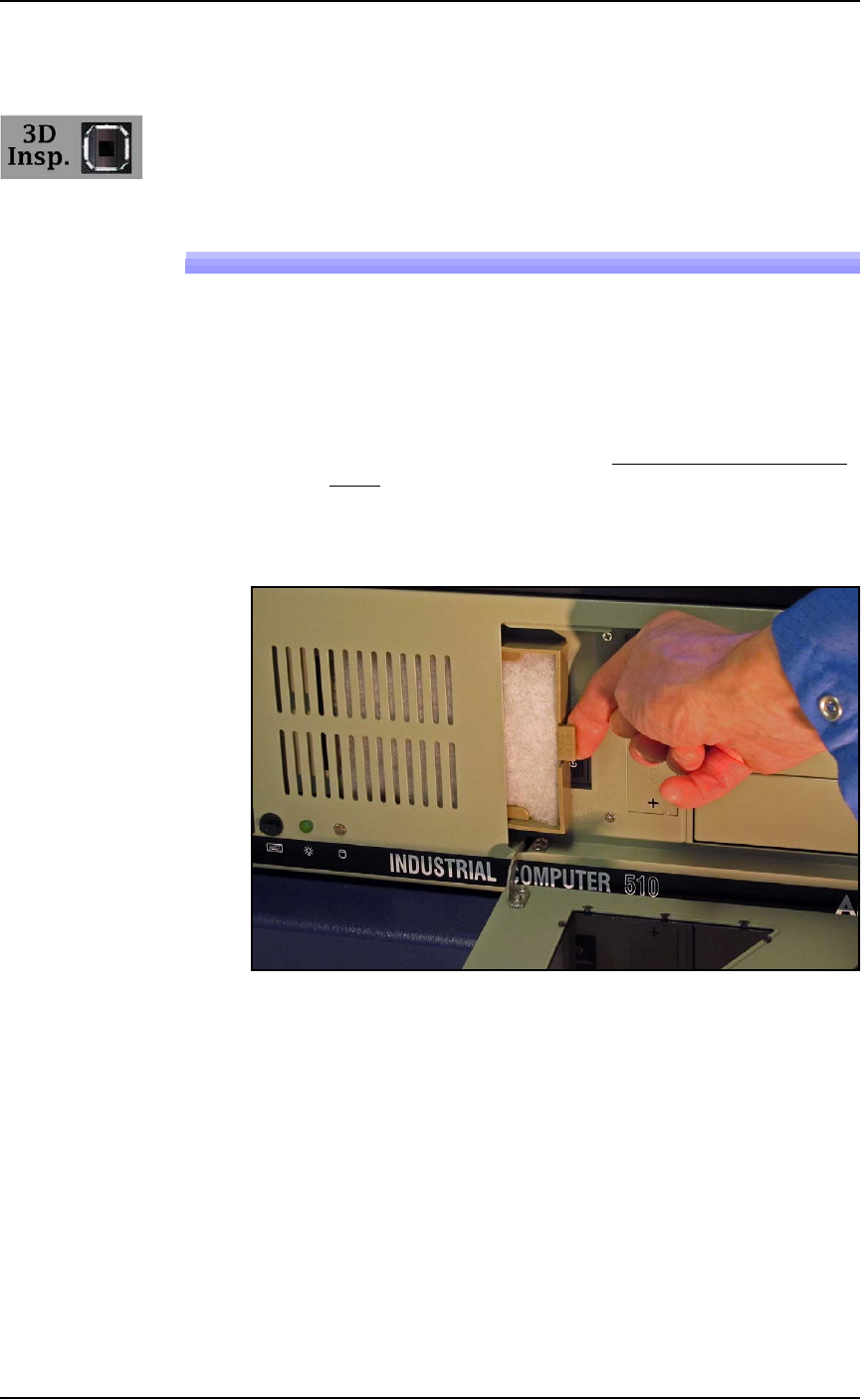
3. Pull the small tab on the filter tray toward you and slide to the
right.
4. Inspect the filter. It should be white. Clean or replace with a new
filter.
5. Replace the filter tray and close and lock the PC door.
To turn