PSV7000_ Owners Manual_096-0460-001B - 第153页
■ Troubleshooting ◘ Collec t all PSV7000 System Logs PSV7000 Owner’s Manual 4—47 back • SECOND AUTO METHOD: The AH700 Softw a re also displays a button in the System window . When starting Collect PS Logs in AUTO Mode), …
Maintenance ■ Troubleshooting
4—46 Data I/O • 096-0640-001B
back
Programmer Related Problems
When you experience a programmer related problem:
1. Force the error to re-appear by running a job, or performing the
same steps that led to the trouble.
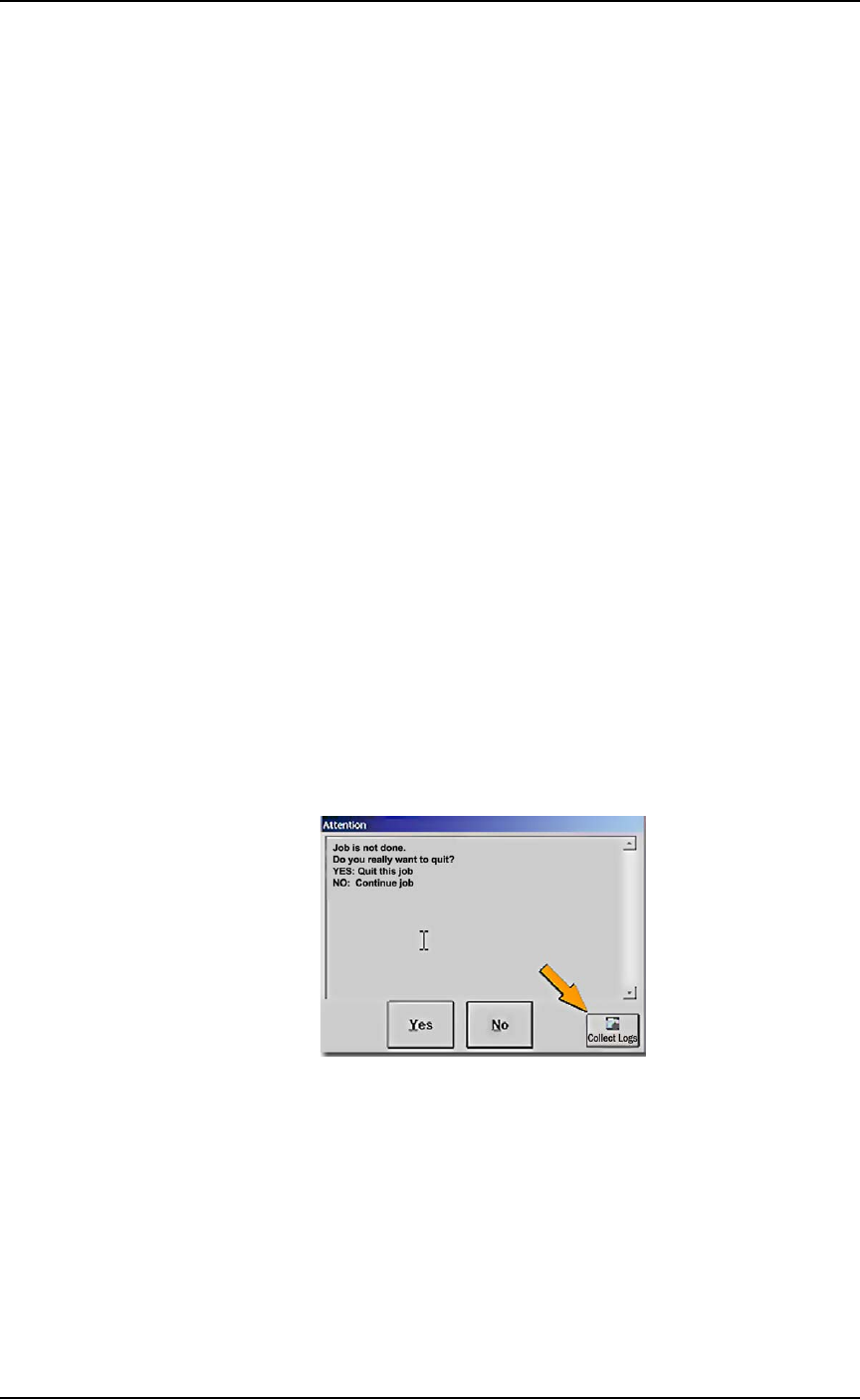
2. (Note any dialogs with the Collect Logs button) and close AH700
the usual way as follows:
2a. Click Finish to stop a job.
2b. Exit the Run window.
2c. Exit the System window.
2d. Exit the Setup window.
3. Start Collect PS Logs. See heading Starting ‘Collect PS Logs’
below.
Other Problems
For problems that are NOT programmer related, run the Collect PS
Logs application anytime after the problem has been seen.
Starting ‘Collect PS Logs’
There are three methods to start the Collect PS Logs application.
Auto Method (the App doesn’t open)
AUTO Method uses default settings— The Auto Method itself has
two ways to collect logs. The Collect Logs Application does not open
with these auto methods.
• FIRST AUTO METHOD: The AH700 Software displays a button
in each message box that allows you to start the Collect PS Logs
application in AUTO Mode.
■ Troubleshooting ◘ Collect all PSV7000 System Logs
PSV7000 Owner’s Manual 4—47
back
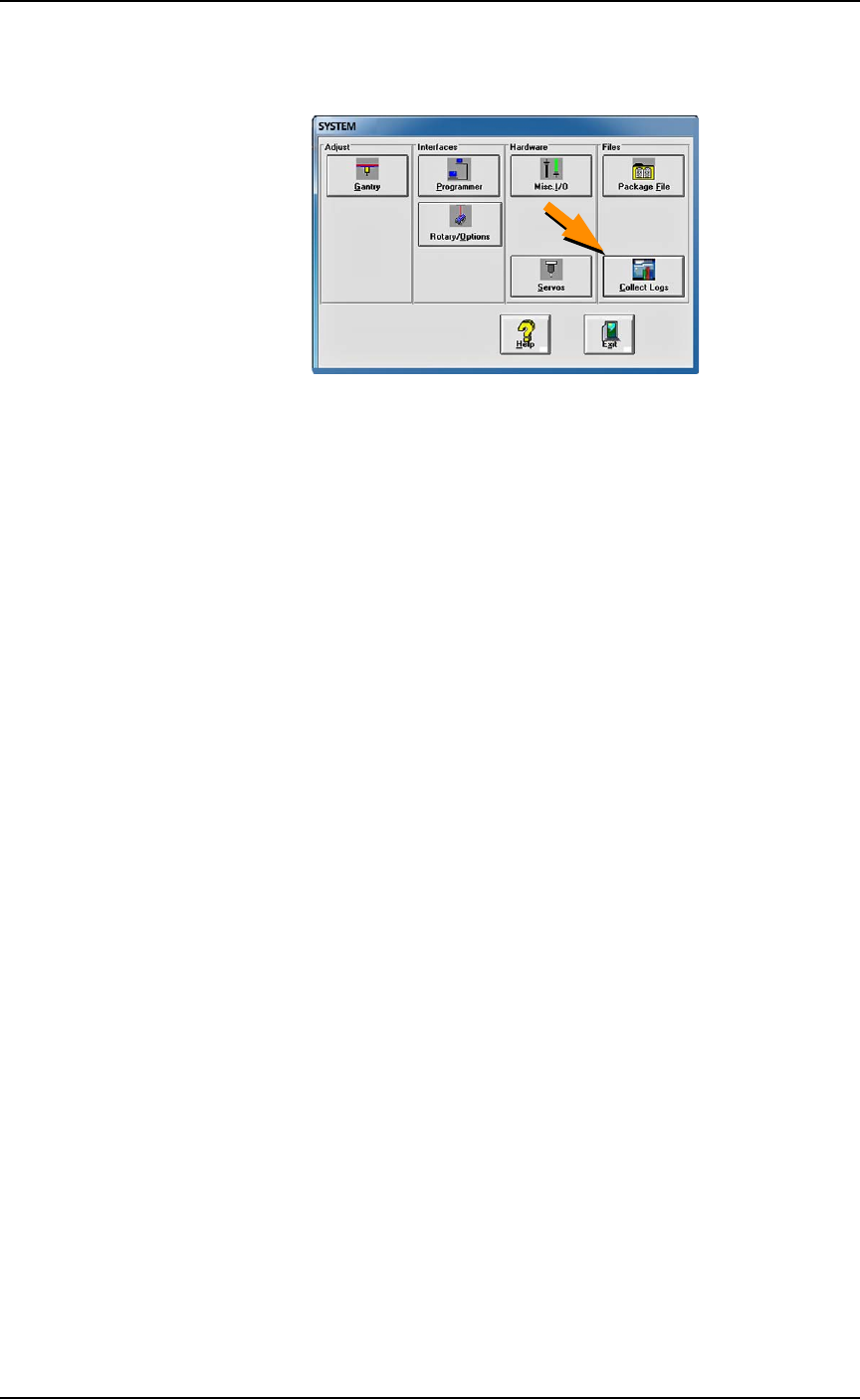
• SECOND AUTO METHOD: The AH700 Software also displays
a button in the System window.
When starting Collect PS Logs in AUTO Mode), only a progress
screen is shown on the lower left corner of the screen. All defaults are
used and no user action is required. A log zip file named with the
current date and time is saved in the Documents folder (
C:\Docu-
ments
, or C:\Libraries\Documents.)
Start App Method in Windows OS
The Start App (non-auto) method is the Windows method using the
Windows Start menu; it offers some options. Click Window Start >
All Programs > Data IO > Collect PS Logs.
After starting Collect PS Logs from the Start menu, the main window
appears where you can select which items you need to collected.
1. Select or clear check boxes for files as desired.
2. (Optional) Check additional SPC files if the error rarely appears
or appeared a long time ago.
3. (Optional) In Collect PSV7000 Logs, to enter a text description to
the Zip file:
3a. Click Add description.
3b. Type a description into the field available. In addition to
what you type, the description will include the Date and
Time the log was captured and the serial number informa-
tion from the winAH400.ini file.
4. Click Collect and ZIP.
A ZIP file is created and copied to the Windows Clipboard. A mes-
sage advises pasting it into a folder you choose.
5. Click OK to the message about pasting the ZIP file to a desired
folder.
For more information see the AH700 on-screen Help.

Maintenance ■ Troubleshooting
4—48 Data I/O • 096-0640-001B
back
Programming Problems
Lamp
Color
Programmer Trouble Possible Resolutions
One programmer has
many continuity failures (in
Statistics window).
Move the Socket Adapter to another program-
mer to see if the problem is the programmer or
the adapter, as follows:
1. If a job is running click Pause and wait until all
programmer activity is done.
2. Check that there are no devices in the target
adapter. If there are, click Finish.
3. Replace the target Socket Adapter with
another empty adapter.
If the failure moves with the Socket Adapter,
check for bent, damaged or worn pins on the
sockets.
If continuity failures persists in the same pro-
grammer, see Pick and Place Problems on page
4-49.
Note: If a programmer is not performing and
you cannot correct the error, you can continue
to use other programmer sites after disabling
the non-functional programmer. See Disabling
Programmers in the PSV7000 Operators
Manual or the AH700 on-screen Help.
Many Programmers
have continuity failures.
The Device Position Sensor may need clean-
ing. Refer to Cleaning the Device Position Sensor
on page 4-12.
Red
All programmers fail to
program devices.
Check that the Programmer Simulation switch
on the Setup window is OFF. If not, switch it to
OFF.
Check that the Programmers circuit switch on
the Power Panel is On.
Check the Log file for helpful information as
follows:
1. Pause the job.
2. Exit the Run window.
3. At the Setup window click System > Log File.