PSV7000_ Owners Manual_096-0460-001B - 第46页
Setup ■ Applying Power for the First Time 2—8 Data I/O • 096-0460-001B back (Optional) Installing Antivirus Software The PSV7000 System has no antivirus softw are installed from the fac- tory . It is highly recommend tha…
■ Applying Power for the First Time ◘ Shutting Down the PSV7000 System
PSV7000 Owner’s Manual 2—7
back
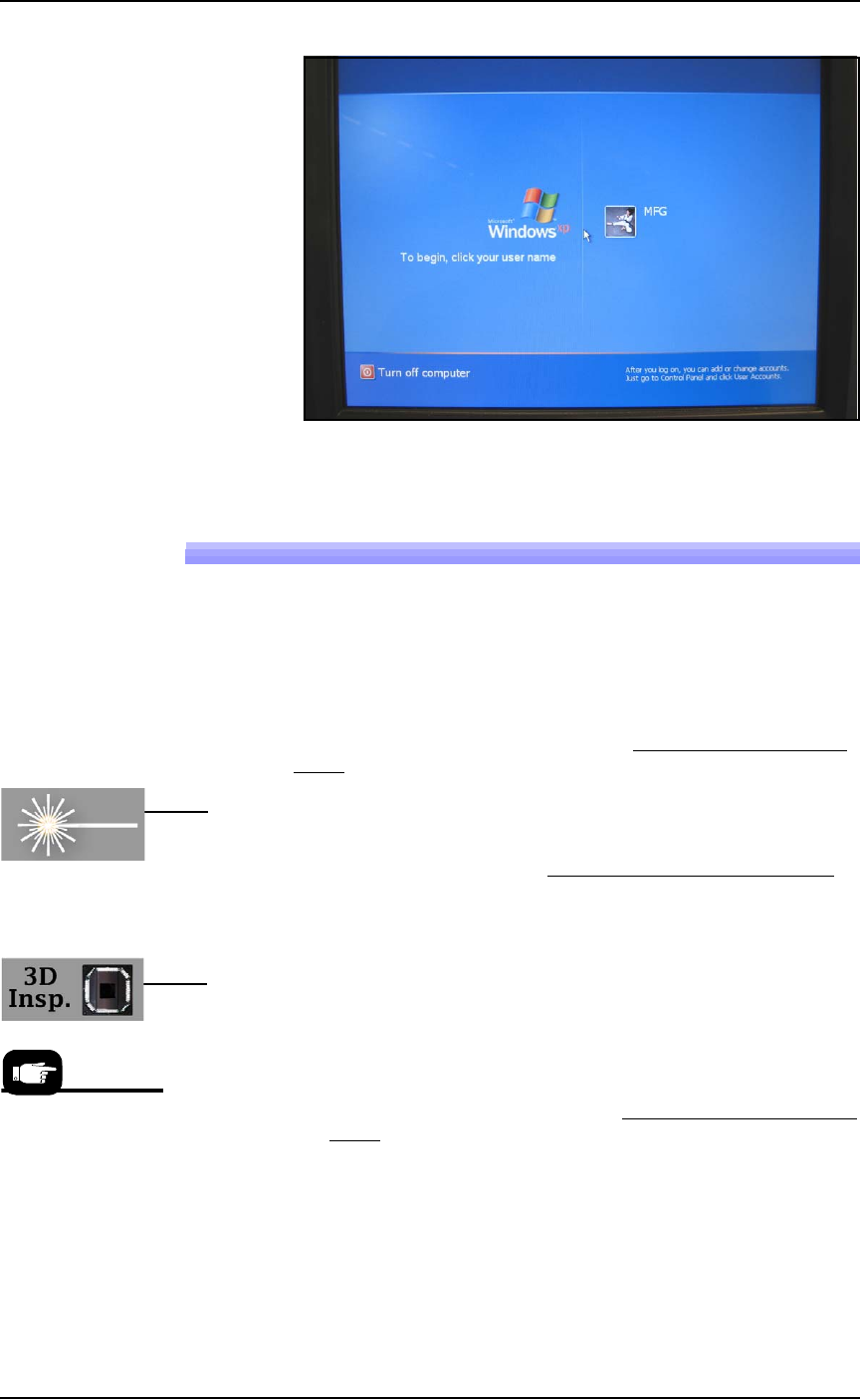
Figure 2-2: Windows Log-on window.
Shutting Down the PSV7000 System
1. Finish and Exit any job that is running.
2. (Optional) Remove all devices from the system.
3. With Handler PC active (key sequence: scroll-lock > scroll-lock 1),
exit AH700 and TaskLink and any other software that you have
running.
4. Shut down the Handler Computer PC with the Windows Start
menu.
5. [Laser Marker System only] At the keyboard switch to the
Laser PC (key sequence: scroll-lock > scroll-lock 2).
5a. (Optional) Save and exit the Laser Marker software.
5b. Shut down the Laser PC with the Windows START menu
.
Wait until it finishes shutting down—see the message “I’s
now safe to shut off the computer.”
5c. Turn OFF (0) the Enable Selector (Laser PC).
5d. Turn OFF (0) the Key Selector (Laser PC).
6. [3D Coplanarity Inspection System only] At the keyboard
switch to the 3D Inspection PC. (key sequence: scroll-lock >
scroll-lock 3).
6a. Exit the UltraVim Application software. At the next dialog
type EX to exit.
6b. Shut down the 3D Inspection PC with the Windows START
menu.
7. WAIT UNTIL WINDOWS COMPLETES SHUTTING DOWN,
then rotate the main power switch (on the Power Panel) counter-
clockwise to the OFF (vertical) position.
8. (Optional) Padlock the main power switch so that it cannot be
turned back ON while the lock is in place.
If the PSV7000 Machine will not be used for several days, the shop air
should also be removed or turned off at the Power Panel.
Note that the
On/Off switches for
the Tube Media
Modules do not need
to be turned OFF.
Power is controlled
by the AH700 SW.

Setup ■ Applying Power for the First Time
2—8 Data I/O • 096-0460-001B
back
(Optional) Installing Antivirus Software
The PSV7000 System has no antivirus software installed from the fac-
tory. It is highly recommend that customers install their own anti-
virus software. The software should be set to run virus scans
manually rather than at a scheduled time unless you are sure that the
PSV7000 System will not be running jobs at that time.
Note: An antivirus program may affect performance.
The PSV7000 System runs Windows 7 Professional 64-bit operating
system. Follow instructions for your antivirus software. Contact
Data I/O Service with specific questions. See Contacting Data I/O on
page x (in Preface).
(Optional) Network Settings
After starting up the PSV7000 System and logging on, double-click
Computer > Map Network Drive (Windows 7).
IP Address and Port Number
If you need the IP Address for communicating with other Data I/O
software, they are available via TaskLink. The Port numbers are also
displayed. (Port numbers are the same for all programmers on a
PSV7000 Machine.)
Addresses and Port numbers can be found as follows.
1. Start TaskLink on the target PSV7000 System. (Closing AH700
will return to TaskLink.)
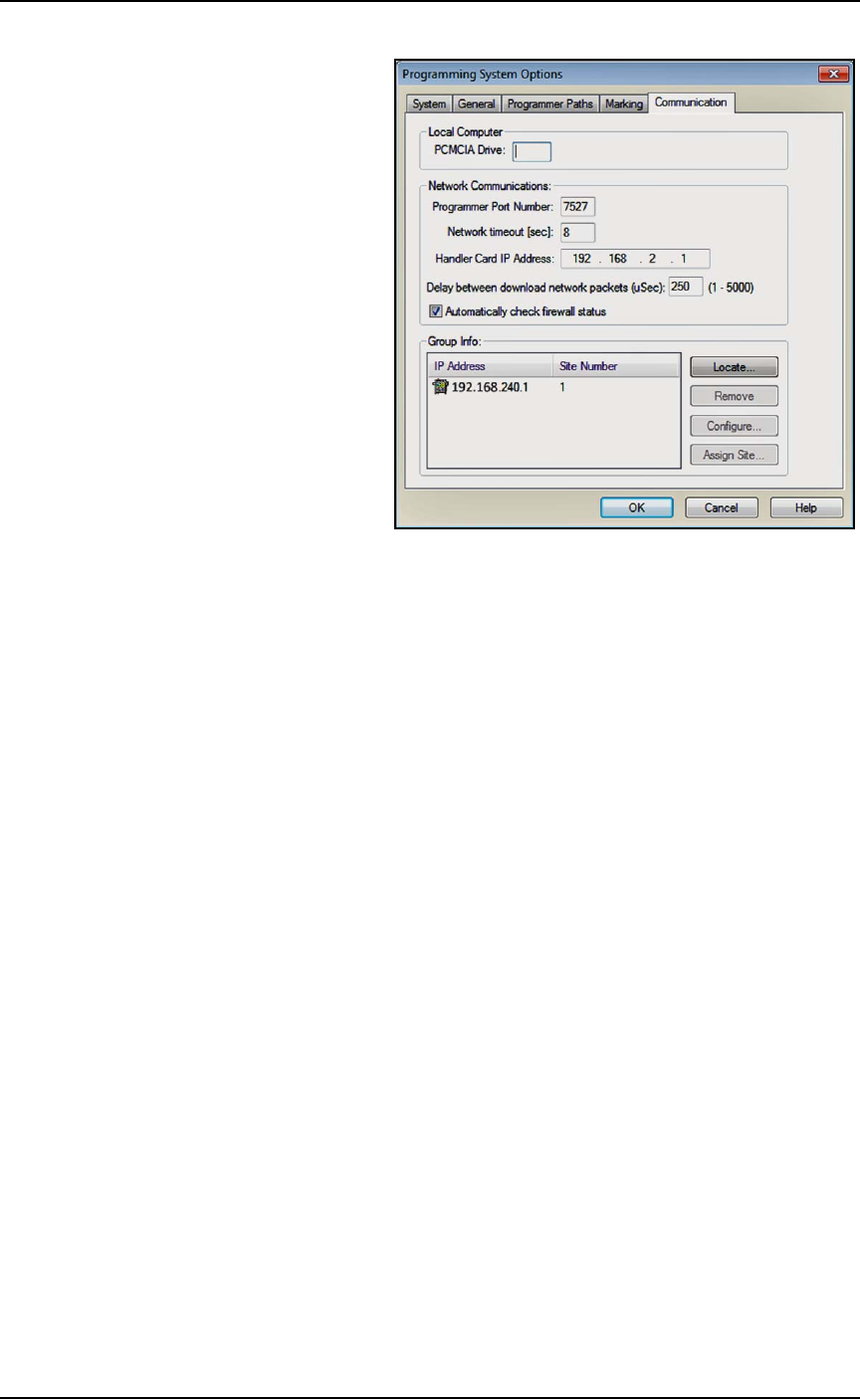
2. Click System > Options > Communication tab. The IP Address
and site numbers are listed in the lower left corner.
■ Applying Power for the First Time ◘ (Optional) Network Settings
PSV7000 Owner’s Manual 2—9
back
Figure 2-3: TaskLink Communication Tab displays IP Addresses and
site numbers.