PSV7000_ Owners Manual_096-0460-001B - 第47页
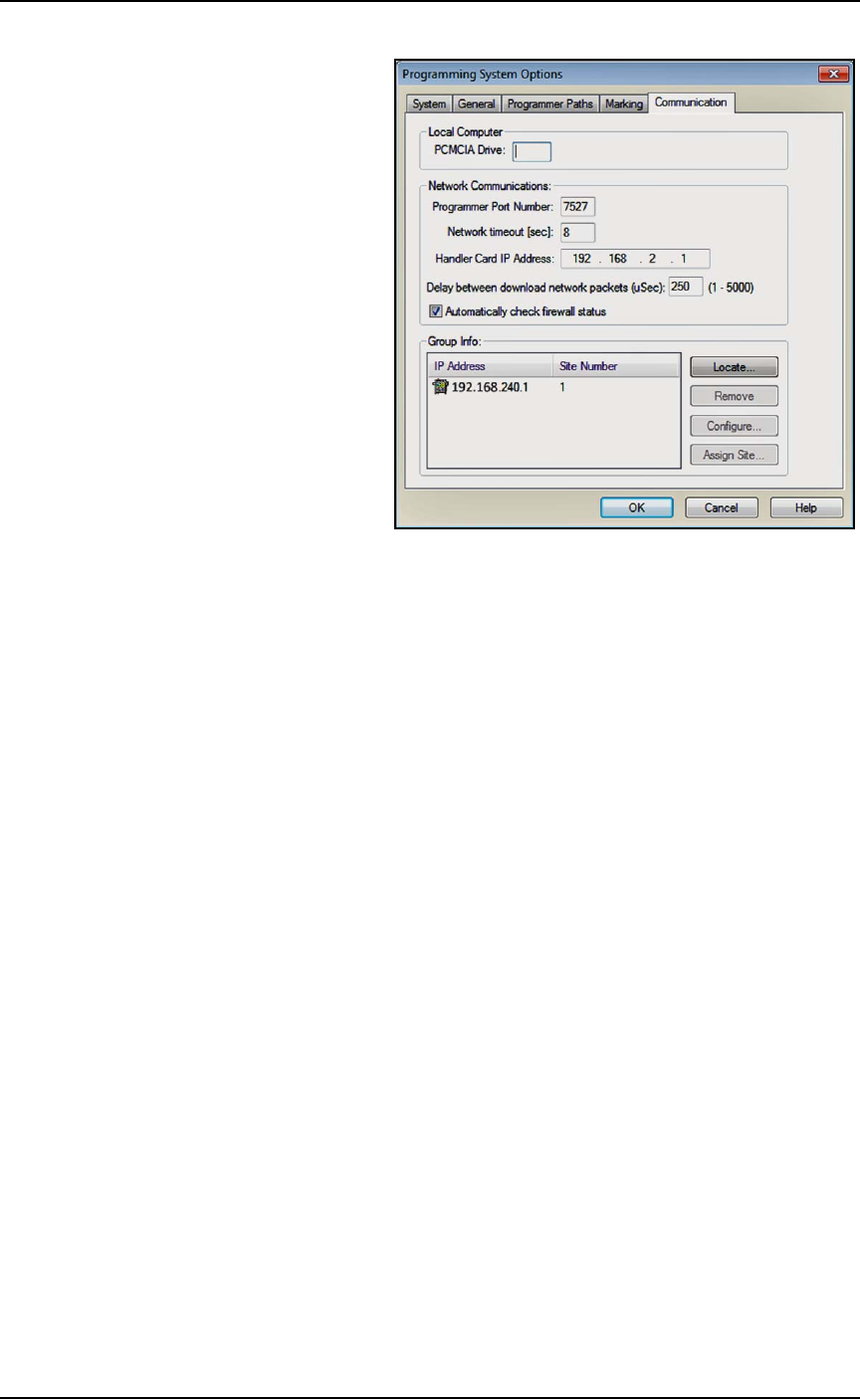
■ Applying Power for the First Time ◘ (Optional) Network Settings PSV7000 Owner’s Manual 2—9 back Figure 2-3: T askLink Communicati on T ab displays IP Addresses and site numbers.

Setup ■ Applying Power for the First Time
2—8 Data I/O • 096-0460-001B
back
(Optional) Installing Antivirus Software
The PSV7000 System has no antivirus software installed from the fac-
tory. It is highly recommend that customers install their own anti-
virus software. The software should be set to run virus scans
manually rather than at a scheduled time unless you are sure that the
PSV7000 System will not be running jobs at that time.
Note: An antivirus program may affect performance.
The PSV7000 System runs Windows 7 Professional 64-bit operating
system. Follow instructions for your antivirus software. Contact
Data I/O Service with specific questions. See Contacting Data I/O on
page x (in Preface).
(Optional) Network Settings
After starting up the PSV7000 System and logging on, double-click
Computer > Map Network Drive (Windows 7).
IP Address and Port Number
If you need the IP Address for communicating with other Data I/O
software, they are available via TaskLink. The Port numbers are also
displayed. (Port numbers are the same for all programmers on a
PSV7000 Machine.)
Addresses and Port numbers can be found as follows.
1. Start TaskLink on the target PSV7000 System. (Closing AH700
will return to TaskLink.)
2. Click System > Options > Communication tab. The IP Address
and site numbers are listed in the lower left corner.
■ Applying Power for the First Time ◘ (Optional) Network Settings
PSV7000 Owner’s Manual 2—9
back
Figure 2-3: TaskLink Communication Tab displays IP Addresses and
site numbers.

Setup ■ Setting Up Input and Output Media
2—10 Data I/O • 096-0460-001B
back
Setting Up Input and Output Media
There are many options for device input and output. One option for
input and one for output must be set up on the PSV7000 Machine for
your target job. Further, the setup must correspond with the current
software, such as the Job file, winAH400.ini file, and printer file (laser
or label marker).
These input/output media are described in this section:
•Static Tray (below)
• Dual Automatic Tray Feeder, page 2-12
• Tube Input/Output Vibration System, page 2-18
• Tape Output Module, page 2-21
Note: The Tape Input feeder installation is covered in the PSV7000
Operator’s Manual.
About Static Tray Input and Output
The standard configuration for the PSV7000 System is static tray
input and static tray output media. The latest tray mounting configu-
ration uses two rows of locating pins and a magnet. Specific steps for
installing trays are described in the PSV7000 Operator’s Manual.
Note: Make sure that the correct devices for the target job are
loaded into the input tray and that they have the correct pin 1 ori-
entation. (If pin 1 orientation doesn’t match pin 1 that is set in the
Package File it must be corrected).
Pin 1 on Data I/O sockets is almost always toward the far side of
the Socket Adapter (the back of the machine).
Remember that tray arrangement affects:
•the Setup window > Options tab which must be set to match the
workspace setup (covered in the Operator’s Manual).
• the Package File which must be taught the Tray locations (cov-
ered later in Chapter 3 of this manual).
Removing Tray Platforms
Tray Platforms can be removed to support different mediums such as
to install an automatic tray feeder.
Requirements
Metric hex key set.