PSV7000_ Owners Manual_096-0460-001B - 第63页
■ Setting Up Input and Output Media ◘ Setting Up the Tape Output System PSV7000 Owner’s Manual 2—25 back 2. The T ape Output Module gets pow er and air from the PSV7000 System. Connect the compre ssed air , electrical po…
Setup ■ Setting Up Input and Output Media
2—24 Data I/O • 096-0460-001B
back
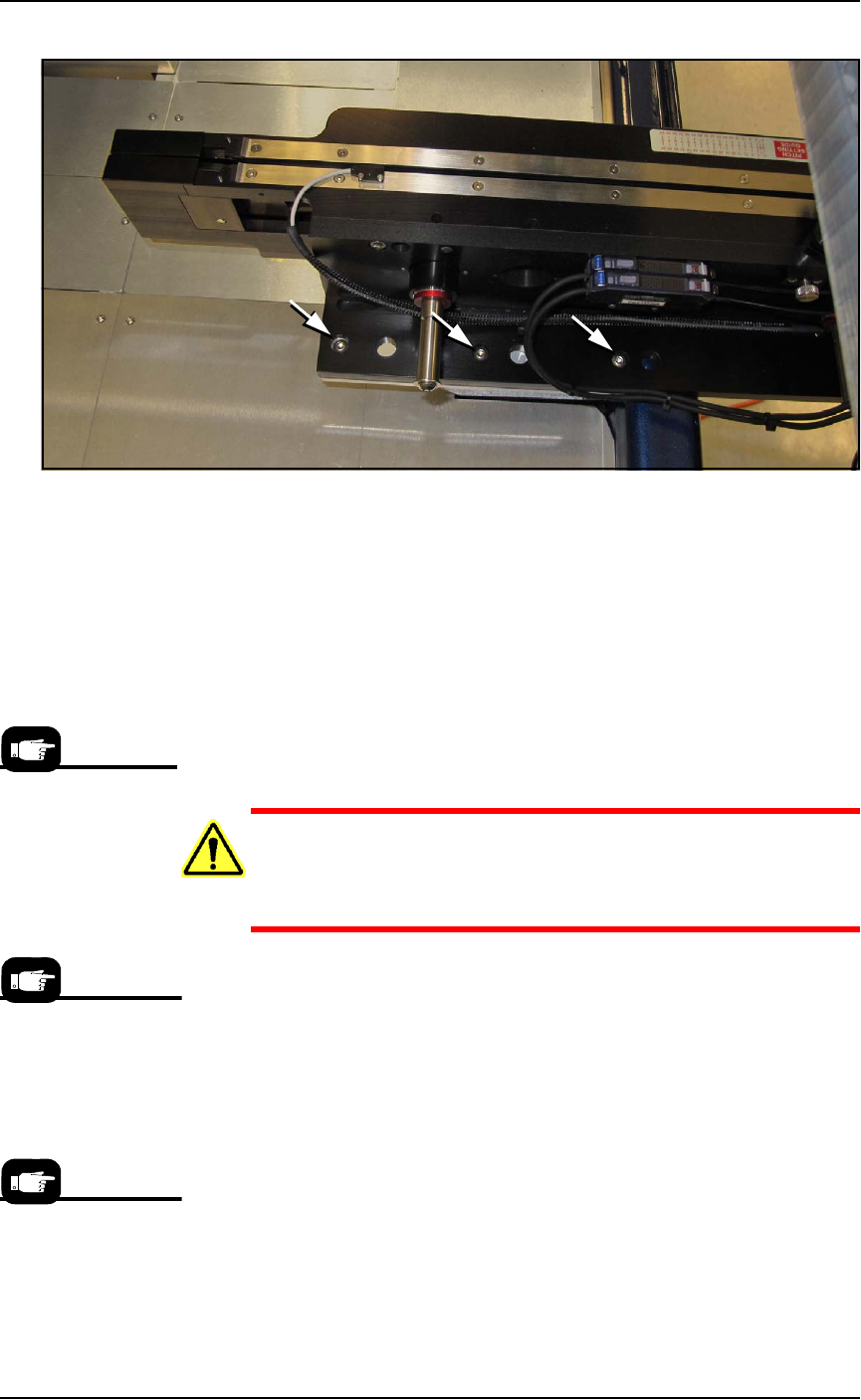
Figure 2-20: TM-50 Tape-Output Module mounting screws. Three more
locations on opposite side (hidden in this view). Viewed from the back
of the machine.
3. Reinstall the large fixed safety shield with five screws.
4. Reinstall the sensor onto the shield.
5. Re-adjust the irregular shaped safety shield. To fill the gaps, this
shield will require adjustment to accommodate the position of
the track (table) once it is set to the desired track/tape width.
Setting Up the Tape Output Module
CAUTION: Possible tape damage from Excessive Heat! Improper
routing of the device tape may cause enough heat to melt the
tape. Ensure the correct routing path is followed. See the TM-50
SMD Taping Module User’s Guide.
To set up the Tape Output System:
1. Edit the winAH400.ini file for Tape Output—
1a. Using Windows Explorer, locate
C:\AH700\winAH400.ini
and m
ake a backup copy, for example,
winAH400backup.ini
.
1b. Open the original file with Microsoft Notepad.
1c. Locate the line:
TapeOutPutInstalled=FALSE
and change it to True:
TapeOutputInstalled=TRUE
1d. Save the
winAH400.ini
file and exit Windows Explorer.
The information that
follows is adapted
from the TM-50 SMD
Taping Module User’s
Guide that came with
your Tape Output Sys-
tem.
If you have previously
used Tape Output, you
may already have
saved a winAH400.ini
file specifically for a
Tape Output setup.
The communication
cable may also be
called I/O or Sensor
Output.
■ Setting Up Input and Output Media ◘ Setting Up the Tape Output System
PSV7000 Owner’s Manual 2—25
back
2. The Tape Output Module gets power and air from the
PSV7000 System. Connect the compressed air, electrical power,
and communication (top-to-bottom on the PSV7000 power
panel).
3. Ensure the PSV7000 System air is connected and power is ON.
4. Switch the Tape Output Module ON by pulling out its
Power/E-stop button.
5. Turn the take-up reel tension adjust knob counterclockwise to
zero. (Black knob on the controller.)
6. Set the taping job parameters at the controller. For more infor-
mation see the TM-50 SMD Taping Module User’s Guide, chapter
3, Controller.
7. Pull the nearest half of the track (table) out to the desired track
width. It stops at detents set to specific tape widths.
8. Mount the carrier tape reel—
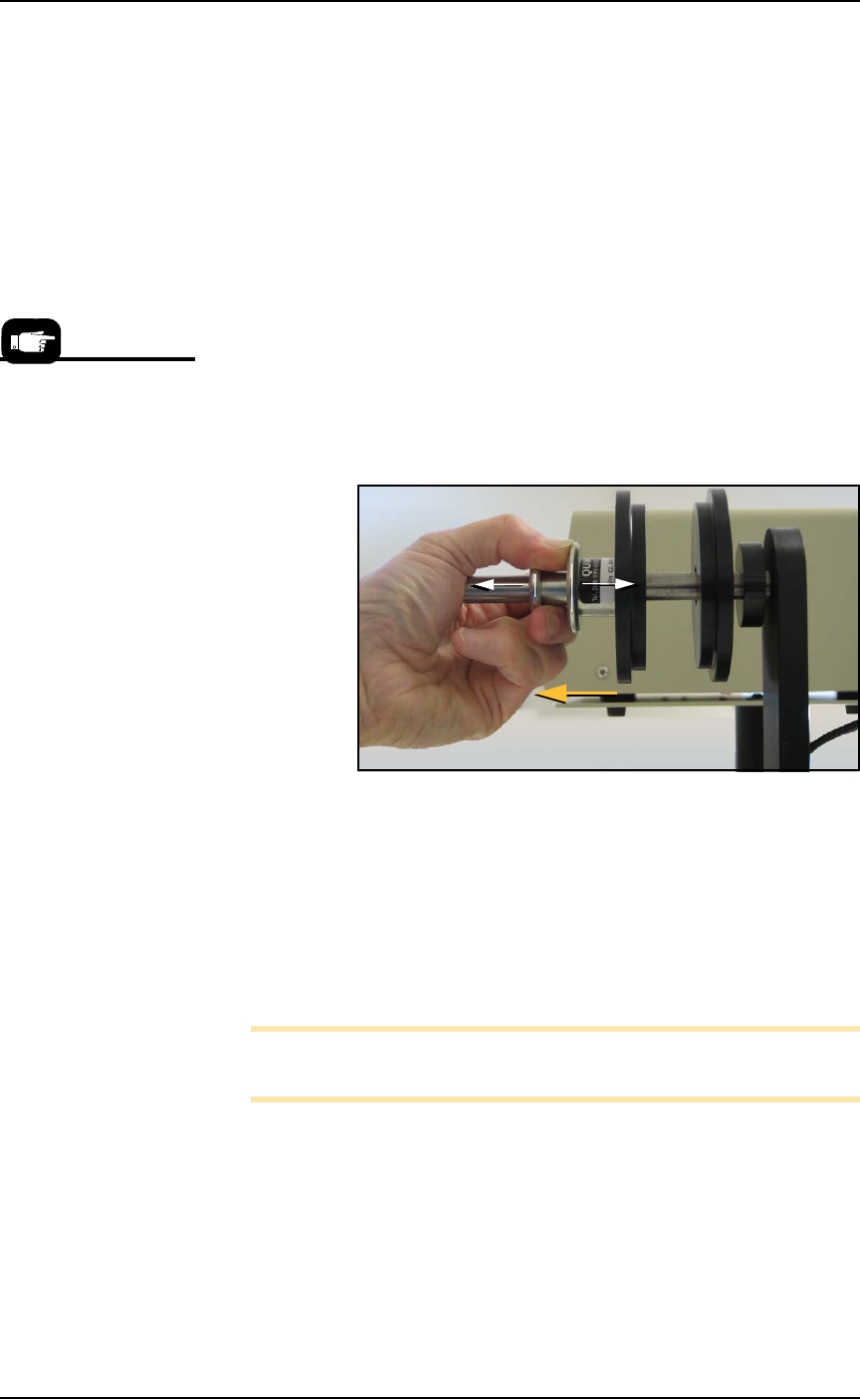
8a. Remove the carrier tape quick lock from the carrier tape
spindle.
Figure 2-21: Removing the spindle QuickLock.
8b. Mount the bulk carrier tape reel on the right spindle so the
tape unwinds from the top.
8c. Replace the quick lock.
8d. Trim the end of the carrier tape so it is clean and straight.
9. Route the carrier tape—
9a. Guide the carrier tape into the loading track. It should feed
right to left through the loading track easily.
Note: Lowering the feed reel support arm can reduce drag if the
angle at which the carrier enters the loading track is too steep.
9b. Bring the end of the carrier tape past the sealer and engage
the sprocket holes on the teeth of the drive sprocket.
If the carrier tape does not feed to the sprocket easily, see the
TM-50 SMD Taping Module User’s Guide, Chapter 4, Setup,
Route the Carrier Tape for items to check.
10. Mount the cover tape—
For more information
about these steps, see the
TM-50 SMD Taping
Module User’s Guide.

Setup ■ Setting Up Input and Output Media
2—26 Data I/O • 096-0460-001B
back
10a.Place a reel of cover tape of the correct width to match the
carrier tape on the cover tape spindle. The tape should
unwind to the right from the bottom of the reel.
10b.Set the width of the cover tape guide assembly for your size
tape.
10c.Use the Cover Tape Position Adjuster if needed. Turning it
clockwise moves the cover tape position toward the sprocket
side of the tape.
10d.Using blue tabbing tape, attach the cover tape to the carrier
tape. Thread both through the cover tape Guide Sealer
Assembly. Run the machine to advance the carrier and cover
tapes through the sealer.
Prepare the Seal
For Heat Seal
1. To prepare the heat seal—
2. Turn the heat seal toggle switch ON.
Note: Disable the pressure seal by loosening the seal roller pressure
screws until the seal rollers are no longer in contact with the cover
tape.
3. Set the temperature controls to the appropriate temperature. See
the table below.
Figure 2-22: Tape Output suggested temperature and pressure
settings. The temperature of each shoe can be increased or decreased
according the results of a peel force test.
4. Adjust the heat shoe air pressure to the appropriate setting. This
setting controls the amount of force applied when the sealer
shoes drop.
Note: The recommended starting point for heat shoe air pressure is
50 PSI. Turning the heat shoe adjuster clockwise increases the pres-
sure.
Heat Seal only
Carrier Tape Type Cover Tape Type Temperature Air Pressure Dwell Time
3m Type 3000
Conductive Carrier
3m Type 2675 Static
Dissipative Cover
135-155°C 40-60 PSI 250-400 ms
3m Type 2701/2703
Non-conductive
Advantek Conductive Advantek Type AA
Advantek
Non-conductive
Advantek Type S