PSV7000_ Owners Manual_096-0460-001B - 第98页
Administrative Functions ■ 3D Coplanarity O ption 3—28 Data I/O • 096-0460-001B back 3D Coplanarity Option The 3D Coplanarity Inspection System should already have the cor- rect prism Reticle ins talled. If it ha s been …
■ Marking Options ◘ (Optional) Creating a Laser Marking File
PSV7000 Owner’s Manual 3—27
back
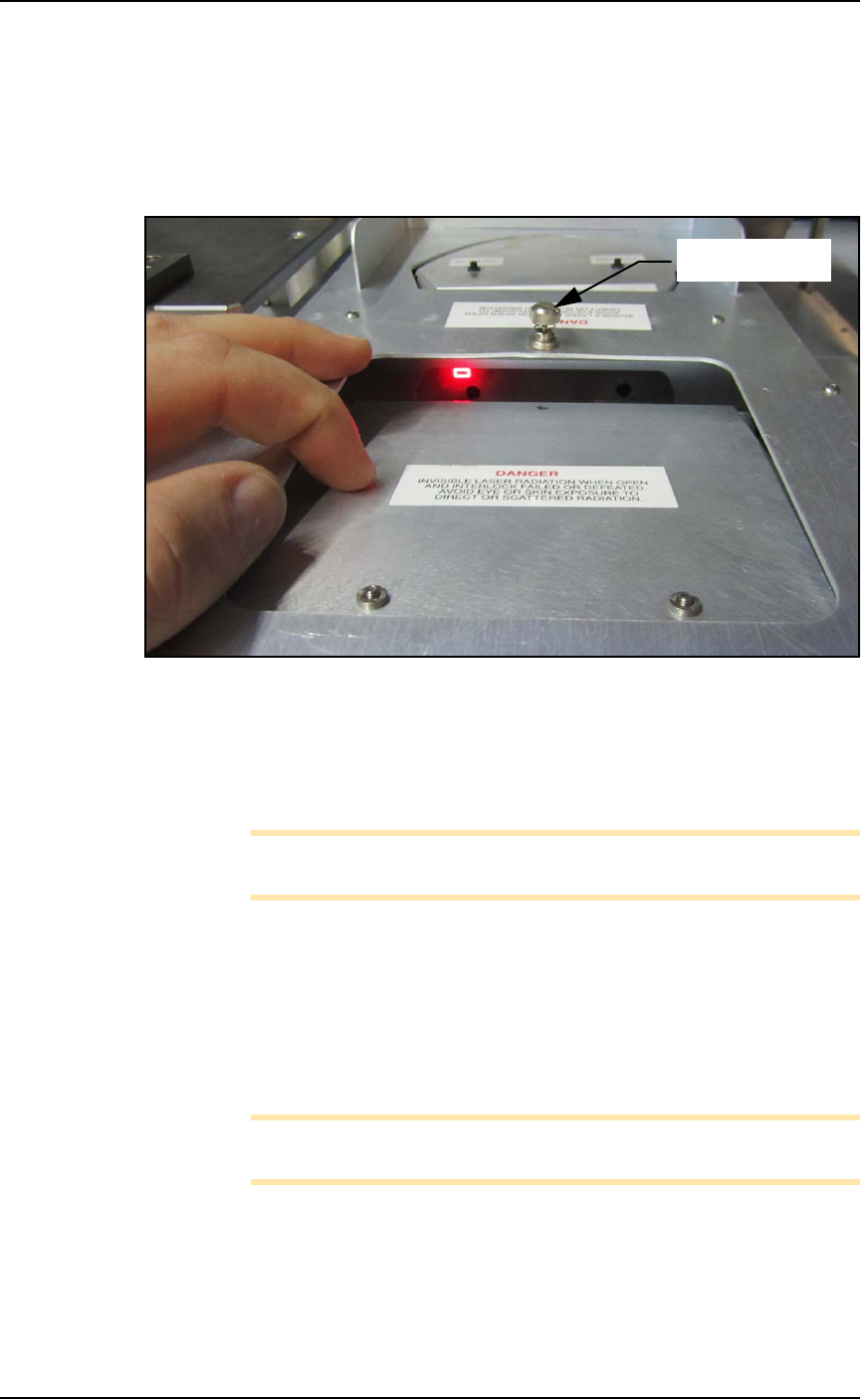
8. Have operator #2 open the PSV7000 rear safety door and
unscrew the knurled screw on the inspection door of the Laser
Module.
9. Push the hinged inspection door down (open) about just enough
(about 20 mm ) to see the red laser light striking the rotor. See
the figure below.
Figure 3-14: The laser is missing the target in this photo. Only this left
target position must be aligned.
10. If the laser light is not centered on the device tip, then select the
art to be marked and drag it as directed by operator #2.
Zoom in for ease of use.
Note: The actual target laser light moves in the opposite direction
of art movement in the Lighter Editor.
11. When satisfied, Save your changes.
12. Close the inspection door and tighten the knob.
13. Retry Running One device. Refer to the previous heading.
If all appears correct and still there is no mark, contact Data I/O Cus-
tomer Support.
Note: The Laser rotor has been leveled at the factory. If you experi-
ence trouble, contact Data I/O Customer Support.
Knurled screw
Administrative Functions ■ 3D Coplanarity Option
3—28 Data I/O • 096-0460-001B
back
3D Coplanarity Option
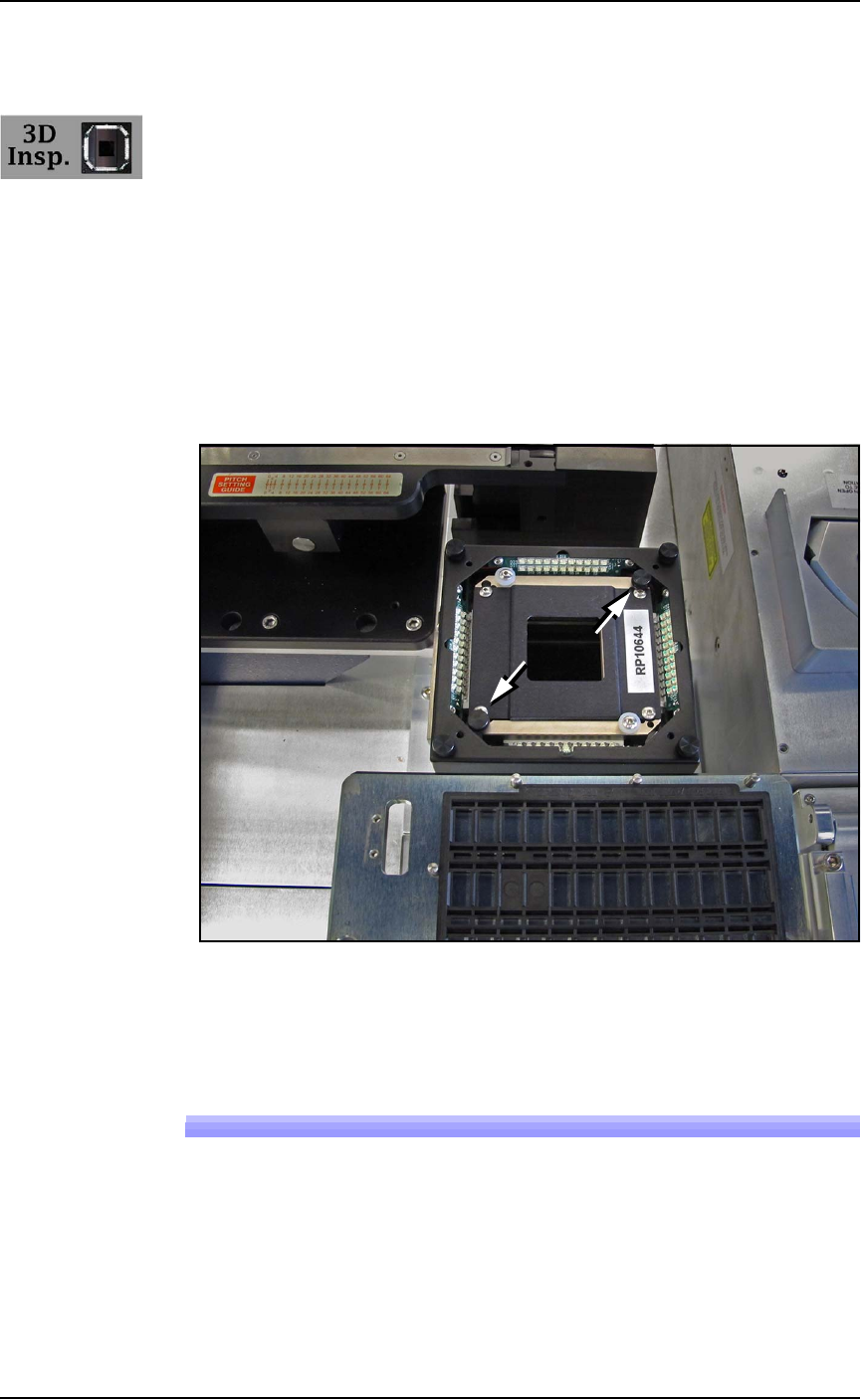
The 3D Coplanarity Inspection System should already have the cor-
rect prism Reticle installed. If it has been changed or altered, refer to
the UltraVim User Manual or contact Data I/O.
Requirements
• UltraVim Scanner Technologies Accessories Case (all equipment
required is in this case)
• UltraVim Software User Manual
• TaskLink Ver 7.5 or higher
• The 3D Coplanarity Inspection System should already have the
correct prism Reticle installed. If it has been changed or altered,
refer to the UltraVim User Manual or contact Data I/O.
Figure 3-15: Top view with Prism Reticle installed. (Reticle fasteners at
arrows). Ref: also visible in this view are the Laser Module Option and
the Tape-Out Option.
Running a Job with 3D Inspection
1. Start the 3D Inspection PC as follows:
1a. The 3D Inspection PC is just below the Handler PC. Open
the PC door with the key and push the Power switch ON
and release.
1b. Close and lock the door.
■ 3D Coplanarity Option ◘ Running a Job with 3D Inspection
PSV7000 Owner’s Manual 3—29
back
2. Toggle the monitor connection to the 3D Inspection PC by press-
ing keyboard Scroll Lock key twice, and then press 2 or 3 imme-
diately (depending on the number of options installed).
Note: NOTE: When viewing the 3D Inspection PC, use the key-
board and touch-pad. The PSV7000 touchscreen monitor will not
register touches.
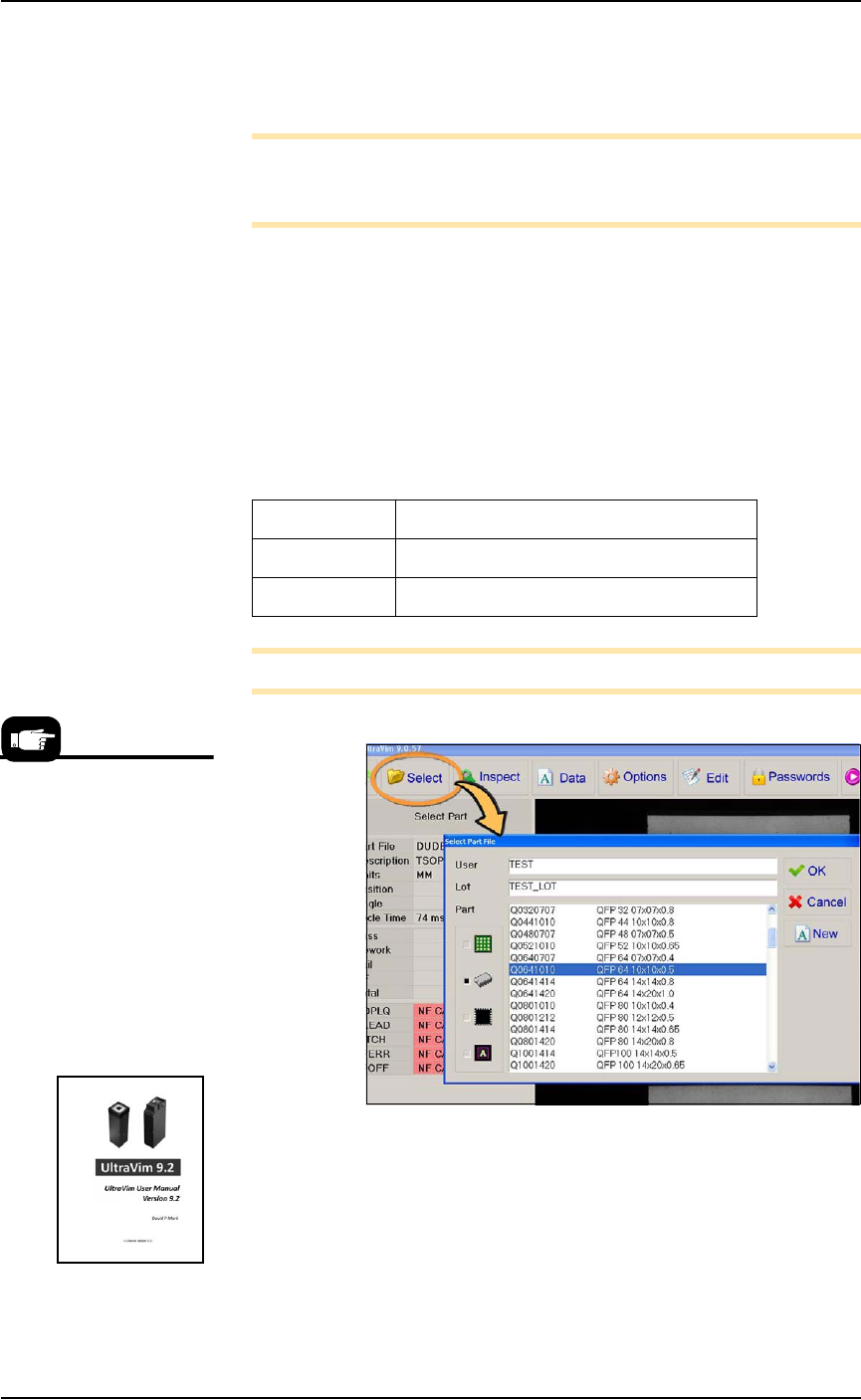
3. Open the UltraVim application (double-clicking the desktop
icon).
4. A file for your device type is required. There are three choices to
accomplish this:
A) Use an existing file in the UltraVim Package Library,
B) Copy, paste, and rename an existing file, or
C) Create a new file.
File extensions are:
Note: There is also a *.MRK file for Mark & Package inspection.
Figure 3-16: In the UltraVim application, clicking Select (circled) opens
the 'Package' library. This window may be password protected. See the
UltraVim User Manual for Help.
To create a new device file, or edit an existing one, click Edit and
enter data from the device specifications.
*.BGA Ball Grid Array
*.PAR Gull Wing and J-Lead
*.LCC QFN and LCC
When creating your job in
TaskLink, you may want to
check the UltraVim Package
Library to ensure that your
target package is available.
1. Open the UltraVim
Application.
2. Click Select.
3. View library
Refer to the UltraVim
User Manual for instruc-
tions.