M20_Ope_E.pdf - 第102页
Chapter 2 Creating and Editing a Program 2-58 ③ z Instead of creating a new image data, you can copy a pocket type component data from the master library. (Library > Copy Library > Image) Select [Pocket 0402], [Poc…
Chapter 2 Creating and Editing a Program
2-57
2-7-3 Feeder Support Function
The feeder support function enables to reduce pickup errors.
Application
This function is available for paper tapes of component dimensions, 0402, 0603, and 1005. Plastic
embossed tapes are not available.
2-7-3-1 Creating an image data
Menu: Program > Pickup Data
Action:
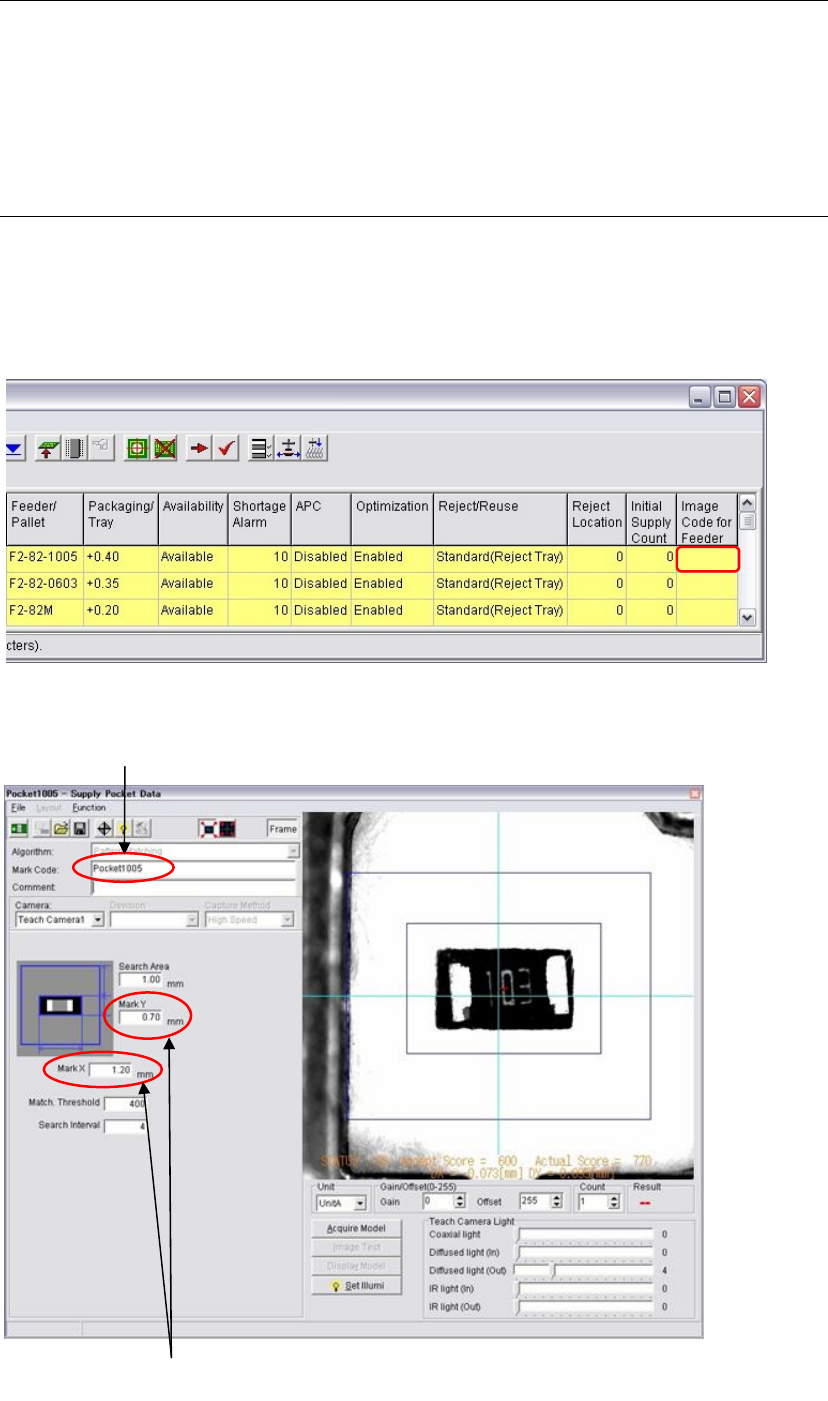
① Move the main teach camera to the pickup point. Double click the blank cell of the [Image
Code for Feeder Support] cell.
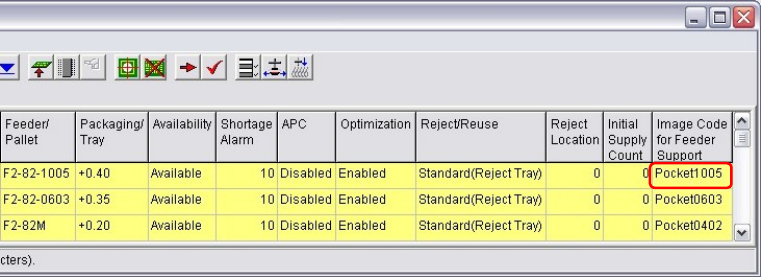
② The image data edit window appears to create a new image data.
Enter the dimensions of
the
p
a
p
er ta
p
e
p
ocket.
Enter an image code.
Chapter 2 Creating and Editing a Program
2-58
③
z Instead of creating a new image data, you can copy a pocket type component data from the
master library. (Library > Copy Library > Image)
Select [Pocket 0402], [Pocket 0603], or [Pocket 1005] for the feeder support function.
z The way of creating the image data is same as creating an image data of fiducial mark.
z Enter a mark image code.
z The image process method is the pattern matching. Templates of the pocket models are
prepared. (An appropriate template model is selected automatically for each paper tape.)
z Enter pocket dimensions of the paper tape in the [Mark X] and the [Mark Y].
z Adjust brightness of the pocket displayed in the monitor so that the pocket image becomes
dark and the paper becomes white with the Gain/Offset. Also adjust the Teach camera light.
z You can operate this function whether a component exists in the pocket or not.
z At the end of procedures, be sure to execute image test and the result becomes OK.
④ Save the image data. Close the window.
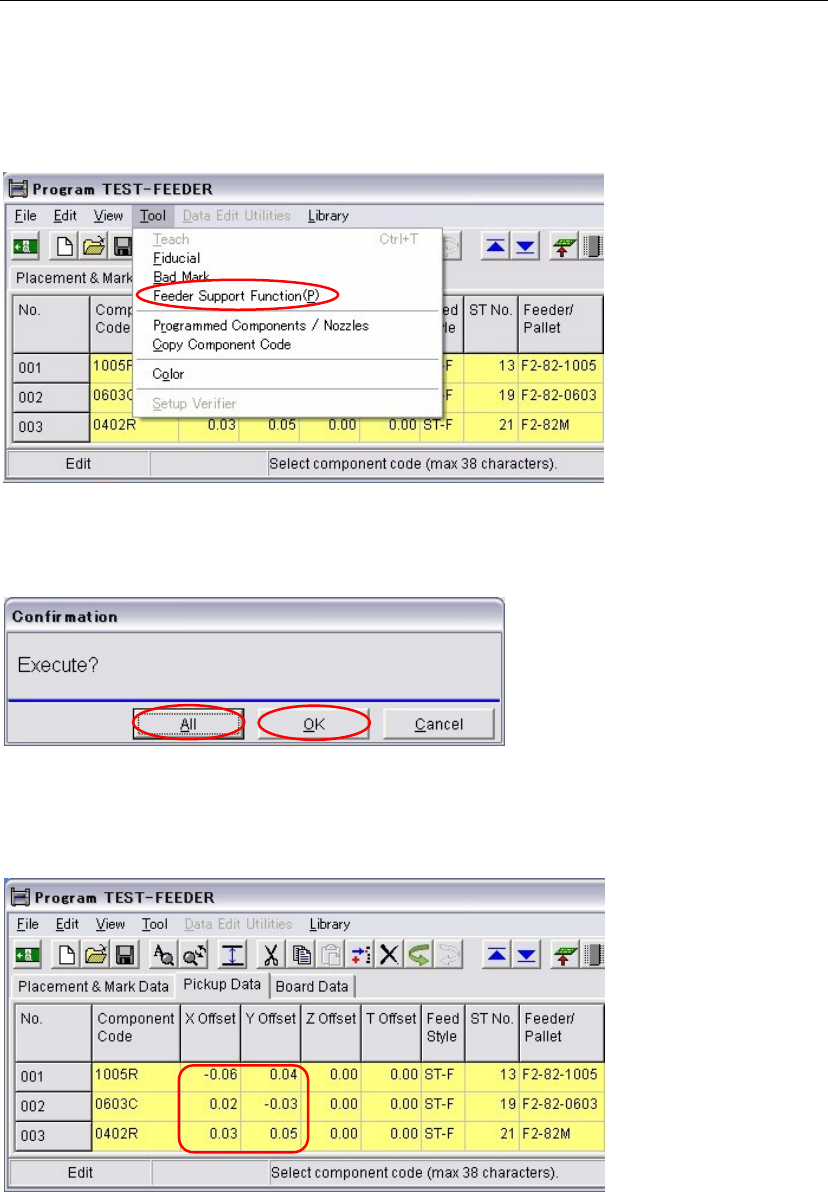
⑤ Enter the created image data code in the [Image Code for Feeder Support] cell.
If the cell is empty, the feeder support function does not work.
Chapter 2 Creating and Editing a Program
2-59
2-7-3-2 Manual Feeder Support Function
Menu: Program > Pickup Data
Action:
① In the pickup data window, select the [Feeder Support Function] from the tool bar.
② The confirmation message appears.
Clicking the <OK> button moves the main teach camera to the specified pickup point. The
main teach camera captures an image of the pickup point and the correction values are
entered in the [X Offset] and the [Y Offset] cells.
③ Clicking the <All> button will perform the automatic pickup point correction continuously
for all the pickup points which have mark codes in their [Image Code for Feeder Support]
cells.
The acquired correction values are entered in the [X Offset] and the [Y Offset] cells.
④ The acquired X Offset and the Y Offset are saved in the program.
Note: To use these manually acquired X offset and Y offset values in production, disable the [Feeder
Support Function] in the system parameter. Because offset values acquired during a job run have a
priority to offset values acquired manually.