M20_Ope_E.pdf - 第107页
Chapter 2 Creating and Editing a Program 2-63 Pickup Data in Program Data When using the Side Pickup nozzle, input the Offset value(A + B + C) to the X Offset or Y Offset.(Refer to the previous page, Magnified view.) Men…
Chapter 2 Creating and Editing a Program
2-62
2-7-4 Side Pickup Nozzle
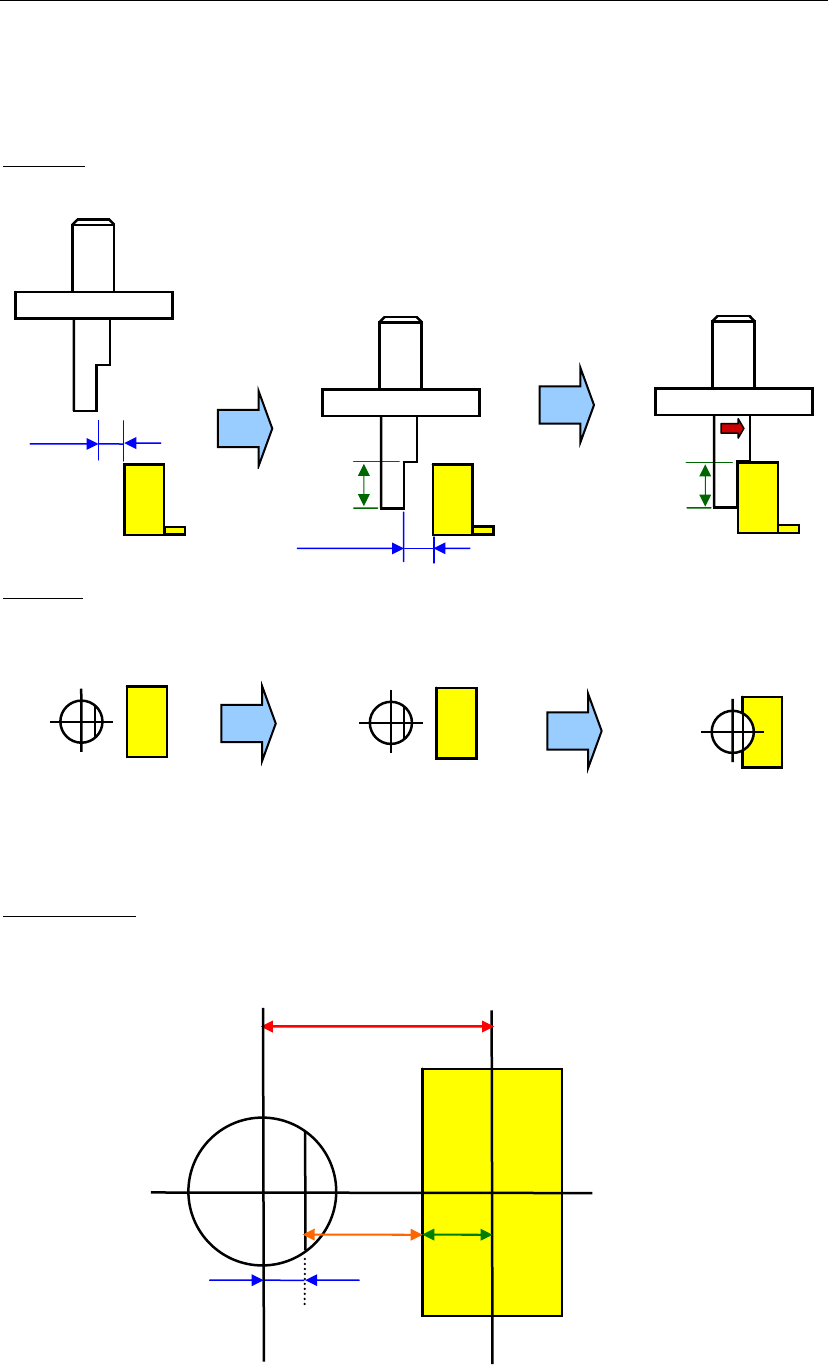
Side Pickup Nozzle picks up a component from its side, therefore the nozzle moves towards X or Y
horizontally.
■ A movement sequence
Side view
Top view
Nozzle at a pickup point Nozzle when the head moves down. Nozzle when the head travels.
Magnified view
Clearance
Clearance
Grip Length
Grip Length
Offset
B
A
C
(A+B+C)
Chapter 2 Creating and Editing a Program
2-63
Pickup Data in Program Data
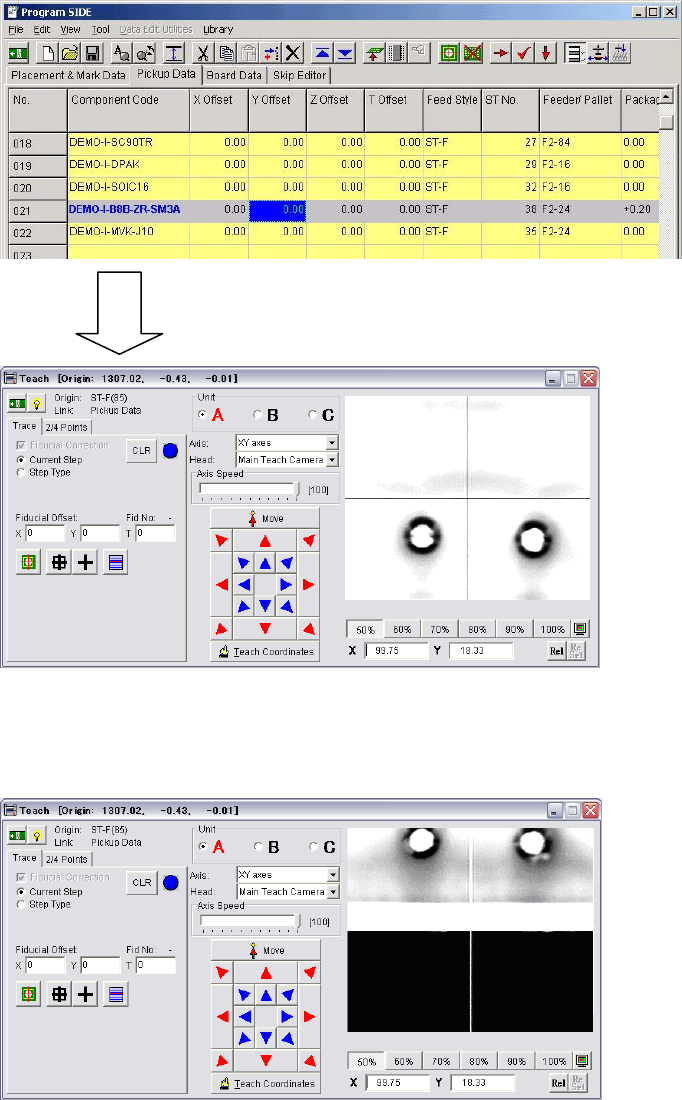
When using the Side Pickup nozzle, input the Offset value(A+B+C) to the X Offset or Y
Offset.(Refer to the previous page, Magnified view.)
Menu: Program>PickupData
① Left-click to select the X/Y cell, and right-click to open the “Teach” window.
② Move the Teach camera to the side of the component with the arrow buttons.
(Locate the farthest position from the initial position of the nozzle, which the component
could possibly move and set its coordinates as a pickup position.)
The coordinates are determined.
③ Calculate X/Y value determined in ②above, the head travel distance towards X/Y after a
descent(Magnified view_B) and the distance between the center of the nozzle and its pickup
surface(Magnified view_C). Input the value to X Offset /Y Offset.
Note: Required information such as Side Pickup Offset for Nozzle Library is provided by us.
Menu: Library>ComponentLibrary>DelayVacuumOn
④ Select “Use”.
Chapter 2 Creating and Editing a Program
2-64
2-7-5 Skip Editor
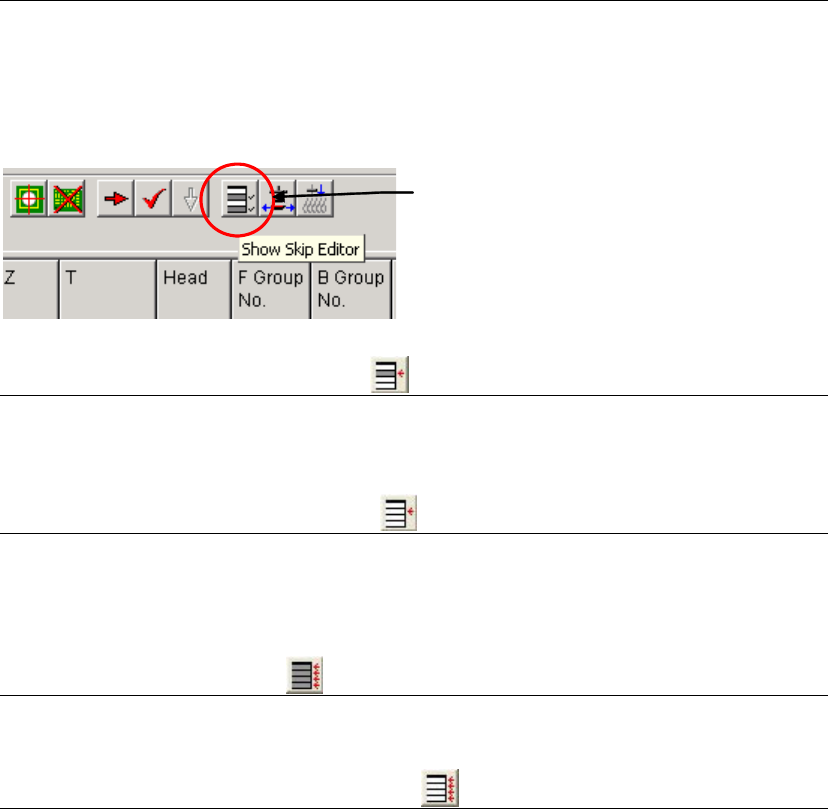
The skip editor is used to assign program steps (steps of [Placement&Mark Data])to skip. This
assignment can be performed also durinfg a pausing of a job run. Use four buttons on the skip
editor to assign steps to skip.
Menu: Program>View>ShowSkipEditor
Skip Editor Button
2-7-5-1 Skipping Selected Step(s)
Select a line to skip by clicking or select lines by dragging. The selected line or lines will be
highlighted. Then click the leftmost button. “1” is entered to [Skip] field of the line or lines.
2-7-5-2 Resetting Skip Assignment
Select a line to reset by clicking or select lines by dragging. The selected line or lines will be
highlighted. Then click the second button from the left. “0” is entered to [Skip] field of the line or
lines.
2-7-5-3 Skipping All Steps
Just click the third button from the left (no need to select lines).
2-7-5-4 Resetting All Skip Assignments
Just click the rightmost button (no need to select lines).