M20_Ope_E.pdf - 第111页
Chapter 2 Creating and Editing a Program 2-67 Pickup Priority Setting Procedur e ① Click the pickup prior ity button to op en the Pickup Priority edit window. ② Right-click in [Pickup Priority] cell of the placem ent s…
Chapter 2 Creating and Editing a Program
2-66
2-7-5-6 Pickup Priority Function
Menu: Select Program>View>ShowPickupPriorityEditor, or click Pickup Priority icon
If the program has two or more of the same components in the pickup data, priority is given to
simultaneous pickup first, then the components are selected in ascending order of ST Nos.
(pickup-point Nos.). As a result, if there are two or more simultaneous pickup lanes, lanes with
low head shift may not be selected. The pickup priority function is provided to define priority
order of ST Nos. to generate high-efficient pickup cycles.
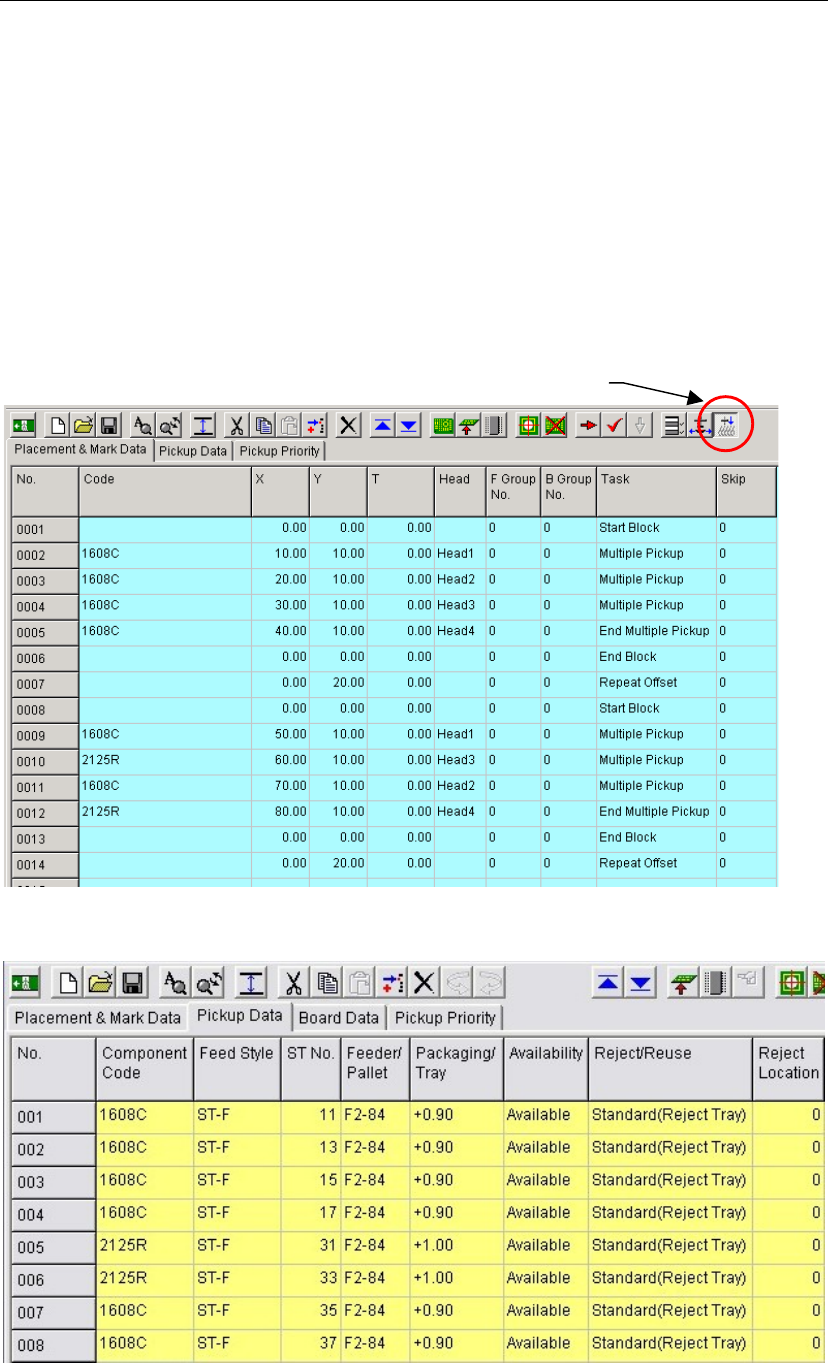
Example: In the following program, 1608C components are picked up simultaneously from ST-F11,
-13, -15 and -17 for placement steps 0002 to 0005. However, for steps 0009 to 0012, 1608C
components are picked up from ST-F11 and -13, and 2125R components from ST-F31 and –33,
respectively. This means that the head moves through approx. 16 lanes.
Now, if the program is modified to pick up 1608C components from ST-F35 and -37 for steps 0009
and 0011, the head moves through approx. eight lanes only, resulting in shorter tact time.
Pickup Priority ico
n
Chapter 2 Creating and Editing a Program
2-67
Pickup Priority Setting Procedure
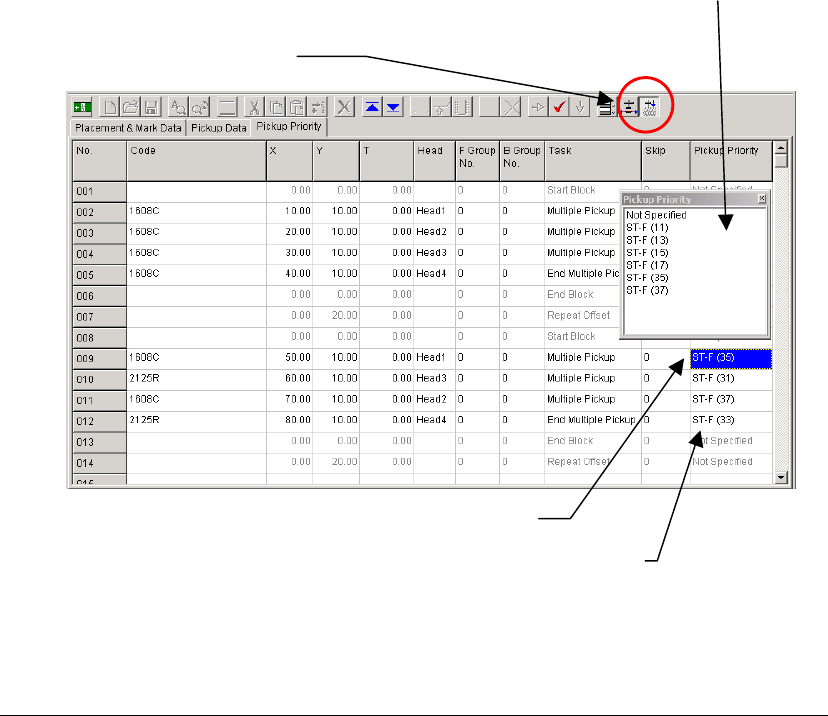
① Click the pickup priority button to open the Pickup Priority edit window.
② Right-click in [Pickup Priority] cell of the placement step for which you want to set a priority
pickup-point.
③ The Pickup Priority window appears and displays all the ST Nos. for the same component
code registered in the pickup data, so select the ST No. to which priority is to be given.
④ Set priority pickup-point (ST No.) for the other components handled in the same pickup
cycle.
Note: Set the pickup priority point for every component handled in the same pickup cycle. If the pickup
priority point is not set to any of the components handled in the same pickup cycle, the pickup
priority point setting for that pickup cycle will be invalidated. In the case of component type of
which only one component is to be set in the feeder bank, the ST No. for that component must be
set.
Note: This pickup priority setting is effective only for the components that are to be picked up from ST-F
or ST-R.
①
Click the pickup priority button.
②
Right-click in [Pickup Priority] cell.
③
Select the ST No. to which priority is to be given.
④
Set pickup priority for every component handled in the same pickup cycle.
2-7-5-7 PCB clamp
When this function is executed, the PCB can be clamped or unclamped.
When no PCB is clamped, the button becomes the <Clamp> button. Conversely, when any PCB is
clamped, the button becomes the <Unclamp> button.
Chapter 2 Creating and Editing a Program
2-68
2-7-6 Data Edit Utilities
2-7-6-1 Group Edit
Menu: Program>DataEditUtilities>GroupEdit
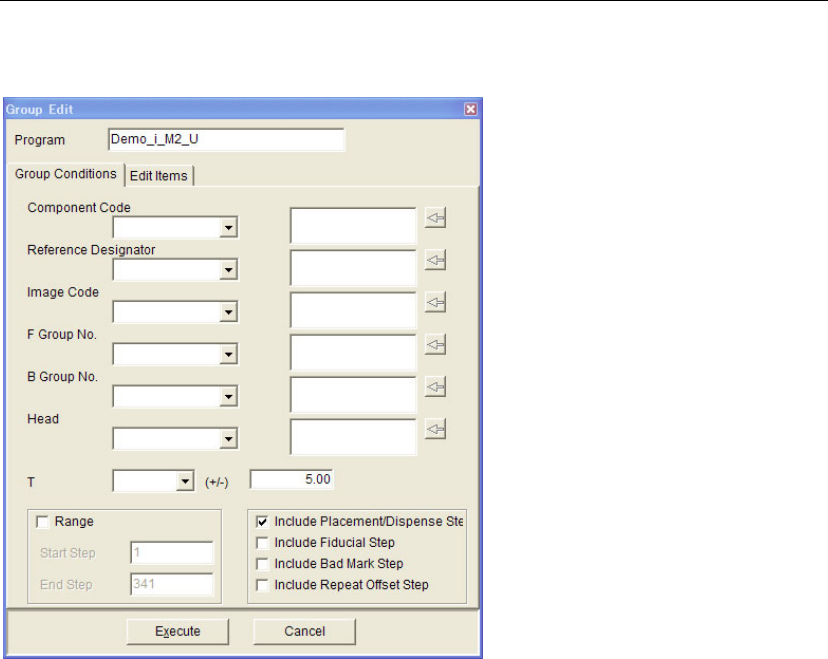
This function allows you to make a grouping of placement steps to edit the steps collectively.
Group Conditions
Conditions of grouping are to be specified in this tab.
Window:
Component Code, Reference Designator, Image Code, F Group No., B Group No., Head:
To add an item in the combo box to a group, click on the item while it is
selected (background color is blue). The item will be added in the box
on the right. Plural number of items can be added. To delete the item(s)
from the box, choose the item and click the [←] button.
T To add the steps with a certain T coordinate, choose one from "0.00",
"90.00", "180.00", "-90.00". You can specify the range in the (+/-) edit
box. For example, if you specify "90.00" in the T combo box and "5.00"
in the edit box, the range for grouping will be from 85.00 to 95.00.
Note: When no items are added in the right-side box, all the items in the comb box will be
unconditionally specified for grouping.
z Range
Start Step Specifies the starting program step for grouping. Normally, the starting
step of the target program is specified.
End Step Specifies the last program step for grouping. Normally, the last step of
the target program is specified.