M20_Ope_E.pdf - 第127页
Chapter 2 Creating and Editing a Program 2-83 Switching Simple/Detail View You can switch window views by clicking the View (Simple/Detail) button in the [Programmed Components & Nozzles] wind ow. Al ways the simpl…
Chapter 2 Creating and Editing a Program
2-82
④ Click the <Yes> button and exit the [Programmed Component & Nozzles] window. The
entered number in the [Feeder Count] are reflected in the [Pickup Data].
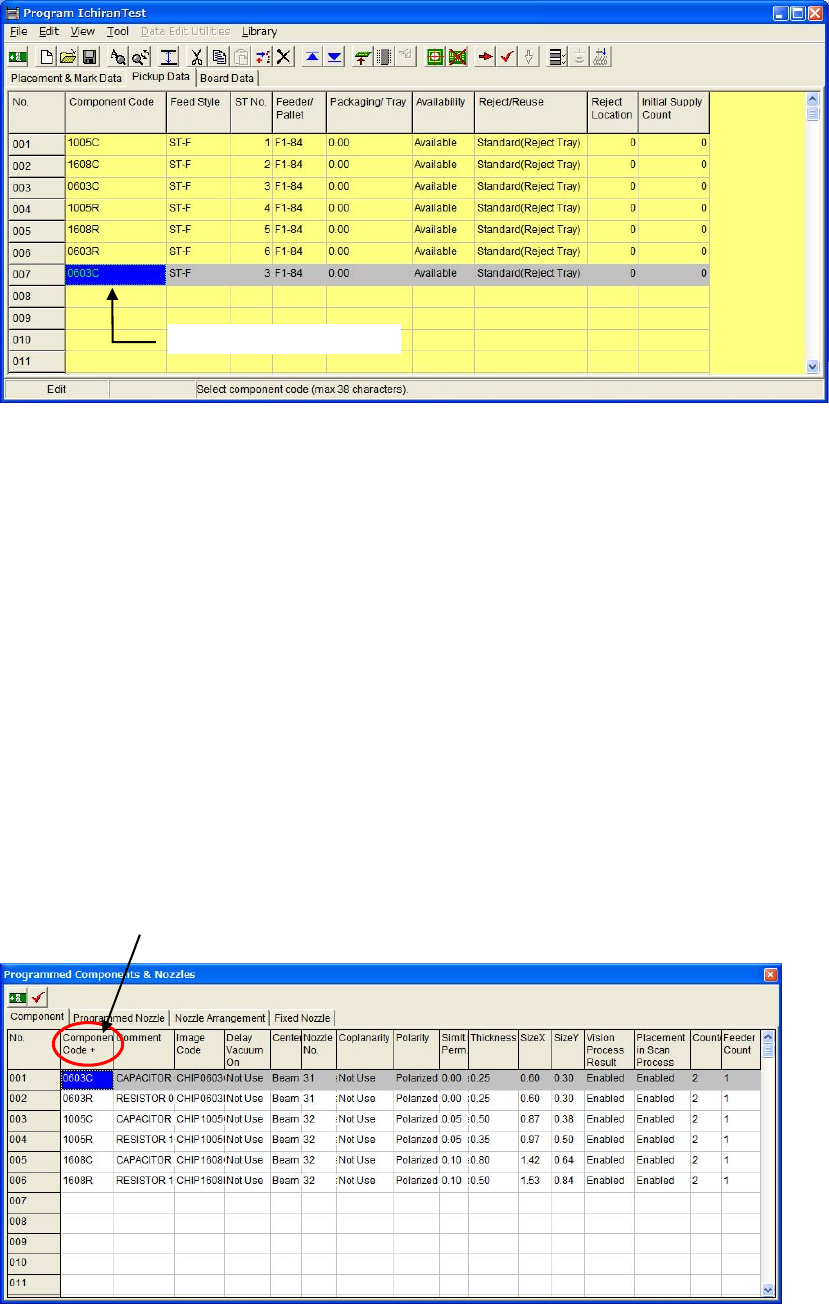
z Increasing Feeder Count
The same number of increased feeders will be added as component data steps in the [Pickup Data]
window. They will be added at the end of the lines.
The added component data have the same station Nos. with the original one.
z Decreasing Feeder Count
The same number of decreased feeders will be deleted in the pickup data from the top.
Note: By executing optimization, optimum feeder station Nos. are assigned and pickup data lines are
sorted.
Sort Function
You can sort each item in the [Component] tab window by double-clicking a column title.
When you double-click a column for the first time, the column is sorted in ascending order.
Double-clicking the second time sorts the column in descending order.
One pickup data is added.
To sort the column, double click the title cell.
+: Ascending order, -: Descending order
Chapter 2 Creating and Editing a Program
2-83
Switching Simple/Detail View
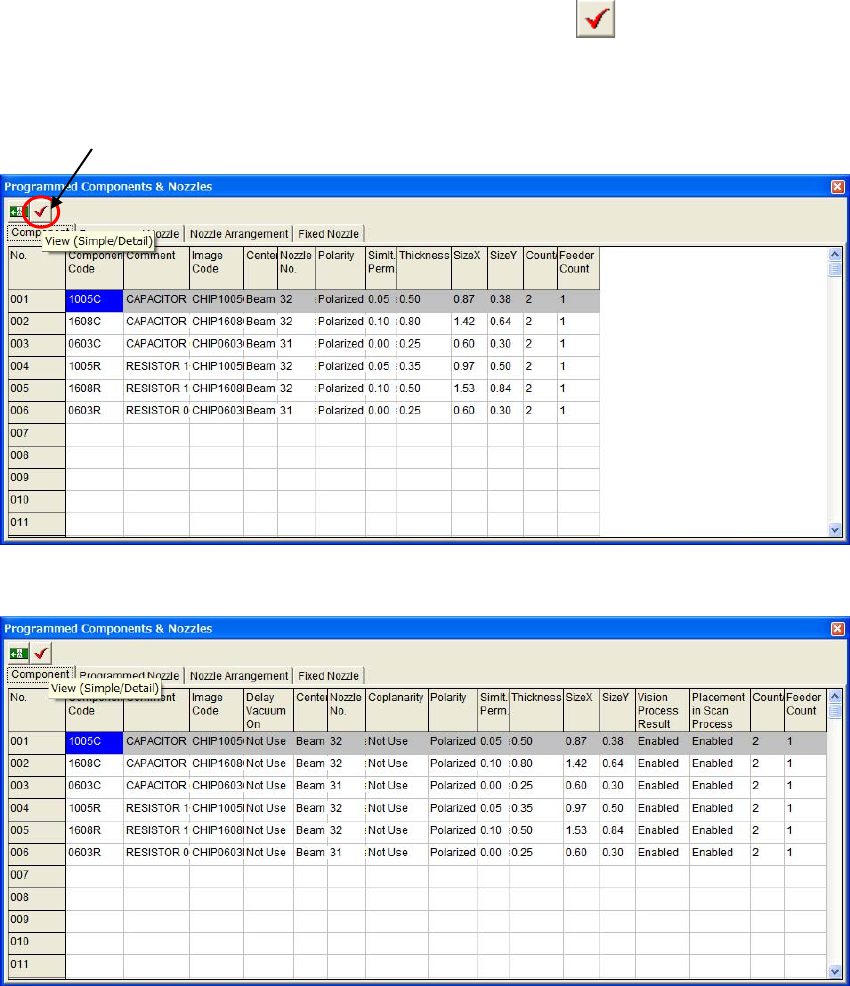
You can switch window views by clicking the View (Simple/Detail)
button in the
[Programmed Components & Nozzles] window. Always the simple view appears the first.
z Simple view
z Detail view
In the detail view, the following four more columns appear.
z Delay Vaccum OK
z Coplanarity
z Vision Process Result
View (Simple/Detail)
Chapter 2 Creating and Editing a Program
2-84
2-8-4 Tact Simulation
Menu: Tool>TactSimulation
Tact simulation calculates approximate time required to run a program.
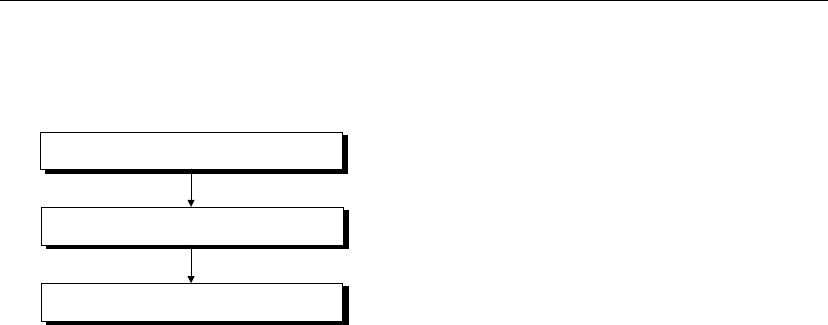
Overview
Select a program
Click the Start button
View the result
Action:
Selecting a Program
① In the Tact Simulation dialog box, click File>Open. The Select Program dialog box appears.
② Select a file with a click.
③ Click <OK> button.
Executing Tact Simulation
Click <Start> button to execute tact simulation. Progress of the execution is indicated at the lower
part of the dialog box.
To abort execution, click <Cancel> button.
Displaying the Result
The calculated tact time is shown at the middle of the Tact Simulation dialog box. (unit: ms) For
detailed results, click <Result> button. The following information will be displayed.
z Head tab
With respect to each head, counts of pickups, placements, image processes, and nozzle changes are
displayed.
z Time tab
Each operating time stated below is shown:
Pickup Time, Place Time, XY Move Time, Theta Wait Time, Image Shoot Time, Image Process
Time, Component Supply Time, Nozzle Change Time, FM/BM Time (Fiducial/Bad mark time),
and Total Time
z Warning tab
If a
warning message is provided, open this tab for detailed contents.