M20_Ope_E.pdf - 第131页
Chapter 3 Optimization 3-1 Chapter 3 Optimization
Chapter 2 Creating and Editing a Program
2-86
z Finding and Arranging Image Codes
Menu: Find>Find
Find>Next
Find>Previous
Find>Sort
Finding an image code containing specified text:
Click Find>Find to open the Find dialog box. Under [Character String], enter the text you want to
find. To search downward from the current (active) cell, click <Next> button. To search upward,
click <Previous> button.
Clicking Find>Next/Previous allows for finding the next or previous searched item.
Arranging the registered image codes:
Click Find>Sort to open the Sort dialog box. Click <Descend> or <Ascend> and then click <OK>
button. Clicking <Ascend> button arranges image codes in ascending order.
Example: 1, 2, 3... a, b, c...
Clicking <Descend> button arranges reversely.
Note: Changes in codes here won’t be applied to Component Library of the system.
Chapter 3 Optimization
3-1
Chapter 3
Optimization
Chapter 3 Optimization
3-2
3-1 Optimization
This section explains how to optimize the program that enables the efficient production by
using the optimization function.
3-1-1 Conditions for Optimization
For optimization, a program must be created as explained below. If the program is not created
as required, it is not possible to perform optimization.
3-1-1-1 Repeat program (contents of the repetition)
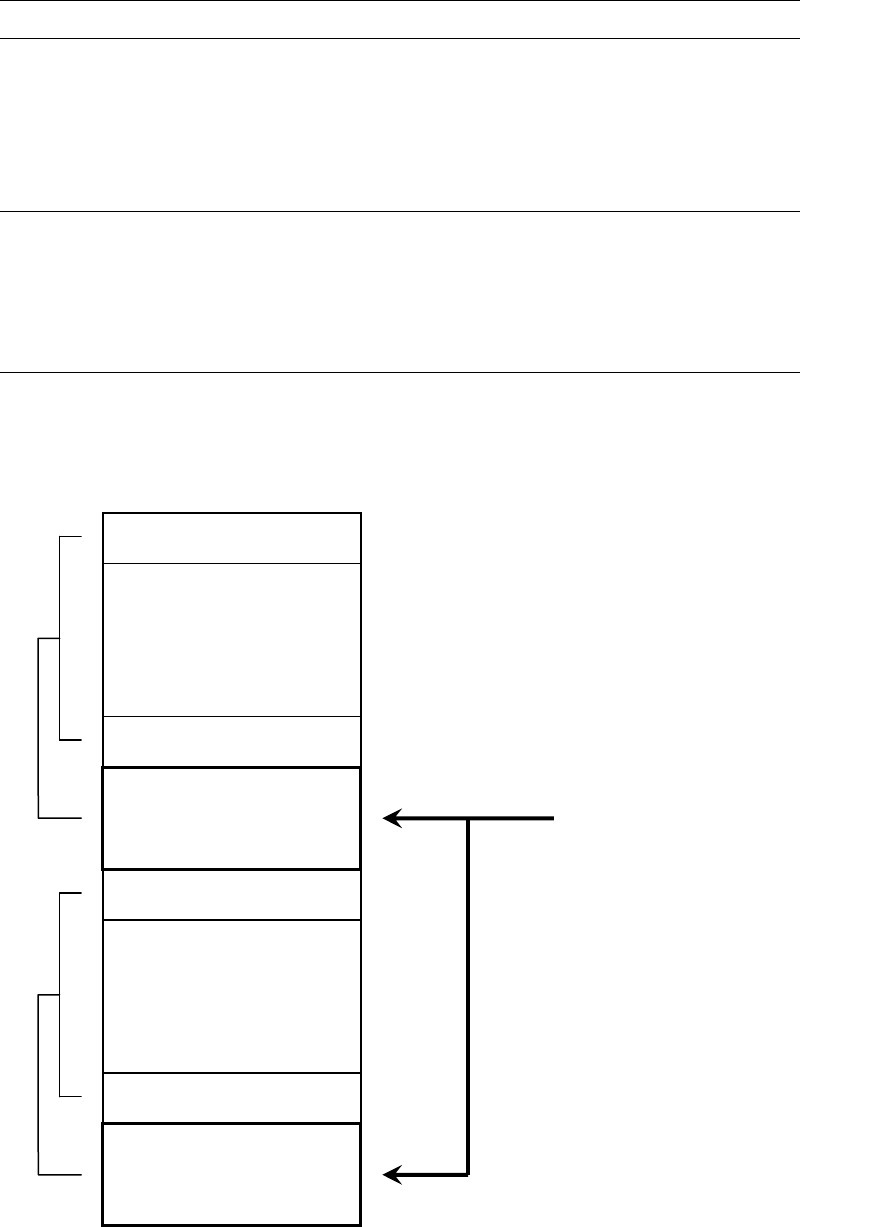
When creating several block placement loops by setting “Repeat Offset” in the [Task] cell of
[Placement & Mark Data], the number of steps and the offset values must be the same for all
the consecutive [Repeat Offset] records.
"Start Block" 1
Placement steps 1
"End Block" 1
"Start Block" 2
Placement steps 2
"End Block" 2
The number of steps and each
offset values must be the same.
"Repeat Offset" steps 1
"Repeat Offset" steps 2