M20_Ope_E.pdf - 第134页
Chapter 3 Optimization 3-4 3-1-2 Optimization Setting Menu: Program>File >Optimization Note: When performing optimization, the data checking fo r optimization process will be executed. Even if there are duplication…
Chapter 3 Optimization
3-3
3-1-1-2 Repeat program (outside the loop)
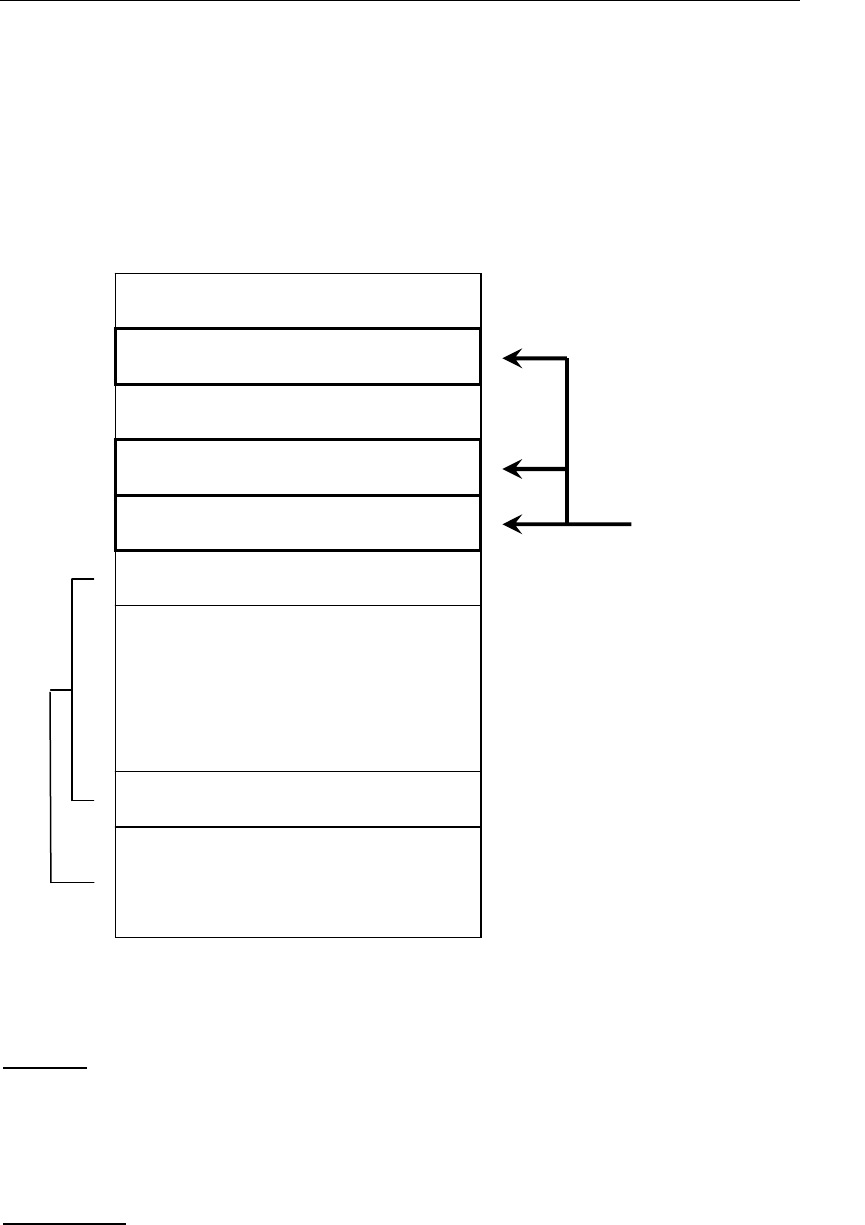
When creating a loop by setting “Repeat Offset” in the [Task] cell of [Placement & Mark Data],
the following restrictions will apply to creation of data outside the loop.
(1) No placement steps are allowed outside the loop.
(2) Only one type of F Group No. is allowed for fiducial mark steps present outside the loop.
(3) Only one type of B Group No. is allowed for bad mark steps present outside the loop.
(Master bad marks are excluded.)
Bad mark
The master bad mark step (B Group No. = ”255” or “254”) must be located at the beginning of
the placement steps.
The bad mark steps of the same B Group No. must have the same X, Y and T coordinates
Fiducial Mark
The fiducial mark steps of the same F Group No. must have the same X, Y, and T coordinates
B Group No. = 1
F Group No. = 1
"Start Block Placement"
Placement steps
"End Block Placement"
"Repeat Offset" steps
The optimization cannot
process these.
B Group No. = 2
F Group No. = 2
Placement steps
Chapter 3 Optimization
3-4
3-1-2 Optimization Setting
Menu: Program>File>Optimization
Note:
When performing optimization, the data checking for optimization process will be executed. Even if
there are duplications of pickup points (ST No.), an error will not occur.
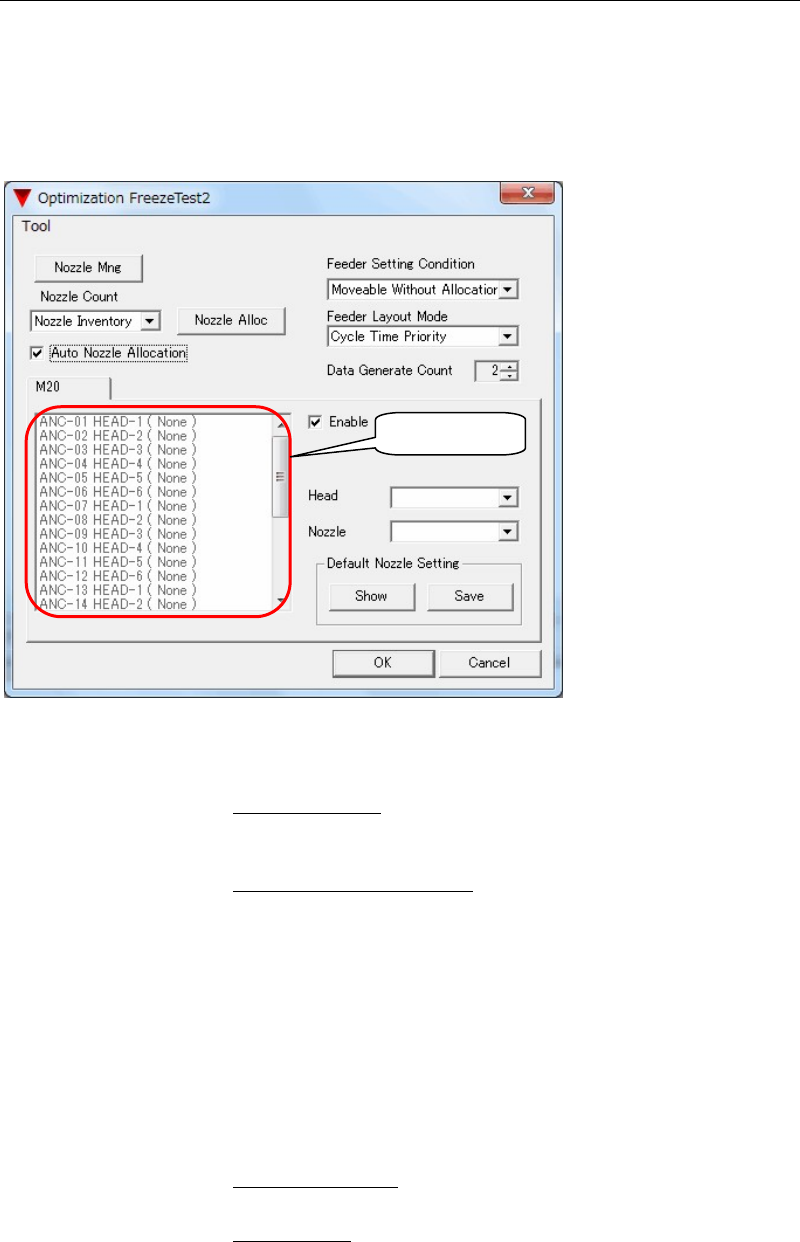
Make necessary settings and click the <OK> button to perform optimization.
* Displayed items differ depending on the mounter model.
Feeder Setting Condition Restriction on feeder position changes can be specified.
All Feeders Fixed
Optimize the component placement order and
head assignment. Optimization of feeder
positions will not be performed.
Movable Without Allocation
Optimize the component placement
order and head assignment. Optimization of
feeder positions will be performed.
Note: If “Disabled” is selected in the [Optimization] cell in the [Pickup
Data] for a pickup point record, the pickup point will be processed
as a fixed feeder even if “Movable Without Allocation” is selected
for [Feeder Setting Condition].
Feeder Layout Mode At feeder allocation, it will be performed assigning priorities to
cycle time or space.
Cycle Time Priority
Feeder allocation will be made so that the
head travel distance can be shorter.
Space Priority
Feeder allocation will be made so that the feeder
stations are used efficiently.
List box

Chapter 3 Optimization
3-5
*Data Generate Count
Use the default setting.
<Nozzl Mng> By clicking the <Nozzle Mng> button, editing the Nozzle Inventory for
automatic nozzle allocation is available. The information in the Nozzle
Management will be used for automatic nozzle allocation in the
optimizing process. The nozzle inventory should be set before running
automatic nozzle allocation. Set the number of nozzles for each nozzle
type.
<Nozzle Alloc> Clicking the <Nozzle Alloc> button will allocate the nozzles
according to the “Nozzle Count” setting and the result will be
displayed in the list box.
Nozzle Count Set the conditions for Nozzle Count.
Nozzle Inventory The number of nozzles for each nozzle type
registered in the [Nozzle Management] window
will be used.
Ignore The most efficient nozzle allocation will be made for a target
program. The number of nozzles for each nozzle
type registered in the [Nozzle Management]
window will be ignored.
Machine The nozzle allocation will be made using the
number of nozzles that the machine actually
has.
Note: When selecting “Ignore”, the result may include the number of
nozzles which exceeds the actual number that is owned by you.
Auto Nozzle Allocation Nozzle allocation will be automatically performed in the optimization
process by selecting the [Auto Nozzle Allocation] check box.
When allocating the nozzles manually, clear the [Auto Nozzle
Allocation] check box and set manually for each ANC. Select an ANC
No. in the list box, and set head No. and Nozzle No. from the combo
boxes.
*Enable
Leave this check box selected.
Default Nozzle Setting Clicking the <Save> button will save the contents in the list box as a
default.
Clicking the <Show> button will display the saved contents of the
default nozzle setting in the list box.
Optimization Priority In the Component Library, you can specify the placement order of
each component by setting “Optimization Priority” for each
component code.
) 5. Library > Component Library