M20_Ope_E.pdf - 第137页
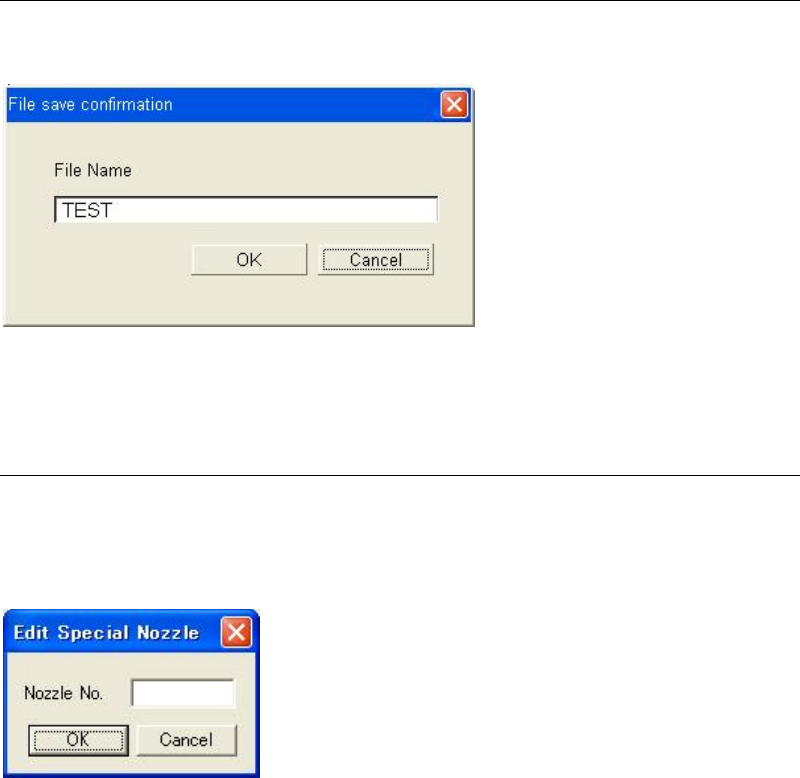
Chapter 3 Optimization 3-7 3-1-4 Saving the Result Clicking the <Close> button will display the dialog box asking whether to save the result or not. Type the file name and click the <OK> button to save the re…

Chapter 3 Optimization
3-6
3-1-3 Execution of Optimization
Click the <OK> button in the [Optimization TEST] window. The window showing the
progress appears.
When clicking the <Stop> button in the middle of the optimization, a message box asking whether
to stop or continue the process appears.
Clicking the <Yes> button will stop the process.
Clicking the <No> button will continue the process.
After the process has completed, the simulated cycle time will be displayed.
Chapter 3 Optimization
3-7
3-1-4 Saving the Result
Clicking the <Close> button will display the dialog box asking whether to save the result or not.
Type the file name and click the <OK> button to save the result.
When not saving the result, click the <Cancel> button to stop the process.
3-1-5 Special Nozzles
Menu: Tool>EditSpecialNozzle
When using special nozzles that are not registered as standard, add the nozzle(s)
A special nozzle will be added by typing the nozzle number in the “Nozzle No.”.
The entered nozzle No. will be added in the “Nozzle” combo box and can be selected from it.
Note: The allowable numbers are from 1 to 255.
Note: The maximum number of nozzle registration is 32.
Chapter 3 Optimization
3-8
---Blank page---