M20_Ope_E.pdf - 第173页
Chapter 5 Libraries 5-23 5-1-2-1 Setting Nozzles to ANC Set nozzles to use to available ANC stations. Open the ANC shutter in advance, Nozzle Info.>Slide Channel>Open. When setting them, fi t the nozzle cutoff to t…
Chapter 5 Libraries
5-22
5-1-2 Image Data Creation Support Tool
Since some image data are already registered in the master library, necessary image data can be
copied from it to the user library and used.
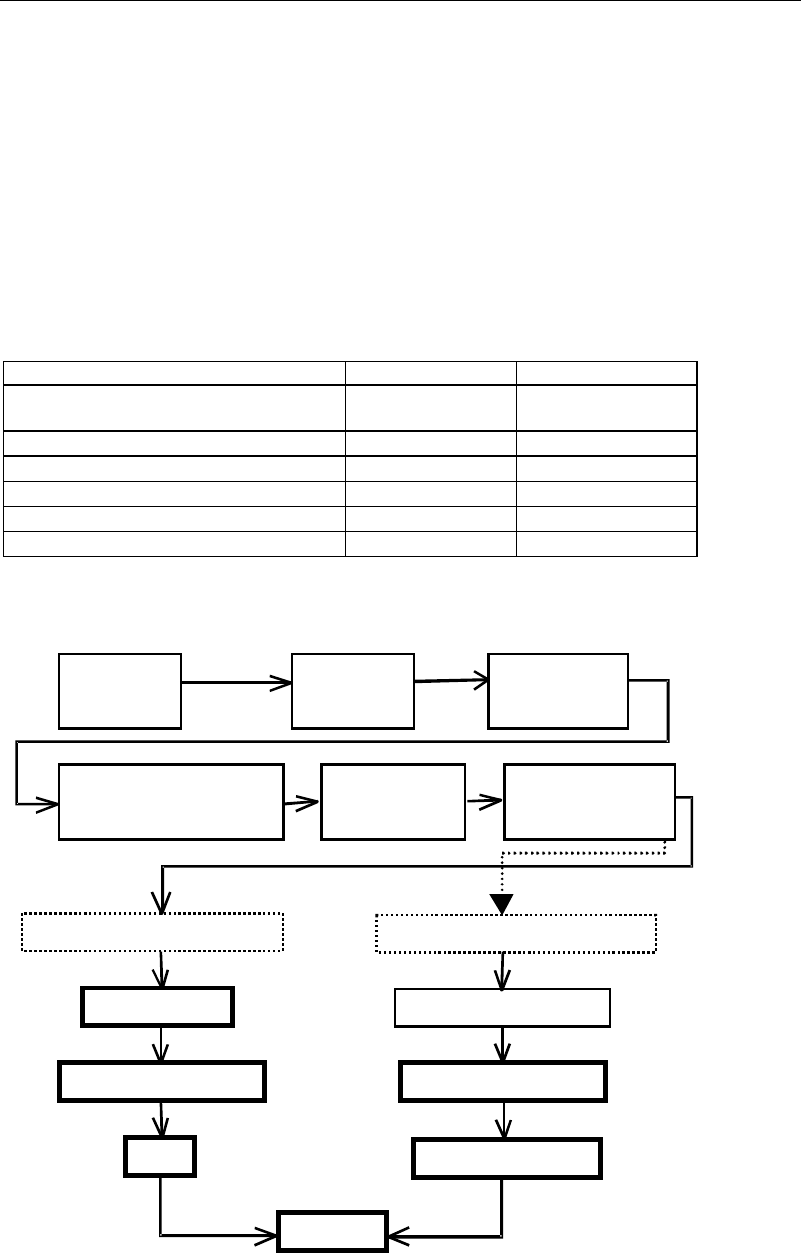
Four tools are available to create new image data. They include the illumination adjustment,
prearrange, ADA (Automatic Data Acquisition) and image test tools. Use of the illumination
adjustment tool makes illumination setting for components easier. Use of the prearrange tool
causes the mounter to pickup a component with a nozzle and hold it over the camera.
Use of the ADA tool enables easy image creation. The image test tool checks whether the
created data can be used for actual placement operation. The image test tool can also be used
for mark data.
The ADA and image test tools have the following restrictions depending on the processing
target.
○: Can be executed. ×: Cannot be executed or execution is not necessary.
Processing target ADA Image test
Chip, Electrolytic capacitor, Transistor,
Power transisitor
○ ○
SOP,SOJ,QFP,PLCC,LCC
○ ○
BGA/CSP
○ ○
Connector
× ○
Fiducial mark
× ○
Bad mark
× ○
An outline of the procedure for creating image data using the above support tools is given
below.
A
ttach nozzles
to ANC.
A
ttach nozzles
to heads.
Select an image
library.
Select the component type in
the image code list window.
Image data edit
window
opens.
Enter dimensions.
Components supported by ADA
Components not supported by ADA
Prearrange
Enter dimensions.
Illumination setting
Illumination setting
ADA
Image test
Specify the image code
and processing method.
Chapter 5 Libraries
5-23
5-1-2-1 Setting Nozzles to ANC
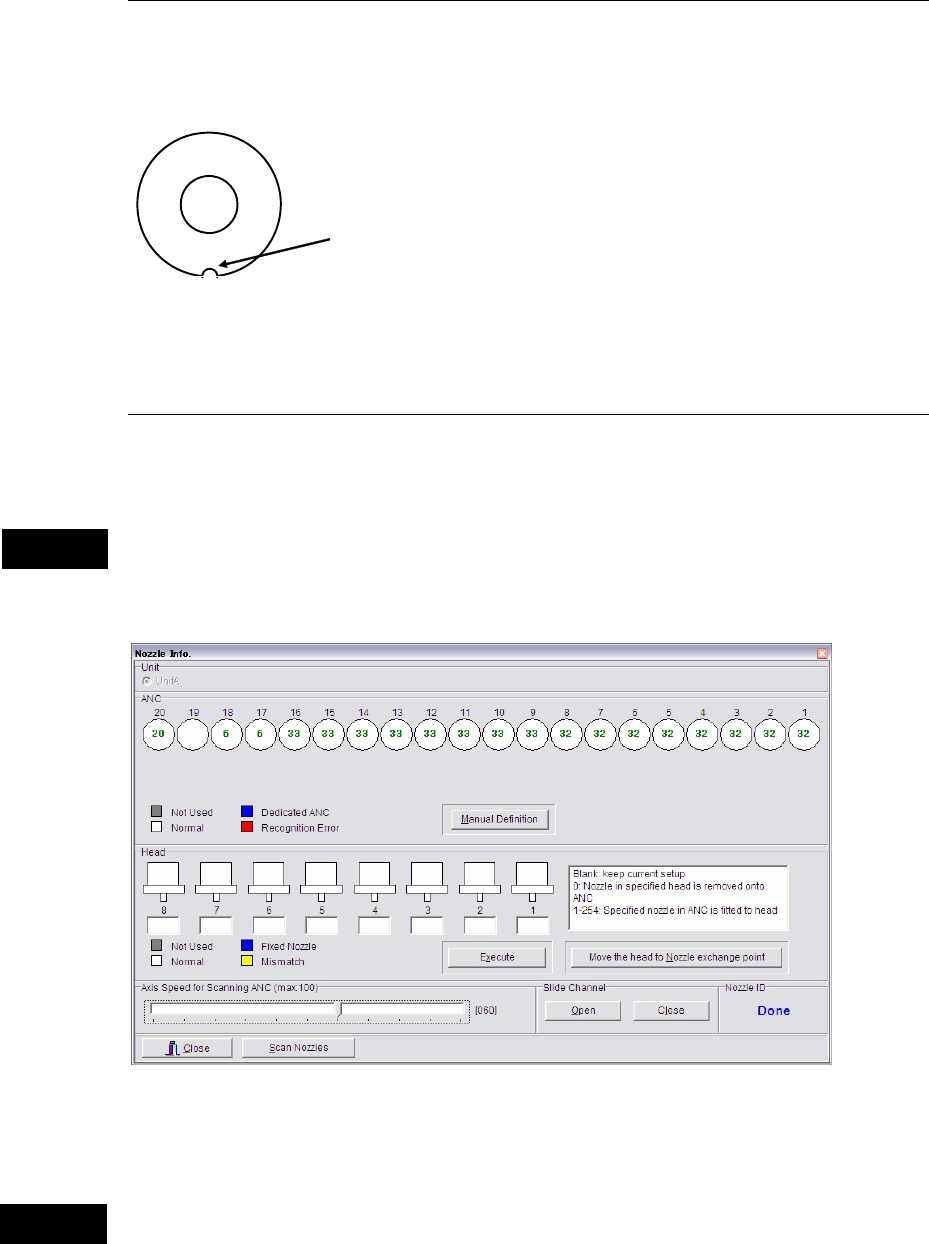
Set nozzles to use to available ANC stations. Open the ANC shutter in advance, Nozzle
Info.>Slide Channel>Open. When setting them, fit the nozzle cutoff to the positioning pin in
the ANC station and insert the nozzle vertically.
Cutoff
Nozzle Top view
Note: When the head assembly or XY shafts locate above the ANC station, make enough space to
work. Click the <Move the head to Nozzle exchange point> button.
5-1-2-2 Setting Nozzles to Heads
Menu: Manual>NozzleInfo.
This system is capable of automatic nozzle setting to a head.
Do not manually attach a nozzle to a head. If a nozzle is not attached properly, it can hit other
parts of the machine to result in head damage.
This menu allows you to see which nozzles are on the heads and in ANC.
* The number of units and heads
varies according to machine
models and types.
ANC operation allows a head to move. When using this menu, do not stick head, hands,
or other parts of the body inside the mounter. Serious injury can result. Also make sure
non-operators are a safe distance from the machine.
Caution
Warning
Chapter 5 Libraries
5-24
Automatic Nozzle ID Recognition
Click <Scan Nozzles> button.
The head segments move above the beam camera (above the scan camera on the
M6/M6ex/M6ez), and the camera scans each head for nozzle presence.
Then, the main teach camera scans the ANC to read the nozzle ID labels. The heads remove
nozzles and put them onto available nozzle stations.
1
The main teach camera scans the remaining nozzles that have been removed from the heads.
The result is shown in [ANC] table. [Head] table shall be blank since all the nozzles have been
removed from the heads.
To attach a specific nozzle to a specific head for ADA or the image test, enter the nozzle number,
and click <Execute> button. When ADA or image test finished, to remove the nozzle and place
it to a nozzle station, enter the head with the nozzle and nozzle number=0. Then click
<Execute> button.
Note: This operation can be performed in Prearrange> [ANC] tab>Manual Nozzle Operation.
Note: On the M7, Automatic Nozzle ID Recognition is performed at all units at the same time.
When actuating manually, Unit must be selected.
5-1-2-3 Prearrange
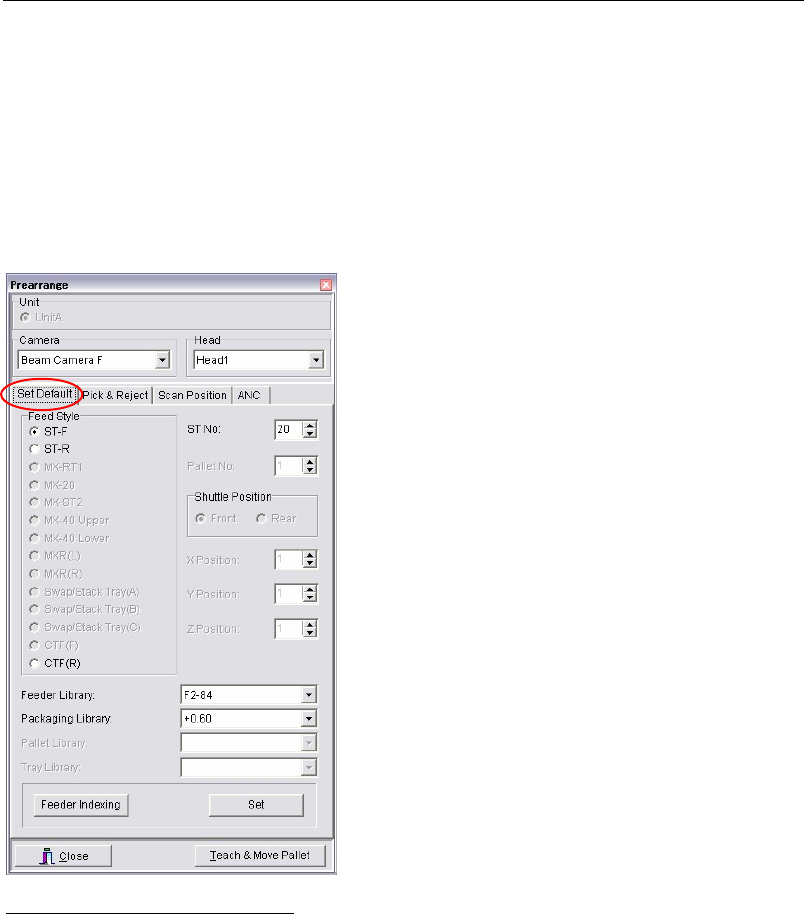
Prearrange allows a specified component to be picked up by a specified nozzle. The Prearrange
window can be accessed from the Image Library edit screen.
Window:
Unit: On the M7, select a Unit to be used.
Camera: Select a camera to process the specified component. The camera
selected in the Image Library edit window appears.
Head: Select a head to process the specified component.
Teach & Move Pallet: You can access the Teach dialog box.
1
If the nozzles in the heads are more than the ANC can accommodate, the operation results in an error. Remove
nozzles from the ANC as necessary and redo the operation.
■ Set Default tab
Specify pickup position of the component used for
ADA or ima
g
e test. Under [Feed St
y
le], select a feed
style. Depending on your choice, unnecessary
settin
g
s are dimmed. Enter all the active settin
g
s and
click <Set> button. Coordinate data will be entered
to [Pickup Coordinates] and [Reject Coordinates] in
[Pick & Reject] tab.
If you specify “Not Use” to library data setting
fields, [Pickup Coordinates] cannot reflect the offset
settings of the feeder/pallet library, nor [Reject
Coordinates] cannot be entered.
In using a tray component, be sure to specify tray
library data for [Tray Library], since [X Position] and
[Y Position] settings won’ be effective without the
component pitch setting of the tray library data.
<Feeder Indexing> button is enabled only when
<ST-F> or <ST-R> button is selected. Clicking
<Feeder Index> button allows the feeder to perform
indexing motion.