M20_Ope_E.pdf - 第181页
Chapter 5 Libraries 5-31 ⑨ When the process is successfully completed, [OK] is displayed in the Result box. Then the message “ Are you sure to overwrite? ” appears. Press <Yes> butto n. When the process fails, [NG]…
Chapter 5 Libraries
5-30
How To Perform ADA
Action: ADA is performed via the Image Library edit window.
① In the Image Library edit window, type the image code and comment, and select the
camera.
② Type the component thickness in [Comp. Thickness] and select the head in [Head].
Note: On the M7, select a unit to use in [Unit].
③ Click <Prearrange> button to open the Prearrange. Through Prearrange, let the machine
head pick up a component
1
from the ST-F
2
or tray feeder. (You can manually attach the
component to the head as well.)
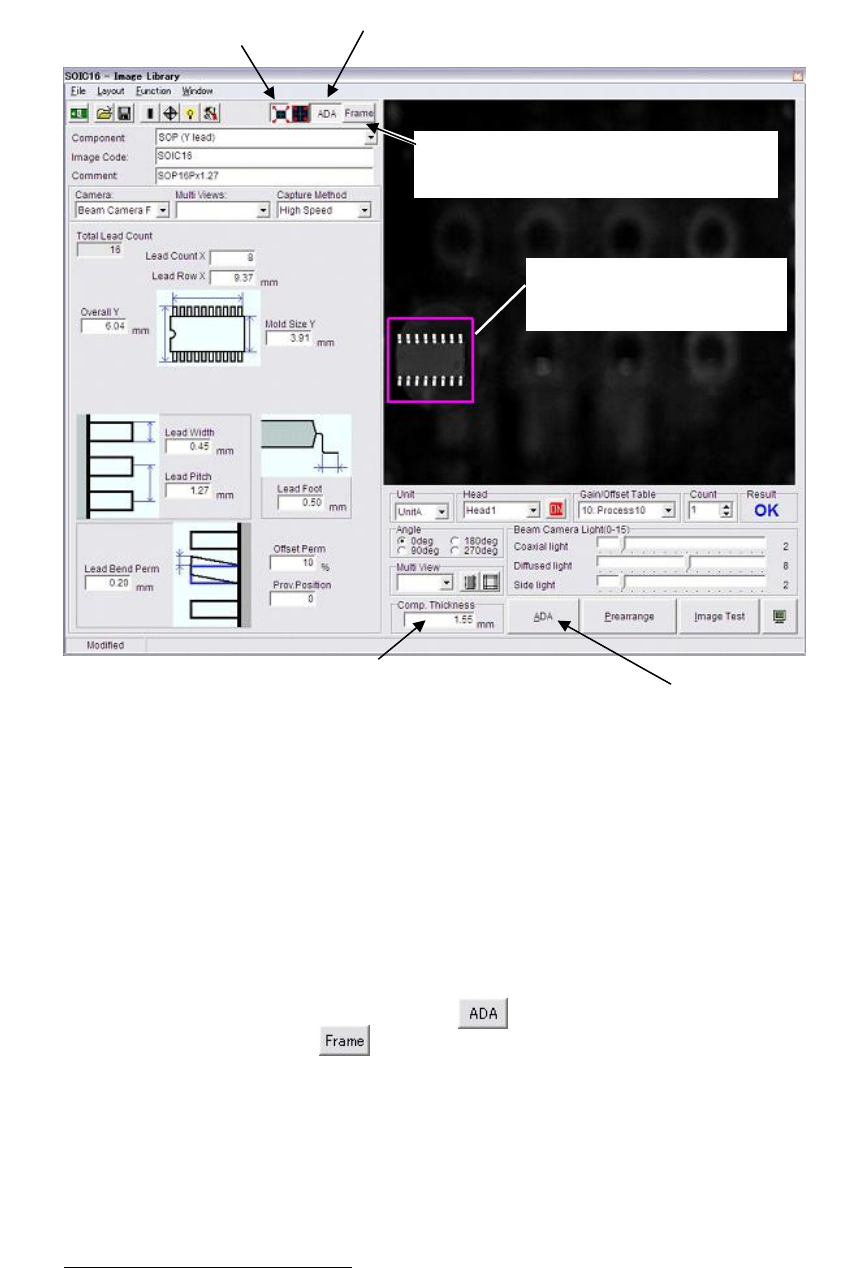
④ Click the <Full Screen Mode> button at the upper part of the window.
⑤ Click the <Area Select ADA Mode> button .
⑥ Click the <Frame> button . The component frame performed by the ADA is able to
appear in this VCS monitor.
⑦ Click and drag the ADA range. ADA is performed only within the specified range.
Note: On the M7, be sure to specify ADA range. It can prevent undesired images being included in
ADA range. No need to specify ADA range for the M6/M6ex/M6ez.
⑧ Click <ADA> button.
3
When you select the Fixed camera or Scan camera, the message
“Move the head to camera's scan position?” appears. Click <Yes> button.
1
Use a component free from deformities such as bent leads. Also it is recommended the pickup angle conforms
to the package angle.
2
Pickup direction of the component must conform to the packaged direction when set to the ST-F.
3
The camera illuminates only when capturing a component. The captured image is stored and displayed on the
VCS monitor.
Component thickness settin
g
is critical for ADA and ima
g
e test. When the
Thickness setting is entered to the component library, the setting is
displayed in this field. When not entered, the default “15.00” is displa
y
ed.
In this case, be sure to re-enter the correct value
.
⑤
On the M7, click the <Area Select ADA Mode> button.
Onl
y
when the <Full Screen Mode> is selected, the ADA
range specification is available.
④ Click the
<Full Screen Mode>.
⑥Click the <Frame> button. T
h
e component
frame performed b
y
the ADA is able to
appear in this VCS monitor.
⑦On the M7, click and dra
g
the
ADA ran
g
e. ADA is performed
only within the specified range.
⑧ Execute ADA.
Chapter 5 Libraries
5-31
⑨ When the process is successfully completed, [OK] is displayed in the Result box. Then the
message “Are you sure to overwrite?” appears. Press <Yes> button. When the process fails,
[NG] is displayed. In this case, follow the given message. See Chapter 15 MMI Messages.
⑩ Lastly, click <Image Test> button to execute image test. When the process is normally
completed, it proves the data is available for operation.
⑪ Click File>Save to register the data.
Note: On the M6/M6ex/M6ez, multiple-view process cannot be performed via the scan camera.
Note: When ADA is performed in multiple-view process, after the first sub-view is captured, select
[Multi View], “Subview2”, <Next> button to move on to the next sub-view. Repeat it for the
rest of sub-views. In ADA using multiple-view process, after executing ADA, the guide
window won’t be displayed. To display the guide window, click <Guide> button. While the
guide window is displayed, you cannot switch to other sub-view.

Chapter 5 Libraries
5-32
5-1-2-7 Image Test
Check that whether the created data is free from error or not.
M6/M6ex/M6ez
Action: Attach a component to a nozzle through Prearrange.
① In the Image Library edit window, make sure [Comp. Thickness] value is correct. If not,
type the proper value.
② Under [Head], select a head to use. Click <Image Test> to execute the image test.
1
When a
fixed camera is selected, the message “Are you sure to overwrite?” appears. Press <Yes>
button.
③ When the image test ends in success, [OK] is displayed in the Result box. If the image test
fails, [NG] is displayed. In this case, follow the displayed message.
④ Remove the component from the nozzle through Prearrange.
⑤ Click File>Save or button to register the data.
Note: When image test is performed in multiple-view process, after the first sub-view is captured,
select [Multi View], “Subview2”, <Next> button to move on to the next sub-view. Repeat it for
the rest of sub-views. In image test using multiple-view process, after executing ADA, the
guide window won’t be displayed. To display the guide window, click <Guide> button. While
the guide window is displayed, you cannot switch to other sub-view.
1
Image test can be performed twice or more continuously. Select the number of tests to be performed in the
Count box.