M20_Ope_E.pdf - 第183页
Chapter 5 Libraries 5-33 M7 Executing Image Test Action: To execute Image test, select the Image data edit window. ① In the Image data edit window, type the image code, and comment. Select Camera, Unit and Head. ② Ma…
Chapter 5 Libraries
5-32
5-1-2-7 Image Test
Check that whether the created data is free from error or not.
M6/M6ex/M6ez
Action: Attach a component to a nozzle through Prearrange.
① In the Image Library edit window, make sure [Comp. Thickness] value is correct. If not,
type the proper value.
② Under [Head], select a head to use. Click <Image Test> to execute the image test.
1
When a
fixed camera is selected, the message “Are you sure to overwrite?” appears. Press <Yes>
button.
③ When the image test ends in success, [OK] is displayed in the Result box. If the image test
fails, [NG] is displayed. In this case, follow the displayed message.
④ Remove the component from the nozzle through Prearrange.
⑤ Click File>Save or button to register the data.
Note: When image test is performed in multiple-view process, after the first sub-view is captured,
select [Multi View], “Subview2”, <Next> button to move on to the next sub-view. Repeat it for
the rest of sub-views. In image test using multiple-view process, after executing ADA, the
guide window won’t be displayed. To display the guide window, click <Guide> button. While
the guide window is displayed, you cannot switch to other sub-view.
1
Image test can be performed twice or more continuously. Select the number of tests to be performed in the
Count box.
Chapter 5 Libraries
5-33
M7
Executing Image Test
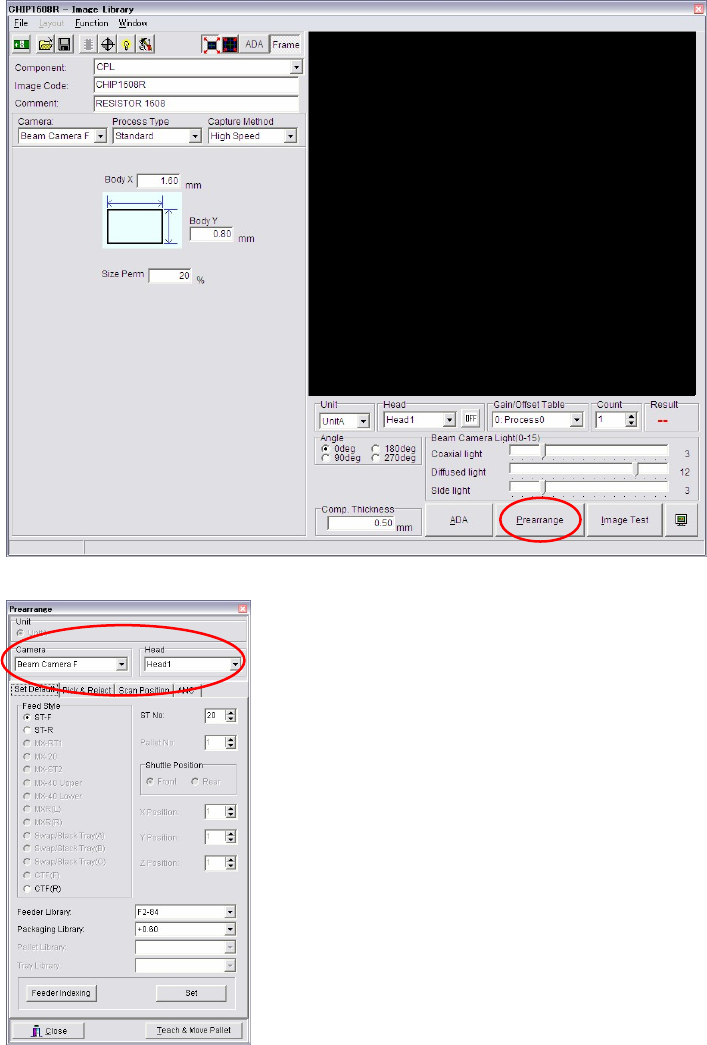
Action: To execute Image test, select the Image data edit window.
① In the Image data edit window, type the image code, and comment. Select Camera, Unit
and Head.
② Make sure [Comp. Thickness] value is correct. If not, type the proper value.
③ Attach a component to a nozzle through Prearrange.
Note: Make sure Unit, Camera and Head are selected properly.
Chapter 5 Libraries
5-34
④ Exit the Prearrange window and go back to the Image data edit window.
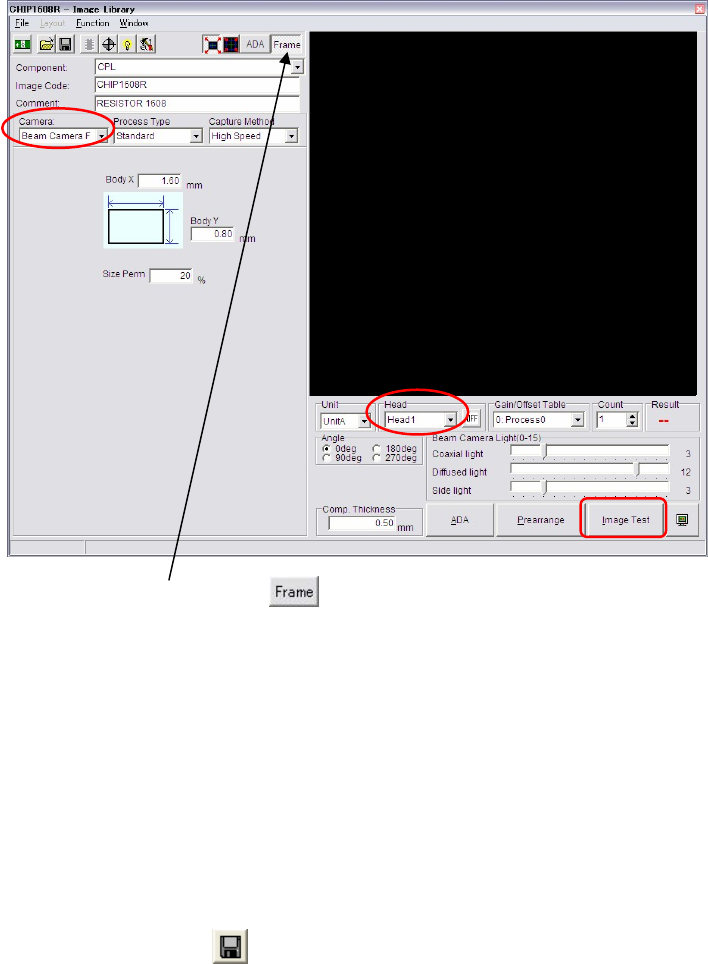
⑤ Click the <Frame> button at the upper part of the window.
The component frame performed by the ADA is able to appear in this VCS monitor.
⑥ Check to see that [Camera], [Unit] and [Head] are correctly selected.
Click <Image Test> button to execute Image Test.
⑦ The message “Execute?” appears. Click <OK> button. Then the message “Move the head to
camera's scan position?” appears. Click <Yes> button.
⑧ The result of image test is displayed enlarged initially. To enlarge and reduce the image,
scroll the mouse wheel. To move the image within the VCS monitor, drag the mouse.
Note: Enlarge the image and check the result of Image Test precisely.
⑨ When the image test ends in success, [OK] is displayed in the Result box. If the image test
fails, [NG] is displayed. In this case, follow the displayed message.
⑩ Remove or reject the component from the nozzle through Prearrange.
⑪ Click File>Save or button to register the data.
Note: 8 heads are subjected to vision processing at one time. Set the same illumination values for
components within a same cycle.
When illumination set values for components within one cycle vary, or you need to enter
unique illumination value for each component, the components will be still captured by each
group of components with the same illumination values.