M20_Ope_E.pdf - 第185页
Chapter 5 Libraries 5-35 Window: (Display of the screen) Expect Size: Component size typed in the Image Library edit window. Actual Size: Actual measured component size DX (Difference X): X offset fr om the center of the…
Chapter 5 Libraries
5-34
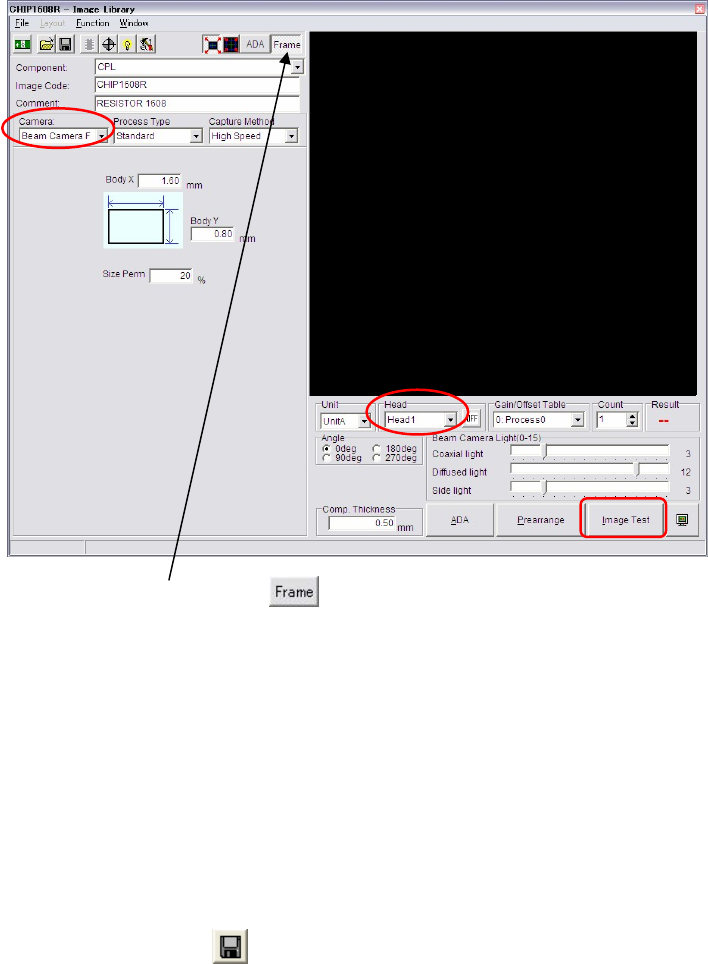
④ Exit the Prearrange window and go back to the Image data edit window.
⑤ Click the <Frame> button at the upper part of the window.
The component frame performed by the ADA is able to appear in this VCS monitor.
⑥ Check to see that [Camera], [Unit] and [Head] are correctly selected.
Click <Image Test> button to execute Image Test.
⑦ The message “Execute?” appears. Click <OK> button. Then the message “Move the head to
camera's scan position?” appears. Click <Yes> button.
⑧ The result of image test is displayed enlarged initially. To enlarge and reduce the image,
scroll the mouse wheel. To move the image within the VCS monitor, drag the mouse.
Note: Enlarge the image and check the result of Image Test precisely.
⑨ When the image test ends in success, [OK] is displayed in the Result box. If the image test
fails, [NG] is displayed. In this case, follow the displayed message.
⑩ Remove or reject the component from the nozzle through Prearrange.
⑪ Click File>Save or button to register the data.
Note: 8 heads are subjected to vision processing at one time. Set the same illumination values for
components within a same cycle.
When illumination set values for components within one cycle vary, or you need to enter
unique illumination value for each component, the components will be still captured by each
group of components with the same illumination values.
Chapter 5 Libraries
5-35
Window: (Display of the screen)
Expect Size: Component size typed in the Image Library edit window.
Actual Size: Actual measured component size
DX (Difference X): X offset from the center of the nozzle
DY (Difference Y): Y offset from the center of the nozzle
DA (Difference A): Component tilt towards the X/Y axis
Permission: Allowable value of the size typed in the Image Library edit
window.
Mark
Action:
① In the Fiducial/BadMark Data edit window, click <Image Test> button.
② When the image test ends in success, [OK] is displayed in the Result box. If the image test
fails, [NG] is displayed. In this case, follow the displayed message.
③ Save the data.
Window: (Display of the screen)
Accept: Match. threshold entered to the Image Library edit window.
Score: Score obtained in the fiducial matching process.
DX (Difference X): X offset from the fiducial coordinates.
DY (Difference Y): Y offset from the fiducial coordinates.
Mode: Bad mark color. 0: White, 1: Black
Bright: White/black threshold of the bad mark.
Measure: Measured brightness of the bad mark.
Chapter 5 Libraries
5-36
5-1-2-8 Zoom In the Image Test Display
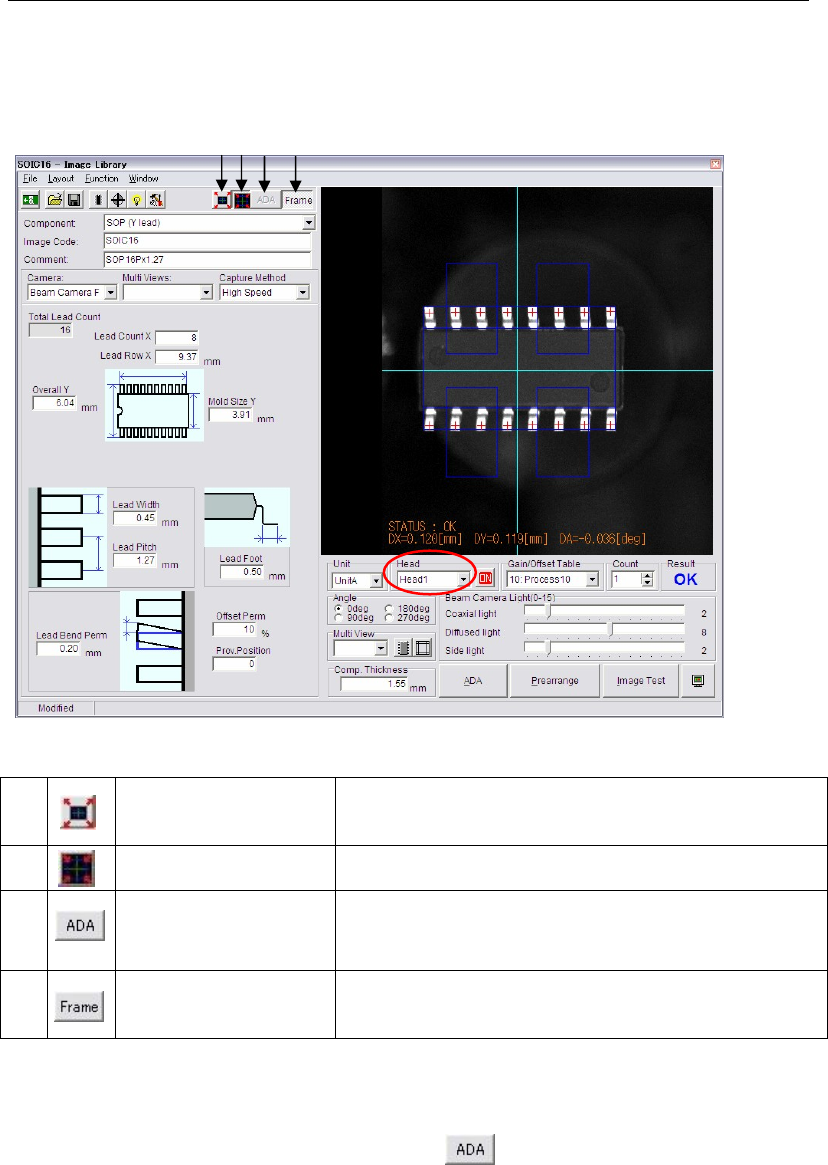
In the Image Library window, the displayed image can be zoomed in and out.
Note: The captured image by Image Test or ADA is displayed enlarged initially as shown in the
figure below.
a)
<Full Screen Mode>
button
Shows all the images of the eight heads within the monitor.
(It can be four heads depends on the mounter
configuration.)
b)
<Head Zoom Mode>
button
Enlarges the image of the selected head.
c)
<Area Select ADA
Mode> button
Enables to specify the ADA range.
(This function is only available when used with the [Full
Screen Mode])
d)
<Frame> button
By selecting the <Frame> button, the component frame will
be able to appear with the image captured by Image Test.
This button is available for ADA too.
Addition to the <Full Screen Mode> and the <Head Zoom Mode> buttons, image size can be
changed by the following mouse operations.
z To enlarge and reduce the image, scroll the mouse wheel.
(When the <Area Select ADA Mode> button is selected, this operation is invalid.)
z To move the image in the monitor, drag the mouse.
Note: The <Full Screen Mode> button and the <Head Zoom Mode> buttons are available for ADA,
too.
a) b)
c) d)