M20_Ope_E.pdf - 第194页
Chapter 5 Libraries 5-44 5-1-3-5 Auto-acquisition of Component XY sizes in Component Library In the [Component Library] window, component XY sizes can be acquired from the related image data using the <Size acquisitio…

Chapter 5 Libraries
5-43
Component Remain Count Management > Shortage Alarm
Enter a shortage Alarm value for this component. (Unit: pcs.)
See Chapter 9_ Running a job > ● Component Remain Count Management> Advanced Setting
for Component Library
Limit of Correction > X/Y/T
Specify the upper limit of correction for image processing. An image processing error will
occur if this setting is exceeded by the correction result. If this is set to “0”, the setting made for
[Pass Score for Vision Process Result (XY, T)] (User Parameter >Parameters) will be referred to.
Component Reject/Reuse Timing > VacmBrkr on comnd at Comp. Reject/Reuse -> VacmBrkr
off comnd
(When 0 is specified, the value of “Placement Timing” will be applied.)
A period of the vacuum break time when this component is rejected or reused is set. When “0”
is specified, Advanced Setting>Placement Timing “Vacuum Brkr on command at PCB →
Vacuum Brkr off command” for this component will apply.
Component Reject/Reuse Timing > Head down complete signal at Comp. Reject/Reuse ->
Head up comnd
(When 0 is specified, the value of User Parameter will be applied.)
A period of the head down time when this component is rejected or reused is set.
When “0” is specified, System>User Parameter>Timings>Component Reject, Z Lowest End ->
Head Up/Component Reuse, Z Lowest End -> Head Up will apply.
Component Reject/Reuse Timing > [Batch Setting] button
The component reject/reuse timing for this component will affect all components.
Force Control (Placement)
A load when this component is placed is set. (Unit: N)
This force control does not apply to a component that uses the nozzle P050 to P053.
(A load when this component is placed cannot be set.)
Normally, set the default value.
Force control (Pickup)
A load when this component is picked up is set. (Unit: N)
This force control does not apply to a component that uses the nozzle P050 to P053.
(A load when this component is picked up cannot be set.)
Normally, set the default value.
Pickup Setting
MSF Feeding Time Offset
When the MSF-1 multi-stick feeder is used to supply the component, a feeding time offset is set
for each component. (Unit: sec)
"MSF-1" vibration time = "MSF-1" feeding time + MSF feeding time offset.
For details, see the manual for MSF-1 multi-stick feeder.
Chapter 5 Libraries
5-44
5-1-3-5 Auto-acquisition of Component XY sizes in Component Library
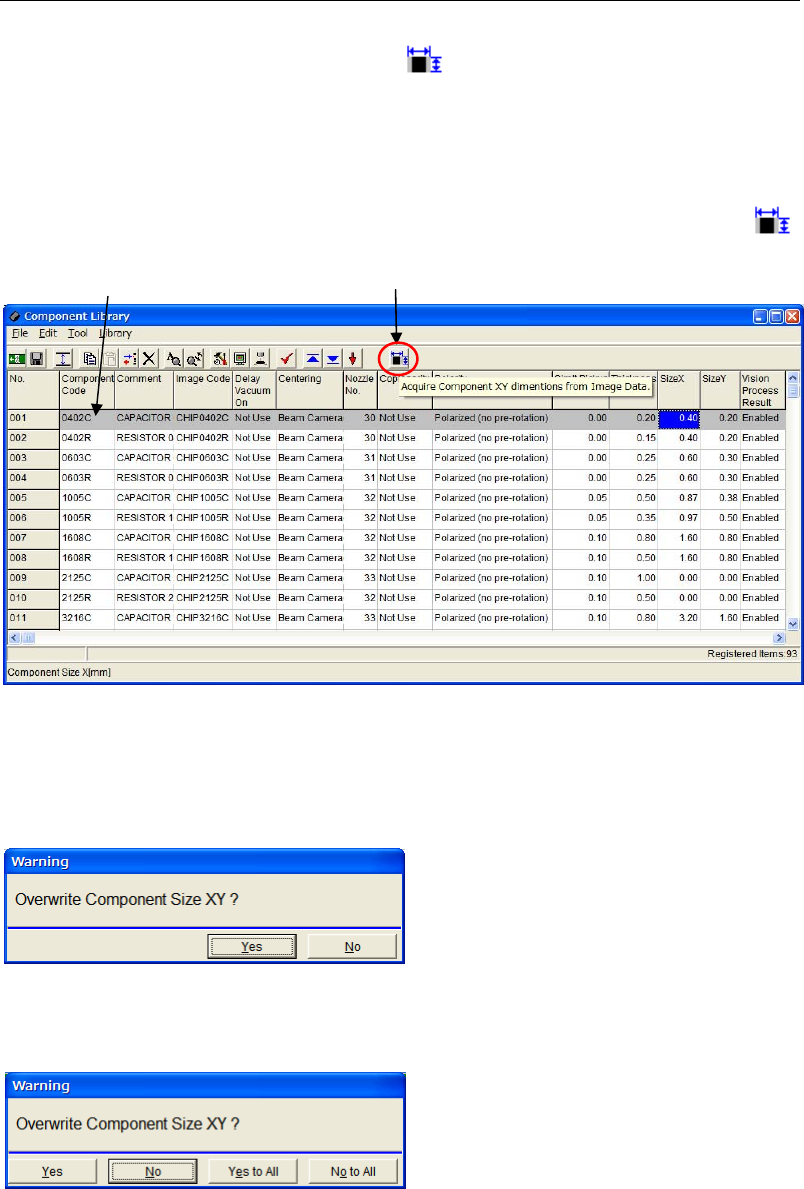
In the [Component Library] window, component XY sizes can be acquired from the related
image data using the <Size acquisition> button .
Note: To use this function, the image code linked to the component code must exist in the image
library.
Action:
① In the component Library edit window, select a component code which you want to
acquire the XY dimensions.
② Move the cursor onto the component code and click the <Size acquisition> button .
③ When the [SizeX] and the [SizeY] cells of the selected component code are “0”, the sizes
are copied from the linked image code.
④ If the [SizeX] and the [SizeY] cells of the selected component code are already input, the
following overwrite confirmation message appears.
z When you select one component code, the following message appears.
Click the <Yes> button to overwrite the component sizes.
Click the <No> button to cancel the data acquisition.
z When you select more than one component code, the following message appears.
1. When you click the <Yes> button, XY sizes of one component are overwritten and the same
message appears for the next component code.
When you click the <No> button, one data acquisition is cancelled and the same message
appears for the next component code continuously.
When you click the <Yes to All> button, component sizes of all the selected component codes
are overwritten.
When you click the <No to All> button, data input of all the selected component codes are
cancelled.
Note: When the [SizeX] and the [SizeY] cells of the selected component code are “0”, just click the
<Size Acquisition> button to copy the sizes from the linked image code.
Move the cursor onto the
component code.
<Size acquisition> button
Chapter 5 Libraries
5-45
5-1-4 Automatic Acquisition of Component XY Sizes by Program Check
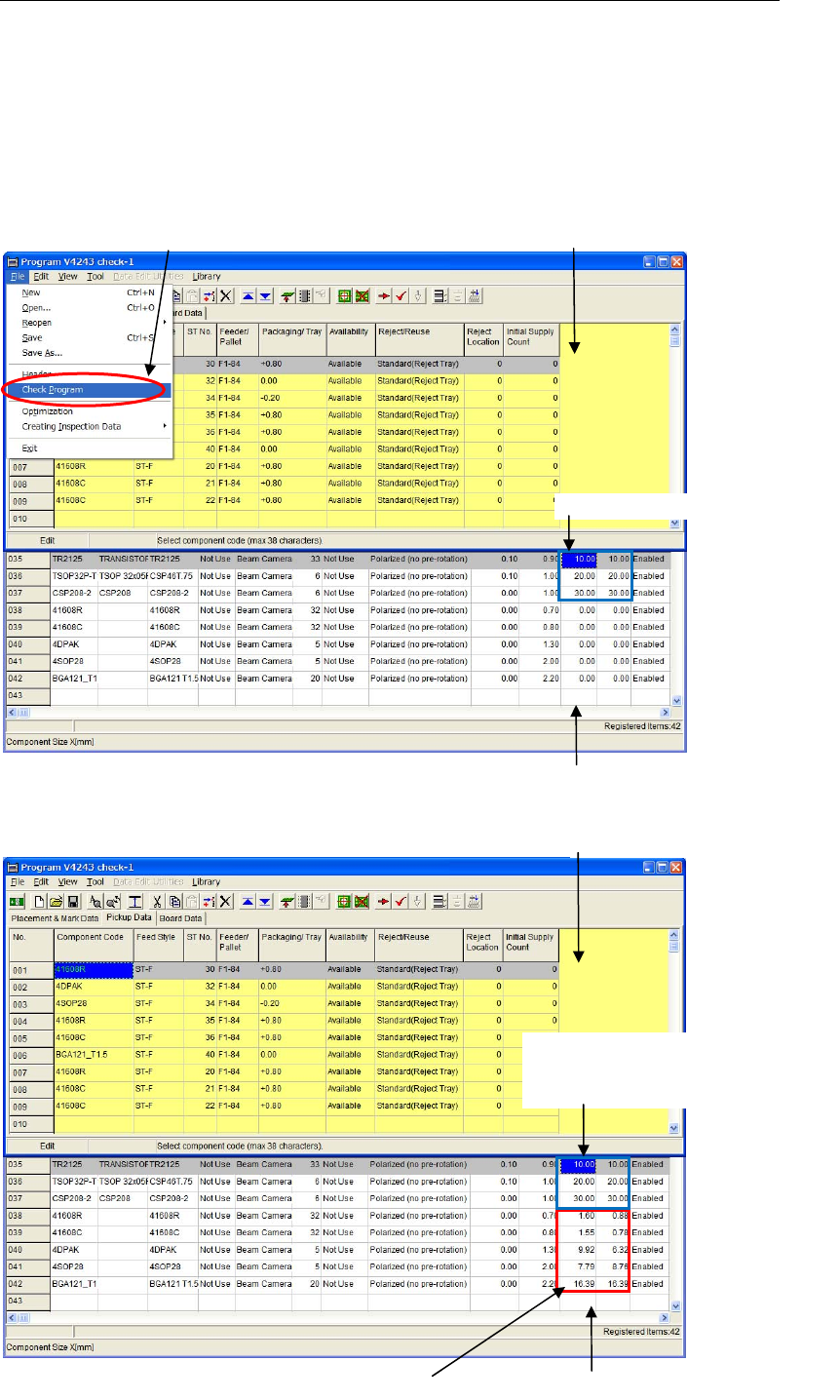
Automatic acquisition of component XY sizes is executed every time when the program check
function is processed.
This automatic acquisition is available for the component codes whose [Size X] and [Size Y] are
“0”.
The automatic acquisition of component XY sizes is not executed for the component codes
whose XY sizes are already input.
■ Before executing the program check
■ After executing the program check
Program edit window
Execute the program check
Sizes are already input.
Component Library window
Program edit window
When sizes are already
entered, Size X/Y won’t be
input by the program check.
When Size X/Y cells are “0”, sizes will be
input by the program check.
Component Library window