M20_Ope_E.pdf - 第195页
Chapter 5 Libraries 5-45 5-1-4 Automatic Acquisition of Component XY Sizes by Program Check Automatic acquisition of component XY sizes is executed every time when the program check function is processed. This automatic …
Chapter 5 Libraries
5-44
5-1-3-5 Auto-acquisition of Component XY sizes in Component Library
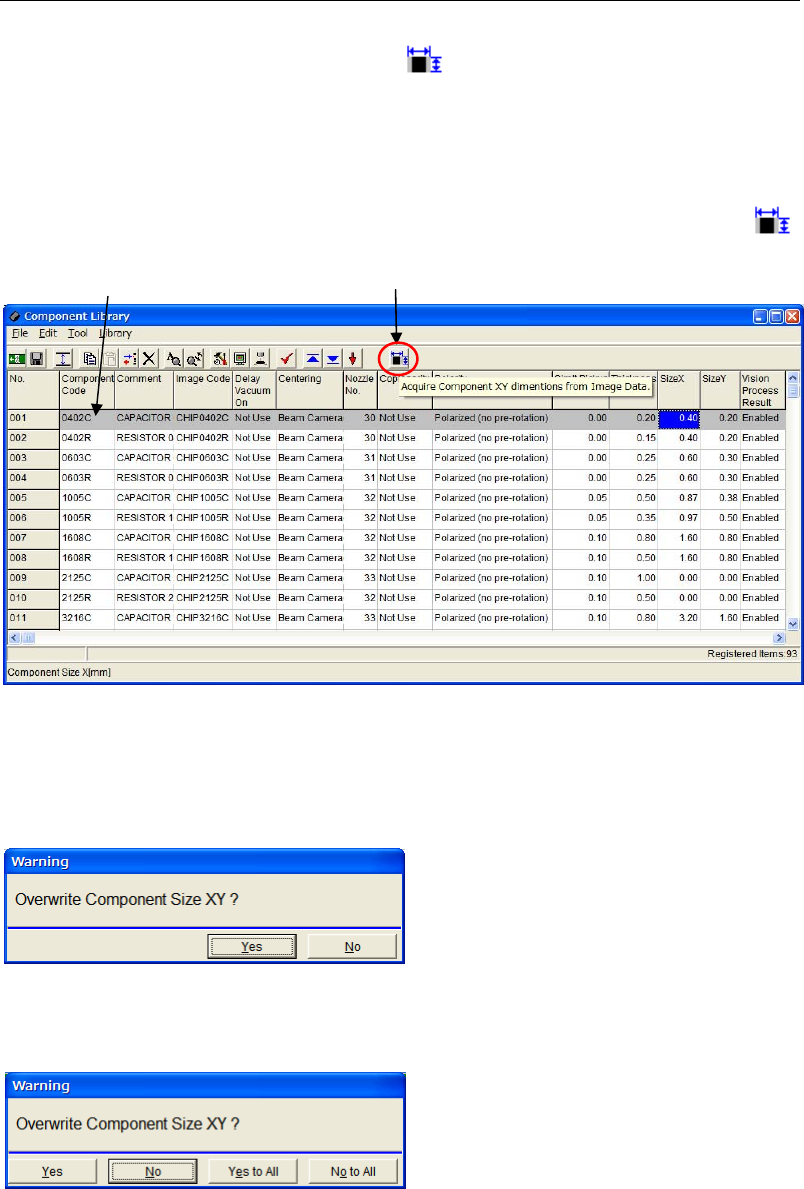
In the [Component Library] window, component XY sizes can be acquired from the related
image data using the <Size acquisition> button .
Note: To use this function, the image code linked to the component code must exist in the image
library.
Action:
① In the component Library edit window, select a component code which you want to
acquire the XY dimensions.
② Move the cursor onto the component code and click the <Size acquisition> button .
③ When the [SizeX] and the [SizeY] cells of the selected component code are “0”, the sizes
are copied from the linked image code.
④ If the [SizeX] and the [SizeY] cells of the selected component code are already input, the
following overwrite confirmation message appears.
z When you select one component code, the following message appears.
Click the <Yes> button to overwrite the component sizes.
Click the <No> button to cancel the data acquisition.
z When you select more than one component code, the following message appears.
1. When you click the <Yes> button, XY sizes of one component are overwritten and the same
message appears for the next component code.
When you click the <No> button, one data acquisition is cancelled and the same message
appears for the next component code continuously.
When you click the <Yes to All> button, component sizes of all the selected component codes
are overwritten.
When you click the <No to All> button, data input of all the selected component codes are
cancelled.
Note: When the [SizeX] and the [SizeY] cells of the selected component code are “0”, just click the
<Size Acquisition> button to copy the sizes from the linked image code.
Move the cursor onto the
component code.
<Size acquisition> button
Chapter 5 Libraries
5-45
5-1-4 Automatic Acquisition of Component XY Sizes by Program Check
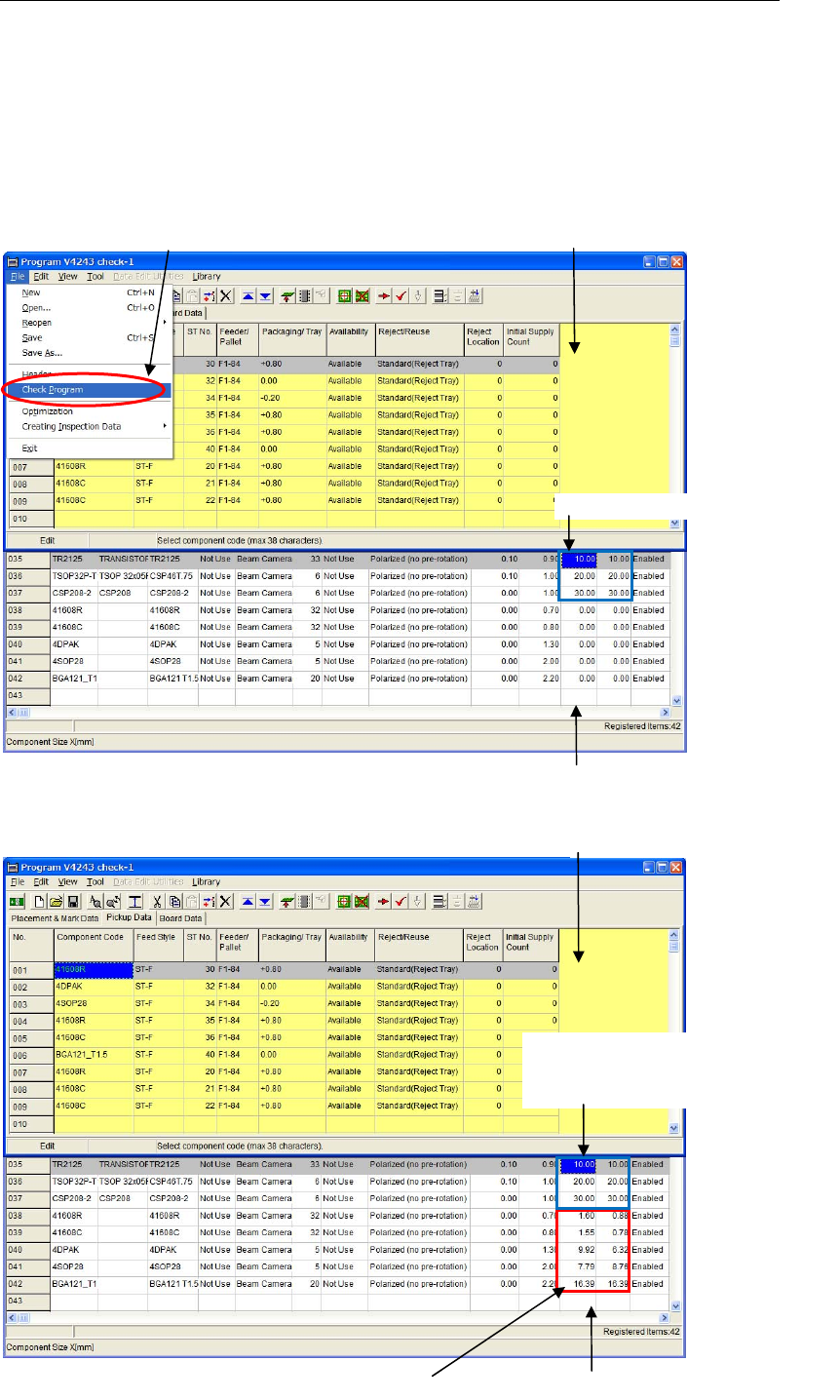
Automatic acquisition of component XY sizes is executed every time when the program check
function is processed.
This automatic acquisition is available for the component codes whose [Size X] and [Size Y] are
“0”.
The automatic acquisition of component XY sizes is not executed for the component codes
whose XY sizes are already input.
■ Before executing the program check
■ After executing the program check
Program edit window
Execute the program check
Sizes are already input.
Component Library window
Program edit window
When sizes are already
entered, Size X/Y won’t be
input by the program check.
When Size X/Y cells are “0”, sizes will be
input by the program check.
Component Library window
Chapter 5 Libraries
5-46
5-1-5 Image Library (Image Data)
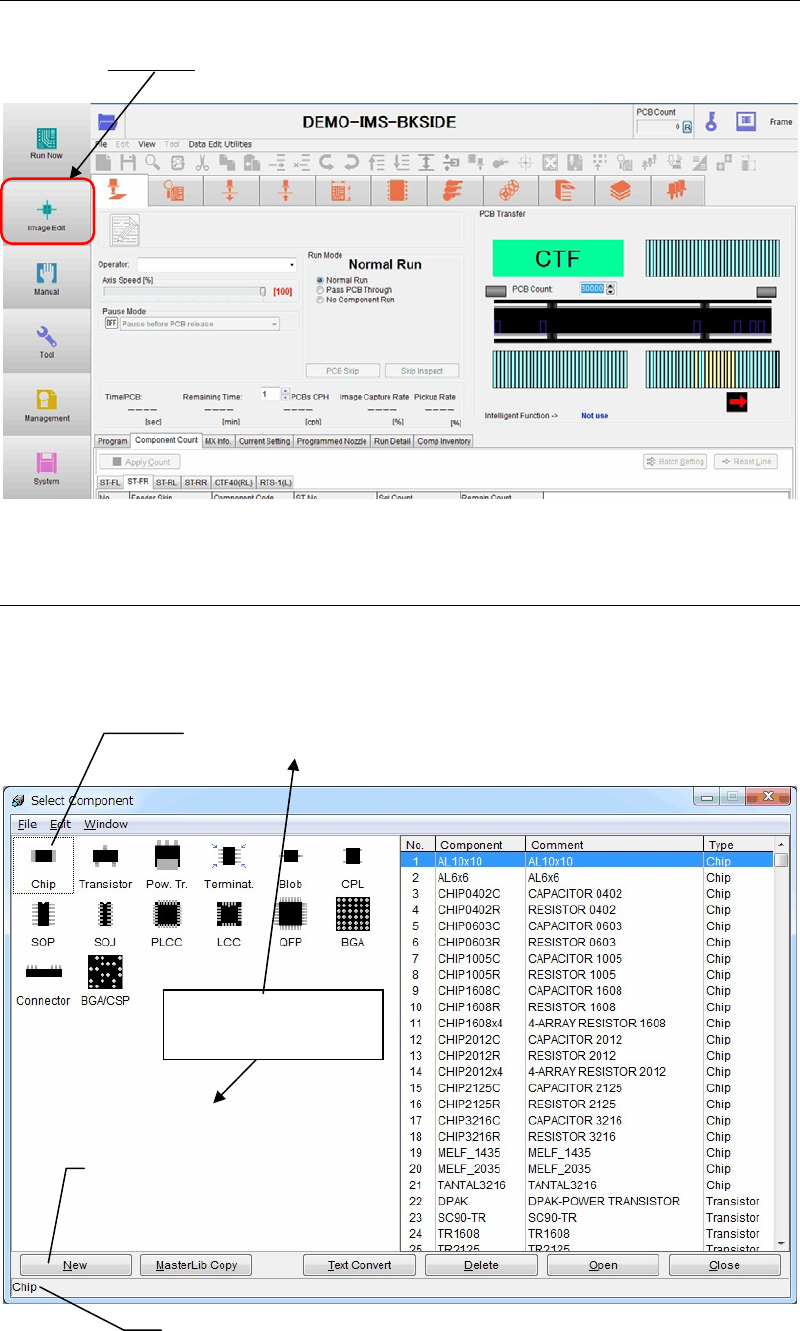
Menu: Program>ComponentData>ImageCode
MainMenu>ImageEdit
Component image data are registered to the image library.
5-1-5-1 Selecting a Component
Select the Image or Image Library menu and the below dialog box appears. To create new
component image data, select a component type from the left panel of the window by
double-clicking. You can move on to the editor window.
To create a new image library record, select a component type
by double-clicking.
To create a new image library record,
click a type of component first, then
click on the <New> button.
Description of the selected component type appears.
Both methods cause
the same result.