M20_Ope_E.pdf - 第197页
Chapter 5 Libraries 5-47 To edit an existing data, click a component type on the left pane and the selection cursor moves to the first line of the selected component type. Select data by double-clicking and the editor wi…
Chapter 5 Libraries
5-46
5-1-5 Image Library (Image Data)
Menu: Program>ComponentData>ImageCode
MainMenu>ImageEdit
Component image data are registered to the image library.
5-1-5-1 Selecting a Component
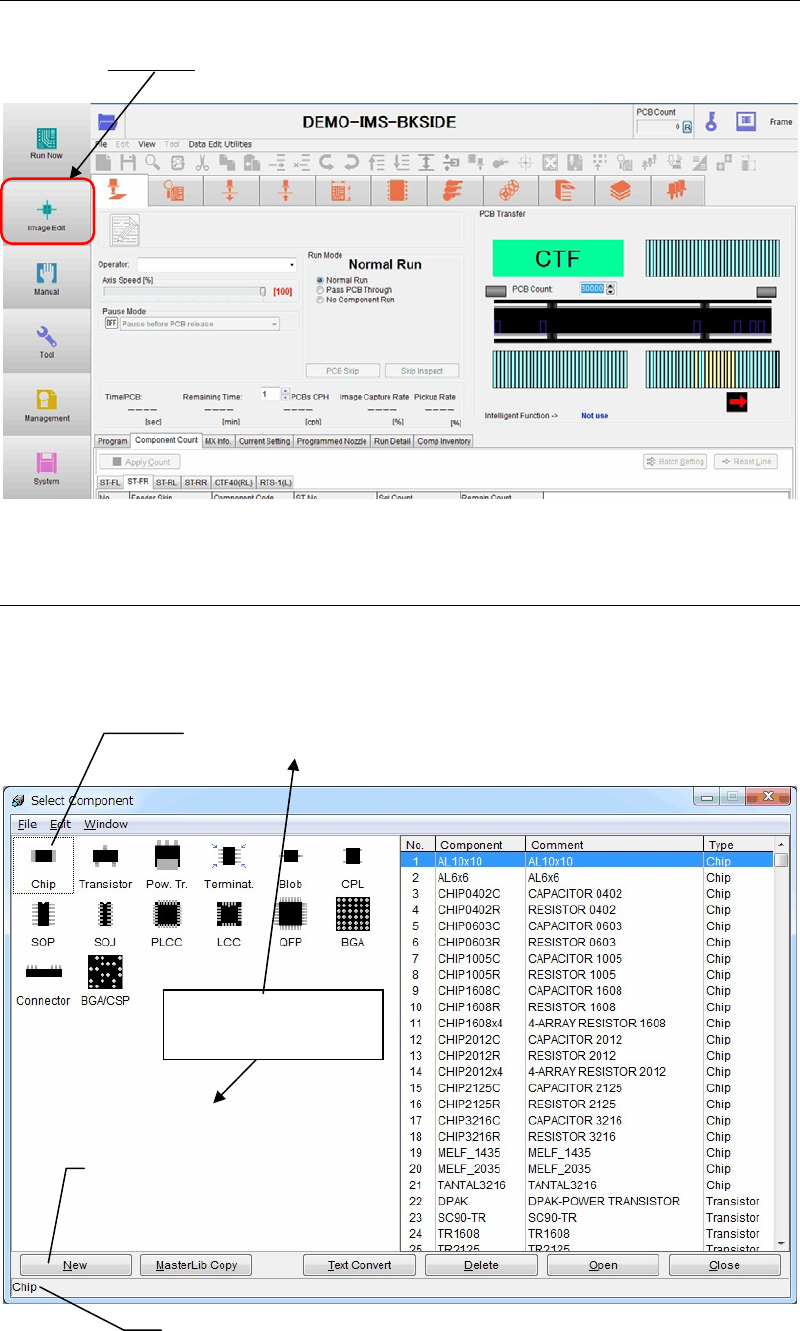
Select the Image or Image Library menu and the below dialog box appears. To create new
component image data, select a component type from the left panel of the window by
double-clicking. You can move on to the editor window.
To create a new image library record, select a component type
by double-clicking.
To create a new image library record,
click a type of component first, then
click on the <New> button.
Description of the selected component type appears.
Both methods cause
the same result.
Chapter 5 Libraries
5-47
To edit an existing data, click a component type on the left pane and the selection cursor moves
to the first line of the selected component type. Select data by double-clicking and the editor
window will open.
Window:
Component: Components are sorted by component type. In addition, the same
types of components are alphabetically arranged.
Comment: Shows the comment entered to the Image Library edit window.
Type: Shows component type.
Txt Convert: Saves the entire list as a text file. Click <Txt. Convert> button and
the Save As dialog box is opened for you to perform saving. The
saved text file in a USB memory stick can be printed out by using
application software in the external PC.
Open: Select a component and click <Open> button to open the Image
Library edit window.
Close: Closes the dialog box and returns to the previous one.
Note: Illumination settings of all Image Data can be reset to initial settings at one time.
Select Library>ImageLibrary>SelectComponent>Edit>InitializeIlluminations.
Chapter 5 Libraries
5-48
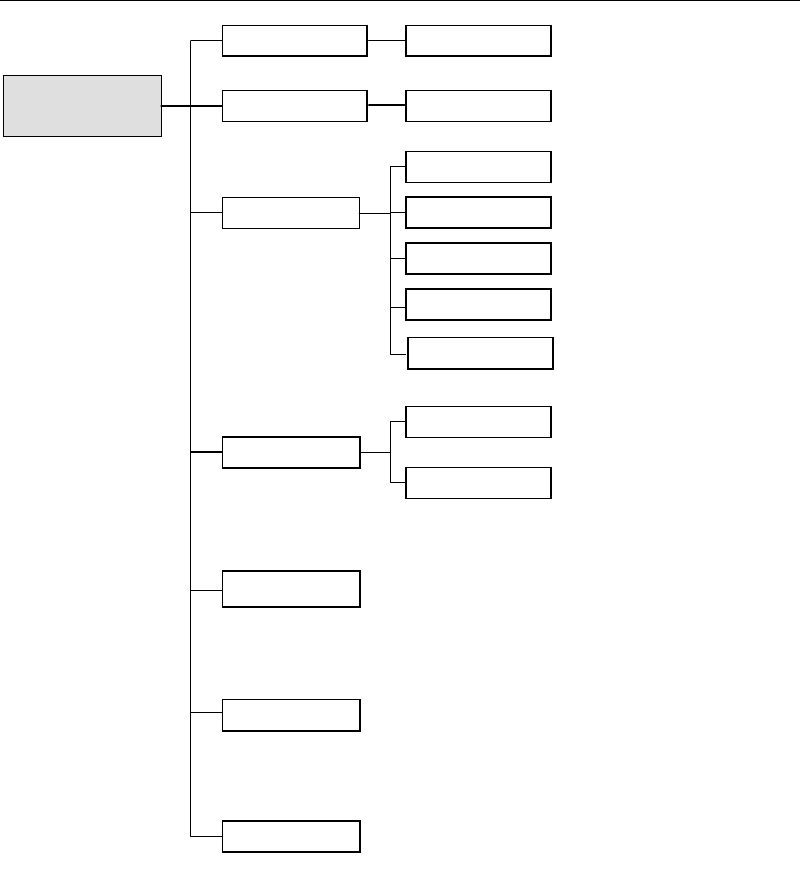
5-1-5-2 Image Data Configurations
Component Image Data
Pre-alignment
Multiple-view Process
Camera
Scan Camera
Fixed Camera 3
Fixed Camera 2
Fixed Camera 1
Size Data
Specify missing leaded/balled positions
for ICs/BGAs.
This setting is crucial in determining
how well the target is captured.
Missing lead/Ball Data
Illuminator Settings
Permissions
Process Options
Component Name
Comment
* Not used.
Advanced Settings
Specify judgment condition etc. when using
the component orientation check function.
Beam Camera