M20_Ope_E.pdf - 第198页
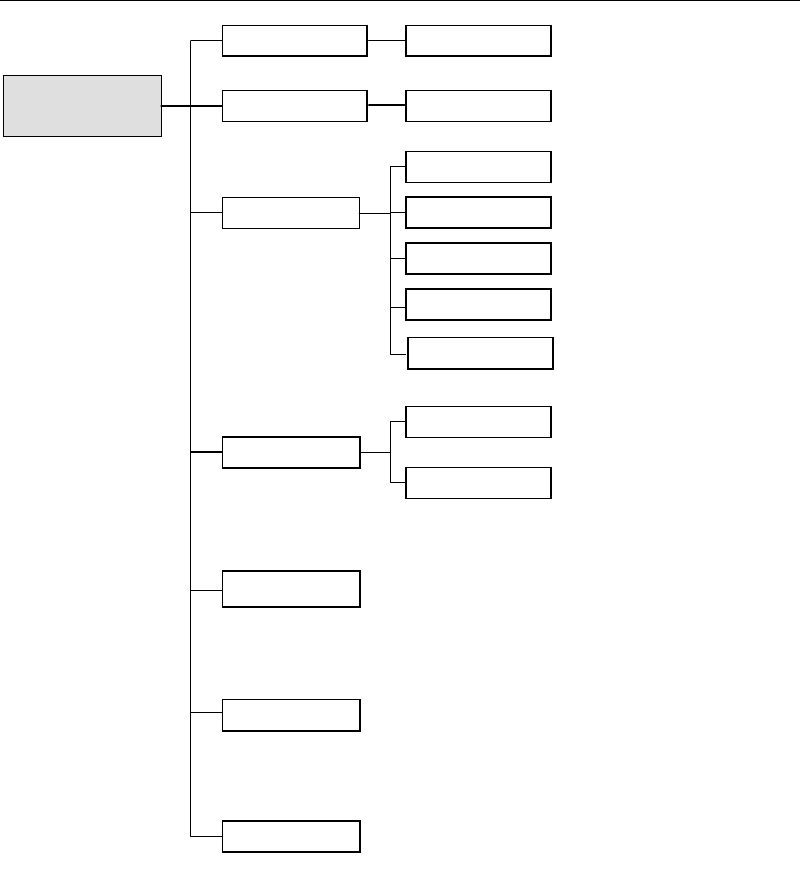
Chapter 5 Libraries 5-48 5-1-5-2 Image Data Configurations Component Im age Data Pre-alignment Multiple -view Process Camera Sc an Camera Fixed C ame ra 3 Fixed C ame ra 2 Fixed C ame ra 1 Size Da ta Specify missing lead…
Chapter 5 Libraries
5-47
To edit an existing data, click a component type on the left pane and the selection cursor moves
to the first line of the selected component type. Select data by double-clicking and the editor
window will open.
Window:
Component: Components are sorted by component type. In addition, the same
types of components are alphabetically arranged.
Comment: Shows the comment entered to the Image Library edit window.
Type: Shows component type.
Txt Convert: Saves the entire list as a text file. Click <Txt. Convert> button and
the Save As dialog box is opened for you to perform saving. The
saved text file in a USB memory stick can be printed out by using
application software in the external PC.
Open: Select a component and click <Open> button to open the Image
Library edit window.
Close: Closes the dialog box and returns to the previous one.
Note: Illumination settings of all Image Data can be reset to initial settings at one time.
Select Library>ImageLibrary>SelectComponent>Edit>InitializeIlluminations.
Chapter 5 Libraries
5-48
5-1-5-2 Image Data Configurations
Component Image Data
Pre-alignment
Multiple-view Process
Camera
Scan Camera
Fixed Camera 3
Fixed Camera 2
Fixed Camera 1
Size Data
Specify missing leaded/balled positions
for ICs/BGAs.
This setting is crucial in determining
how well the target is captured.
Missing lead/Ball Data
Illuminator Settings
Permissions
Process Options
Component Name
Comment
* Not used.
Advanced Settings
Specify judgment condition etc. when using
the component orientation check function.
Beam Camera
Chapter 5 Libraries
5-49
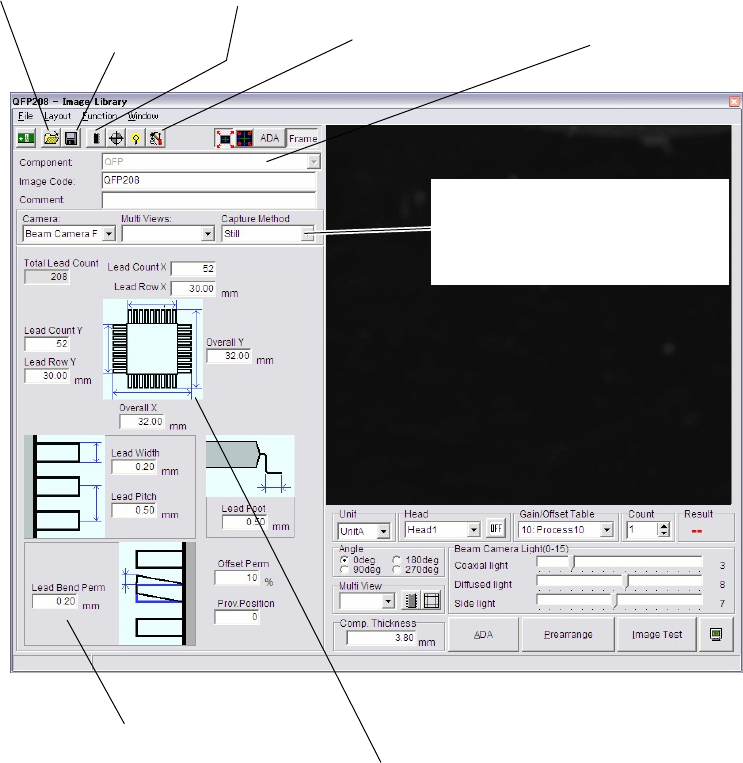
The above shows a typical image data editor window.
Window:
File>Open: Opens the list of existing image data of the selected component type
(e.g. QFP for the above screen). Select a file and click <Open>
button. To delete a file, select a file and click <Delete> button.
File>Save As…: Saves the current file with a name (image code) and comment.
Comment is not necessarily required.
File>Save Overwrites the current file.
File>Exit: Closes the Open File dialog box.
Component: Component type selected in the previous dialog box. When there
are additional options to select, click <Mode> button to make a
choice.
Image Code: When creating new image data, enter a desired code. When editing
an existing data, its code is displayed. Image code serves to link the
image library and component library.
* Up to 38 characters can be entered.
Comment: Any appropriate comment
* Up to 40 characters can be entered.
For information about Camera, Multi Views, Pre-align, and other settings, see the following
section.
Image box:
Shows an explanatory graphic for the
selected component type. The direction of
the graphic corresponds to the direction of
the monitored image.
Clicking this button opens the missing lead/ball window. In the
case of BGA/CSP, the random ball arran
g
ement is set.
Click this button to open
an existing file.
Click this button to open the
Advanced Setting Window.
Click this button to save
the current file.
If component types have been grouped, click
this to select another component type.
Component data setting area
Select whether the On-the-fly capture with
Fixed / Beam camera is used or not, and set
the speed.
(On M6ex, still capture is only available.)