M20_Ope_E.pdf - 第225页
Chapter 5 Libraries 5-75 Note: When Measured ball size < Theoretical ball size x (100 - Ball size permission) ÷ 100 or Measured ball size > Theoretical ball size x (100 + Ball size permission) ÷ 100, an error occur…
Chapter 5 Libraries
5-74
Note: To enable the Perimiter Grid setting, enter the bigger value than its value for Partial Grid until
the inner ball grids disappear.
Note: Instead of using Perimeter Grid setting and Partial Grid setting, you can specify the lack of ball
position by “Rondom Ball Arrangement” function that is described later.
z Ball Pitch Perm.
An error occurs when the measured ball pitch is out of the range of,
Specified ball pitch +/- Ball pitch permission.
Larger the value, less severe the requirement will be.
When
Measured ball pitch < Specified ball pitch - Ball pitch permission,
or
Measured ball pitch > Specified ball pitch + Ball pitch permission,
an error occurs.
Unit: mm, Standard: 0.2
z Ball Circum. Perm.
Check is made on how much the ball circumference measured in the process of [Ball Check]
>Presence&Damage is in the circumference permission range determined from actually
measured ball size. Larger the value, less severe the requirement will be.
Unit: %, Standard: 40
Circumference
Actual measured ball size=(A+B)/2
Circumference permission range
This permission is determined in percent. Even if the ball is proper, the circumference may be
slightly out of the range.
Example: Improper ball:
The circumference is about 45% out of the range. When the setting is 40, the error mark is
displayed.
OK
NG
Circumference permission = NG/(OK+NG)
z Ball Size Perm.
An error occurs when the measured ball size is out of the range of the Ball Size Permission in
the process of [Ball Check]>Presence&Damage. Larger the value, less strict the requirement
will be.
Unit: %, Standard: 40
Chapter 5 Libraries
5-75
Note: When
Measured ball size < Theoretical ball size x (100 - Ball size permission) ÷ 100
or
Measured ball size > Theoretical ball size x (100 + Ball size permission) ÷ 100,
an error occurs.
Theoretical ball size = Ball size x Ball reduction ratio ÷ 10
z Ball Reduction
Standard: 100
Unit: %
Note: Used for compensating the measured ball size when the imaged ball is reduced in size due to
lighting conditions.
z Process Type
0: Use this process type for BGA/CSP components with regular aligned balls. Enter an acurate
pitch in [Ball Pitch]. Much faster than the process 1.
1: Use this process type for components with somewhat irregular ball aligned balls such as flip
chips, etc. It is also possible to use for BGA/CSP components. Slower than the process 0.
z Ball Check
9: Presence (outmost)
Vision-align the component based on its outermost ball square. Check for ball presence only
for the outermost ball square.
10: Presence&Damage(all)
Vision-align the component based on its outermost ball square. Check for ball presence, ball
size, and ball diameter for all the balls.
11: Presence(all)
Vision-align the component based on its outermost ball square. Check for all the ball
presence for all the balls. Faster than the process 9.
12: No Checks
Ball checks are not performed.
z Starting Side
0: Auto
The side with the largest number of balls and lesser missing balls is selected for the first side
for ball check.
1: Upper Side
2: Right Side
3: Lower Side
4. Left Side
Select the first side for ball check when the side with the largest number of balls is not
reliable due to misalignment, etc.
Chapter 5 Libraries
5-76
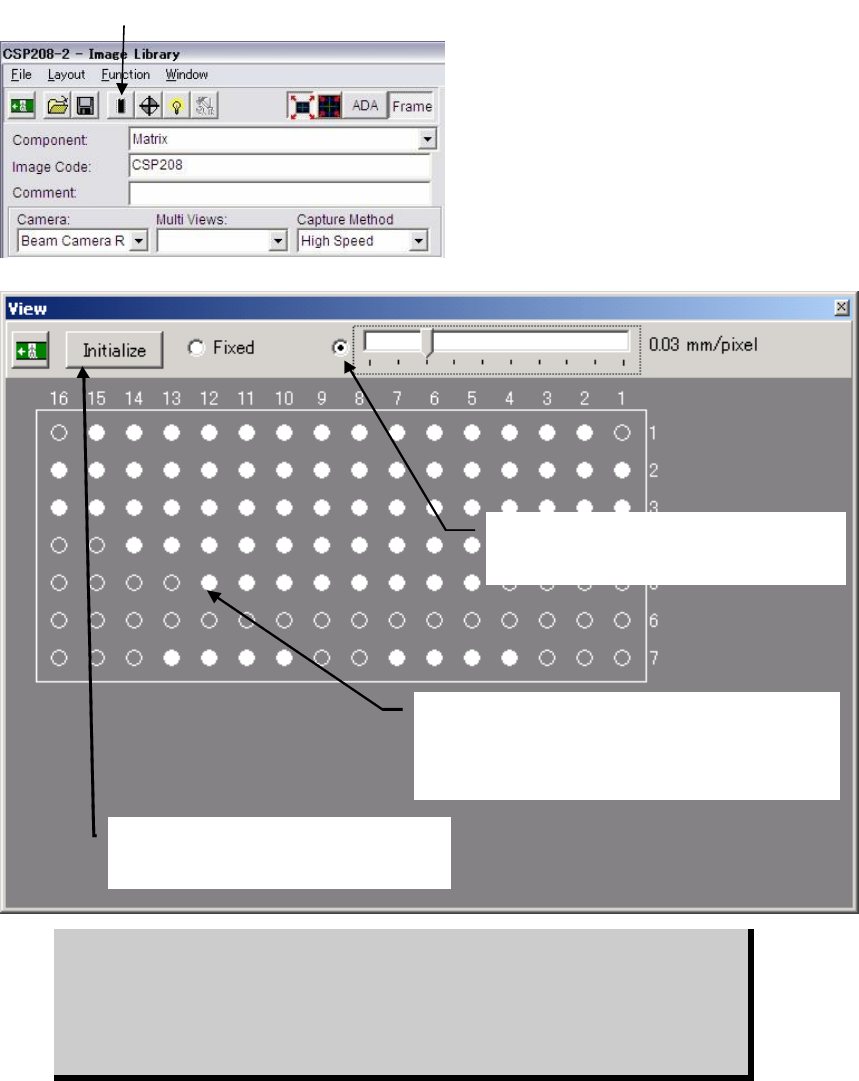
② The component is displayed graphically (white
indicates existing balls, black indicates non-existing
balls). Balls switch from white to black and vice versa
alternately each time they are clicked.
④Selecting here enables you to change the
graphic size using the scroll bar.
⑤Clicking <Initialise> button restores the
original ball arrangement (i.e. all the balls
including unnecessary ones are present).
z Random Ball Arrangement
Menu: ImageLibrary>View
Action: To specify the random ball arrangement for BGA/CSP components, execute the following
steps.
① Click <View> button in the image data edit window to open the View window.
② The component is displayed graphically with all balls present, according to the X/Y ball
count, ball size, ball pitch specified in the image data edit window.
③ Click unnecessary balls (i.e. balls that do not exist on the actual component) with the
mouse. They will turn from white to black. Black balls will be ignored during image
processing, so make sure that unnecessary balls are clicked to provide the actual ball
arrangement.
④ If the graphic display size is too large or too small, slide the scroll bar to reduce or enlarge
the size.
⑤ To restore the original ball arrangement (i.e. all the balls including unnecessary ones are
present), click <View> button.
BGAs can be handled either via the BGA mode or the BGA/CSP mode. But we
recommend you to use the BGA/CSP mode for the following reasons. When
using the BGA/CSP mode, missing balls assignment can be easily performed
by using the ball numbering system used in the component catalog. Also the
limitations stated on page 5-72, Note, won’t occur when the BGA/CSP mode is
used.
① Click the <View> button.