M20_Ope_E.pdf - 第249页
Chapter 5 Libraries 5-99 ⑥ When the nozzle touches the component, the vac uum pressure rises. At the same time, the motion of the nozzle stops and the following dialog box appears. When you click the <Yes> button, …
Chapter 5 Libraries
5-98
z Automatic-component-height teaching by vacuum pressure
Here explains the automatic teaching method in addition to the manual teaching to determine
the component height as mentioned steps ⑧ through ⑬ above. By the automatic teaching, the
mounter checks the vacuum and determines the component height where the vacuum
increases.
Action:
① Attach a nozzle type 05 to the head No. specified in [Head].
Note: Be sure to use a nozzle type 05 which does not have a rubber ring.
② Select “XY axes” in [Axis], and select the head No. which the nozzle type 05 is attached in
[Head]. Select “1” for both [X Pos.] and [Y Pos.], then click the <Trace> to move the head
to the original pickup point.
③ Select “Z-axis” in [Axis], and select the head No. which the nozzle type 05 is attached in
[Head].
Move down the nozzle slowly toward the component surface by confirming visually.
Stop the nozzle when it gets closer to a few millimeters to the component surface.
Note: At this time just close the nozzle to the component surface. Do not let the nozzle touch or hit
the component.
④ Enter this height of step ③ in [Start Z].
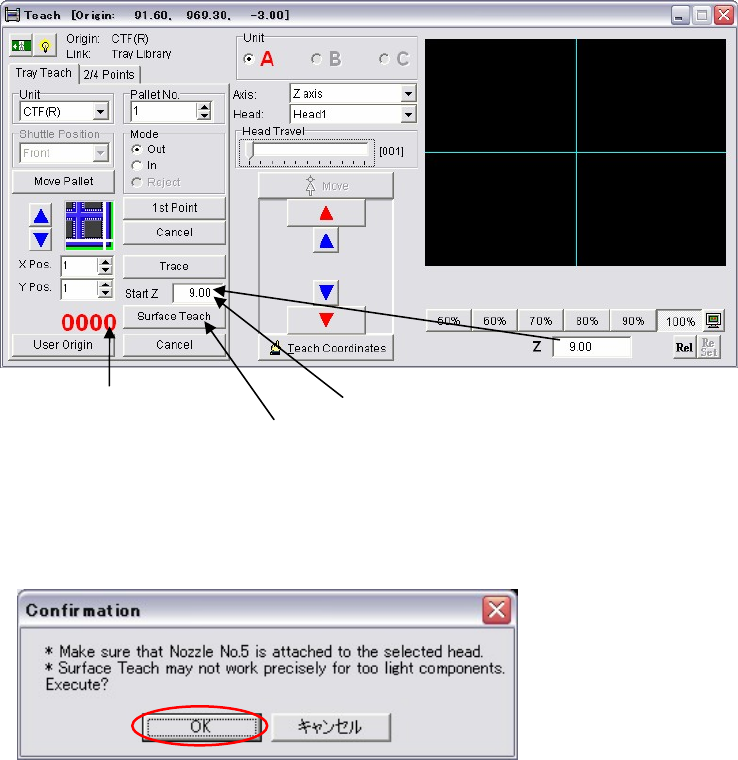
⑤ Click the <Surface Teach> button.
The following dialog box appears. Press the <OK> button.
Then the nozzle automatically starts moving down slowly from the height of the [Start Z]
with vacuum is on.
It shows the head [Vacuum].
Click the <Surface Teach> button.
Enter the height in [Start Z].
Chapter 5 Libraries
5-99
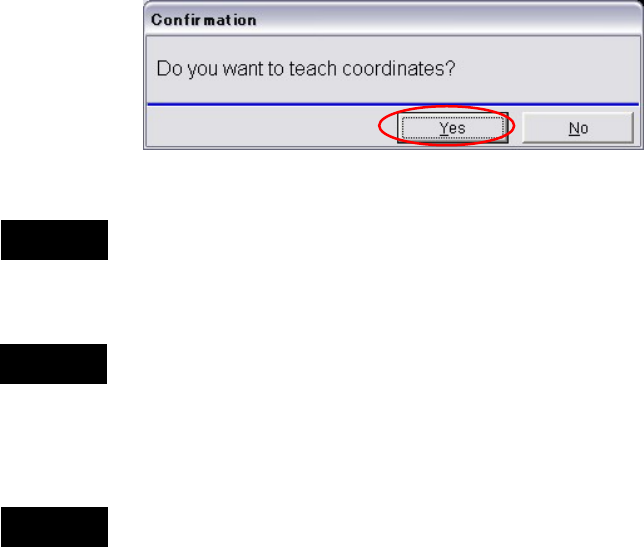
⑥ When the nozzle touches the component, the vacuum pressure rises. At the same time, the
motion of the nozzle stops and the following dialog box appears.
When you click the <Yes> button, the Z coordinate is determined as the component height
and registered in the tray data. After this process, the nozzle moves up automatically.
Teaching the component height has the risk of collision of the nozzle against the component.
Therefore it is recommended to measure the component thickness with a caliper and enter the
thickness in the Component Height manually.
When you start the surface teach, first, the nozzle travels to the coordinates of the [X Pos.] and
the [Y Pos.]. Then the nozzle moves down to the height of the [Start Z] and starts the
automatic-component-height teaching.
Before performing the surface teach, be sure that a component exists in the tray pocket where
the component height is measured. Otherwise the bottom of the empty tray would be
determined as the component height. It may result in nozzle and head damage.
Do not make the [Start Z] value too low. Otherwise the nozzle may hit the component surface
and may result in nozzle and head damage.
Note: Initial value of the [Start Z] is 20mm.
If you start the surface teach at this height, the process takes more than 10 minutes. Start
moving from the height close to the component surface. (See step ③.)
Note: Lighter components are not appropriate for this automatic-component-height teaching because
they may be sucked up before the nozzle reaches to the component surface. It may result in
determining higher component height than the actual height. For such lighter components,
manually measure the thickness with a caliper and enter it in the Component Height.
Caution 3
Caution 1
Caution 2

Chapter 5 Libraries
5-100
Setting Tray Library Data (2)
This method applies to trays not positioned against the positioning blocks of the pallet. In this
case, you must notify the system of the offset of the tray.
First, enter [Count X] and [Count Y] settings manually. Then perform teach entry for other
settings (Tool>Teach>TrayTeach).
Action:
Type in [Count X] and [Count Y] settings so they correspond to the location of the third teach
point. In the below example: [Count X]=4, [Count Y]=3.
① Set the tray to a pallet. Set the pallet to MX-40. (See Chapter 7.)
② Open the Board Data dialog box (Program>File>BoardData) and enter the board size
correctly. (for the case of MX-20 and MXR)
③ Click Library>Pallet Library to open the pallet library editor.
④ Click the X Offset or Y Offset field of the pallet. ([X Offset] and [Y Offset] settings must be
entered beforehand.)
⑤ Click Tool>Teach to open the Teach dialog box.
When choosing <Move Pallet> button in the Teach dialog box, do not stick head, hands,
or other parts of the body inside the mounter. Serious injury can result. Also make sure
non-operators are a safe distance from the machine.
⑥ In [Tray Teach] tab, under [Unit], select a tray feeder. Under [Shuttle Position], select a
pallet stop position. When [Unit] is "MXR", select "Front". When [Unit] is “MX-RT1”,
select “Front” or “Rear” (either will do).
The steps 7 through 8 stated below apply only to MX-40, MX-20, and MXR. As for MX-ST2,
manually set the pallet to the front or rear pickup position.
⑦ Under [Pallet No.], enter the pallet number.
⑧ Under [Mode], click <Out> button. Then click <Move Pallet> button. The specified pallet
moves into the mounter.
⑨ Click <Trace> button. The main teach camera moves toward above the front right corner
of the tray.
⑩ Open the tray library editor. Click the line to edit. Click <User Origin> button in the Teach
dialog box.
Then follow the steps 7 through the end of Setting Tray Library Data (1) in the previous section.
Tray Trace Feature
This feature allows the specified head to move to the specified tray component.
Select a line to trace in the tray library editor. Then open the Teach dialog box. Then specify the
tray feeder to [Unit], pallet stop position to [Shuttle Position], pallet number to [Pallet No.], and
component position to [X Pos.] and [Y Pos.]. Click <Trace> button to execute.
Note: Manual entry of the tray library data using ready-to-use database or actual measurements is
also available.
Warning