M20_Ope_E.pdf - 第25页
Chapter 1 General 1-7 1-1-1-2 Status Display of Control switches The followings are the status displays of control switches when the mounter is under the specific conditions. Control switch Mounter status Light 3. READY …
Chapter 1 General
1-6
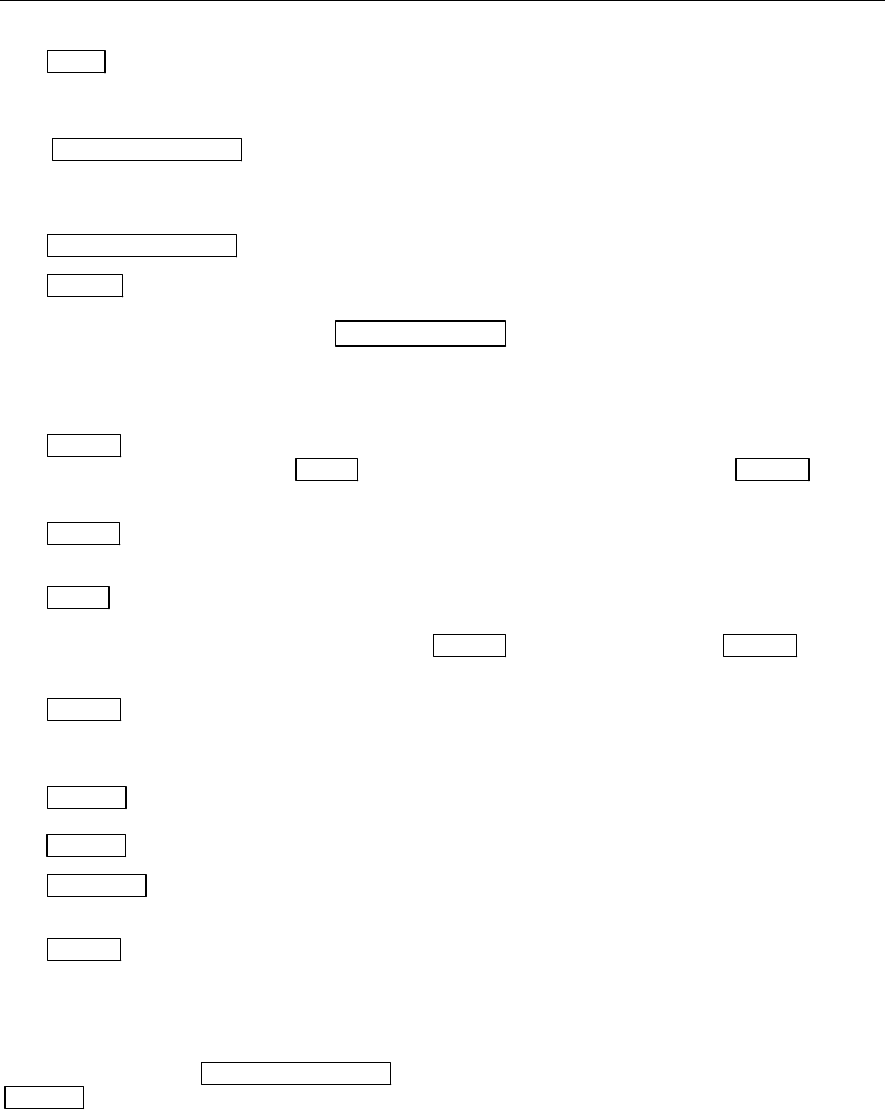
1-1-1-1 Operation Switches
1. MAIN
switch
Turns on and off the mounter. Turn the switch clockwise to turn on the mounter. Turn the switch
counterclockwise to turn off the mounter.
2. EMERGENCY STOP
(EMG) switch
Press this switch for an immediate stop of the mounter in an emergency. The motors that drive the
machine heads stop at once with a continuous beep.
This switch locks when it is pressed. Release it by rotating it clockwise. There are two
EMERGENCY STOP
switches, one is on the front panel and the other is on the rear panel.
3. READY
switch
Turns on the servo motors that drive the mounter heads. For safety reasons, the servo motors are
automatically turned off when the EMERGENCY STOP
is pressed. Also, they can be turned off from
the Maintenance menu.
Pressing this button unlocks the covers. At the same time, the servo motors are turned off for safety.
Pressing this button again locks the covers and turns on the servo motors automatically.
4. RESET
switch
Stops running. First press the STOP
switch to pause running and then press the RESET switch
to stop running.
5. START
switch
Starts running (job run/test run).
6. STOP
switch
Stops running temporarily. When this switch is pressed, the mounter stops after the completion of
the current cycle (a placement step). Press the START
switch to resume, or the RESET switch to
end the job.
7. CLEAR
switch
Press this switch once to clear alarm sound in component lack or at an error occurrence, etc. Press
this switch again to recover from the error while the switch blinks.
8. ACTIVE
switch
Activates the control switches on the front or rear side which the switch is pressed. And the pressed
ACTIVE
switch lights up.
9. DOCKING
switch
Clamps and unclamps the CFB-36 (changeable feeder bank) or the CTF-40 (changeable tray feeder).
10. SETUP
switch
Locks and unlocks the cover of the tray feeder. And resets the remaining number of tray
components.
Note: Both the front and rear EMERGENCY STOP
switches are always enabled irrespective of which the
ACTIVE
switch is enabled.
Note: Configuration of the control switches varies depending on each mounter options.
Note: There are three types of feeder banks.
FFB ········· Fixed feeder bank
CFB-36 ····· Changeable feeder bank (Option)
CTF-40 ····· Changeable tray feeder (Option)
Chapter 1 General
1-7
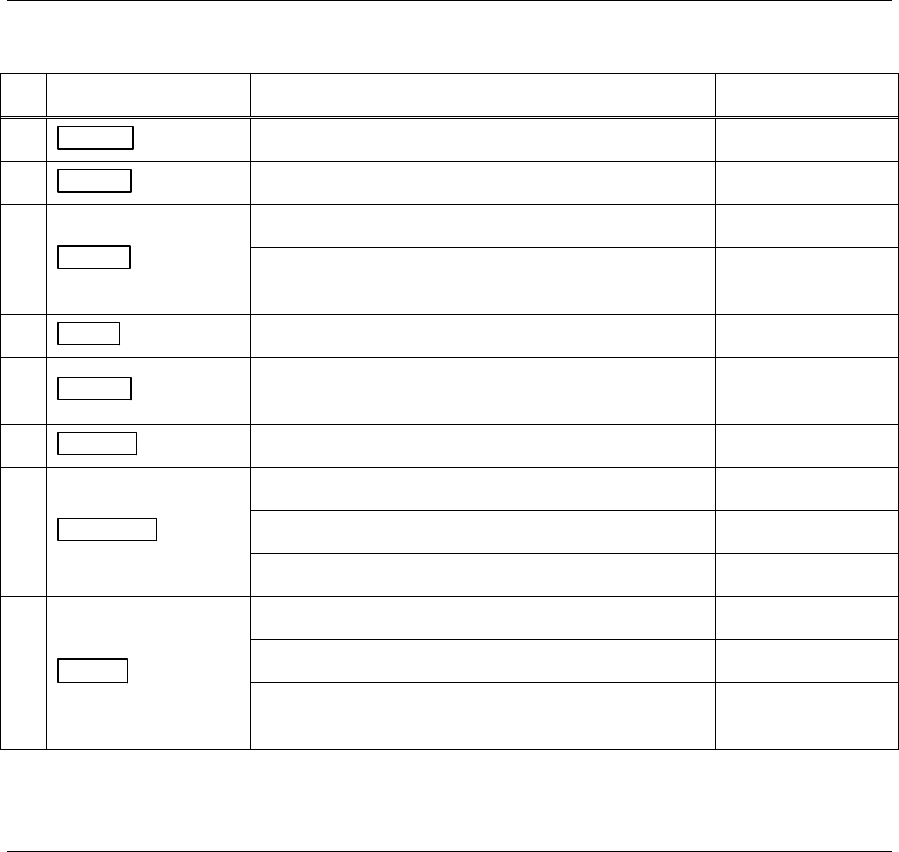
1-1-1-2 Status Display of Control switches
The followings are the status displays of control switches when the mounter is under the specific
conditions.
Control switch Mounter status Light
3. READY switch The servo motors are turned on. ON
4. RESET switch Pausing production is stopped. ON
5. START switch
Running ON
Ready to start production
Pause (Cycle stop)
Blinks
6. STOP switch Stop running ON
7. CLEAR switch
When components run out.
When an error occurs.
Blinks
8. ACTIVE switch Control switches of an active side ON
9. DOCKING switch
The CFB-36/CTF-40 is connected. ON
The CFB-36/CTF-40 Blinks
The CFB-36/CTF-40 is disconnected. OFF
10. SETUP switch
The tray feeder is in process of unloading a pallet. Blinks
The CTF/FTF is ready to exchange pallets. OFF
The tray feeder completes pallet exchange.
(After this process, the component counter is reset.)
ON
1-1-1-3 Function Keys
The followings describe the function keys on the keyboard.
F1 Displays details of an error.
F2 Displays/minimizes the Status Report window.
F4 Displays/minimizes the Overlay monitor.
F5 Locks the Overlay monitor at the front.
Chapter 1 General
1-8
1-1-1-4 Rear-side Operation
This option allows for operation on the rear side of the mounter in the same way as on the front side. The
option is configured with the display, keyboard, mouse, and the control switches.
z The MAIN
switch locates only on the front side. Turn the mounter of/off from the front side.
z When the system is turned on, the front ACTIVE
switch lights up and the front side is enabled
initially. To enable the rear side, press the ACTIVE
switch on the rear side. The rear ACTIVE
switch lights up.
z To switch the operation side, press the front or rear ENABLE
switch which you want to operate. The
operation on the selected side is enabled and the ACTIVE
switch lights up.
z The front and rear monitors display the same contents.
Note: Both the front and rear EMERGENCY STOP
switches are always enabled irrespective of which the
ACTIVE
switch is enabled.
Note: Connect the keyboard and the mouse before turning on the system. Do not connect/disconnect the
keyboard or the mouse after the system has been turned on.
1-1-1-5 Setting for Rear-side Operation
When you operate the mounter from the rear side, the travel directions of X, Y, Theta axes, PCB flow, and
the automatic conveyor width setting look opposite in comparison when you operate from the front.
By selecting the reverse function as below, the arrow keys move the axes as it actually appears on the rear
display in the [Axis], [Teach], [Load Board], and [Auto Conveyor Width Set] windows. For instance, by
selecting the left arrow key from the rear, the X axis moves toward the axis origin when using the reverse
function. Normal operation, the left arrow key causes the X axis to move away from the axis origin.
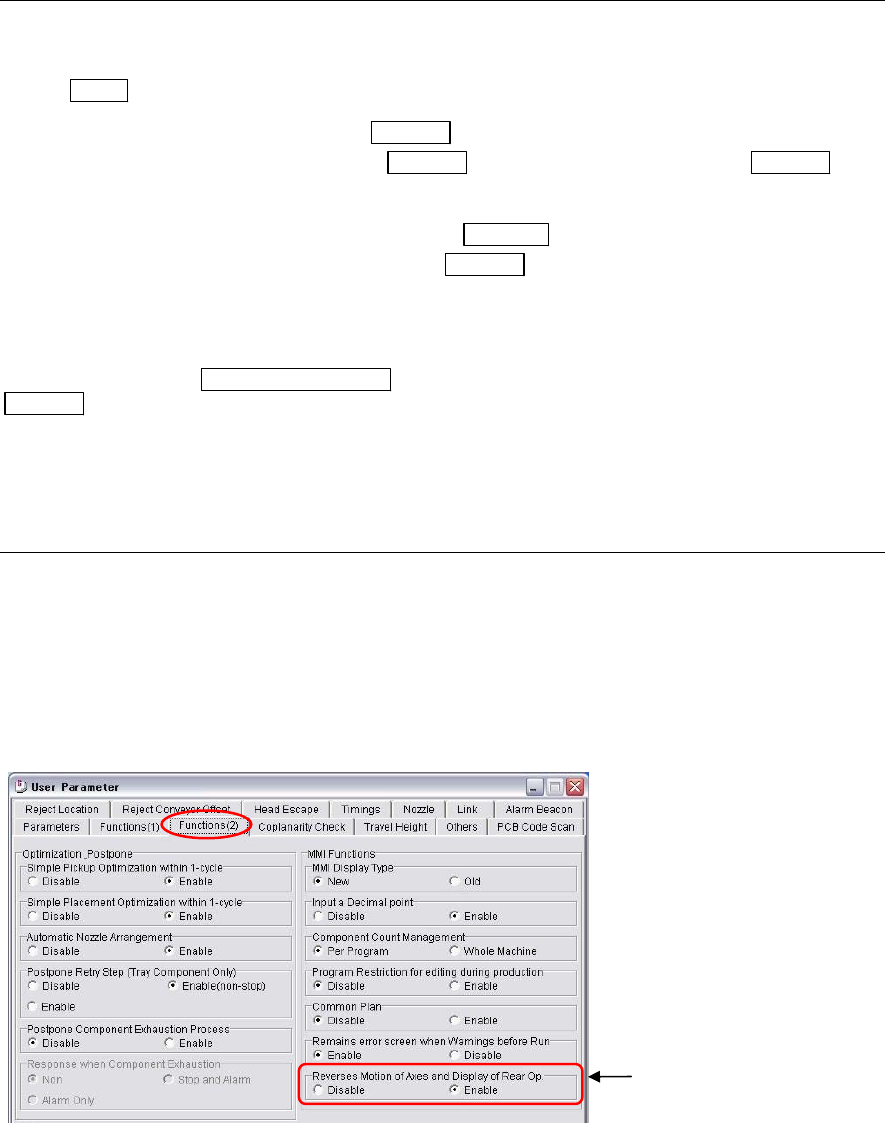
Menu: System>UserParameter>Functions(2)
Enable the “Reverses Motion
of Axes and Display of Rear
O
p
.”