M20_Ope_E.pdf - 第254页
Chapter 5 Libraries 5-104 Application Tray orientation is checked un der the following conditions. Tray orientation is checked just before the tray component is picked up during a job run. The mounter stores the tray o…
Chapter 5 Libraries
5-103
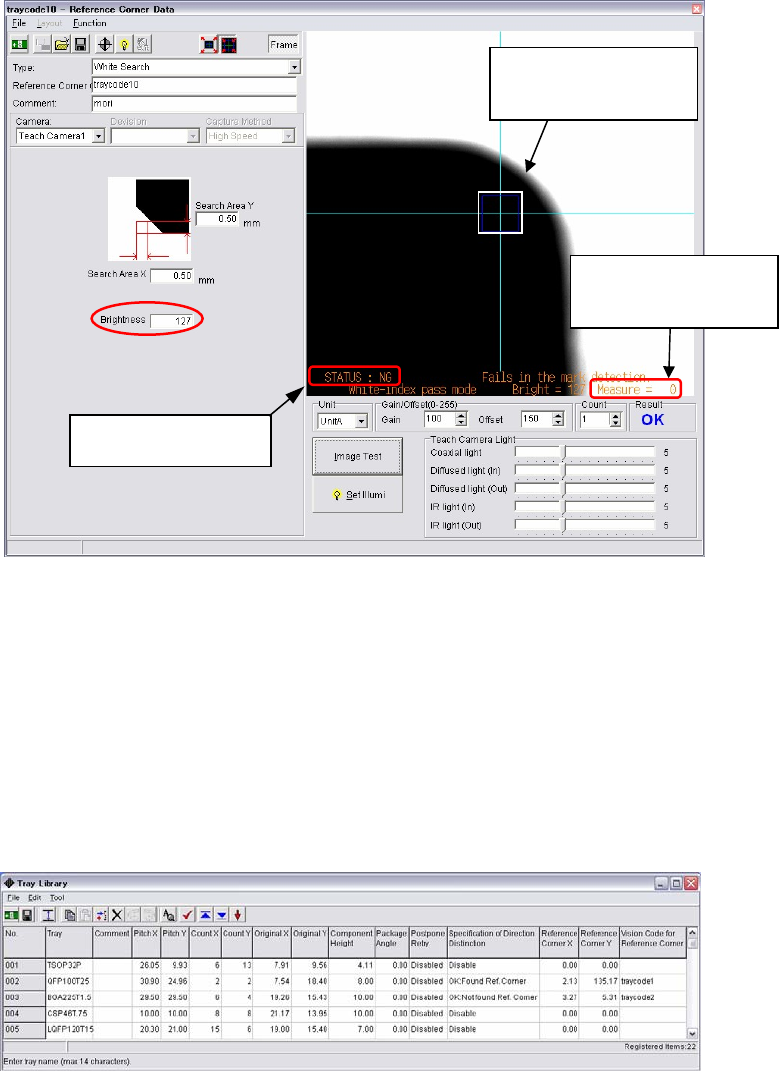
⑧ Put the tray in the reverse direction. Make sure the tray covers the search area. If the tray
locates out of the search area, repeat the procedures from step ③.
Execute image test to make sure the result will be “NG”.
⑨ Write down the value of “Measure”. (Example: Measure=0)
When the center value of step ⑦ and ⑨ is close to 127 entered in the [Brightness], it means
the mounter recognizes black and white correctly.
Center value = Measure value at ⑦ + Measure value at ⑨ /2
(Ex.: Center value (255 + 0)/2 = 127)
If the calculated value is not close to 127, enter the actually calculated value in the
[Brightness].
⑩ Save the image data. Close the image data edit window.
⑪ Right-click the [Image Code for Ref. Corner] and select the created image data.
Make sure the search
area locates within the
tray corner.
Write down “Measure”
value, the result of the
image test.
Make sure the result
of
Image Test is “NG”.
Chapter 5 Libraries
5-104
Application
Tray orientation is checked under the following conditions.
Tray orientation is checked just before the tray component is picked up during a job run. The
mounter stores the tray orientations until the job is cancelled.
When components run out, the mounter checks the orientation of the next tray linked with the
component run out.
If the cover of the tray feeder is opened for component replenishment, etc. during a job run, the
stored tray orientations are erased. Tray orientations are checked again if the job is
restarted again.
Action:
① When a tray orientation check error occurs, stop the alarm and recover from the error.
At this time the tray keeps pulling out from the stocker.
② The [Edit&Teach] button appears in the Run window. Click the [Teach Coordinates] to
move the teach camera over the tray corner.
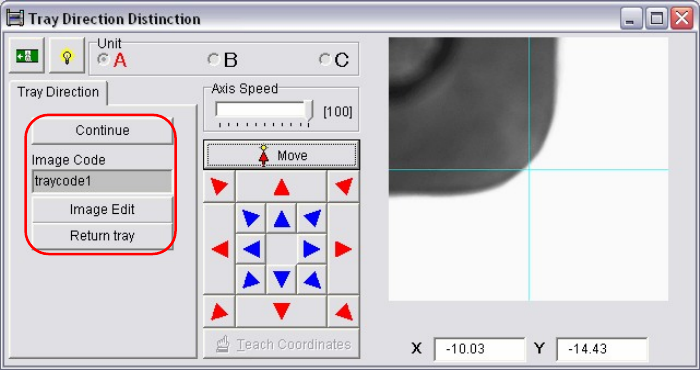
③ When the teach camera moves to the tray corner, the following window appears. Select
the next operation from the following three ways.
④
Continue: Selecting the [Continue] ignores a failure of tray orientation check and
continues a job run.
Image Edit: Selecting the [Image Edit] opens the image data edit window. Re-edit the
image data and restart a job run. At the start of the job, the tray orientation
is checked.
Return tray: Selecting the [Return Tray] pulled the tray back into the tray feeder. Check
the tray orientation. If the tray orientation is wrong, put the tray in the
correct orientation and restart a job run. At the start of the job, the mounter
checks the tray orientation.
Note: Not only putting the tray in the wrong orientation, improper setting of a tray may cause a
failure of tray orientation check. When putting a tray on a pallet, be sure to press fit against the
positioning block and clamp the tray securely.
Chapter 5 Libraries
5-105
5-2-5 Packaging Library (Package Data)
Menu: Program>PackageData
Program>PickupData>Package/Tray>PackageData
Window:
File>Save: Saves the edited data.
Packaging: Packaging name. Serves to relate the packaging library and the
pickup data editor (program editor).
Pitch: Normally not used.
When you want two or more times of feeding action for a pickup
operation, make this setting in addition to “Feeder Pitch” setting
(see the feeder library).
Example: To feed components (component pitch: 8mm) using a
F1-84 feeder (feeder pitch: 4mm), set this item to 8.00. Since the
feeder pitch for the F1-84 feeder is set to 4.00 (4mm), components
will be jogged twice automatically when they are picked up, when
using this packaging code for the F1-84 feeder.
Height: Packaging height based on the pickup Z origin. The height for tape
feeders can be described as below:
Z=0
Punched tape
Adhesive tape
Embossed tape
Punched tape: Tape thickness.
Adhesive tape: Component height - 1.5mm. (-1.5mm is the
compensation value for adhesive-tape-specific feeders.) For
example, when the component is 2mm thick, 0.5mm shall be
entered to [Height].
Embossed tape: 0.
For precise measurement, teach the Z coordinate of the component
in the pickup data editor.
Stick feeder: 0
For precise measurement, teach the Z coordinate of the component
in the pickup data editor.
* Increment : 0.01mm
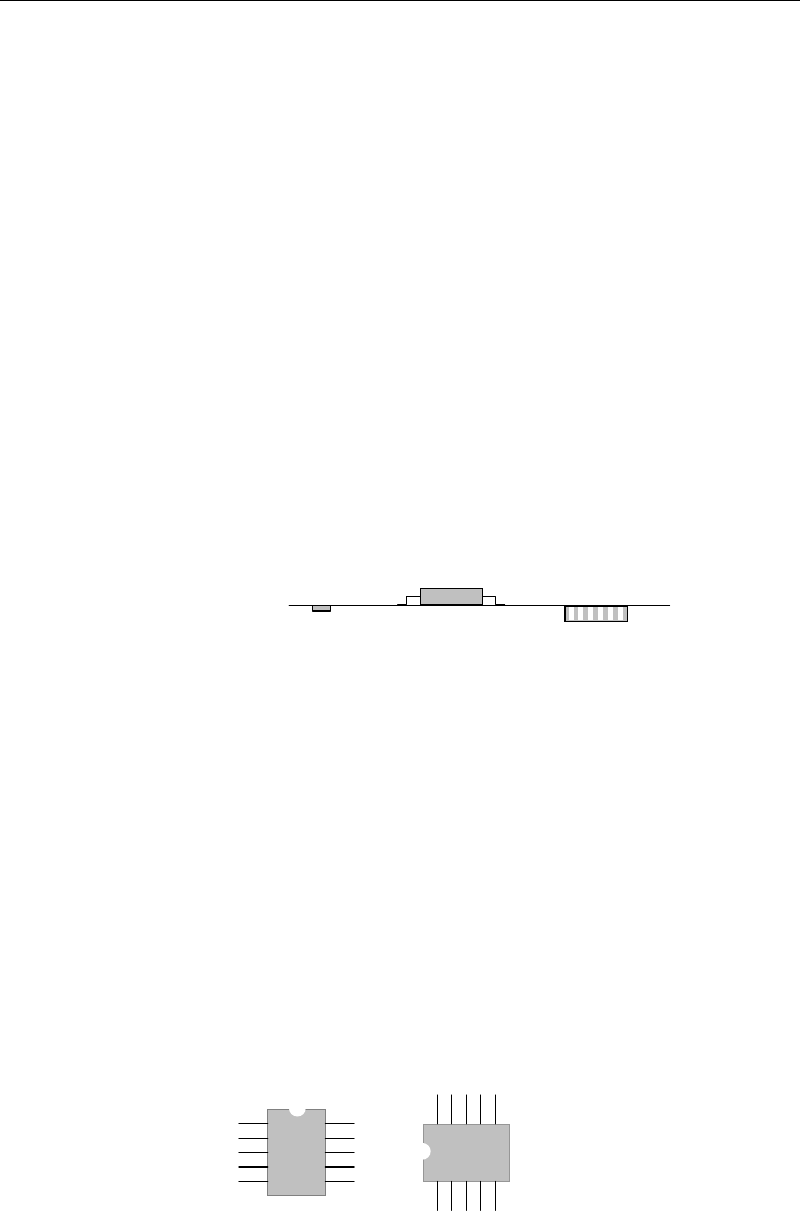
Package Angle: Packaging angle based on the image scanning angle (when viewed
from the machine front). Available settings are 90, 180, -90, and 0.
Counter-clockwise rotation when viewed from above is the positive
angle. Used to link the same components with different packaging
angle.
A
B
To link the component A and B shown above, register [Package
Angle] of B based on [Package Angle] of A. When [Package Angle]
of A is “0”, enter “90” for B. In the pickup data editor, assign A and
B the same component code to link them. With this procedure, you
need not vary the placement angle setting between A and B. The
placement angle setting is based on the image scanning angle.