M20_Ope_E.pdf - 第265页
Chapter 6 Coplanarity Checker 6-5 6-2 Data Settings Note : To enable Coplanarity Check fu nction, it is necessary to select System> User Parameter> [Coplanarity Check] and check on the [Coplanarity Check] box. For …
Chapter 6 Coplanarity Checker
6-4
6-1-6 Available Components for the check
Coplanarity Checker can handle QFP, LQFP, TQFP, SOP, SSOP, TSOP, TTSOP, and connectors.
But it is not possible to handle ball components or odd-shaped lead components.
The maximum component size is equal to the specifications of your mounter.
Maximum number of leads: 400 leads
Missing leads: Supported
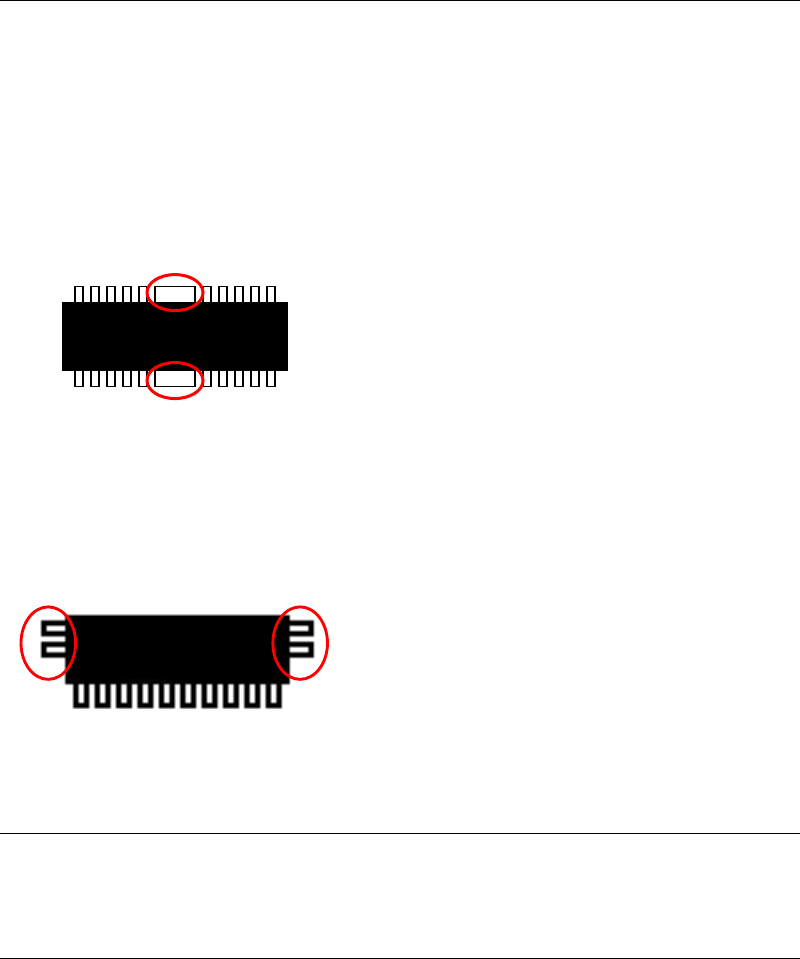
Thick lead: Not supported
Components that have any wider leads than the others
cannot be checked. (inside the red circles)
Connector’s lead: One side/both sides leads connectors are supported.
(with some limitations)
6-1-7 Pass/Fail Criteria
Pass or Fail is resulted comparing Lead offsets in Z-axis direction (coplanarity) to Assumed
plane of the component.
6-1-8 Restriction for production
The maximum number of Coplanarity Check data for a program;
The maximum number of Image Libraries with Coplanarity Check data for one program is 99
records.
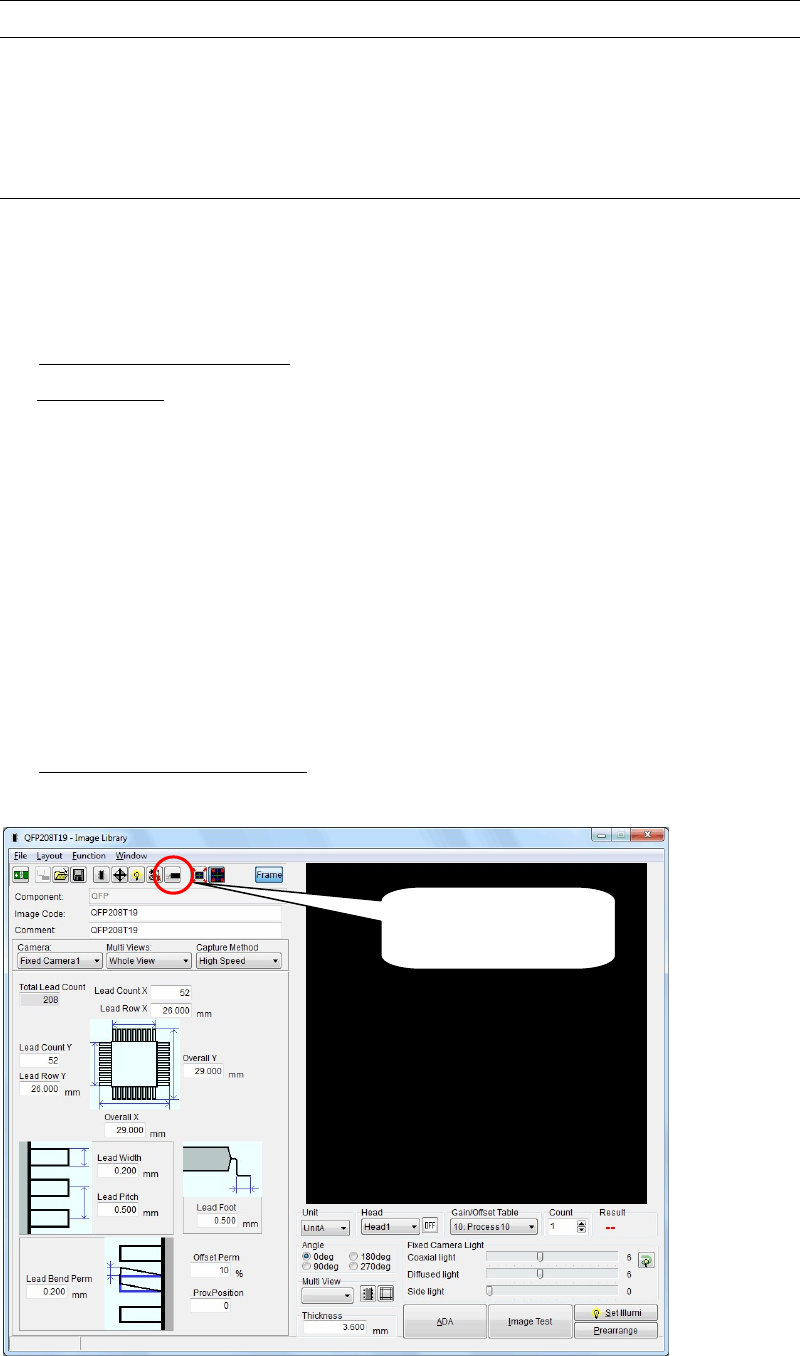
In case of the component like the left drawing,
leads at both sides (inside of red circle) cannot
be checked.
Chapter 6 Coplanarity Checker
6-5
6-2 Data Settings
Note: To enable Coplanarity Check function, it is necessary to select System> User Parameter>
[Coplanarity Check] and check on the [Coplanarity Check] box.
For details, refer to Chapter 11, Parameter Setting.
6-2-1 Procedure to create Coplanarity Check data
Coplanarity Check data consists of several data settings such as Component Shape, Threshold,
etc.
Coplanarity Check data are registered in each Image Library code (SOP/QFP/Connector).
[Steps]
1) Open Image Library window.
2) Do Image Test.
Note: Before creating Coplanarity Check data, pickup offset should be corrected.
Do Image Test before checking coplanarity.
i: Open [Prearrange] window and pick up a component with a nozzle.
Confirm component pickup angle so that it should be as same as when actual production.
And Take care not to have much offset between component center and nozzle center.
For detail operations of [Prearrange] window, see Chapter 5 > Library > Prearrange.
ii: Click [Image Test] and execute component image test.
Repeat [Image Test] until you will get OK in [Result].
iii: The result of Image Test will be used for coplanarity check in the next step. Keep the
component attached to the nozzle and go to the next step hereafter.
3) Open [Coplanarity Check data].
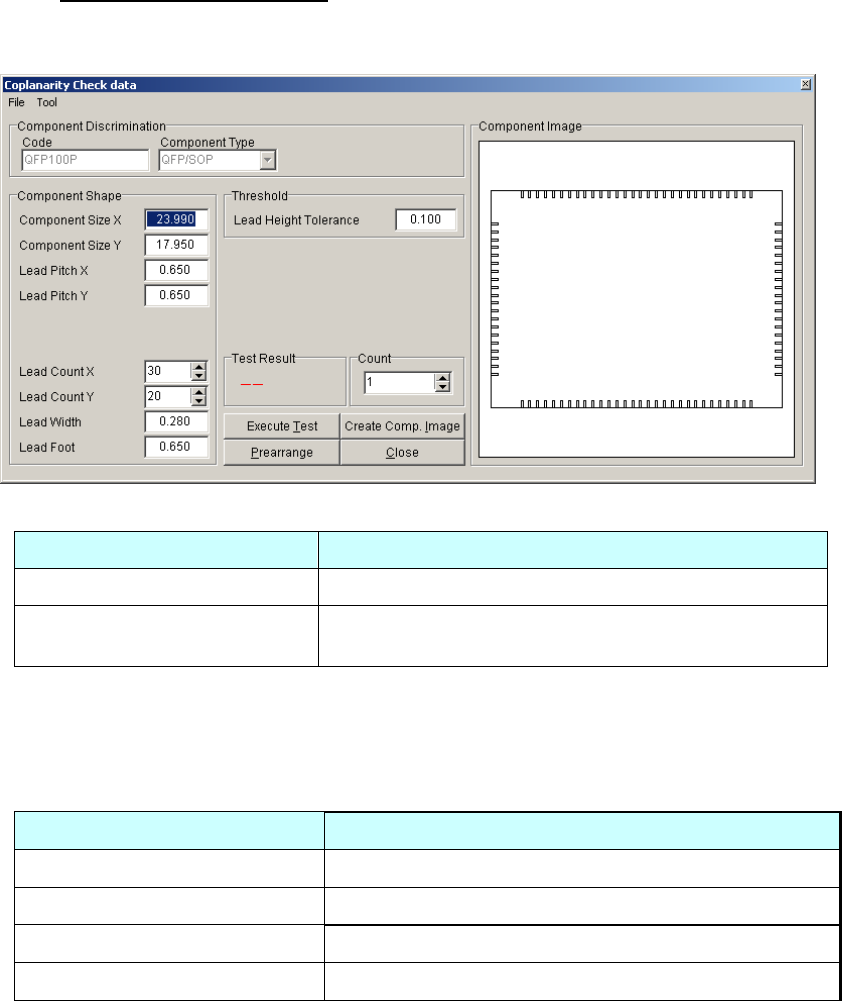
Click [Coplanarity Check data] icon in [Image Library] window. (See the figure below.)
Coplanarity Check data is automatically produced when [Coplanarity Check data] screen” is
opened from an Image Library data. Thus, in order to create new Coplanarity Check data, open
the Image Library data first, and then open the [Coplanarity Check data] screen”.
Coplanarity Check
data edit icon
Chapter 6 Coplanarity Checker
6-6
4) Open [Coplanarity Check data].
Coplanarity Check data consists of settings such as Component Shape, Threshold, etc. See the
followings for details of each setting.
■Component Discrimination
Items Descriptions
Code Image Library code name is displayed.
Component Type
Component Type is displayed.
(QFP/SOP/Connector)
■Component Shape
Input values in items below. (Items differ for each Component type.)
Each item in Component Shape is set automatically from Image Library data when Coplanarity
Check data window is opened. If the sizes are not accurate, Coplanarity Check would fail. In
this case enter accurate sizes from the component design dimensions.
Items Comment
Component Size X (Note-1) Lead Count X, at one side
Component Size Y (Note-1) Lead Count Y, at one side
Lead Pitch X Lead Width
Lead Pitch Y Lead Foot
Note-1: “Component Size” is outer dimension of the component.
Note: Image Library of Connector does not have some values such as Component Size X/Y etc.
Those values are acquired by Mounter’s calculation automatically when Coplanarity
Check data is newly created. If the calculated value is not equal to the designed dimensions
or actual measured dimensions, correct the values manually. (The figures below are
internally used to acquire connector’s dimensions by values in Image Library.)
Reference: Figures to acquire connector’s dimension
(“”: Items in Coplanarity Check data, [ ]: Items in Image Library)
“Lead Width” = [Lead Pitch] x 0.4
“Lead Count” = ([End Lead Pitch] / [Lead Pitch]) + 1
“Component Size X” or”Component Size Y” (longer side) = [Lead Row]
The initial values are set by the figures above, but correct them if necessary. For example, in
case of Connector, “Component Size” (Outer Dimension) should be bigger than “Lead Row”
actually.