M20_Ope_E.pdf - 第271页
Chapter 6 Coplanarity Checker 6-11 6-3 Maintenance 6-3-1 About Maintenance This chapter explains Daily Maintenance of the Laser sensor. In advance to start Maintenance job, be sure to turn off the power of the Mounter to…
Chapter 6 Coplanarity Checker
6-10
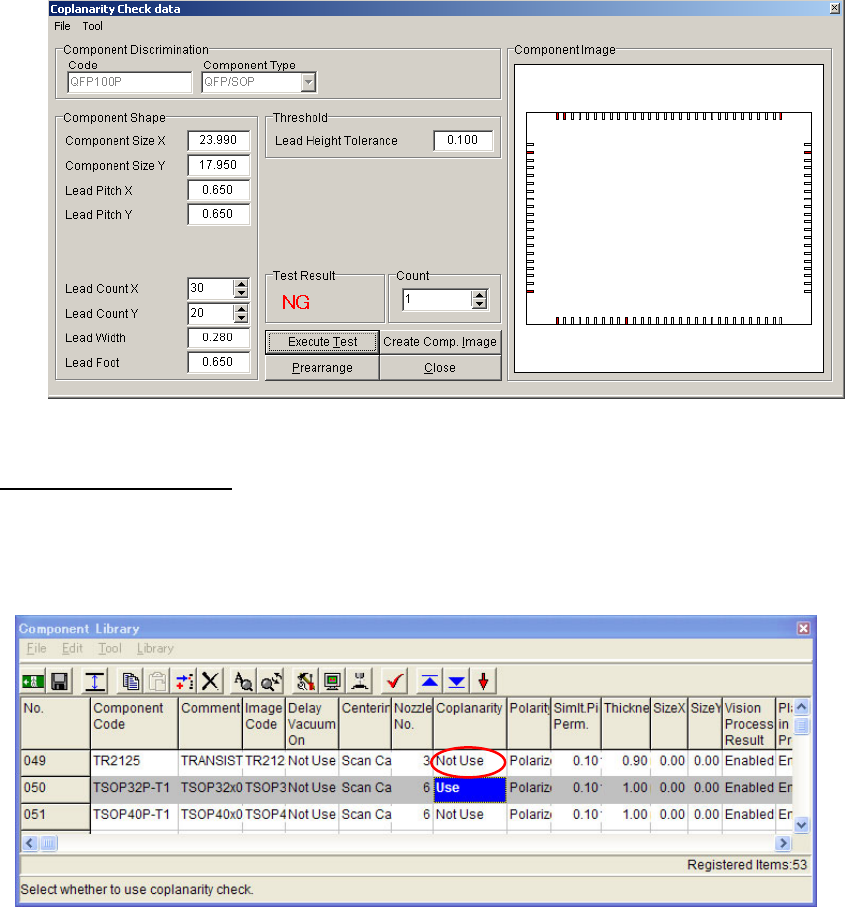
5 The picture below shows NG status that several Leads of QFP exceed the “Lead Height
tolerance”.
6) Edit Component Library.
After saving Coplanarity Check data, open Component Library screen to enable Coplanarity
Check function for the target Component code.
Set “Coplanarity” to [Use] in Component Library. (On the contrary, set it as [Not use] if
Coplanarity check is not needed for production.)
Note: If “Coplanarity ” function is set to [Use] for the Component Code without creating Image
Library, a Program Data Check error will occur.
①
Chapter 6 Coplanarity Checker
6-11
6-3 Maintenance
6-3-1 About Maintenance
This chapter explains Daily Maintenance of the Laser sensor. In advance to start Maintenance
job, be sure to turn off the power of the Mounter to stop laser projection.
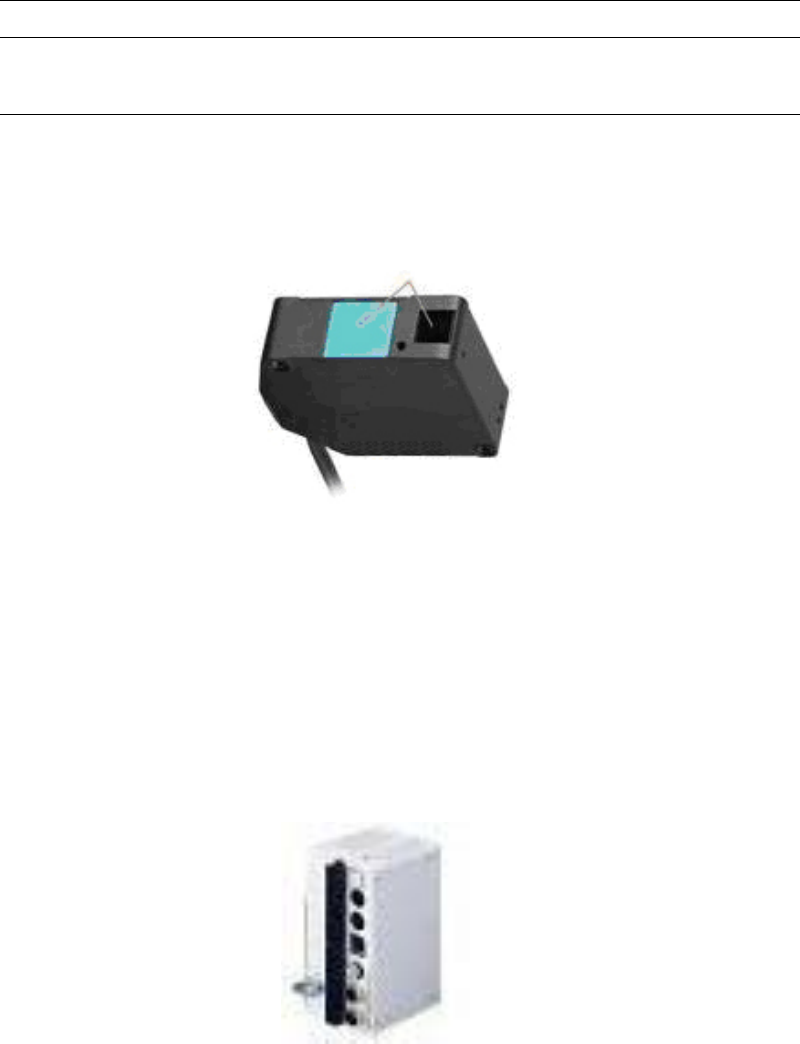
■Cleaning the surfaces of transmitting and receiving windows.
If oil, fingerprints, etc. are on the laser transmitting/receiving windows which may cause beam
refraction, or if dust or dirt which may cause beam blocking is on these windows, it may affect
the measurement accuracy. Clean the windows periodically.
• Blow off larger dust or dirt with a camera lens blower.
• Wipe off smaller dirt, fingerprints, etc. with a soft lens cleaning paper gently.
• For persistent dirt, wipe off carefully with a cleaning paper soaked by a little alcohol.
■Cleaning the controller
Wipe off adhered dirt from the controller with a clean and soft cloth gently.
Chapter 6 Coplanarity Checker
6-12
---Blank page---