M20_Ope_E.pdf - 第287页
Chapter 9 Running a Job 9-15 Image display during a job r un Images of captured components and marks during a job run are displayed in the [Overlay] window in real time. Locks [Overlay] so that it is not hidden. Image …
Chapter 9 Running a Job
9-14
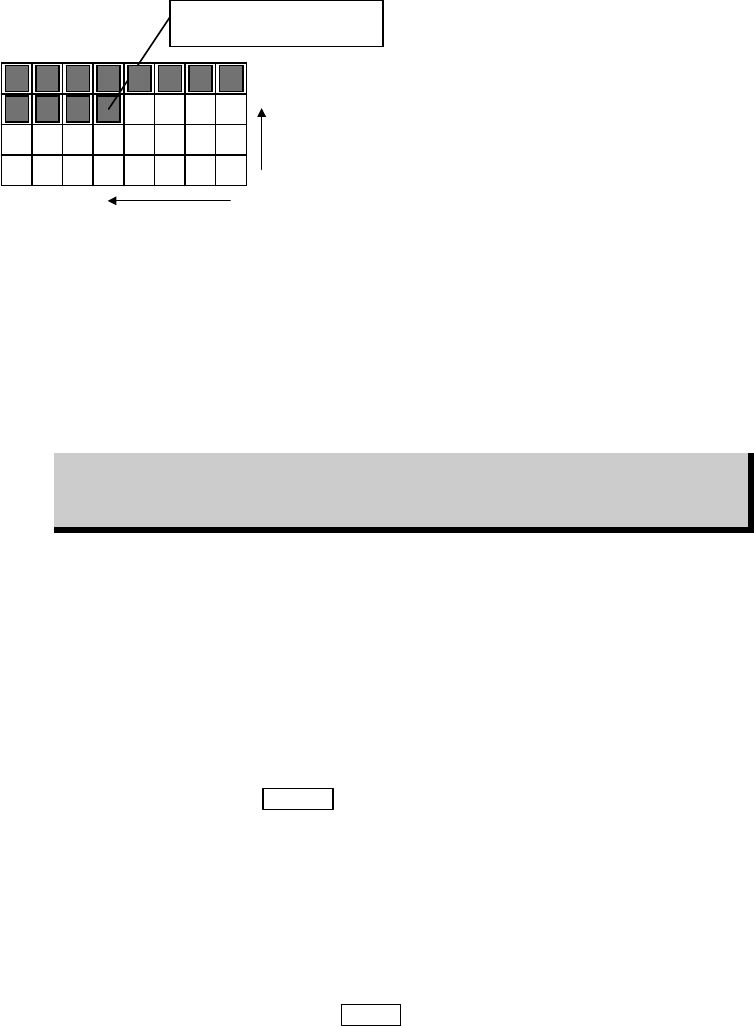
You can specify [X Start] and [Y Start] by typing. The below example shows a half-used tray in
use of the pickup pattern of "X One-way". (PalletLibrary>Pattern)
To start from this component, enter
X Start = 5, Y Start = 3.
Y Start = 3
X Start = 5
You can also specify the initial pickup position for each pallet. When there is a pallet link
assignment, the order [X Start]/[Y Start] setting is entered conforms to the order of the link
assignment in the pallet library. For information about link, see Chapter 5, Pallet Library.
By default, a job starts from the first pallet of a link assignment. But you can also specify where
to start. For example, to start from the pallet of [P3#], enter "3" to [Start Position] field.
To enable the system to give an alarm in component shortage (residual sensing), enter [Start
Position], [X Start], and [Y Start] settings correctly.
The Shortage Alarm setting in Program>PickupData takes effect only when
[Start Position], [X Start], and [Y Start] settings in the Run dialog box are
entered correctly.
When you enter [Start Position], [X Start], and [Y Start] settings correctly, you can utilize the
inventory information. Information on the inventory information is described earlier in this
chapter.
Component Shortage and Feeder Changeover
In [Component Count] tab, [Remain Count] field of the emptied pickup point turns red.
When replenishing components to the emptied feeder, the component count setting should be
updated. When setting a new tray to a pallet, its initial pickup point setting is defaulted (X
Start=1, Y Start=1) by pressing
SETUP switch.
z Component Count Setting
When replenishing components to an emptied feeder, type in the component count in
[ST-F/R]>[Set Count] and click <Reset Line> button. Then click <Apply Count> button to
determine.
When setting a new tray to a pallet, type in the initial pickup point to [X Start], [Y Start] of the
pallet. Then click <Apply Count> button to determine.
Note: To reset the component count, press the
STOP switch.
Note: It is not necessary to click <Apply Count> button for each setting you have changed. When all
the settings have been changed, click <Apply Count> button only once.
Note: For more information of component changeover paused by an alarm, see Chapter 10.
Chapter 9 Running a Job
9-15
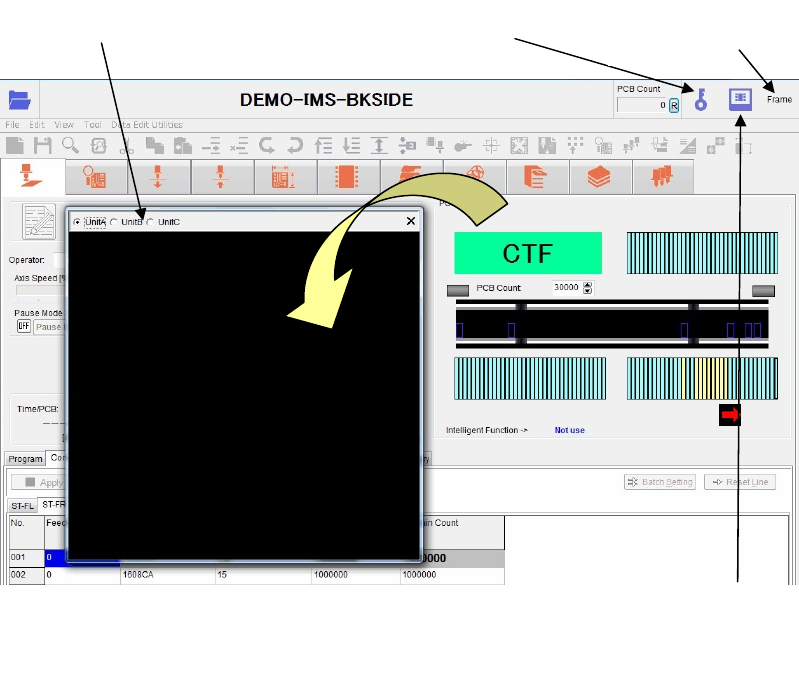
Image display during a job run
Images of captured components and marks during a job run are displayed in the [Overlay]
window in real time.
Locks [Overlay] so that it is not hidden.
Image process result
frame appears.
[Overlay] image
Click this icon to display [Overlay].
Every time you click this icon, the
display size is changed like large ->
medium -> small.
Chapter 9 Running a Job
9-16
9-3-2 Component Remain Count Management
Manages the number of remaining components of each feeder set on feeder station so that to
give advance notice of component shortage and component exhaustion.
The setting procedure is described hereafter. This function is not available for tray feeders.
User Parameter Setting
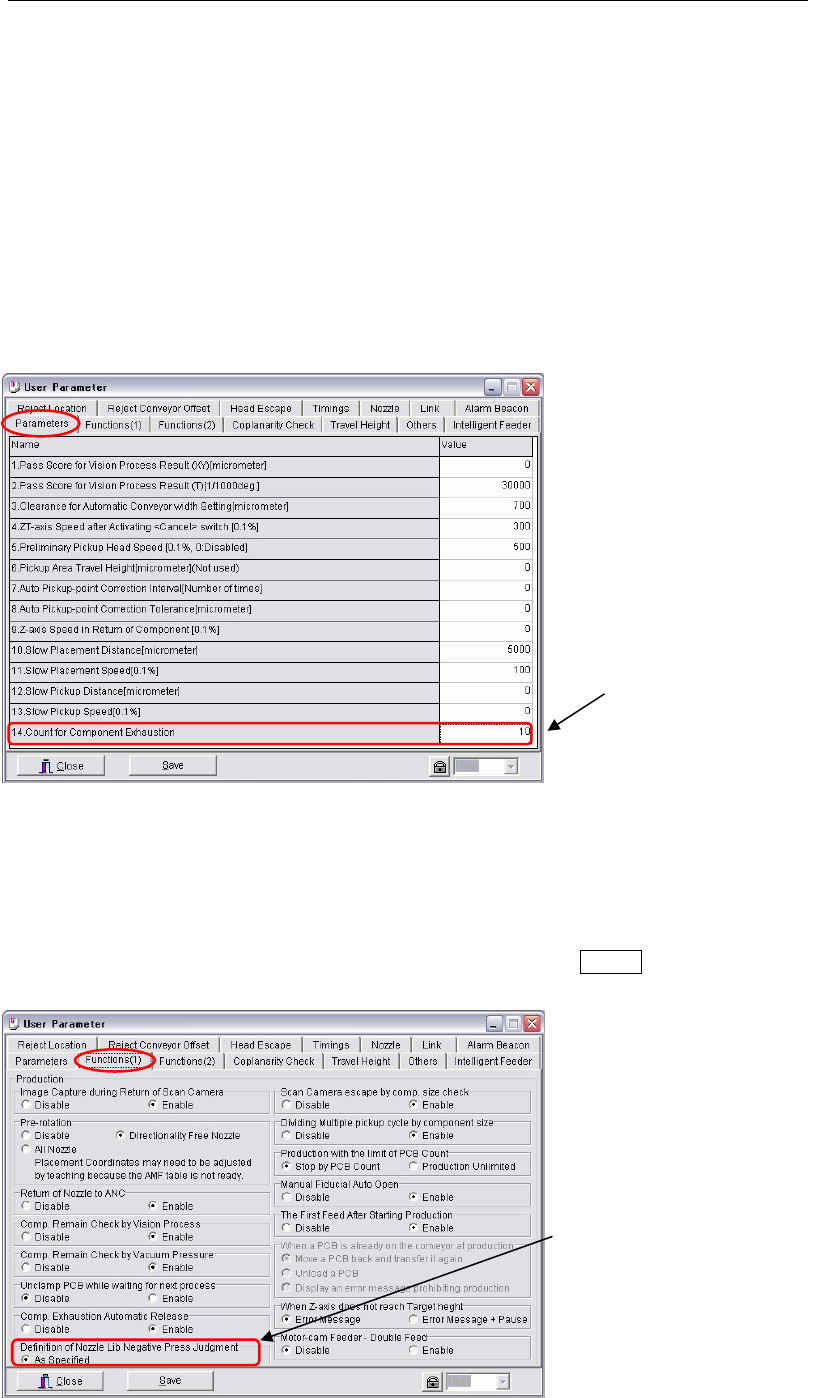
Menu: System>UserParameter>Parameters
Enter the number of components to judge component shortage in [14.Count for Component
Exhaustion].
When ‘Remain Count’ in Run mode reaches the entered value and Pickup error or Image
processing error for pickup happens, a message will give notice of component shortage.
Note: Additionally, when you enter “-1” in [14. Count for Component Exhaustion], the component
shortage message is given when ‘Remain Count’ becomes "0".
Menu: System>UserParameter>Functions(1)
Check “Enable” box of [Comp. Exhaustion Automatic Release] so that when the number of
remaining components reaches entered “Count for Component Exhaustion”, “Remain Count”
in [Run] window will be reset to the initial value automatically. Save this change.
(Normal pickup errors/image processing errors will initialize “Remain Count”.)
To restart the production, replenish new components and press the START switch.
Enter a count to judge for
component exhaustion.
Check ‘As S
p
ecified’ box.