M20_Ope_E.pdf - 第292页
Chapter 9 Running a Job 9-20 9-3-5 Intelligent Feeder (optional) Menu: System>UserParamet er>IntelligentFeeder To Enable the Intelligent feeder function, check <Enable the In telligent Feeder Function> box. F…
Chapter 9 Running a Job
9-19
9-3-3 Line Search (ASJ)
1
Menu: Program>Tool>Teach>Trace>SearchLine
Line search allows the driving axes to move. When performing line search, do not stick
head, hands, or other parts of the body inside the mounter. Serious injury can result.
Also make sure non-operators are at a safe distance from the machine.
Before starting line search, make sure no foreign obstacles are left in the mounter or tray feeder.
Otherwise, costly machine damage can occur.
Line search allows you to search for the program step line with the X,Y coordinates nearest from
the current head position.
During job run, by bringing the teach camera to the placement point whose coordinates setting
should be adjusted or checked and then executing line search, the program step line for the
placement point can be found.
Note: Line search requires the board size setting (X, Y) to be completed beforehand via Program>
Board Data>Coordinates>Board Size. The X or Y setting, whichever larger, is applied as the
search range for the main teach camera.
Action:
① Click Program>Tool>Teach to open the Teach dialog box.
② Under [Head], select “Main Teach Camera”.
③ Bring the main teach camera to the placement point.
④ In the Teach dialog box, under [Trace] tab, click <Search Line> button.
⑤ The program step line is found and highlighted.
9-3-4 Coplanarity Checker (optional)
To enable the Coplanarity Check Function, check [Coplanarity Check] box in System>User
Parameter>CoplanarityCheck.
For details, see Chapter 11 Parameter Setting.
Error Messages
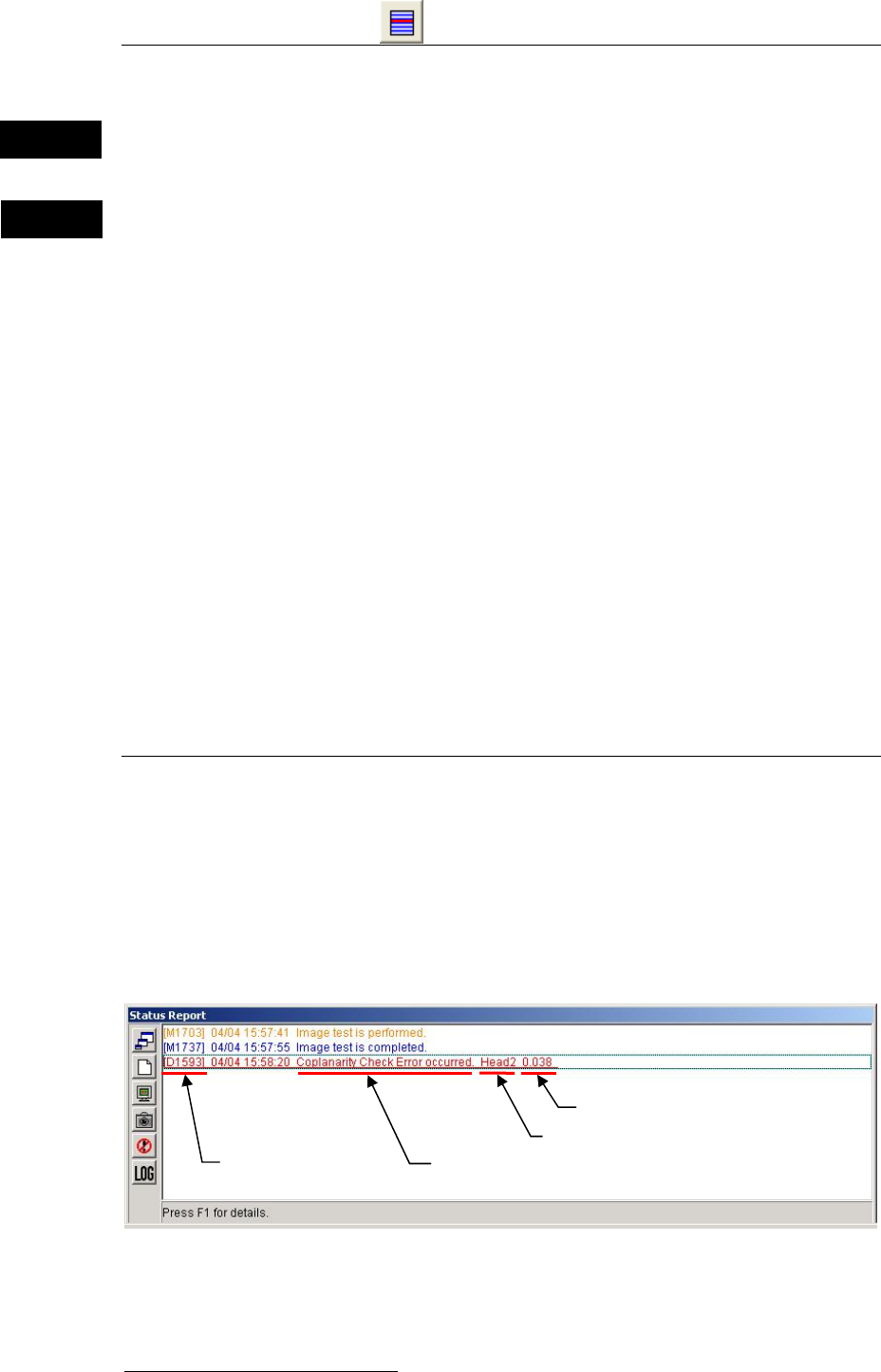
When an error occurs while coplanarity check or production is performed, the error
code/error message and the head No. appear by red color in [Status Report] window.
In this case, check the indicated cause of the indicated head.
1
ASJ: Automatic Search and Jump
Warning
Caution
Mounter error code
Head No.
Lead height shift
Mounter error message

Chapter 9 Running a Job
9-20
9-3-5 Intelligent Feeder (optional)
Menu: System>UserParameter>IntelligentFeeder
To Enable the Intelligent feeder function, check <Enable the Intelligent Feeder Function> box.
For details, see Chapter 11 Parameter Setting.
Component Exhaustion
If components have run out during operation, execute the following steps.
Action:
① Remove the feeder from the feeder bank.
② Remove the emptied component reel, and install a new component reel.
③ Scan the "Show / Hide" barcode to display the ID registration window (InputBar).
④ Scan the feeder’s barcode. →The feeder information will be displayed.
⑤ Scan the component’s barcode.
⑥ Scan the "Register Database" barcode.
→The “Remain Count” in the production window will be reset to the initial value.
⑦ Check whether the count has been reset to the initial value. If so, scan the "Show / Hide"
barcode to close the ID registration window.
⑧ Attach the feeder to the feeder bank.
Clearing an Error
If an error (e.g. suction NG, feeder trouble and removal lock errors) other than the “out of
component” error has occurred, clear the error as follows.
Action:
① ALARM OFF→Recovery
② Check the error contents by observing the message and LEDs.
→For feeder LED display contents, refer to “Data”.
③ Remove the feeder from the feeder bank, and make necessary corrections.
④ Scan the "Show / Hide" barcode to display the ID registration window (InputBar).
⑤ Scan the feeder’s barcode.
⑥ Scan the component’s barcode.
⑦ Scan the "Register Database" barcode. The remaining count will not be initialized.
⑧ Check whether “OK” is displayed. If so, scan the "Show / Hide" barcode to close the ID
registration window.
⑨ Attach the feeder to the feeder bank.
Note: When <Comp. Exhaustion Automatic Release> is enabled in UserParameter>Functions(1), you
can restart the production by skipping ③ through ⑧. To skip these procedures, feeders should
not be removed from the feeder bank.
Chapter 9 Running a Job
9-21
Relocating Components
To set components that are different from those registered to the database into the feeder,
execute the following steps.
Action:
① Remove the feeder from the feeder bank.
② Scan the "Show / Hide" barcode to display the ID registration window (InputBar).
③ From the ID registration window (InputBar), select >Mode>Remove using the mouse. The
‘Start remove mode’ dialog box appears.
④ Scan the feeder’s barcode.
⑤ Remove the old components from the feeder.
⑥ Scan the "Cancel Database" barcode.
⑦ If “OK” is displayed, set new components in the feeder.
⑧ Scan the feeder’s barcode.
⑨ Scan the new component’s barcode.
⑩ Scan the "Register Database" barcode.
⑪ Check whether “OK” is displayed. If so, scan the "Show / Hide" barcode to close the ID
registration window.
⑫ Attach the feeder to the feeder bank.
Note: You can skip step ③ when <Disable Remove Mode> button is checked in
InputBar>Option>Setup Window.
Removing Components
To remove components from a feeder, execute the following steps.
Action:
① Remove the feeder from the feeder bank.
② Scan the "Show / Hide" barcode to display the ID registration window (InputBar).
③ Select the remove mode using the mouse.
→In the InputBar window, select Mode > Remove. The following dialog box appears, so
click <OK> button.
④ Scan the feeder’s barcode.
⑤ Scan the "Cancel Database" barcode.
⑥ Check whether “OK” is displayed. If so, scan the "Show / Hide" barcode to close the ID
registration window.
⑦ Remove the components from the feeder.
Note: You can skip step ③ when <Disable Remove Mode> button is checked in
InputBar>Option>Setup Window.