M20_Ope_E.pdf - 第295页
Chapter 9 Running a Job 9-23 Inexecutable Menus while in the Edit&Teach mode Board Data>Load Board Run menus (all) Maintenance menus (all) Manual>SignalI/O>SignalOutput Manual>Actuator Manual>LoadBoa…
Chapter 9 Running a Job
9-22
9-4 Edit & Teach Mode during a Job Run
You can perform the edit operation, such as data entry, teaching, or image test
to correct or change the program or data during job run. The edit contents you
have corrected or changed can also affect the production immediately.
Note: For information on the workaround menus for the job run, see the next section.
When the production is paused or the production is stopped by the fiducial mark recognition
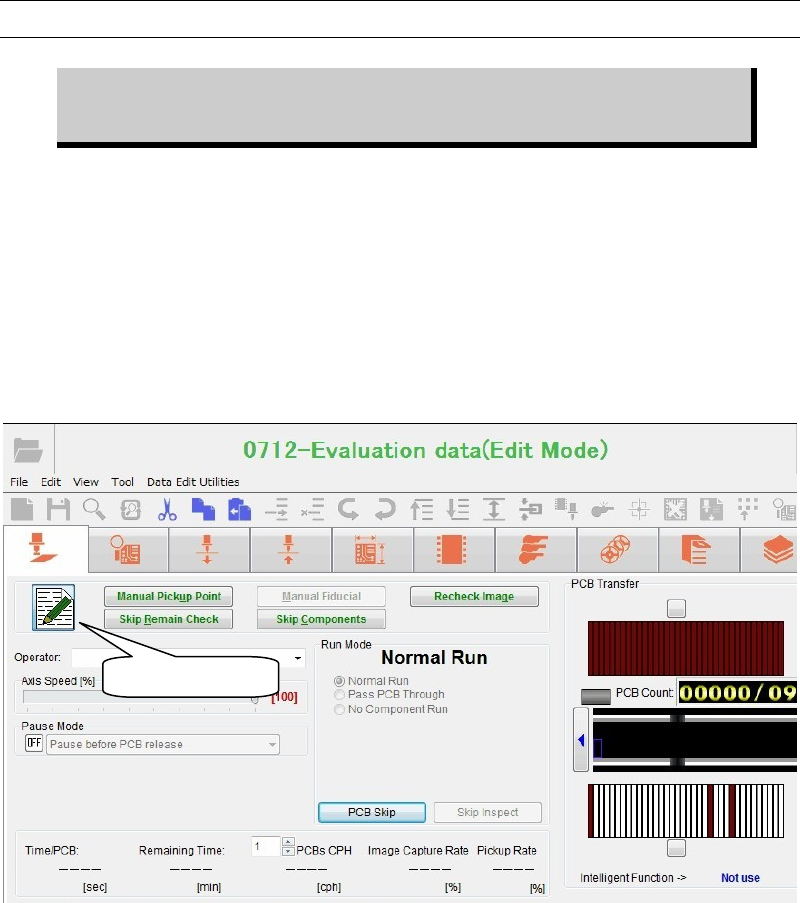
error or component shortage, the <Edit Mode> button becomes valid. When clicking this
button, the sub-mode will move to “Edit” from “Pause”, allowing you to edit the data. You can
perform the edit operation similar to the normal edit operation, but you cannot execute the
function that changes the PCB clamp status or controls DO directly.
After you have edited or changed the program or data, click the <Edit Mode> button to return
to the “pause” status, and then restart the job run.
When the job run is restarted, the contents you have edited or changed will affect the job run.
When performing the edit during job run, the edited data is compared with the original data in
addition to the normal data check. When any of the following error is found, the updated data
cannot be applied to the job run. If any of the followings arises, the data cannot be updated.
When a program step is added or deleted.
When the head assignment is modified.
When [Task] setting of the program is modified.
When Board Data>Coordinates>Board Origin is modified.
When an error is detected through [Check Program] process.
When an error is found by [Check Program] process or the data comparison check, you have to
re-edit the data or cancel the job run.
<Edit Mode>
Chapter 9 Running a Job
9-23
Inexecutable Menus while in the Edit&Teach mode
Board Data>Load Board
Run menus (all)
Maintenance menus (all)
Manual>SignalI/O>SignalOutput
Manual>Actuator
Manual>LoadBoard
Manual>ConveyorWidth
Manual>AirPressure
Manual>Axis>Conveyor
Nozzle Library
Exit
<AWC> switch
Tool>Backup&Restore
Tool>CADData
Tool>MTData
Tool>Font
System>ReenterPassword
System>SystemParameter
System>Upgrade
System>AutomaticBackup
System>SystemBackup
System>SystemRestore
System>NetworkNeighborhood
System>NetworkProperties

Chapter 9 Running a Job
9-24
9-5 Workaround Menus for the Job Run
Three kinds of functions, “Skip Components”, “Skip Remain Check”, and “Manual Fiducial”,
are provided that allow you to make temporary corrections only for the job currently running.
The contents you have corrected using such functions apply only to the currently running job.
The original production program is not changed.
Note: The “manual pickup point correction” function described later saves the corrected values into
the original production program to change the production program.
Similarly, the “image data re-edit” function described later corrects and saves the image library
to change the image library.
When clicking the <Edit & Teach> button in the Run dialog box, the <Skip Component> and
<Skip Remain Check> buttons become valid, allowing you to make the temporary correction.
9-5-1 Skipping Error Components
Action:
① Press
CLEAR switch to the alarm sound.
② Press
CLEAR switch.
③ Click <Edit&Teach> button in the Run dialog box.
④ Click <Skip Components> button. The Skip Assignment dialog box appears.
⑤ Click the error components.
⑥ Select <Current Component Only> or <All Remaining Components>.
⑦ Close the dialog box.
⑧ Press
START switch to resume.
Note: Skip assignment you make is applied only to the current job run. It won’t affect the program.
9-5-2 Skipping Retrial by Comp. Remain Check
Allows you to skip the retrial caused by the comp. remain check.
Action:
① Press
CLEAR switch to stop to stop the alarm sound.
② Press
CLEAR switch
③ Click <Edit&Teach> button in the Run dialog box.
④ Click <Skip Remain Check> button. The Skip Assignment dialog box appears.
⑤ Click the error components.
⑥ Close the dialog box.
⑦ Press
START switch to resume.