M20_Ope_E.pdf - 第297页
Chapter 9 Running a Job 9-25 9-5-3 Adjusting Fiducial Coordinates When a job run stopped due to incorrect fiduci al coordinates programming, you can continue the job after adjusting the fiducial coordinates by teach entr…

Chapter 9 Running a Job
9-24
9-5 Workaround Menus for the Job Run
Three kinds of functions, “Skip Components”, “Skip Remain Check”, and “Manual Fiducial”,
are provided that allow you to make temporary corrections only for the job currently running.
The contents you have corrected using such functions apply only to the currently running job.
The original production program is not changed.
Note: The “manual pickup point correction” function described later saves the corrected values into
the original production program to change the production program.
Similarly, the “image data re-edit” function described later corrects and saves the image library
to change the image library.
When clicking the <Edit & Teach> button in the Run dialog box, the <Skip Component> and
<Skip Remain Check> buttons become valid, allowing you to make the temporary correction.
9-5-1 Skipping Error Components
Action:
① Press
CLEAR switch to the alarm sound.
② Press
CLEAR switch.
③ Click <Edit&Teach> button in the Run dialog box.
④ Click <Skip Components> button. The Skip Assignment dialog box appears.
⑤ Click the error components.
⑥ Select <Current Component Only> or <All Remaining Components>.
⑦ Close the dialog box.
⑧ Press
START switch to resume.
Note: Skip assignment you make is applied only to the current job run. It won’t affect the program.
9-5-2 Skipping Retrial by Comp. Remain Check
Allows you to skip the retrial caused by the comp. remain check.
Action:
① Press
CLEAR switch to stop to stop the alarm sound.
② Press
CLEAR switch
③ Click <Edit&Teach> button in the Run dialog box.
④ Click <Skip Remain Check> button. The Skip Assignment dialog box appears.
⑤ Click the error components.
⑥ Close the dialog box.
⑦ Press
START switch to resume.

Chapter 9 Running a Job
9-25
9-5-3 Adjusting Fiducial Coordinates
When a job run stopped due to incorrect fiducial coordinates programming, you can continue
the job after adjusting the fiducial coordinates by teach entry.
Action:
① Press
CLEAR switch to stop to stop the alarm sound.
② Press
CLEAR switch
③ Click <Edit&Teach> button in the Run dialog box, and click <Manual Fiducial> button.
The Edit Fiducial Coordinates dialog box appears.
Note: You can select whether to display the “EditFiducial Coordinates dialog box” automatically or
not in the User Parameter.
④ Click <Move> button to move the main teach camera to the fiducial coordinates.
⑤ If necessary, click <Set Illumi.> button and adjust the illumination.
⑥ Align the main teach camera to the fiducial coordinates and click <Teach Coordinates>
button.
⑦ The confirmation message “Decide the current coordinates?” appears. Click <OK> button
and close the dialog box.
⑧ Press
START switch to resume running.
Note: Adjustment you make is applied only to the current board. It won’t affect the program.
Note: When the fiducial error occurred by other reason than coordinates offset (for example, stained
fiducial mark), after you scan the fiducial coordinates by the teach camera, do not decide the
coordinates by clicking <Teach Coordinates> button. And press
START switch to resume
running.
9-5-4 Image Re-check function
When the mounter pauses by an error, you can recheck the last recognized image.
Action:
① Press
CLEAR switch to stop the alarm sound.
② Press
CLEAR switch.
③ In Status Report window, make sure which head No. had the error.
④ In Run window, click <Edit&Teach>.
⑤ Click <Re-check Image>.
⑥ Select [Re-display Image] tab and click the head No. the error occurred.
Note: You can also re-test the last images held in the mounter memory. To execute image test again,
click the head No. in [Retest Image] tab window.
Chapter 9 Running a Job
9-26
9-5-5 Manual Pickup Point Correction
The Manual Pickup Point Correction modifies pickup points in Edit&Teach mode when a
pickup error happens during a job run.
Application
The Manual Pickup Point Correction is available for;
- Pickup points of ST-F (front stations) and ST-R (rear stations).
(X/Y offsets of pickup points can be modified.)
- Installed tray feeders.
(Component height in trays can be modified.)
9-5-5-1 User parameter setting
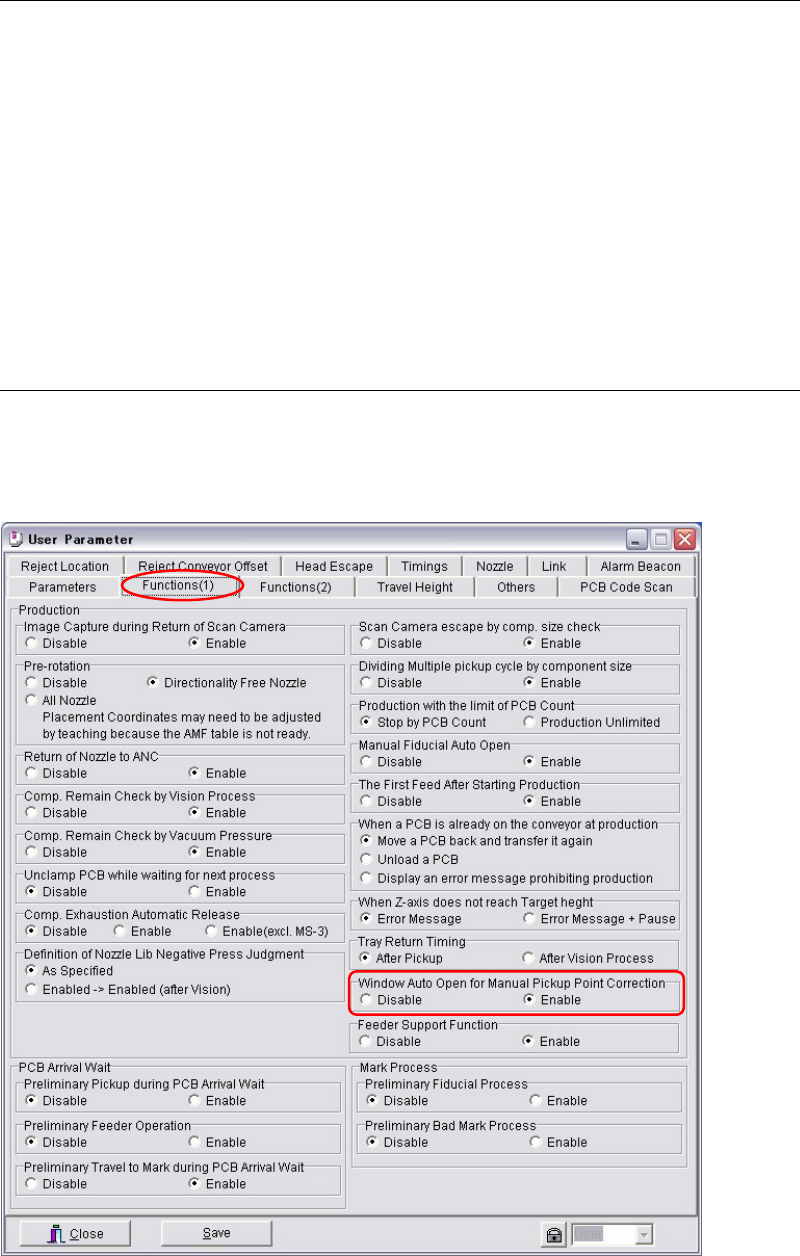
Menu: System > User Parameter > Functions(1)
Action:
① Enable the [Window Auto Open for Manual Pickup Point Correction].