M20_Ope_E.pdf - 第306页
Chapter 10 Replenishing Com ponents and Using Maintenance Menus 10-2 10-1 Status Report Window This status report window appears when the arro w button at the lower left is clicked. To close this window, click the arrow …
Chapter 10 Replenishing Components and Using Maintenance Menus
10-1
Chapter 10
Replenishing Components and
Using Maintenance Menus
Status Report Window
In case the System Stops Responding
Using manual menus
Signal I/O
Using maintenance menus
Stopping and Restarting a Job Run
Component Handling in Machine Shutdown
Replenishing components
Other Menus
Chapter 10 Replenishing Components and Using Maintenance Menus
10-2
10-1 Status Report Window
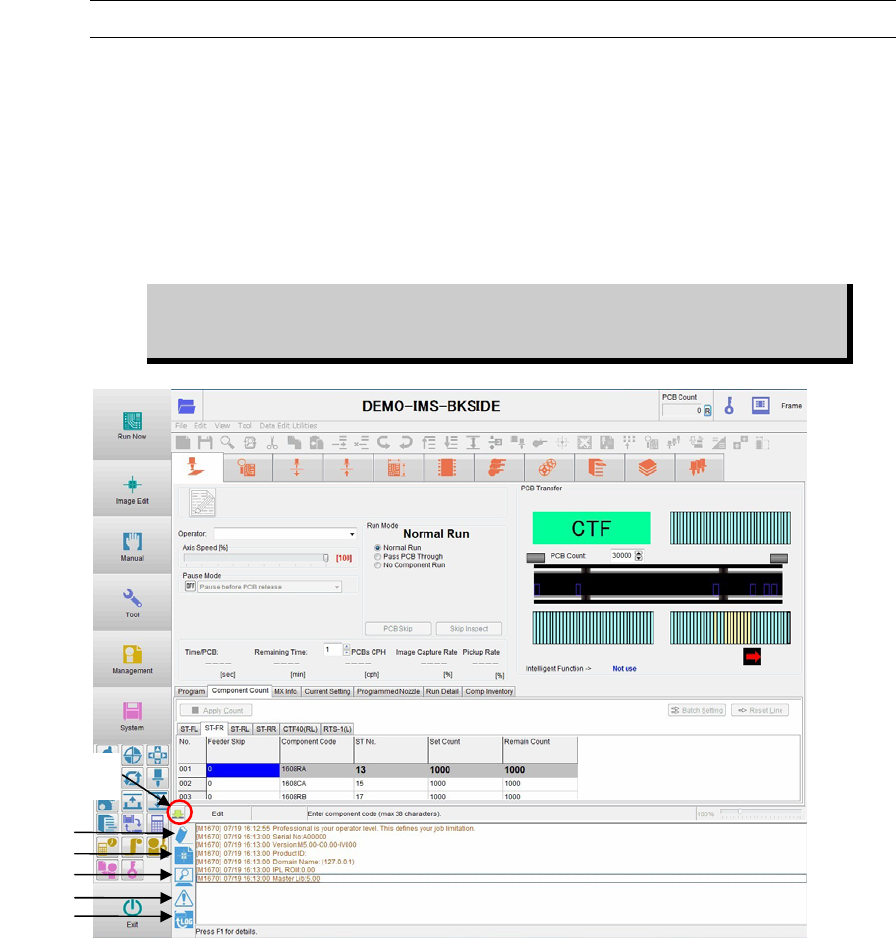
This status report window appears when the arrow button at the lower left is clicked. To close
this window, click the arrow button again.
This window appears automatically when an error occurs.
This window reports the machine state on realtime basis. If an error occurs during operation,
refer to this window for the corresponding error message. Error messages are displayed in
yellow or red. When the corresponding error is not shown in the current view of the window,
search for the message by scrolling up the window. To see the details of the message, click the
message and press <F1> key. The Details window will appear.
If machine failure occurred with an unknown reason, click the <Log> button
immediately after the machine shutdown. This will save necessary log files.
See the following Gathering and Outputting Log Files for information.
Note: The initial letter of the message number indicates the type of the message:
V: Vision process—related (VCS) error
D: Controller-related error
M: MMI software—related error
Window:
1 <Reset> button: Clears the displayed messages.
2 <TVS Response Display> button:
Opens the Vision Process Report window. You may want to refer to
the detailed results of the vision processing. After the vision
processing, click <Response> button at the lower left corner of this
window to load the results.
3 <Screen Copy> button: You can copy a window image (bitmap) or text data of the MMI
window and save the data to the USB memory or print it through a
network printer.
Click this button to open the SCR Copy window. Clicking the
[Screen] tab will copy the window image while clicking the [Text]
tab will copy the text data.
Click the
arrow button.
1
2
3
4
5

Chapter 10 Replenishing Components and Using Maintenance Menus
10-3
Action:
① Click the <Screen Copy> button to display the [SCRCopy] window.
In this window, select a file format, [bmp] or [jpg]. (Normally, select [jpg].)
② Make a desired MMI window you want to copy active (selected status).
③ Press the [Alt] and [Print Screen] keys on the keyboard at the same time.
④ Click the <View> button
in the [SCRCopy] window to check the window image you have
copied.
⑤ Insert the USB memory into the USB port and click the <Save> button
in the [SCRCopy]
window.
The following [Save] window will appear.
⑥ Click the <・・・> button
to select a save destination folder.
(In this case, select [Removable Disk].)
⑦ Change the file name
when necessary.
⑧ Click the <OK> button.
The window image is then saved to the USB memory.
Note: When pressing only the [Print Screen] key on the keyboard, the entire displayed window image
is then copied.