M20_Ope_E.pdf - 第308页
Chapter 10 Replenishing Com ponents and Using Maintenance Menus 10-4 4 <Error Message Only> button: Displays only error messages. 5 <Log> button Obtains the log data and save s this data in the ZIP format int…

Chapter 10 Replenishing Components and Using Maintenance Menus
10-3
Action:
① Click the <Screen Copy> button to display the [SCRCopy] window.
In this window, select a file format, [bmp] or [jpg]. (Normally, select [jpg].)
② Make a desired MMI window you want to copy active (selected status).
③ Press the [Alt] and [Print Screen] keys on the keyboard at the same time.
④ Click the <View> button
in the [SCRCopy] window to check the window image you have
copied.
⑤ Insert the USB memory into the USB port and click the <Save> button
in the [SCRCopy]
window.
The following [Save] window will appear.
⑥ Click the <・・・> button
to select a save destination folder.
(In this case, select [Removable Disk].)
⑦ Change the file name
when necessary.
⑧ Click the <OK> button.
The window image is then saved to the USB memory.
Note: When pressing only the [Print Screen] key on the keyboard, the entire displayed window image
is then copied.
Chapter 10 Replenishing Components and Using Maintenance Menus
10-4
4 <Error Message Only> button:
Displays only error messages.
5 <Log> button Obtains the log data and saves this data in the ZIP format into the
hard disk in the batch mode if the system fails.
You can also output this log data into an USB memory.
z Log Files to be Gathered
Message log, MT log, management data, internal system data, system parameters, user
parameters, program, and libraries
Action:
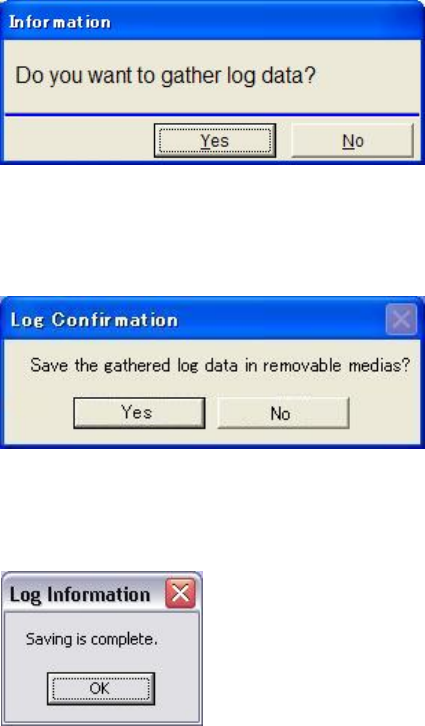
① Click <Log> button. The following message appears.
② Click <Yes> button and the system starts to gather and save the log files. When the system
is finished with the process, the following message appears.
③ Connect the USB memory stick to the port on the mounter. Click <Yes> button. The
following message appears.
④ Click <OK> button.
Note: When a particular system error occurred, the system automatically gathers and saves the log
files. In this case, the system asks you whether to save the log files in a removable media.
Chapter 10 Replenishing Components and Using Maintenance Menus
10-5
10-2 In the Case the System Stops Responding
The following describes corrective actions to be taken if a trouble occurs in the system. If the
system does not accept the entry from the keyboard or mouse and cannot be shut down for
some reason, follow the steps below to shut down the system.
10-2-1 Shutting down the system forcibly
The following describes how to shut down the system forcibly.
Even though a trouble occurs in the system, never attempt to turn OFF the
power using the MAIN switch.
Shut-down procedure
Action:
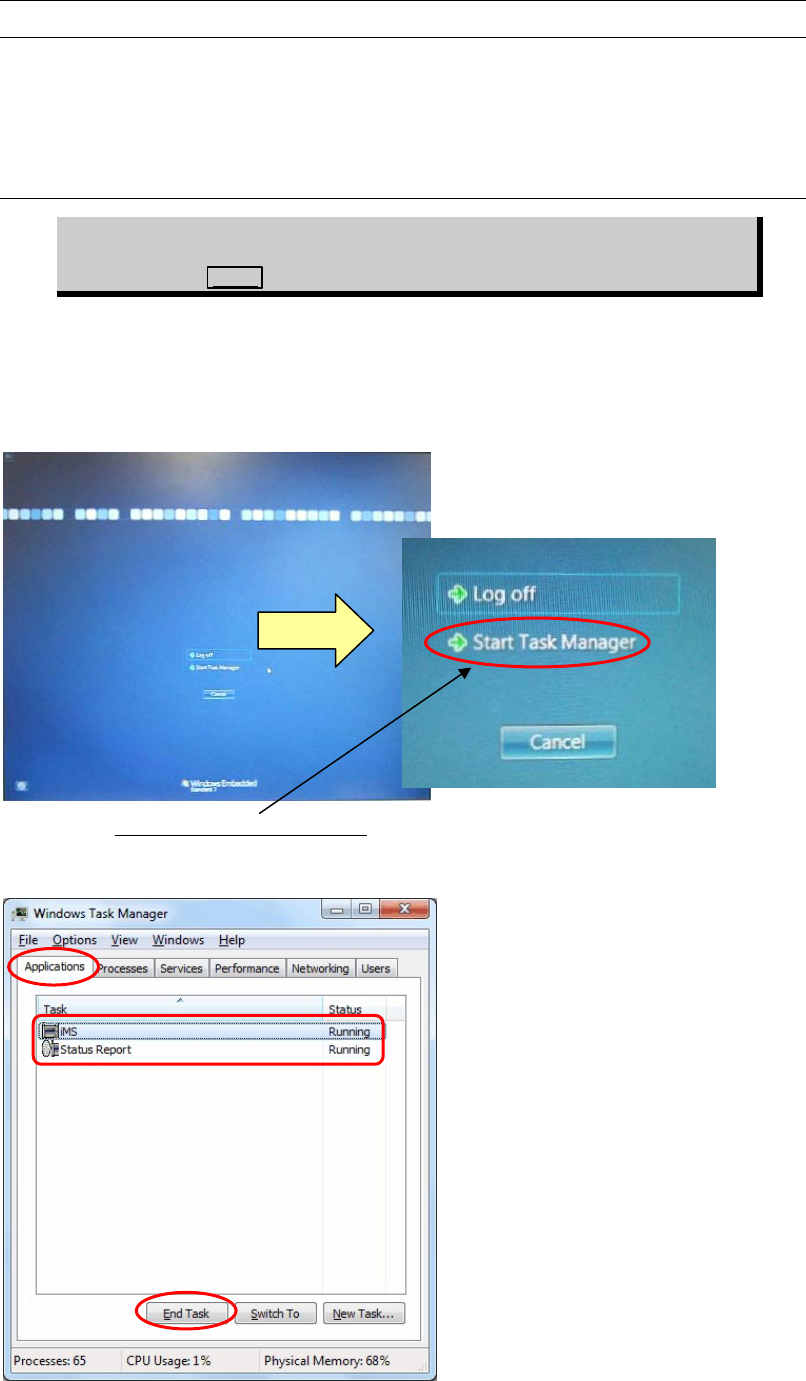
① Press the [Ctrl], [ALT], and [DELETE] keys on the keyboard at the same time. The
following window will appear.
② Click the <Start Task Manager> button
The following Windows Task Manager window will appear.
③ In the [[Windows Task Manager] -> [Applications]] window, end all active applications
and close the window.