M20_Ope_E.pdf - 第310页
Chapter 10 Replenishing Com ponents and Using Maintenance Menus 10-6 ④ Press the [Ctrl], [ALT], and [DELETE] keys on the keyboard again at the same time. The following window will appear. ⑤ Click the <Log off> butt…
Chapter 10 Replenishing Components and Using Maintenance Menus
10-5
10-2 In the Case the System Stops Responding
The following describes corrective actions to be taken if a trouble occurs in the system. If the
system does not accept the entry from the keyboard or mouse and cannot be shut down for
some reason, follow the steps below to shut down the system.
10-2-1 Shutting down the system forcibly
The following describes how to shut down the system forcibly.
Even though a trouble occurs in the system, never attempt to turn OFF the
power using the MAIN switch.
Shut-down procedure
Action:
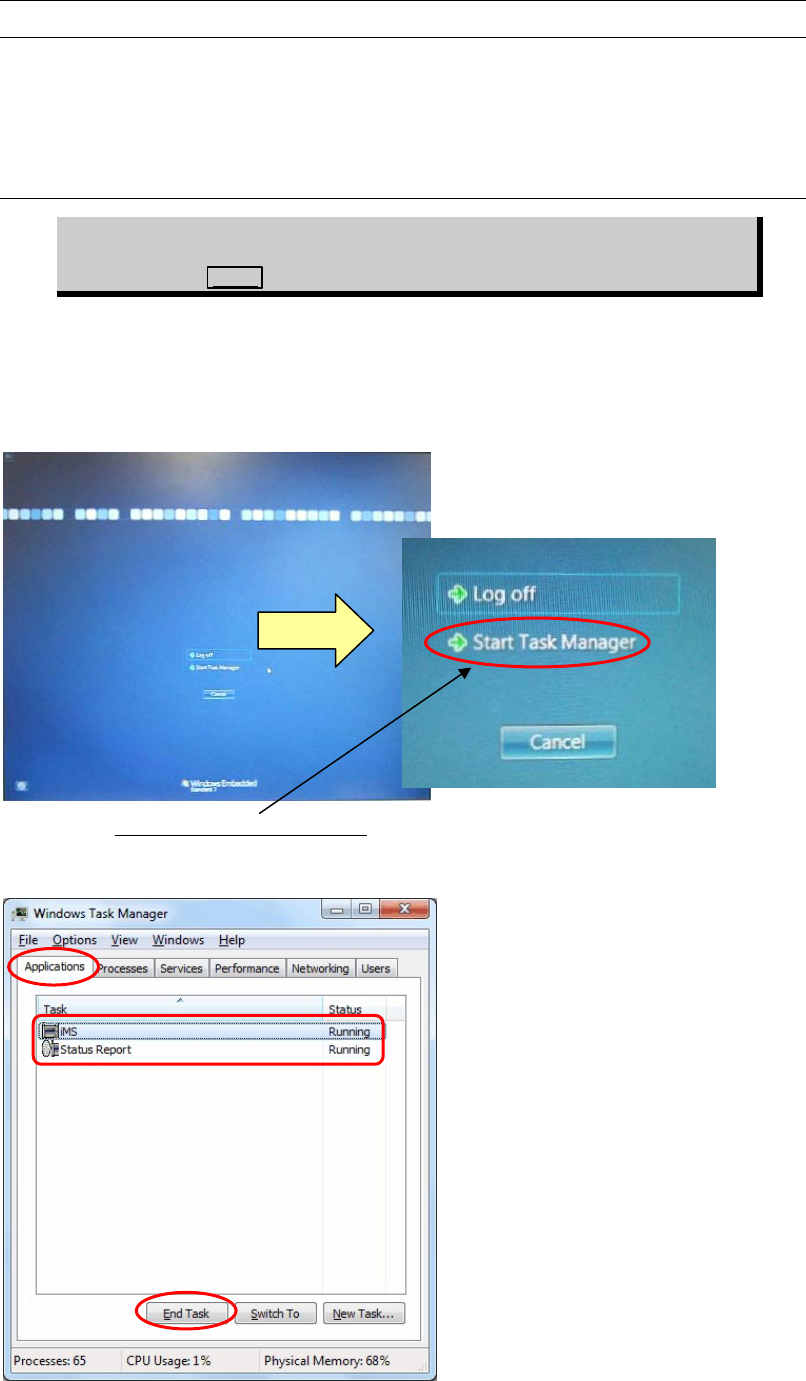
① Press the [Ctrl], [ALT], and [DELETE] keys on the keyboard at the same time. The
following window will appear.
② Click the <Start Task Manager> button
The following Windows Task Manager window will appear.
③ In the [[Windows Task Manager] -> [Applications]] window, end all active applications
and close the window.
Chapter 10 Replenishing Components and Using Maintenance Menus
10-6
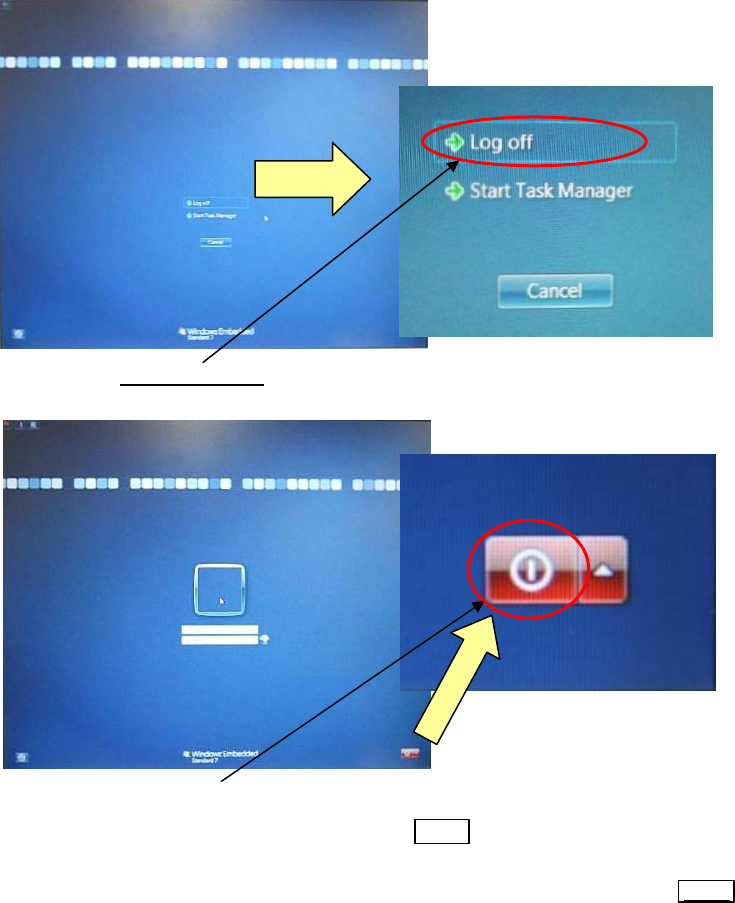
④ Press the [Ctrl], [ALT], and [DELETE] keys on the keyboard again at the same time. The
following window will appear.
⑤ Click the <Log off> button
.
The following window will appear.
⑥ Click the <Shut Down> button at the lower right portion of the screen.
⑦ When the entire screen turns black, turn the Main
switch 90 degrees counterclockwise to
turn OFF the power.
⑧ To restart the mounter, wait for 15 seconds or longer, and then turn ON the
MAIN switch.
Chapter 10 Replenishing Components and Using Maintenance Menus
10-7
10-3 Using Manual Menus
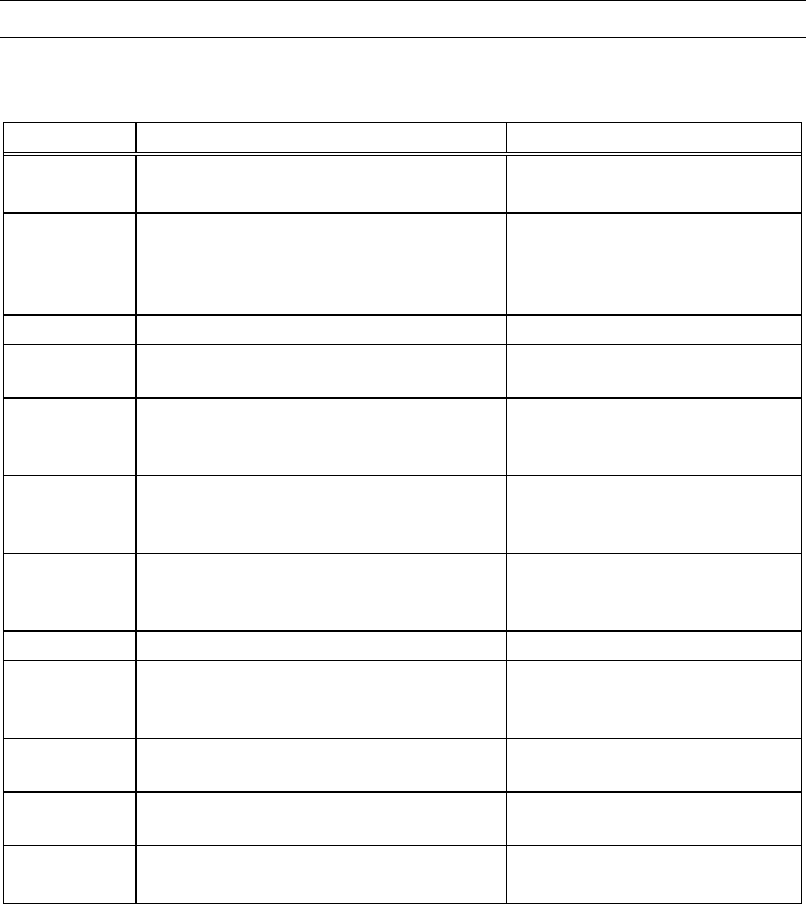
The manual menus are used for pre-operation arrangements and troubleshooting. The below
table summarizes the use of manual menus. For detailed information , see the following part.
Manual Menu Purpose Related Error
Axis
Moves a specified head manually for
checking each axis movement.
—
Origin
Allows specified axis/axes to return to
its/their origin. Used for the system startup
and the servo motors down in case of an
error.
Axis overrun and emergency stop
(emergency stop switch is
pressed).
Warm Up Performs Warm up and Self-checking. —
Nozzle Info. See Setting Nozzles to Heads (Chapter 5), and
ANC Initial Setting (Chapter 9).
—
Actuator
Allows to check each actuator movement
and to measure its timing.
Failures of clamps, board stopper,
pickup, vacuum breaker, and
others.
Load Board
Loads a board to the mounter. Used to
specify loading speed, board weight setting,
and registration method.
—
Signal I/O
Allows to check signal input/output status
of switches, motors, actuators, and sensors.
Used to check for wire disconnection.
Failures of clamps, board stopper,
ANC, and others.
PCB Sensors Displays the condition of each sensor. —
Air Pressure
Measures air pressure. Used to adjust the
Choke Thresh./Pick Thresh settings.
Pickup error (retry), placement
error (placement offset), and
nozzle choking.
Conveyor
Width
Moves the conveyor rail and makes the
conveyor axis return to origin.
—
Feeder Info. Specifies feeder type to be used for manual
feeder operation.
—
CTF
Checks the stocker for palette presence, and
moves a specified pallet in and out.
CTF-related error
Note: The “CTF Pallet Information” cannot be opened unless you have the “System Parameter” rights
for operation levels.