M20_Ope_E.pdf - 第346页
Chapter 10 Replenishing Com ponents and Using Maintenance Menus 10-42 10-10 Other Menus 10-10-1 About Menu: System>About Shows the system version Nos. and ID information. 10-10-2 Reentering a Passw ord Menu: System>…
Chapter 10 Replenishing Components and Using Maintenance Menus
10-41
10-9 Replenishing Components
10-9-1 Shortage Alarm
During a job run, when the residual component count has reached the specified setting, the
system alerts the operator to component shortage with lighting the lamp of the alarm beacon.
To enable this feature, perform the following settings:
Set [Shortage Alarm] (Program>PickupData) to the component count to give an alarm.
Set [Set Count] and [Remain Count] (Run>Run>ComponentCount>ST-F/ST-R) to the
replenished component count correctly.
When the residual component count has reached [Shortage Alarm] setting, the lamp of the
alarm beacon lights up. After that, when the remaining components have been used up, an
alarm sound (intermittent high-pitched beep) goes off, the lamp starts to blink, and the job run
is paused. You can resume operation by replenishing components and then press
START
switch.
10-9-2 Replenishing Components
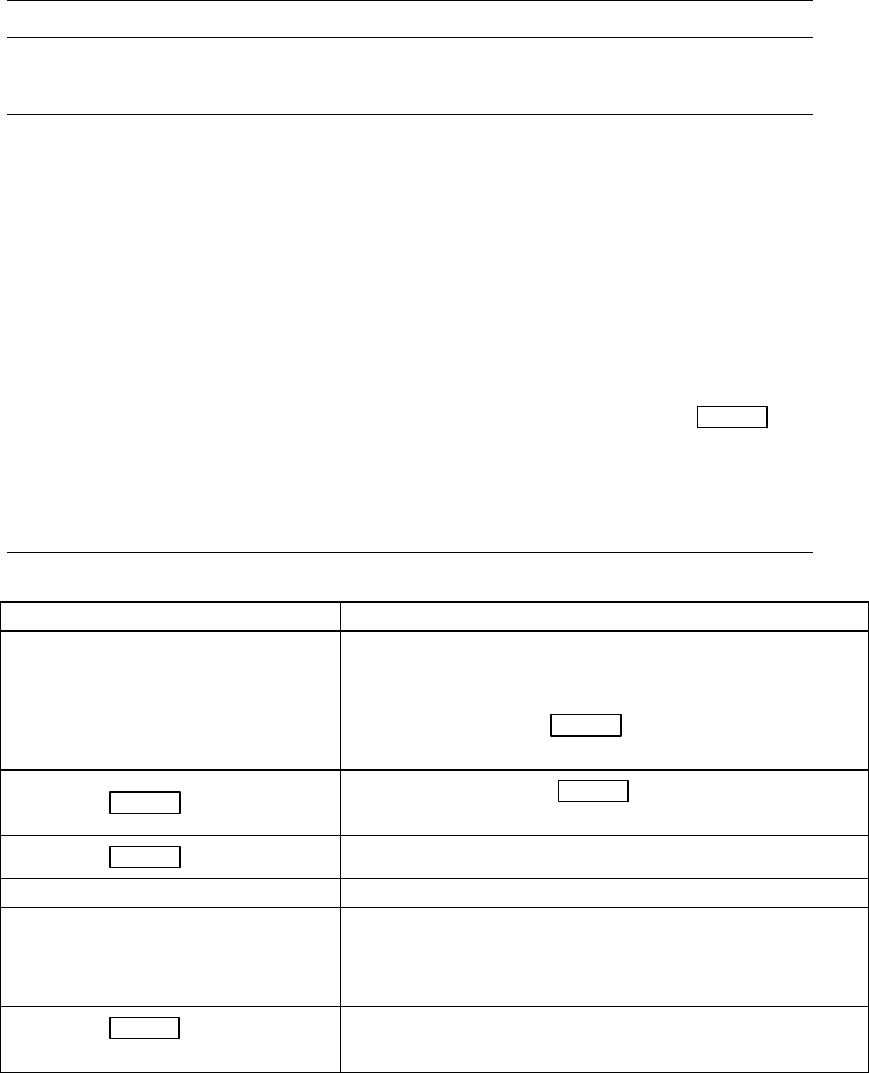
Follow the below steps when component lack occurs.
Operation
Mounter status
-
Component count reaches the shortage alarm count. →
Yellow alarm beacon lights up. → Out of Component →
Yellow alarm beacon blinks. / Alarm sounds (intermittent
high-pitched beep). /
CLEAR switch lamp lights up. /
Mounter pauses.
①Press the CLEAR switch.
Alarm sound stops. → CLEAR switch lamp goes out.→
Yellow alarm beacon goes out.
②Press the CLEAR switch.
-
③Replenish components.
-
④Make an entry in [Set Count] and
[Remain Count] (Run > Run >
Component Count).→ *
* Make an entry in [Set Count] and click <Reset Line> button
to copy it into [Remain Count]. Click <Apply Count> button
to register the entries.
⑤Press the START switch to resume
operation.

Chapter 10 Replenishing Components and Using Maintenance Menus
10-42
10-10 Other Menus
10-10-1 About
Menu: System>About
Shows the system version Nos. and ID information.
10-10-2 Reentering a Password
Menu: System>ReenterPassword
Allows you to reenter a password without rebooting the system. Enter new password and click
<OK> button to restart the system.
10-10-3 Enabling/Disabling the Screen Saver
Menu: Tool>Enable Screen Saver
Tool >Disable Screen Saver
The screen saver helps prevent burned-in images and prolongs monitor life. With the Enable
Screen Saver mode selected, if you have not moved the mouse or pressed a key for a certain
period of time, the screen saver automatically goes on. The screen saver is disabled when the
Teach, Axis, or Run dialog box is open.
Moving the mouse or pressing a key will make the screen saver disappear.
10-10-4 Network Neighborhood
Menu: System>NetworkNeighborhood
Allows you to access a computer on the network.
10-10-5 Network Properties
Menu: System>NetworkProperties
Set the network properties of your system. Consult TenryuTechnics for information.
10-10-6 Calculator
Menu: Tool>Calculator
See the online Help for information.
Chapter 11 Parameter Setting
11-1
Chapter 11
Parameter Setting
User Parameter
System Parameter