M20_Ope_E.pdf - 第366页
Chapter 11 Parameter Setting 11-20 11-1-13 PCB Code Scan (Optional) Menu: System>UserParameter>PCB_CodeScan Note: To use a barcode as Board ID, input the scan point of barcode and the scan brightness. When PCB is l…
Chapter 11 Parameter Setting
11-19
■ Cautions and Limitations
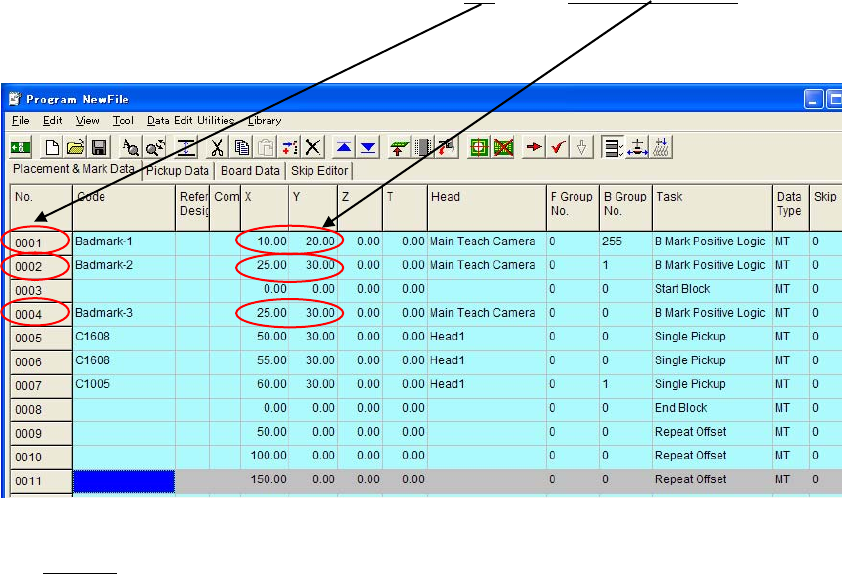
1. In the programs for each machine, the same step “No.
”s and “X and Y coordinates” value
must be used for bad mark steps.
Example:
2. Target machines must be next to each other.
Example
For a three-machine line, the information cannot be transferred from the 1st
machine to the 3rd machine. Make the setting to transfer the information in the
order of 1st -> 2nd -> 3rd machine..
3. In the following cases, an error may not be detected correctly. There is likelihood of
producing defective boards with missing components.
①When a PCB has been replaced in the process of the production due to a conveyor
transfer error or something.
②When picking up a PCB which has been carried out from the pre-process machine
manually, and putting another PCB into the current machine.
③When picking up a PCB which has been carried out from the current machine manually,
and putting another PCB into the post-process machine.
Note: When a PCB needs to be taken out from the machine during the production, cancel the
production firstly. And when putting the PCB back, put it back to the same machine. (Do not
put the PCB into a pre-process or a post-process machine.)
4. Machines with a buffer function such as a buffer conveyor must not be used between the
target machines .
5. When using the Production Info.Transfer function, the board transfer signals and the
connections for network (LAN) should be both established between the machines as a
precondition. Specify the path to the folder shared on a network for “Pre-process Info.
Folder” and “Post-process Info. Folder”.
Chapter 11 Parameter Setting
11-20
11-1-13 PCB Code Scan (Optional)
Menu: System>UserParameter>PCB_CodeScan
Note: To use a barcode as Board ID, input the scan point of barcode and the scan brightness.
When PCB is loaded and clamped at the mount stage, PCB Code Scan is performed at the Code
coordinates with the illuminations entered in User Parameter.
When “PCB Code Scan + Production Switching” box is selected, PCB Code is scanned before
starting the production and production will switch to the scanned program automatically.
★ Maximum registry number : 5000 records
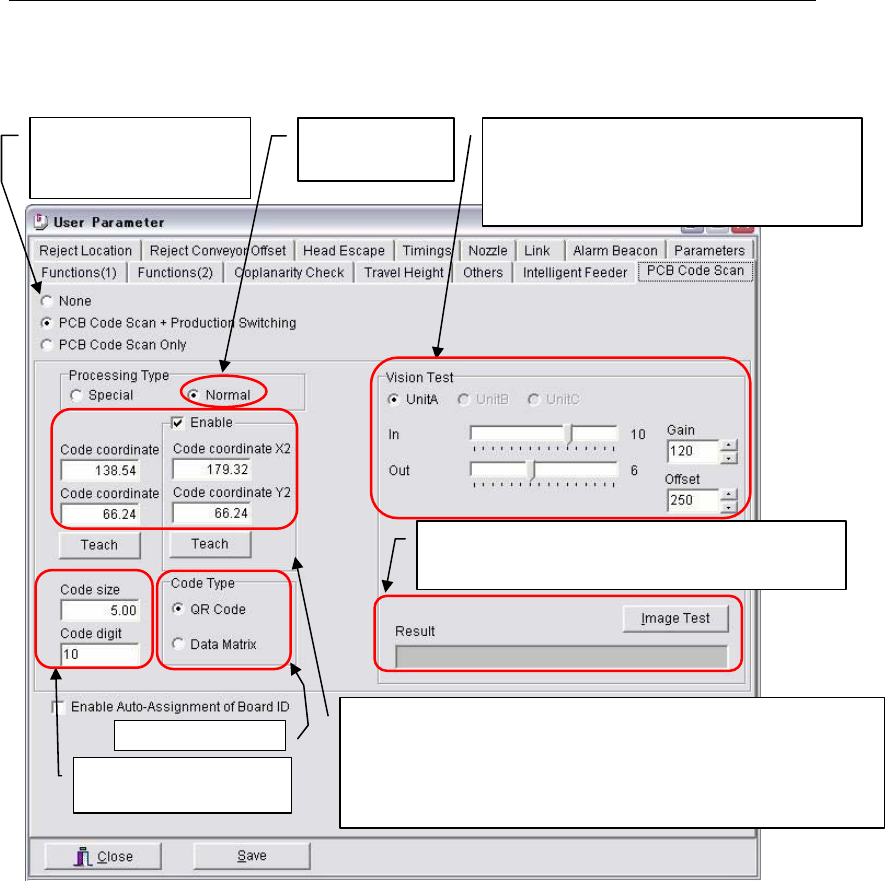
“Code digit” is the numbers of characters used as a program name quoted from PCB Code. The
numbers of characters are counted from the beginning of the PCB code string.
Example: When PCB Code contains “abcdefg12345” and “10” is entered in “Code digit”, the program
name will be “abcdefg123”.
Note: When a PCB code includes such unacceptable characters as listed below in its string, only
alphanumeric characters (letters or digits, or both) that are located right before the unacceptable
character are used as a program name.
¥ / : , ; * ? " < > |
★Maximum : 38 characters long
Note: Click <Teach> to input Code coordinates by teaching.
- Board Code size [mm]
- Code digit
Select Code type.
X and Y coordinates of PCB Code from the machine origin
(stopper position). [mm]
If PCB Code scan fails at the ‘standard coordinates’ (left
input) , Code coordinates (X2,Y2) are enabled and the scan
will be performed again at the Code coordinates (X2,Y2).
Illumination settings for Teach camera used to
scan PCB Code.
For more details, see Chapter 5 Libraries,
Illumination Settings.
Check Normal for
Processing Type.
Select whether to perform
PCB Code Scan and/o
r
Production Switching or not.
Board Code scan test
Click <Image Test> to perform Image Test of Board
Code. The scanned Board Code is displayed in “Result”.
Chapter 11 Parameter Setting
11-21
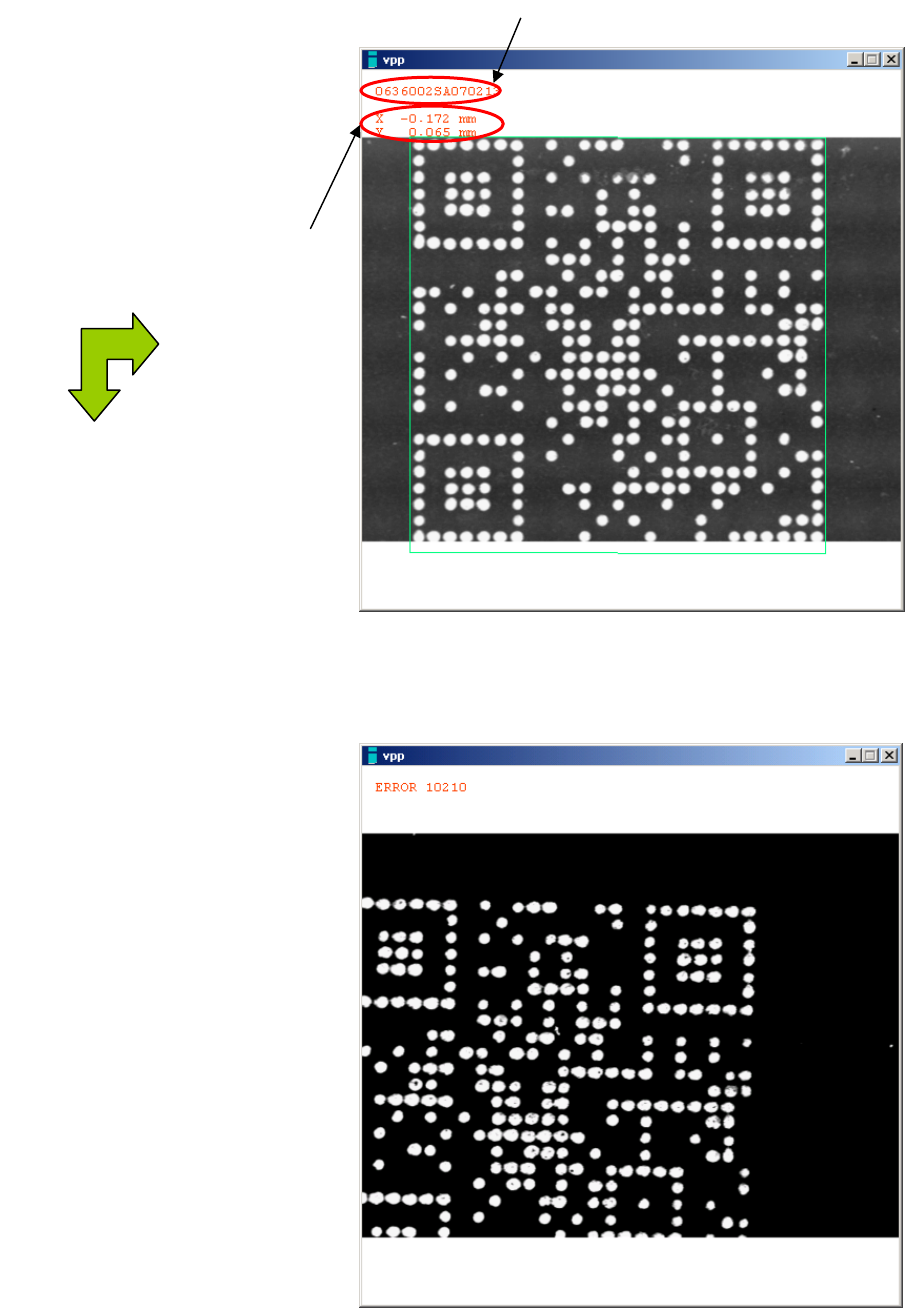
■Code recognition
Recognized code can be checked on the screen by clicking <Image Test> button.
Good result image (OK)
Bad result image (NG)
Recognized code
The amount of deviation from
the programmed Code
coordinates.
(with reference to upper left)
X
(
+
)
Y
(
+
)