M20_Ope_E.pdf - 第368页
Chapter 11 Parameter Setting 11-22 ■ Switch the production program manually When following error occurs at switching the program automatically, an operator can switch the program manually. A) PCB code could not be recogn…
Chapter 11 Parameter Setting
11-21
■Code recognition
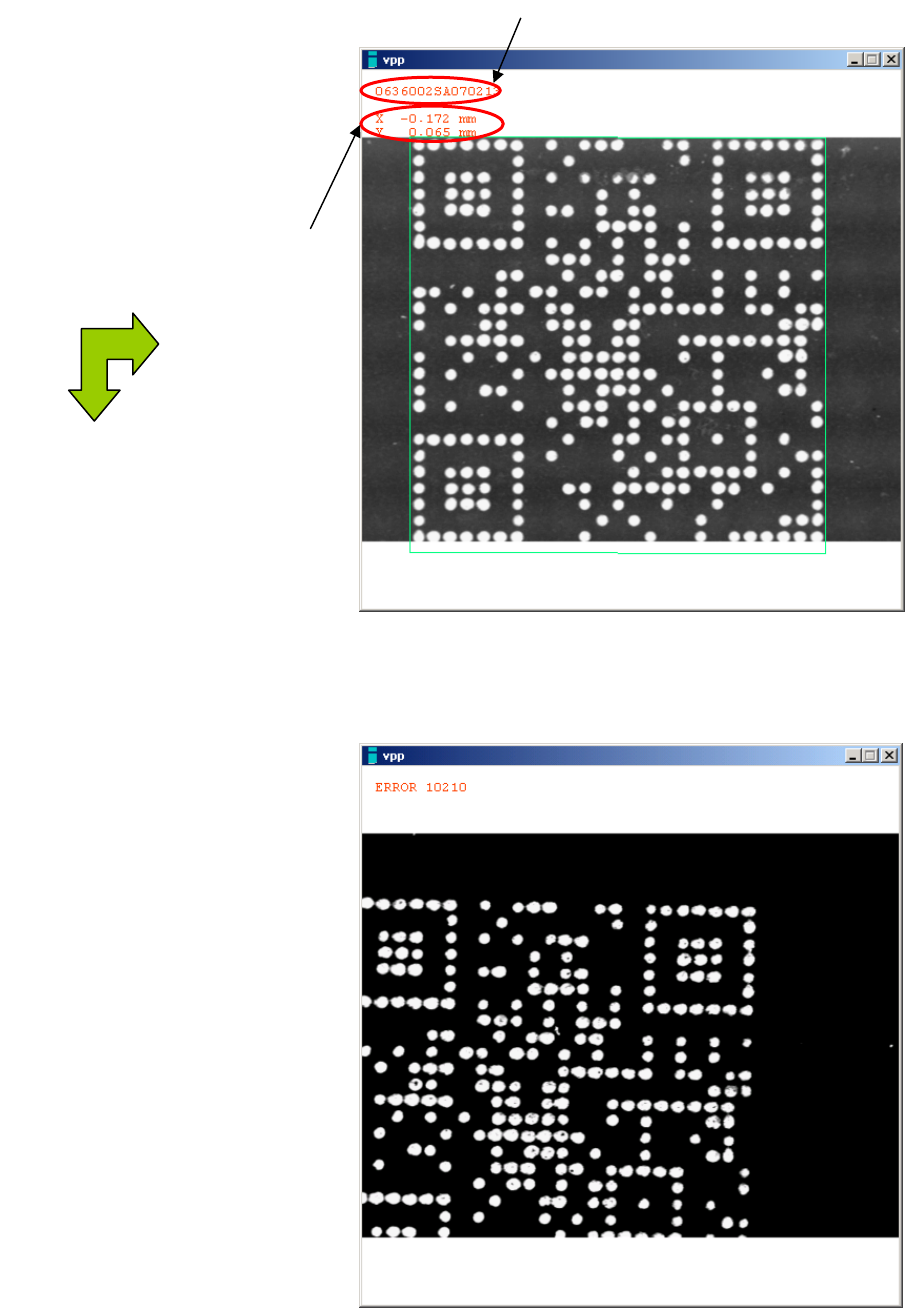
Recognized code can be checked on the screen by clicking <Image Test> button.
Good result image (OK)
Bad result image (NG)
Recognized code
The amount of deviation from
the programmed Code
coordinates.
(with reference to upper left)
X
(
+
)
Y
(
+
)

Chapter 11 Parameter Setting
11-22
■Switch the production program manually
When following error occurs at switching the program automatically, an operator can switch
the program manually.
A) PCB code could not be recognized.
B) The production program corresponding to the recognized PCB code did not exist.
C) The production program corresponding to the transferred program name did not exist.
When the error A) , B) or C) above occurs, Select Program window automatically appears to
select the process from three choices below.
① Highlight the program and click <Select> button to select it.
② Click <Continue> button to continue the current production.
③ Click <X> or <Close> button to close the Select Program window. If the PCB code could
not be recognized resulting in an error, PCB code will be recognized again at restarting the
production.
Executing any process from ① to ③ above recovers from an error. Push
START switch to
restart the production.
Note: An error occurred at switching the program cannot be released by
RECOVERY switch.
Perform any process mentioned above.
■Timing of transferring the information between machines
In upstream, the machine will output the information to the downstream machine when the
current machine starts unloading a PCB. In downstream, the machine will input the transferred
information *at the completion of PCB loading.
*The completion of PCB loading for the machine with buffer stopper is when a PCB is detected
by the buffer sensor, and for the machine without buffer stopper is when a PCB is clamped at
the main clamp.
Select Program window
Button to determine
the program
Button to continue
the current program
When closing the Select Program
window with either button, PCB
code will be recognized again.
PCB code recognition error
Chapter 11 Parameter Setting
11-23
11-2 Traceability (optional)
)
Menu: System>UserParameter>PCB_CodeScan
Traceability is the function to create Placement History Record. This function manages each
board production with a unique ID called Board ID. Not only Board ID, Traceability function
creates and manages the following data; production date, used components, component lot No.,
machine serial No., used feeder models, feeder IDs, nozzle IDs, and head Nos. used for each
production. If any mis-placements are found, you can trace which board and component caused
the mis-placement.
11-2-1 Preparations
■Board ID
A) For preparation, you need to assign a unique Board ID to each board and to print the
bar-coded Board ID on the board beforehand. The barcode (QR code or Data matrix)
printed on the board is used as Board ID. (PCB Code Scan option is needed.)
If you check [Enable Auto-Assignment of Board ID] box in
UserParameter>PCB_CodeScan, unique Board IDs will be created even if there are no
barcodes. In addition if the printed barcode is not a unique Board ID, this function creates
a new unique Board ID automatically.
B) Auto-assignment rules to create Board ID
When you select “Enable Auto-Assignment of Board ID”, Board ID is output in order
of ”Program name (or Board barcode)” + “date and time” + “the numbers of produced
board” (Produced boards after the machine is powered on.) as the example below.
Example
Program name; ABC_TEST, Production start time; 2007/09.21 15:10, 1000th produced
board after the machine is powered on.
ABC_TEST092115101000
■Lot No.
When you register components of Intelligent-feeder database to barcodes, you should
include Lot No. of component reel. You can extract and register Lot No. from the barcode
put on the component reel. In case of the barcode does not include Lot No. information,
re-print the barcode so to include Lot No. and put the new barcode on the component reel.